This article outlines how to send targeted emails to only certain companies in the Expo Harvester.
Launch the Expo Harvester module for your event. From the main navigation bar, click the Expo Data icon, then select Companies (Fig. 1).
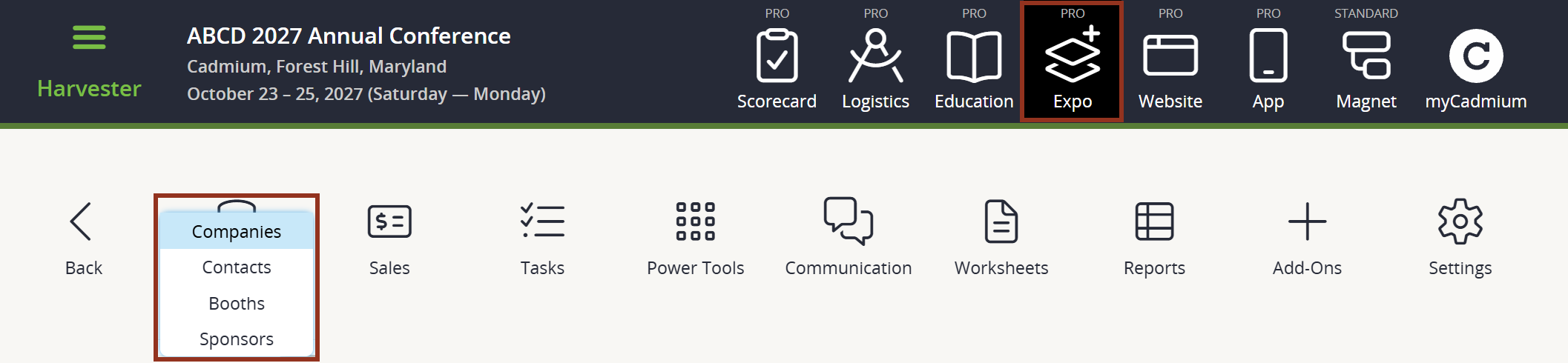
Fig. 1 - Expo Harvester Expo Data Icon.
To select the company's contacts who are to receive the email, click the box to the left of the company's name. Use the Search function to readily find companies if you have a large list. Select the Create Email button that appears in the footer (Fig. 2).
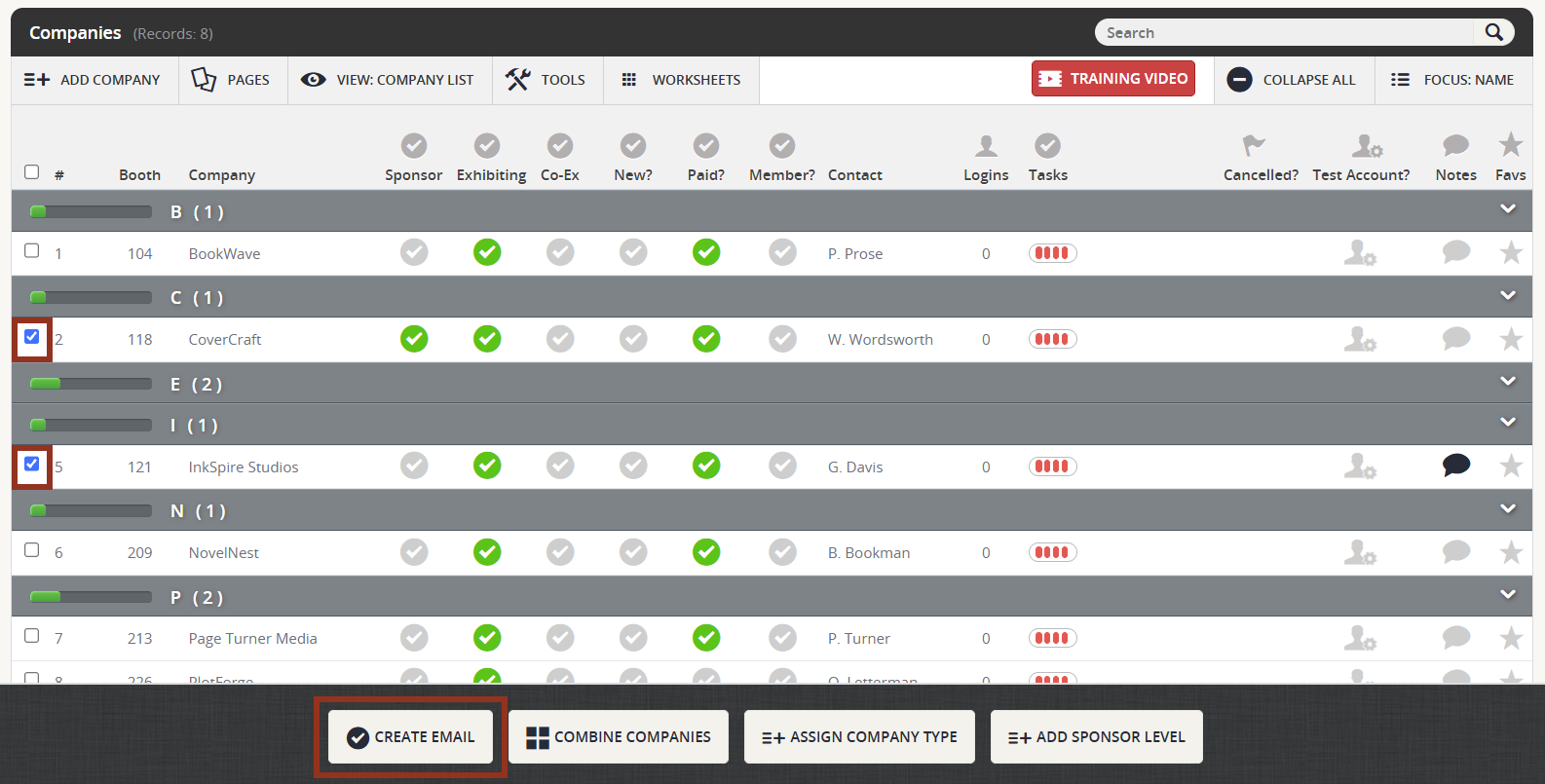
Fig. 2 - Create Email Button.
A pop-up will appear. You will be prompted to choose whether you would like to start with an existing template or create a new email draft (Fig. 3). If you select template, you will also be asked to choose a template from a dropdown menu.
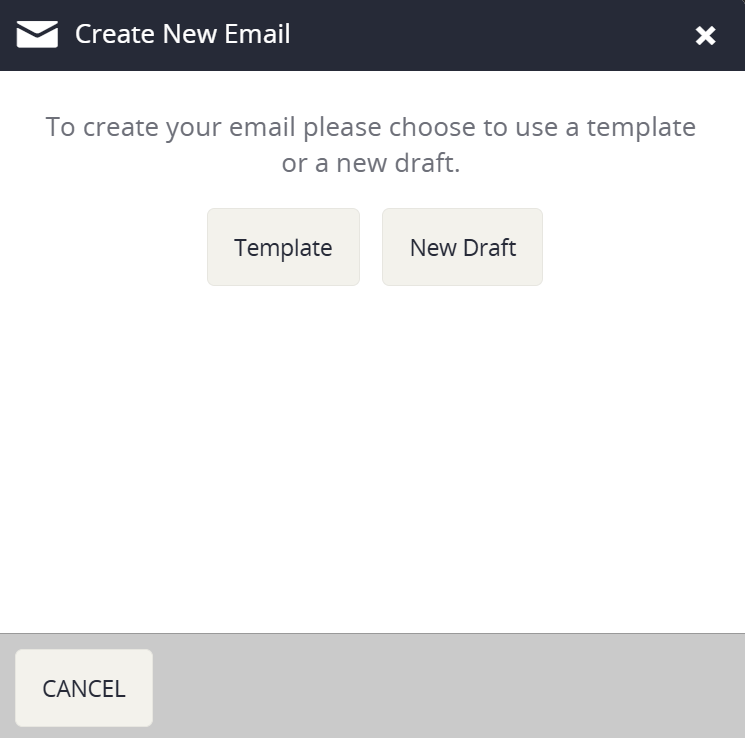
Fig. 3 - Create New Email Popup.
You will be taken to Step 1 of the Communication Module, where a Custom Distribution List will be automatically populated with the companies you selected (Fig. 4). Choose a 'From' address, edit the subject line if desired, and continue through the rest of the steps to customize and send the email.
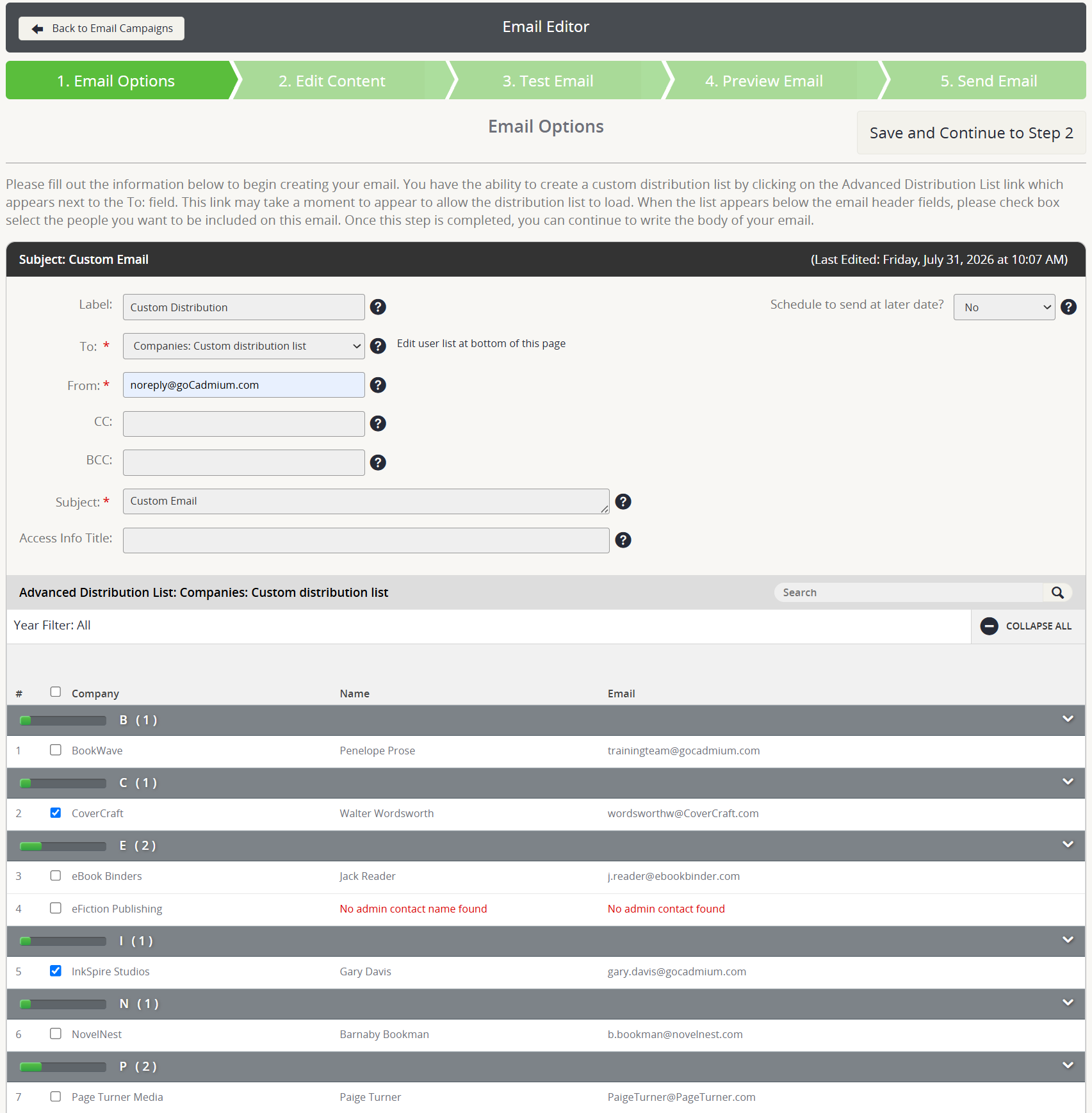
Fig. 4 - Email Editor Step 1.
Was this article helpful?
That’s Great!
Thank you for your feedback
Sorry! We couldn't be helpful
Thank you for your feedback
Feedback sent
We appreciate your effort and will try to fix the article