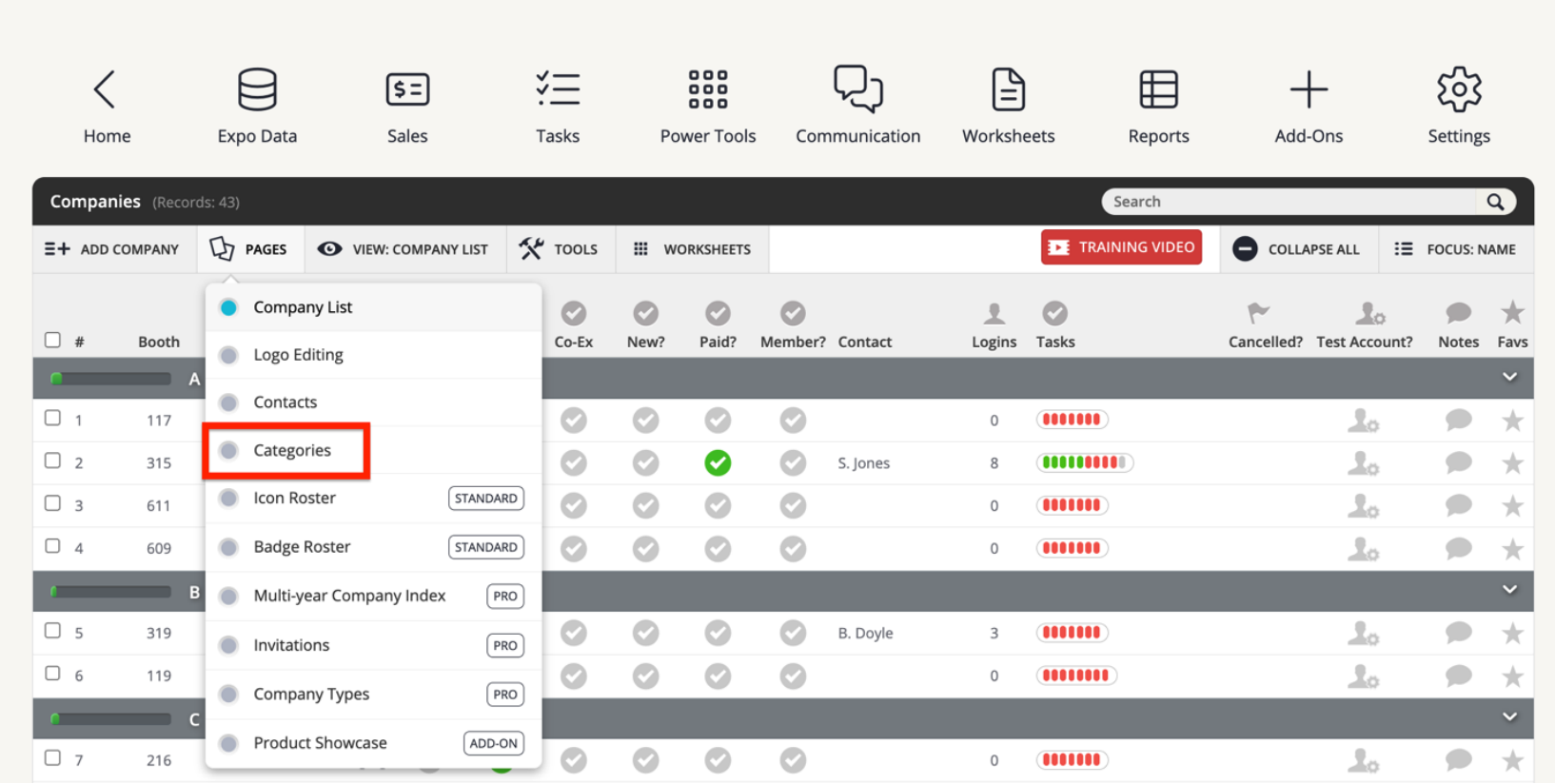
- Launch the Expo Harvester module for your event. In the main navigation, hover over Expo Data, then click Companies from the dropdown. From the Companies page, click PAGES in the top toolbar, then Categories.
This article outlines how to set up and manage company categories in the Expo Harvester. Company categories appear in the booth popups in your Expo Harvester, Eventscribe Website, and Mobile App. Company categories can also be used as Browse By options on your Sales Floor Plan in the Expo Harvester and on your Eventscribe Floor Plan. Follow the steps below for Adding and Managing Company Categories:
1. Navigate to the Categories Page
2. Add New Category
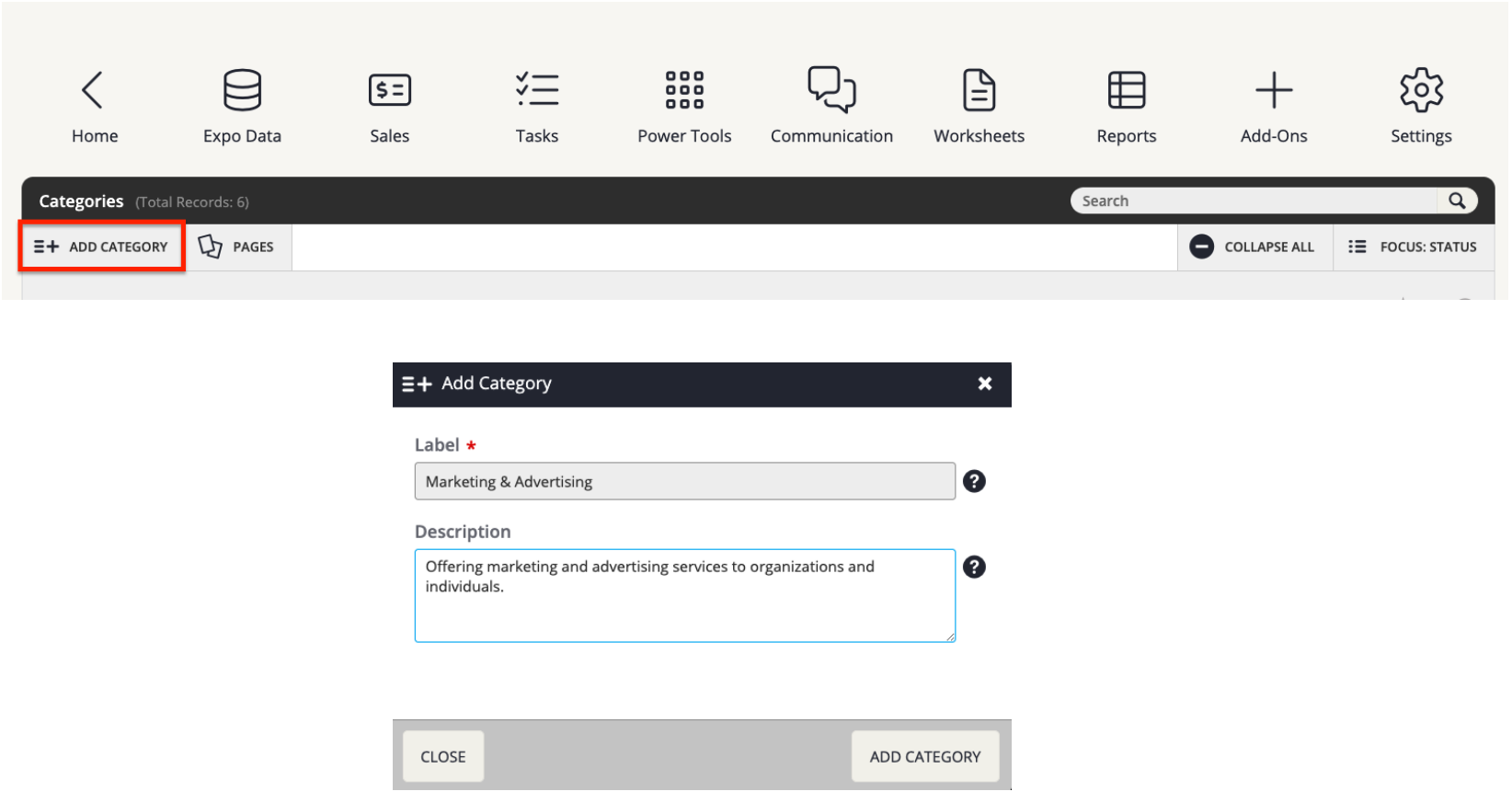
- Once you’re on the Categories page, click Add Category. A popup will appear. Input the category name (or label) and a description if applicable. When finished, click the "Add Category" button in the lower right-hand corner of the popup.
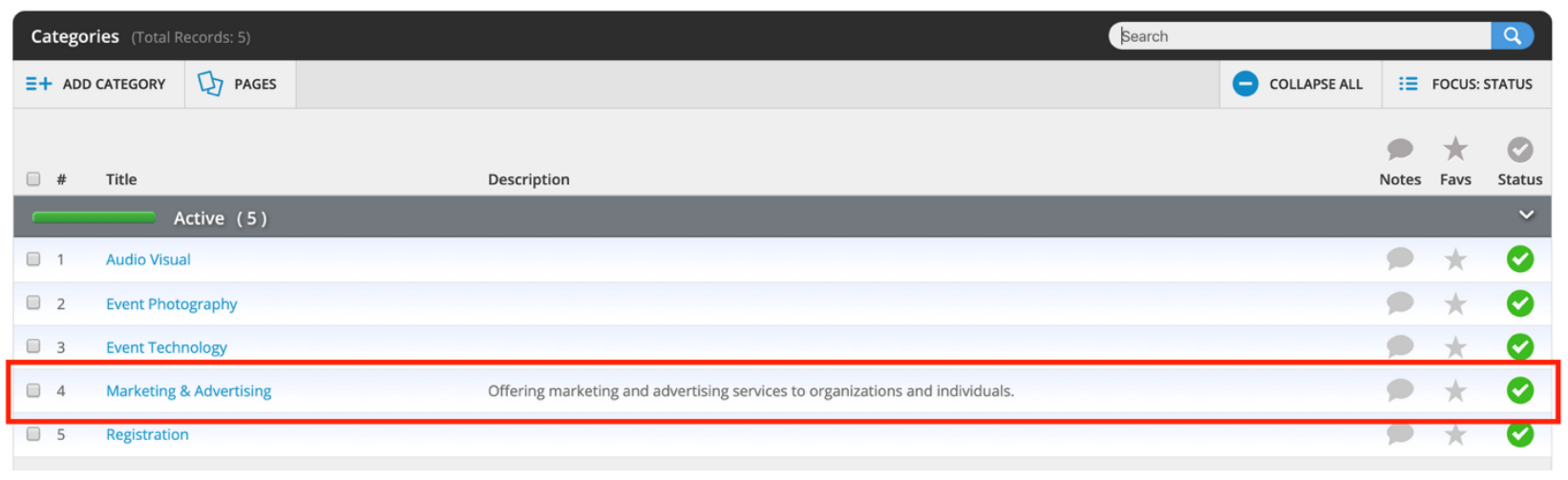
- Once the popup closes, your new category is visible the Categories list.
3. Assign a Category to a Company
Categories can be added to companies any one of three ways:
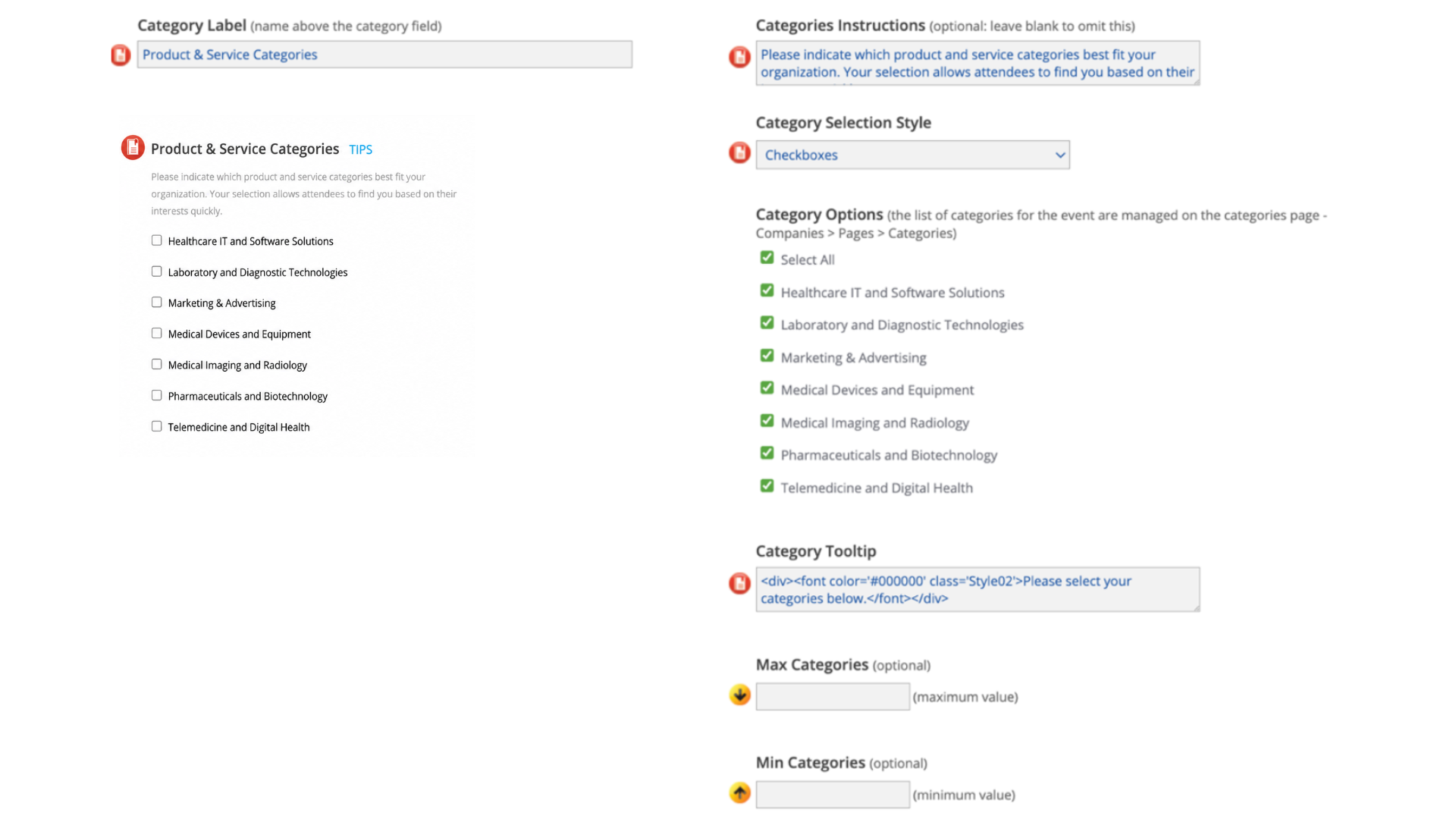
- Exhibitor Details Task – You must create the Categories first. Then edit the Exhibitor Details task and enable the Categories field by populating the “Category Label” setting. Lastly, checkbox select the categories you would like your companies to be able to choose from in the “Category Options" setting. Scroll up and click Update Task.
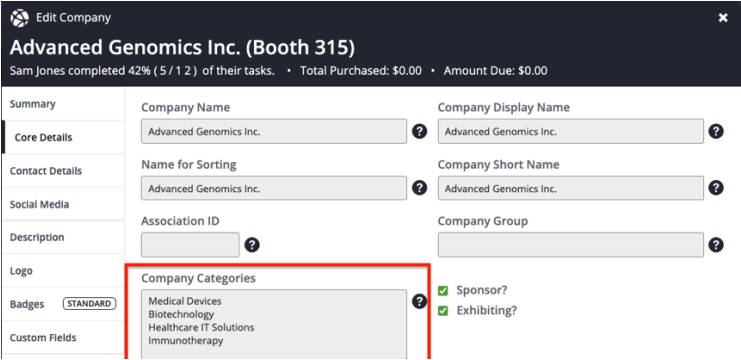
- Edit Company Popup – In the Core Details tab of the edit popup, there is a Company Categories setting. Type in the relevant categories. Separate multiple categories with carriage returns. Click the Save button in the bottom right corner of the popup.
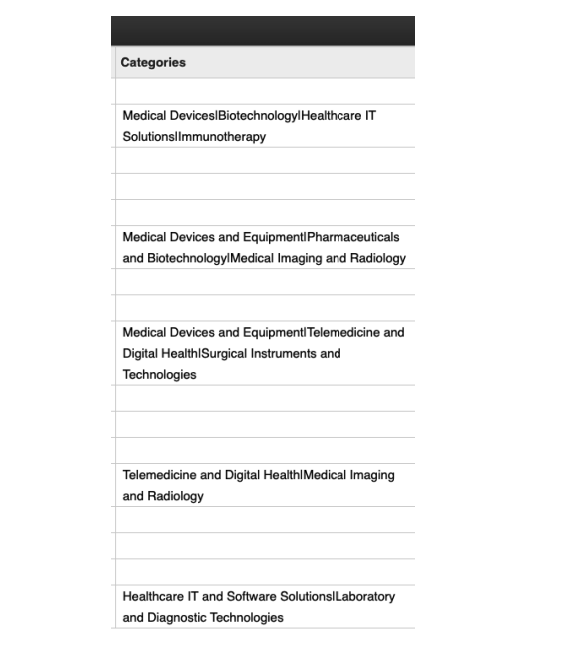
- Worksheets – In Worksheet D (basic exhibitor data) there is a Categories column. Type in the relevant categories. Separate multiple categories with pipe characters. When making data changes in a worksheet ensure the cell turns green, as this indicates the change saved successfully.
4. Exporting Categories
Categories can be exported via the following Worksheets and Reports:
Worksheets
- Worksheet D (basic exhibitor data)
- Worksheet D with Booth Contact Data
Reports
- Exhibitor Category Index
- Exhibitor Program Book Listing (with descriptions)
5. View the Category Selections
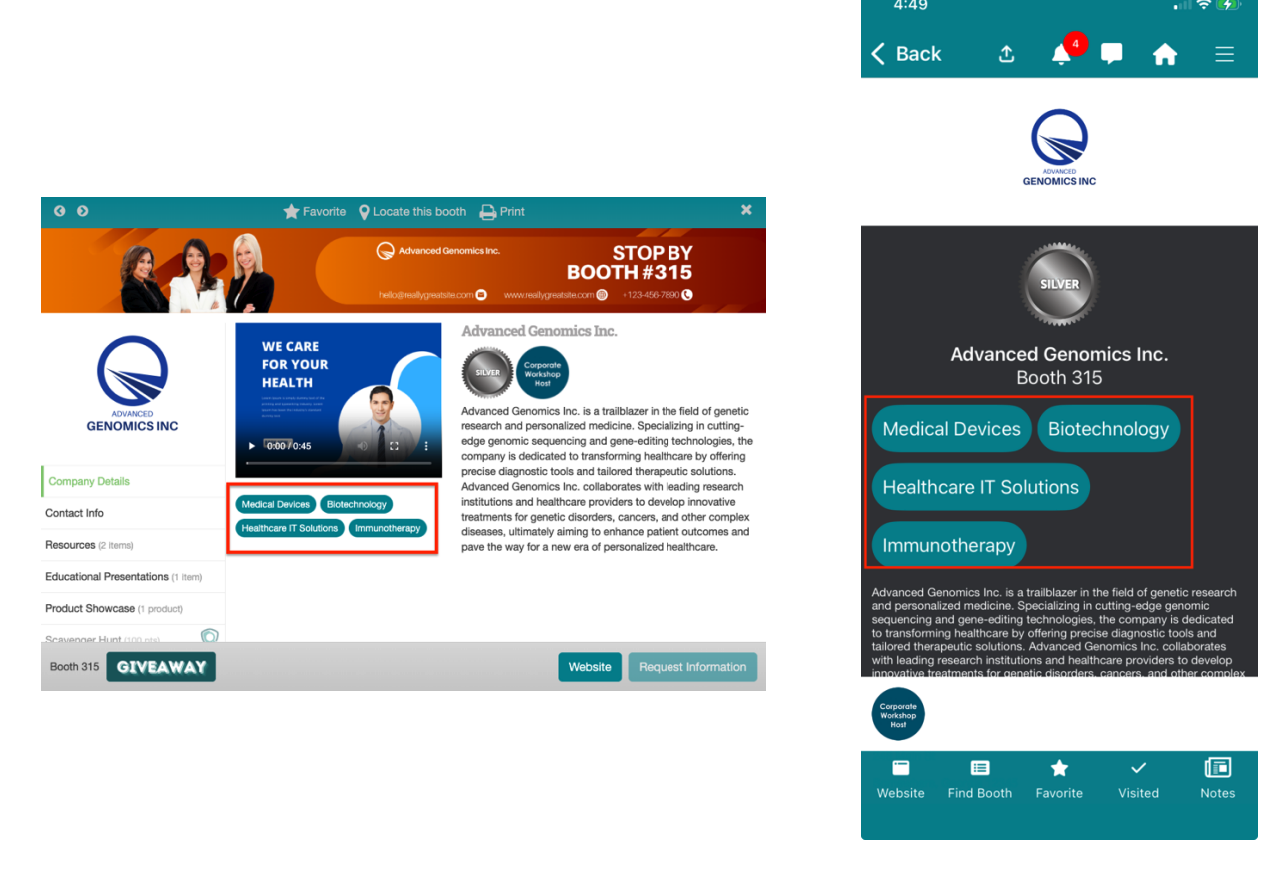
- The categories assigned to companies appear in the booth popups in your Expo Harvester, Eventscribe Website, and Mobile App.
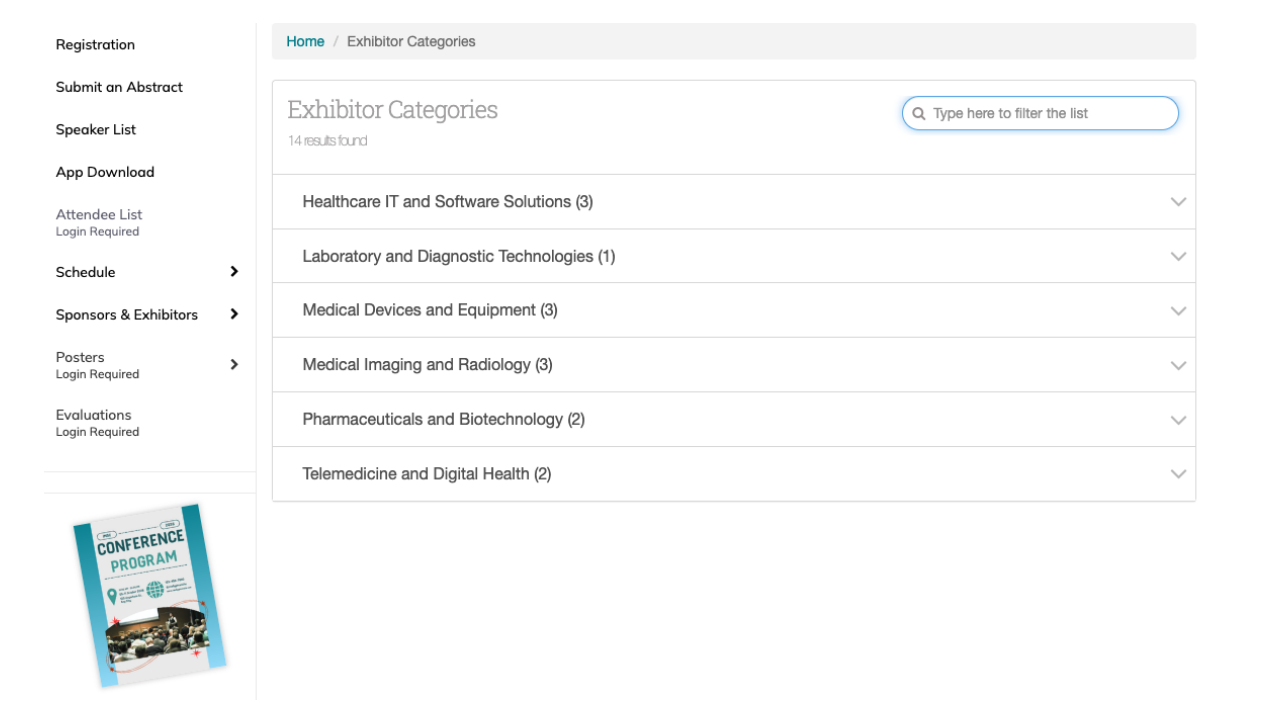
- Company categories can be used as Browse By options on your Eventscribe Website (Browse by Exhibitor Category), Sales Floor Plan in the Expo Harvester, and on your Eventscribe Floor Plan.
Last modified Jun 18, 2026
Was this article helpful?
That’s Great!
Thank you for your feedback
Sorry! We couldn't be helpful
Thank you for your feedback
Feedback sent
We appreciate your effort and will try to fix the article