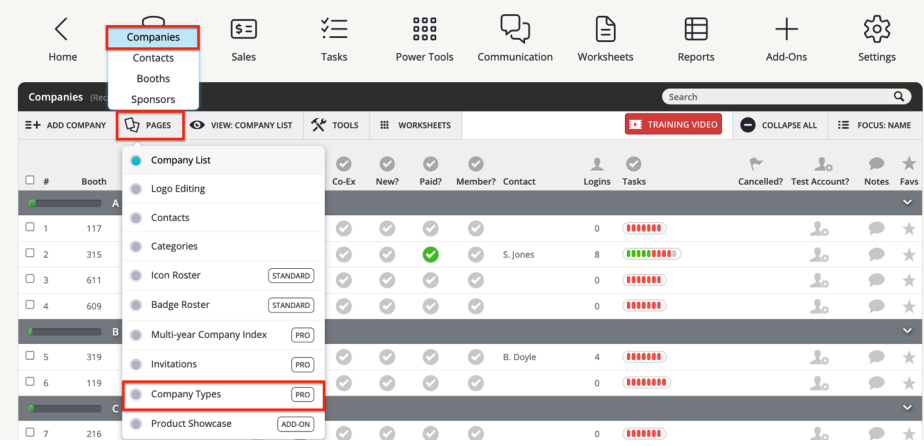
- Launch the Expo Harvester module for your event. In the main navigation, hover over Expo Data and select Companies. From the Companies page, click PAGES in the top toolbar, then select Company Types.
This article outlines how to create company types in the Expo Harvester. This will allow your companies to self-select their type at the beginning of the rental process for different price points on booths, sponsor items, and exhibitor upgrades. Common company types are non-profit and commercial.
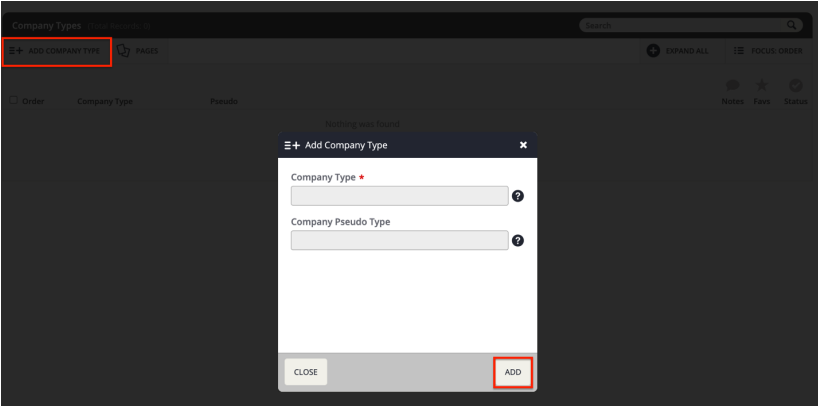
- Click the ADD COMPANY TYPE button in the top left corner of the page. A small pop-up will appear. Populate the fields and then click the ADD button in the lower right corner of the pop-up. Repeat this step for each company type.
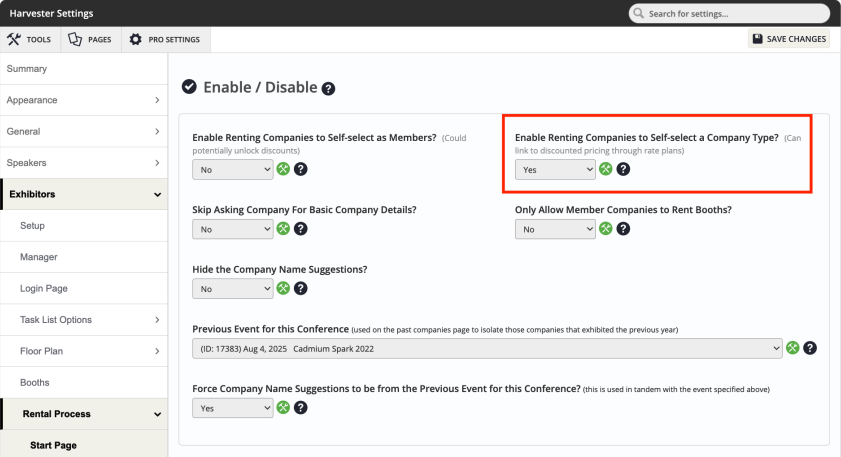
- If you are allowing your exhibitors to select their company type when entering the rental process, you will need to enable this in settings. Go to Settings > Exhibitors > Rental Process > Start Page. Set the setting “Enable Renting Companies to Self-select a Company Type?” to Yes. Click "Save Changes" in the top right corner.
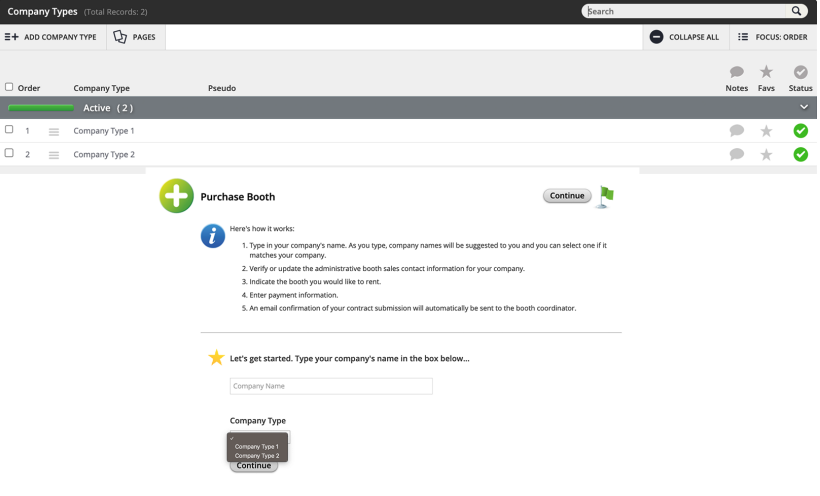
- Company type will then be required when an exhibitor enters the rental process. Company types are often used in conjunction with rate plans. See this article: Adding a Rate Plan, for more information on adding rate plans.
Last modified Aug 03, 2026
Was this article helpful?
That’s Great!
Thank you for your feedback
Sorry! We couldn't be helpful
Thank you for your feedback
Feedback sent
We appreciate your effort and will try to fix the article