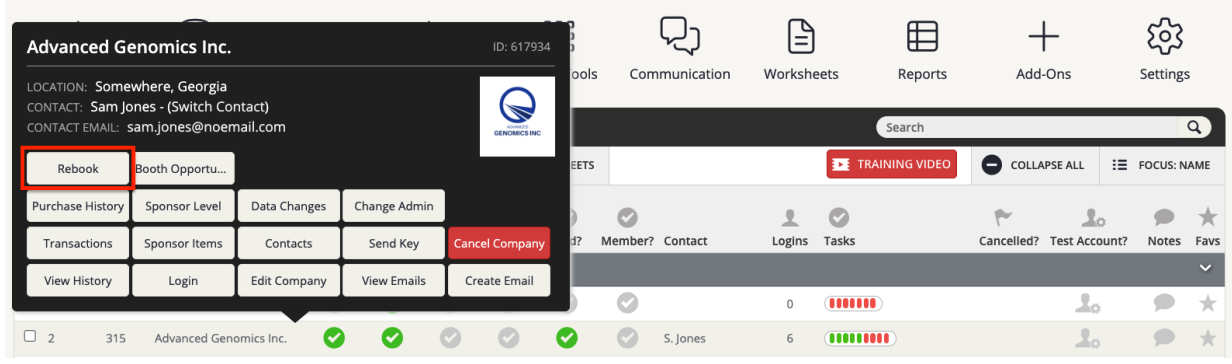
From either the Companies page or the Sales page, click on the row of the company record that you’d like to copy to the target Harvester. In the popup, select the Rebook button. A new popup will open with more options.
The Rebooking Tool allows you to copy a company record from one Expo Harvester to another for a future event and assign them a credit (if desired). Before the company can be rebooked, a target event must be set up, into which the company’s data will be moved. The Get Started Mission for that event’s Expo Harvester must also be completed. This is a one-record-at-a-time process, as multiple records cannot currently be rebooked at the same time.
In rebooking a company to another event, the system will allow you to move company data including logos, categories, contact info, social media data, priority points, as well as purchase items, such as booths, sponsorships, and upgrades.
Follow the steps below to Rebook a Company to a New Event:
1. Select a Company to Rebook
2. Rebooking Options
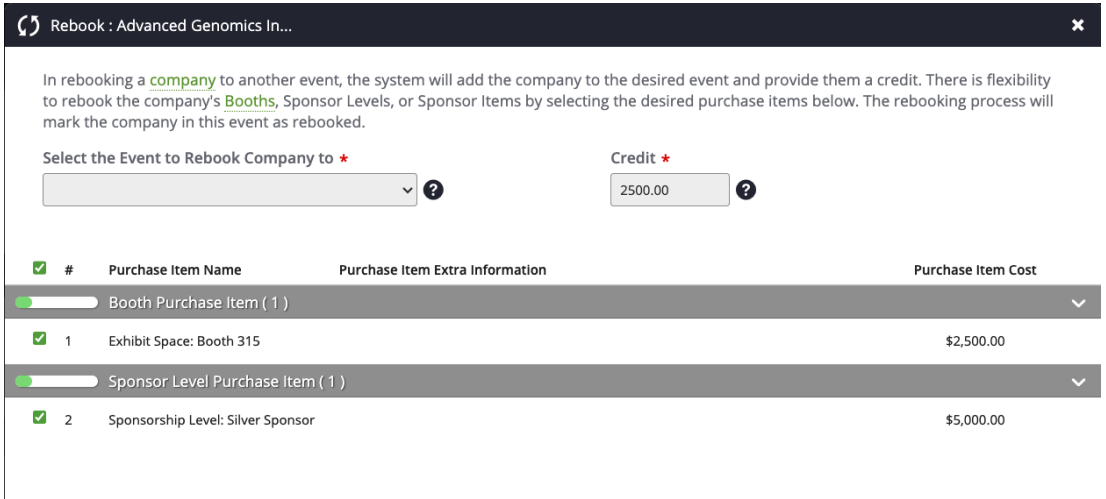
In rebooking a company to another event, the system will add the company and its data to the target event and provide them a credit (if desired).
There is flexibility to rebook the company's Booths, Sponsor Levels, or Sponsor Items by selecting the desired purchase(s) in the popup. The rebooking process will mark the company in this event and the target event as rebooked.
IMPORTANT NOTE
If a company is copied to a target event in which that company already has a record, a duplicate record for that company will be created. This duplicate record and any associated credits will need to be reconciled in the target Harvester.
3. Select a Target Event
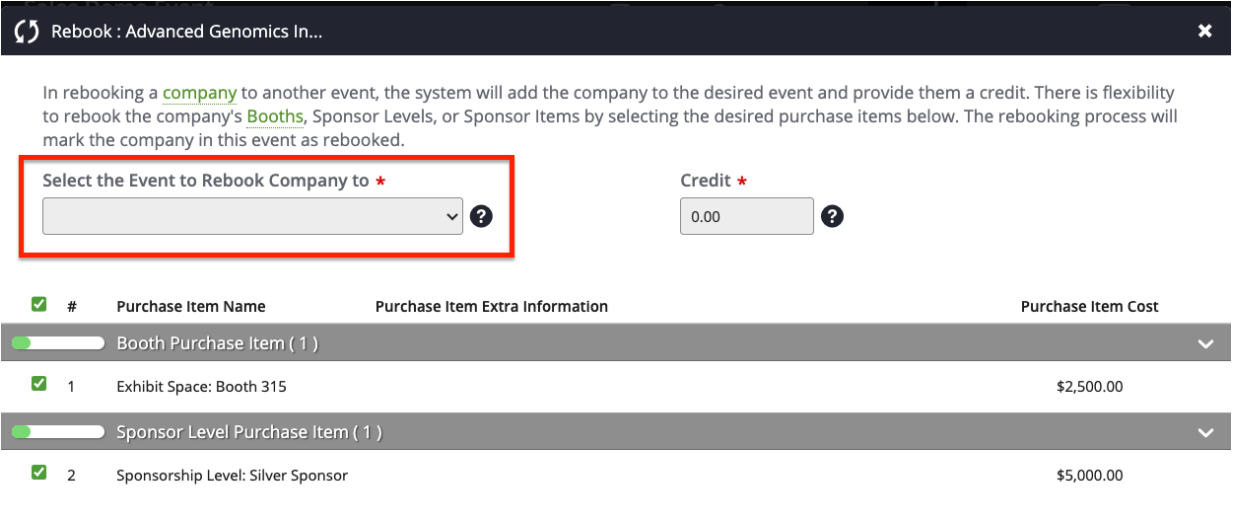
Use the dropdown menu to select the event to which you would like to copy the company data.
The events that show in this list are Pro Expo Harvesters with the Get Started Mission completed. This step is mandatory for the rebooking process.
4. Assign a Credit
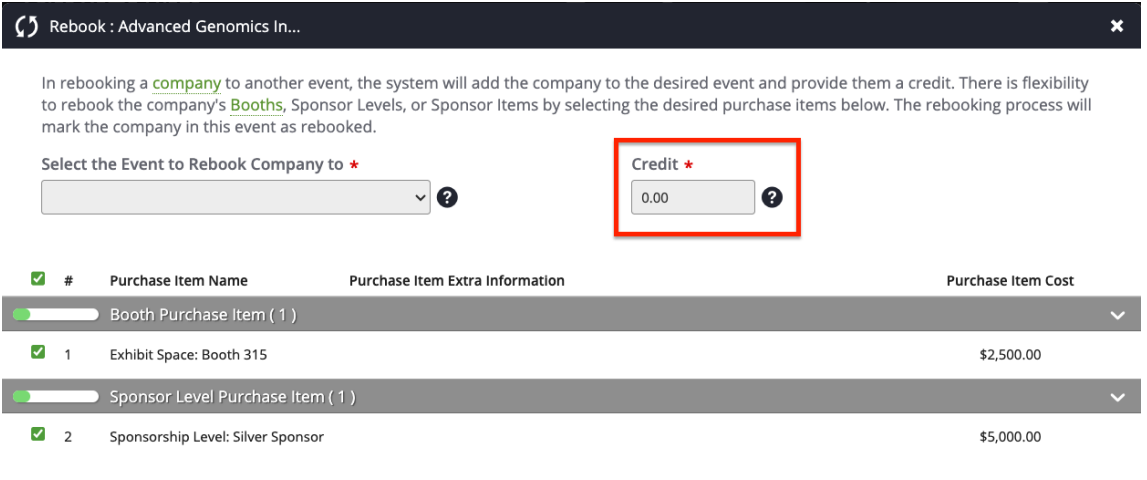
Use this field to add or adjust the credit you would like to apply to this company in the target event. In the target event, this payment will show on the company’s Transactions page as a Rebooking Credit.
If payments exist in the current event for this company, they will be summed and added as a default value in this field. This step is mandatory for the rebooking process, and a value must be entered here, even if it is 0.00 (zero).
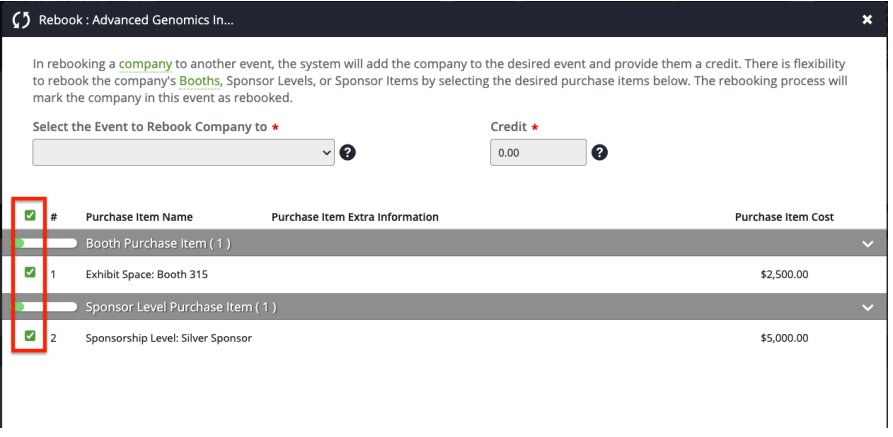
5. Select Purchase Items to Copy
Any purchase items assigned to the company in the current event will be listed here. You can select or deselect them all by clicking the checkbox at the top of the list, or individually by clicking the checkbox next to each item. Selecting an item will cause it to be copied over to the target event.
If the item, a Sponsor Level for example, doesn’t exist in the target event, it will be created. If the item does exist in the target event, the system will reduce the quantity available for that item, if applicable. Any items which have been deleted from the current event will appear greyed out on this list and cannot be copied.
6. Rebooking With Rate Plans
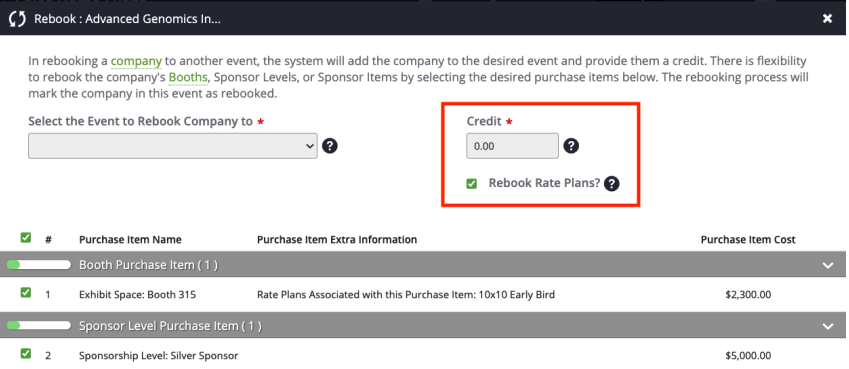
Some items like booths or sponsorship opportunities may have rate plans associated with them. When one of these items appears on the list, a ‘Rebook Rate Plans?’ option will be made available. Clicking the checkbox will cause any relevant rate plans to be copied to the target event along with the item(s). Deselecting the checkbox will still copy the items with rate plans; however, the rate plans themselves will not be copied to the target event.
7. Complete the Process
When you have selected all items and adjusted the amount of credit you would like to send to the target event, click the REBOOK COMPANY button in the lower right corner of the popup. If, for whatever reason, you’d like to cancel the process, click the CLOSE button in the lower left corner of the popup.
Last modified Jun 12, 2026
Was this article helpful?
That’s Great!
Thank you for your feedback
Sorry! We couldn't be helpful
Thank you for your feedback
Feedback sent
We appreciate your effort and will try to fix the article