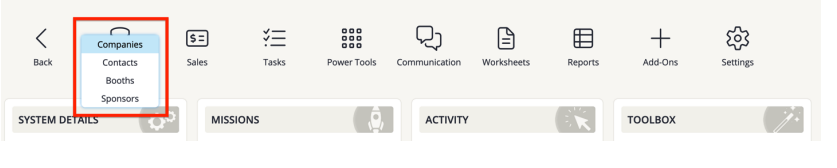
- Launch the Expo Harvester module for your event. In the main navigation, hover over Expo Data then click Companies from the dropdown.
This article outlines how to add a booth admin contact to a company. Booth admins are the contacts that log in to complete tasks and receive all emails in the Expo Harvester.
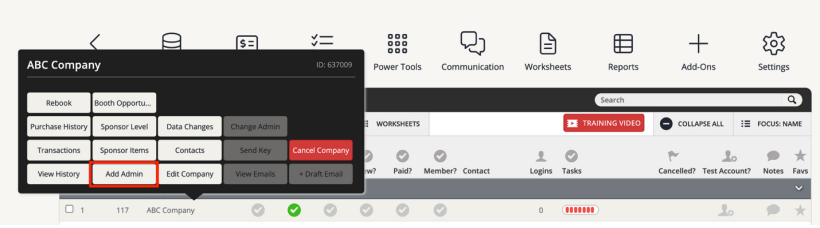
- Once on the Companies page, click on the company you would like to add an admin for, and click the "Add Admin" button in the center of the bottom row.
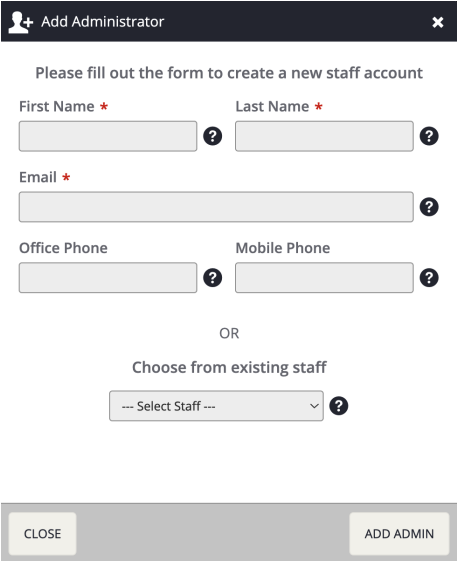
- Fill out all required fields in the Add Administrator pop-up. If the company already has contacts, you can select from their past contacts using the drop down menu. Once you have populated all required fields, click Add Admin to save the information.
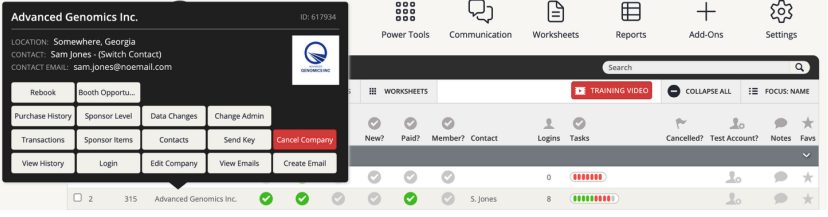
- Click on the company row again. You will see a login button where the "Add Admin" button was before. You will also be able to see the admin information from the pop-up, and their first initial, last name will be in the Contact column of the Companies page.
Last modified Jun 23, 2026
Was this article helpful?
That’s Great!
Thank you for your feedback
Sorry! We couldn't be helpful
Thank you for your feedback
Feedback sent
We appreciate your effort and will try to fix the article