- Launch the Expo Harvester module for your event. In the main navigation, hover over Expo Data and select Companies.
This article outlines how to upload or replace a company logo.

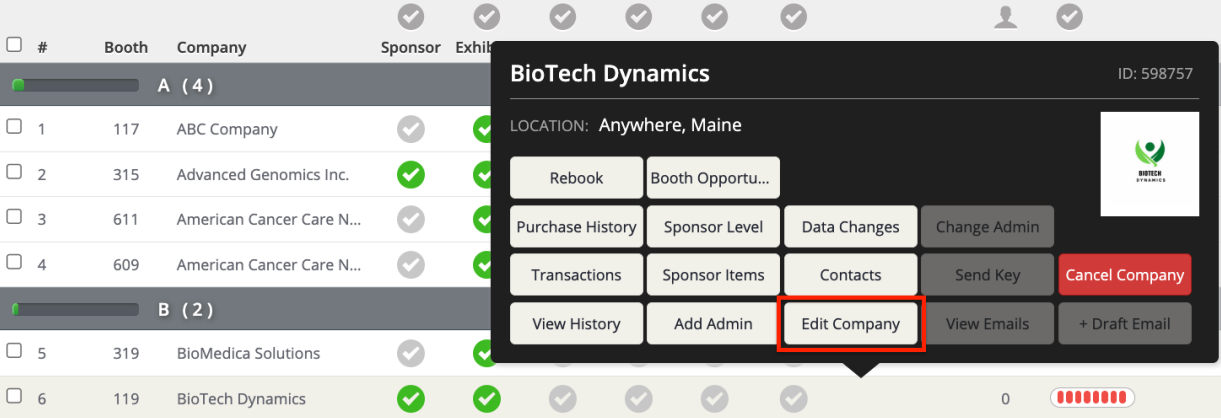
- Click on the row for the company that you would like to upload or replace a logo for. This will cause a small pop-up window to appear. Select Edit Company in the popup.
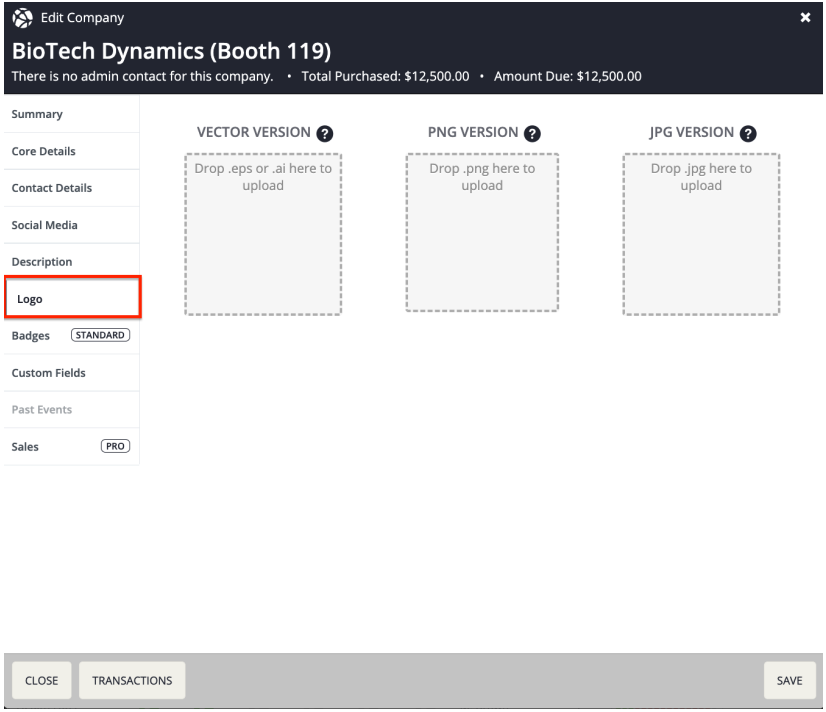
- Using the left-hand navigation bar of the pop-up window, select the Logo tab. Here, you will see three different boxes for different file versions.
- Upload the files into the correct box. You may either drag and drop a file into the appropriate box or click on it to manually select a file.
- When finished, press the SAVE button in the bottom right corner of the pop up. The logo should now appear for the company.
NOTE
Cadmium needs at least the PNG version for the logo to appear on the Eventscribe Website or App. If you only have a JPG version, you can use the native image viewer app on your computer to convert it to PNG.
Last modified Jul 27, 2026
Was this article helpful?
That’s Great!
Thank you for your feedback
Sorry! We couldn't be helpful
Thank you for your feedback
Feedback sent
We appreciate your effort and will try to fix the article