This article outlines how to download a zip file of all desired exhibitor logos.
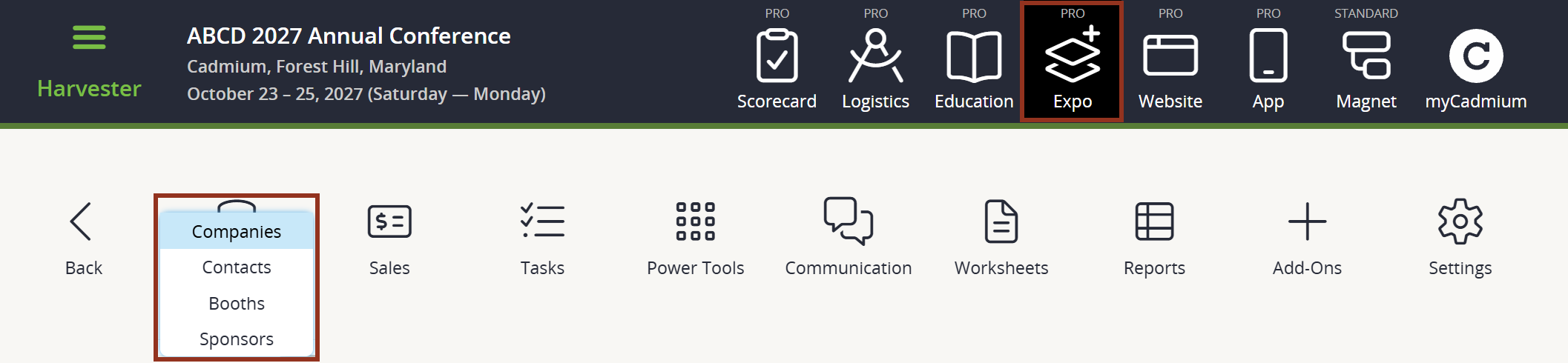
- Launch the Expo Harvester module for your event. From the main navigation bar, select the Expo Data icon and select Companies (Fig. 1).
Fig. 1 - Expo Harvester's Expo Data Icon.
From within the Companies page, click Pages then select Logo Editing.
Fig. 2 - Companies Page Button Drop-Down.
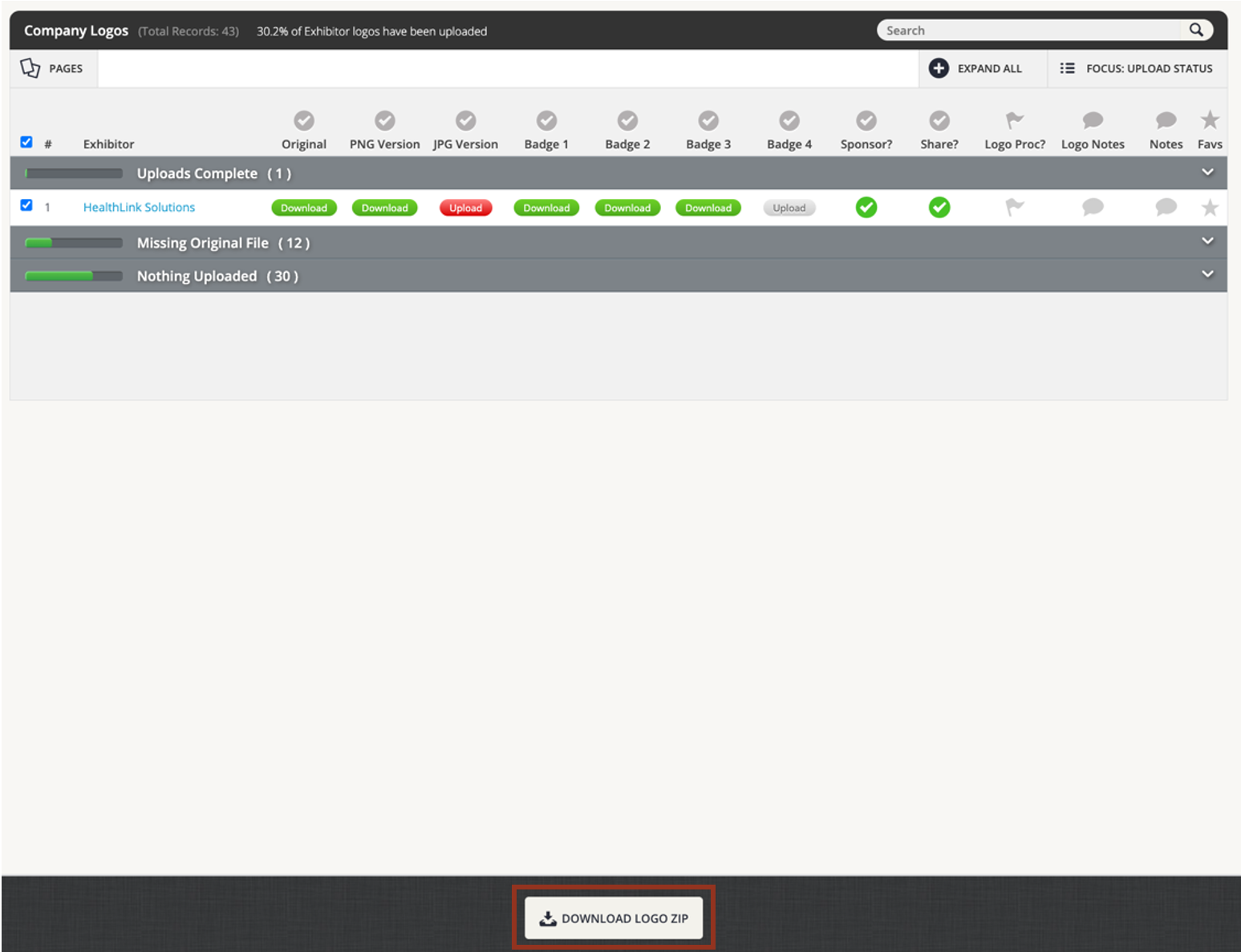
- Expand the Uploads Complete bucket (and the Missing Original File bucket, if applicable). Use the checkboxes on the left of each exhibitor’s name to select the logos you'd like to download. If more than one company is selected, a menu bar will appear at the bottom of the screen. Select the Download Logo Zip button (Fig. 3).
Fig. 3 - Download Zip Button.
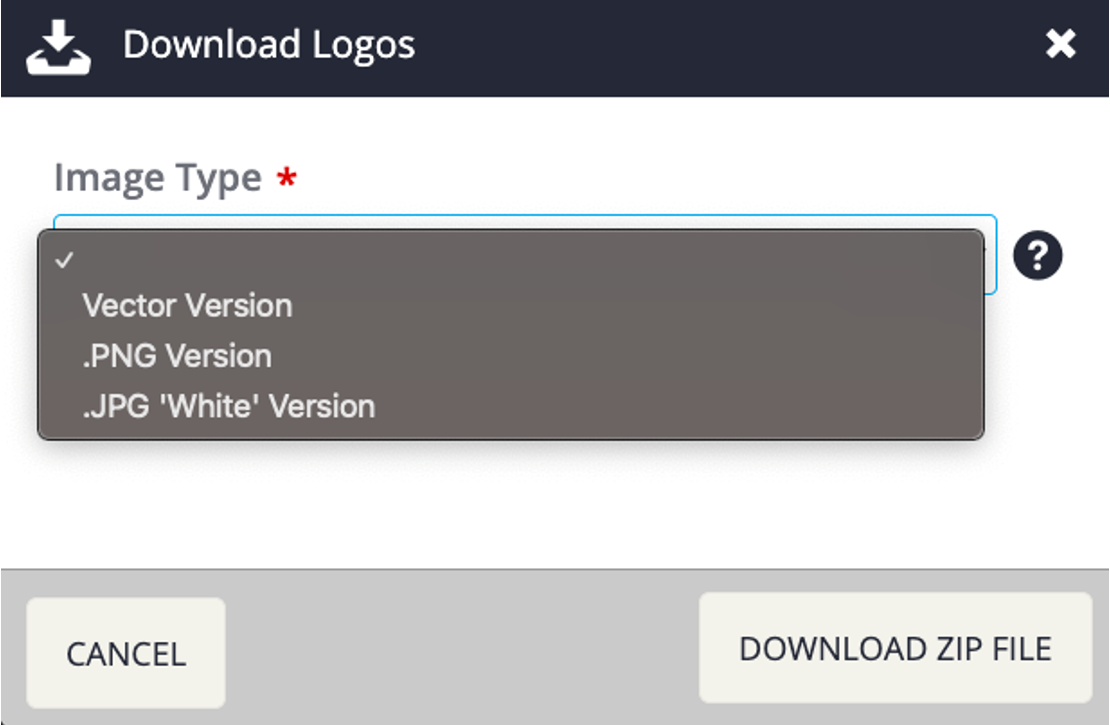
- A pop-up will appear where you can select a file type.
Vector Version: this is the original logo file in either an .EPS or .AI format that the exhibitor uploaded through the logo upload task.
PNG Version: this is a lower quality graphic and is not normally uploaded to the Harvester.
JPG 'White' Version: The JPG version of the logo is usually lower quality. This option is used by administrators to upload a logo on behalf of the exhibitor when no other logo option is available.
Once the desired version has been selected, click the DOWNLOAD ZIP FILE button from the bottom right of the pop-up window.
- Select OK to begin the download. The files will then download to your computer in a zip file.