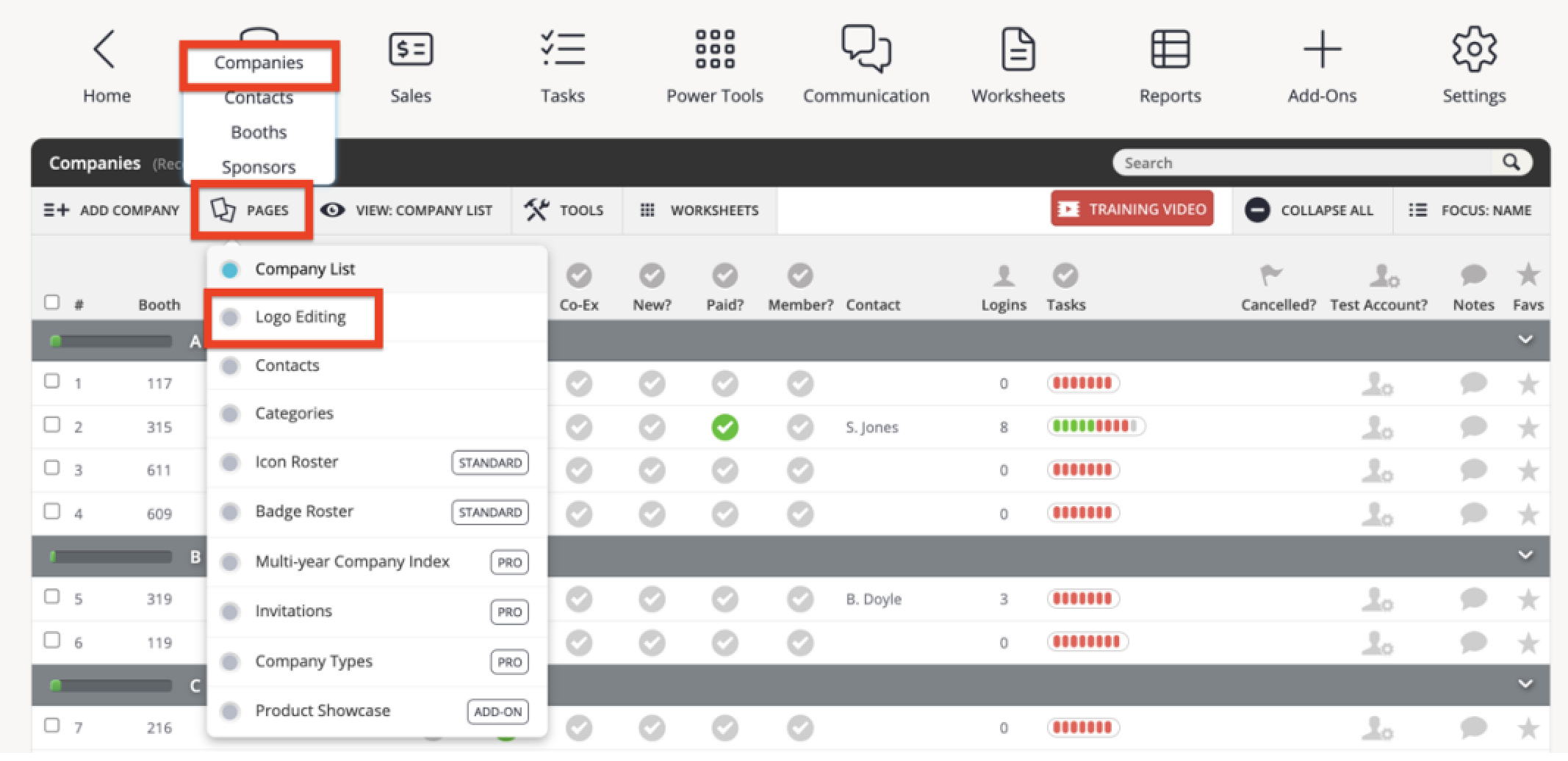
In the main navigation, hover over Expo Data, then click Companies from the dropdown. From the Companies page, select PAGES in the top toolbar, then Logo Editing. This will take you to the page where you can see the status of logos for your exhibitors.
This article provides guidance on how to troubleshoot why a company logo might not be showing up in Eventscribe.
There are a few reasons why a logo may not be appearing on the Website or App as expected: the logo has not been processed; the file type is incorrect; the logo has not been shared; a Harvester setting needs adjustment.
1. Navigate to the Logo Editing Page
2. Check the Logo Processing
- Before a company logo can be displayed on the Eventscribe Website or in the Mobile App, it must undergo processing by Cadmium. This usually happens once the .AI or the .EPS file is uploaded in the upload task.
- The status of a logo is shown on the Logo Editing page based on what bucket the company is categorized in. If a company is in the "Nothing Uploaded" or only has a JPG version in the “Missing Original File” bucket the logo will not be displayed.
3. Check the File Type
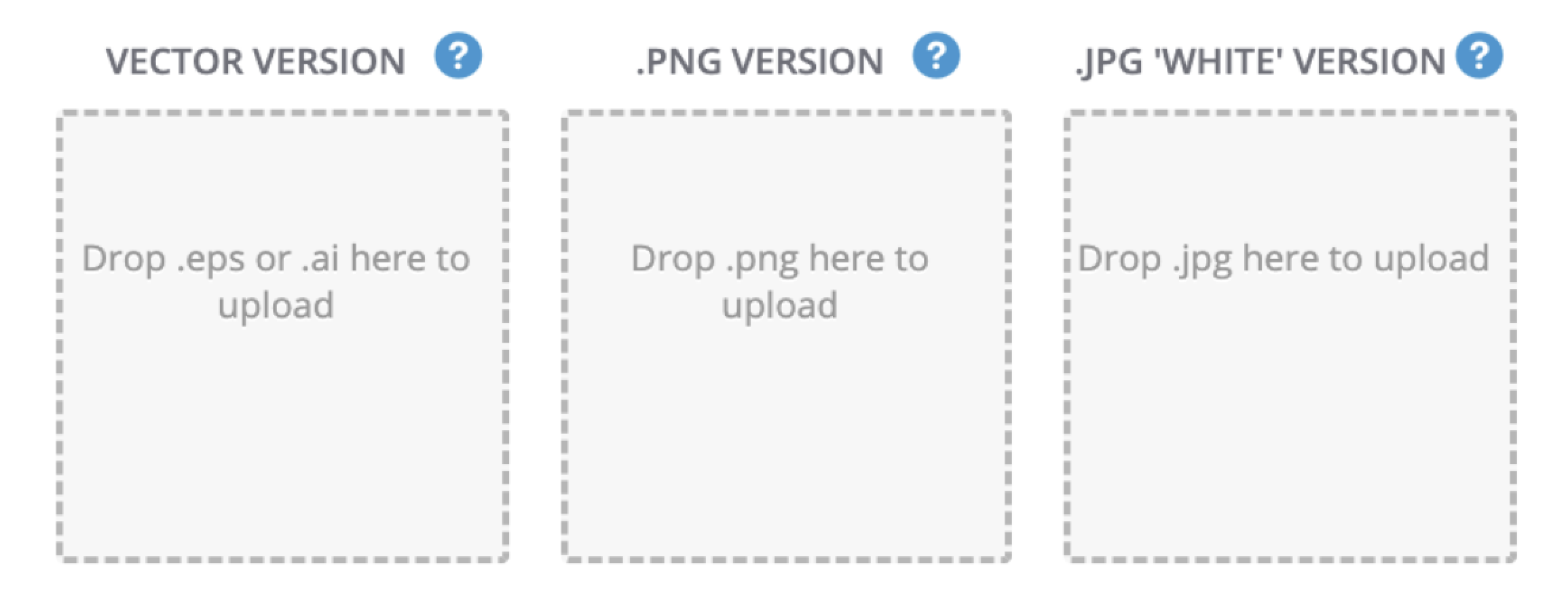
- Original (Vector Graphic): this is the original logo file in either an .EPS or .AI file the exhibitor has uploaded through the exhibitor logo upload task.
- PNG: The logo will be displayed on Eventscribe as a PNG file.
- JPG (White Version): the JPG version of the logo is usually lower quality. This option is used by administrators to upload a logo on behalf of the exhibitor when no other logo option is available. JPG image files will not show on Eventscribe, they will need to be converted to PNG.
4. Check the Sharing Status
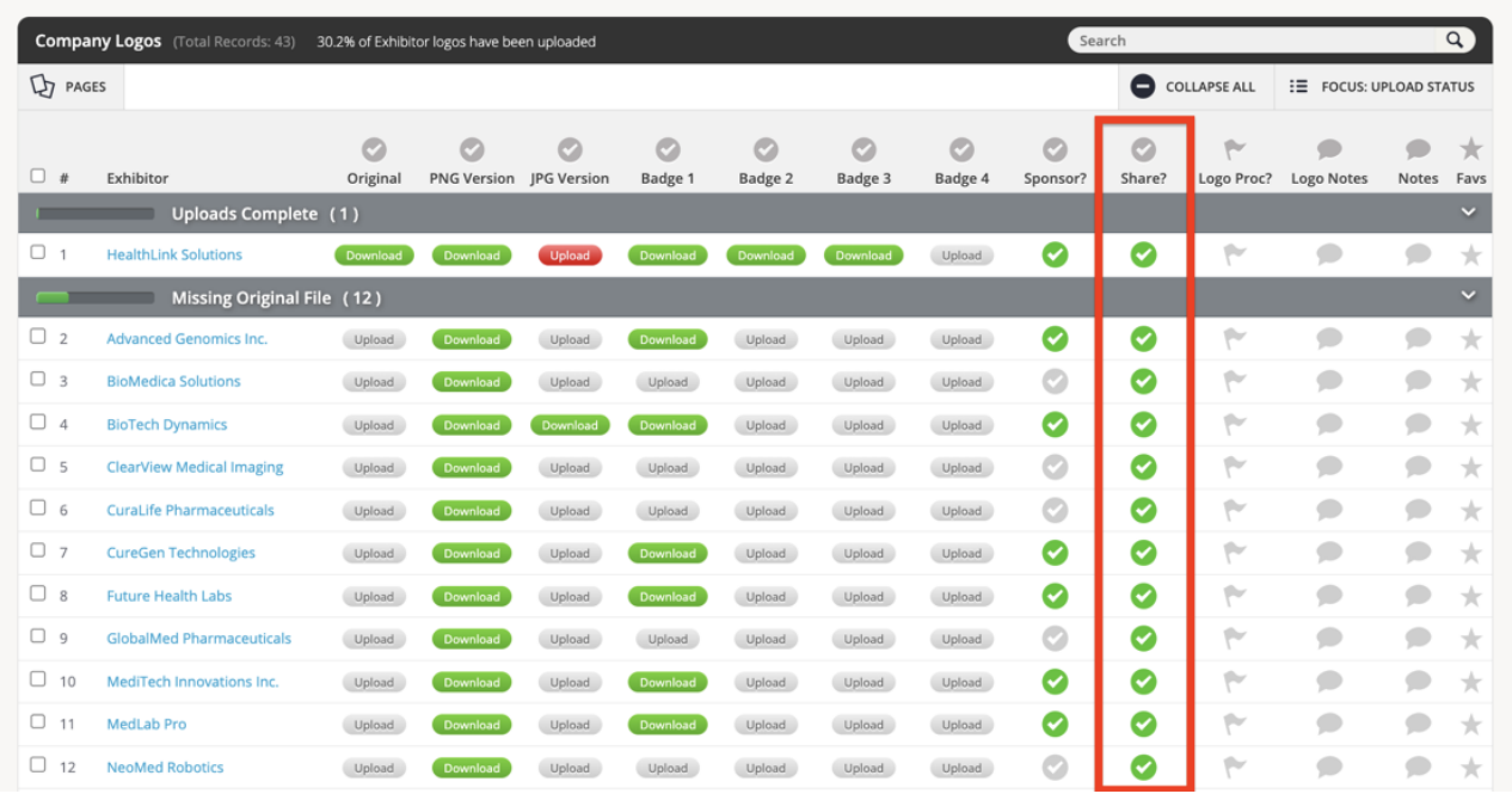
To show on the Eventscribe Website or in the Mobile App, a logo must be flagged to be shared. Within the Logo Editing page, find the company and make sure the checkmark in the "Shared?" column is green. If it's not, that means that the logo is not being shared. Click on the check mark to change the sharing status.
5. Check Harvester Settings
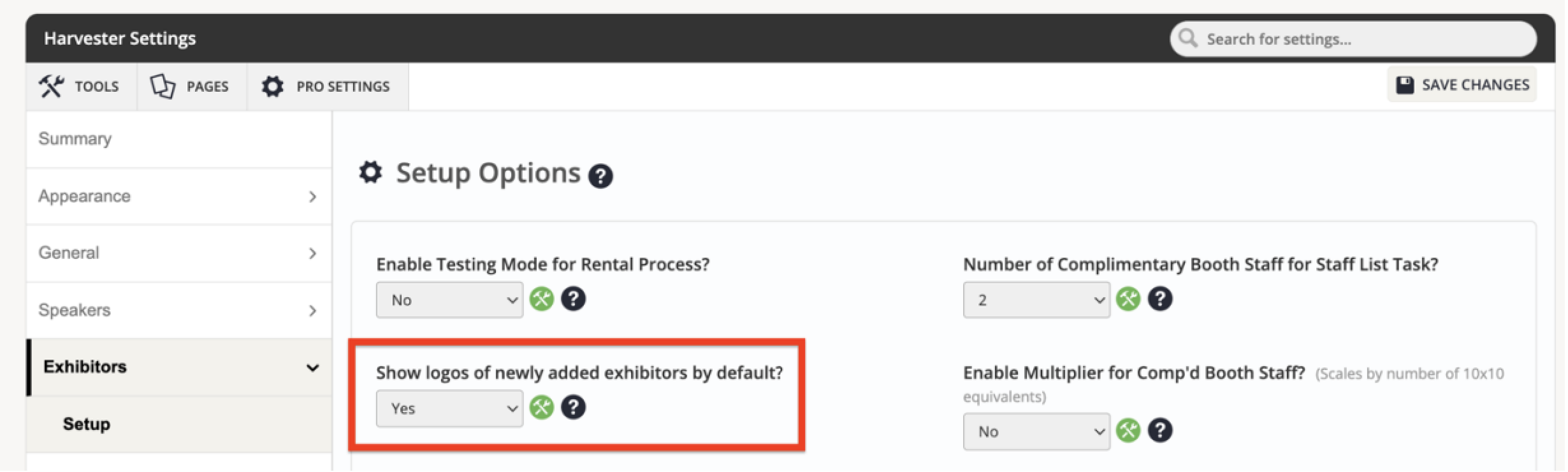
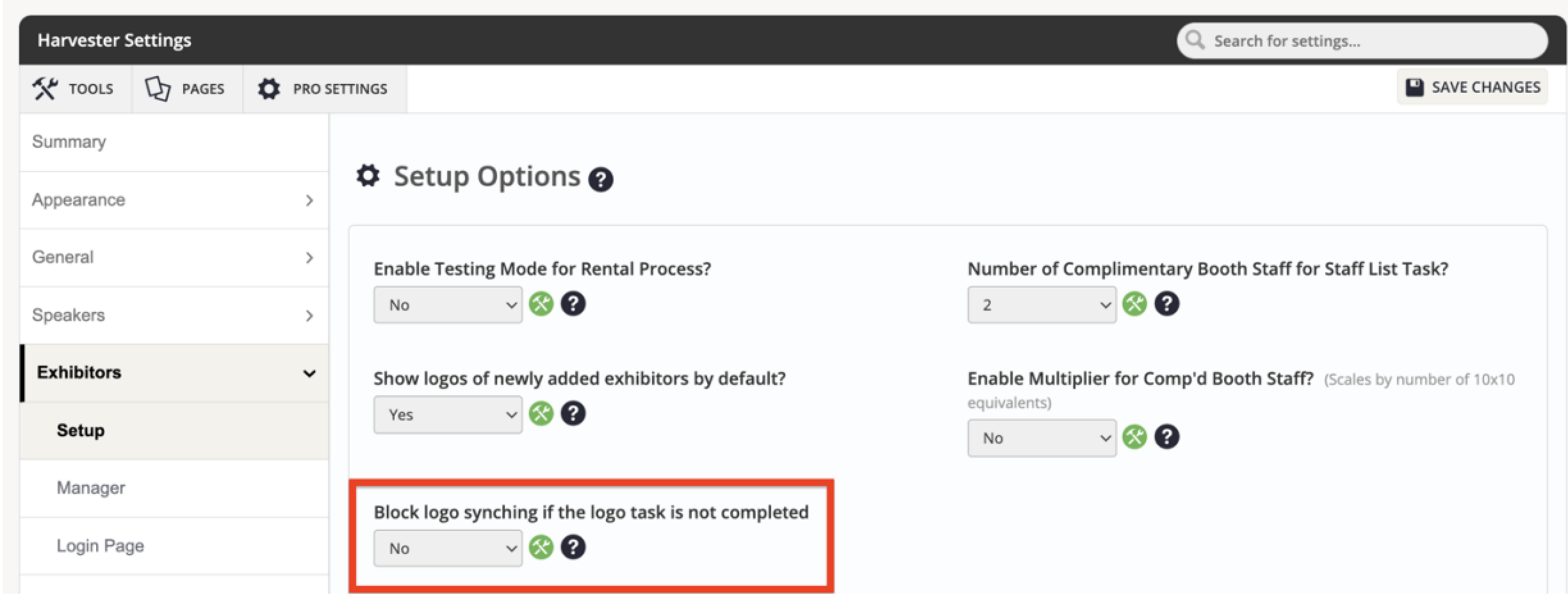
- There is a Harvester Setting that automatically enables sharing of uploaded logos after they have been processed. If you want this sharing to happen automatically, verify that the setting "Show logos of newly added exhibitors by default?" is enabled (Harvester Settings > Exhibitors > Setup).
- On this same settings page, you’ll also want to review the setting ‘Block logo synching if the logo task is not completed.’ If this setting is set to Yes, logos of Past Exhibitors will not be synched to the Eventscribe Website and App if the Logo task has not yet been completed by those companies in the current event. This will prevent outdated logos from displaying.
- If you make any changes to settings, do not forget to click the "SAVE CHANGES" button in the top right corner of the page.
Last modified Jul 17, 2026
Was this article helpful?
That’s Great!
Thank you for your feedback
Sorry! We couldn't be helpful
Thank you for your feedback
Feedback sent
We appreciate your effort and will try to fix the article