This article outlines how to combine duplicate companies in the Expo Harvester.
IMPORTANT NOTE
You should combine duplicate entries for the same company if they should have the same financial history, and if they should appear as one company to attendees on the Eventscribe Website and App.
You should not combine duplicate companies if, for example, they are different departments of the same company, need a separate financial history, or need their own listing on Eventscribe.
Launch the Expo Harvester module for your event. From the main navigation bar, click the Expo Data icon, then select Companies (Fig. 1).
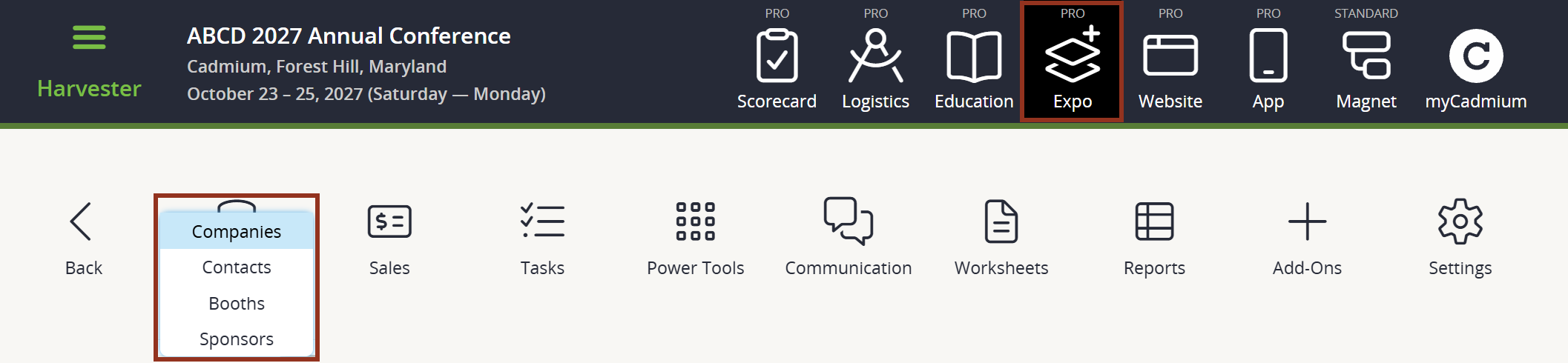
Fig. 1 - Expo Harvester Expo Data Icon.
Click the checkbox to the left of each of the duplicate companies. A footer will appear. Click the Combine Companies button in the footer (Fig. 2). (Note: This button will only be visible when exactly two companies are selected.)
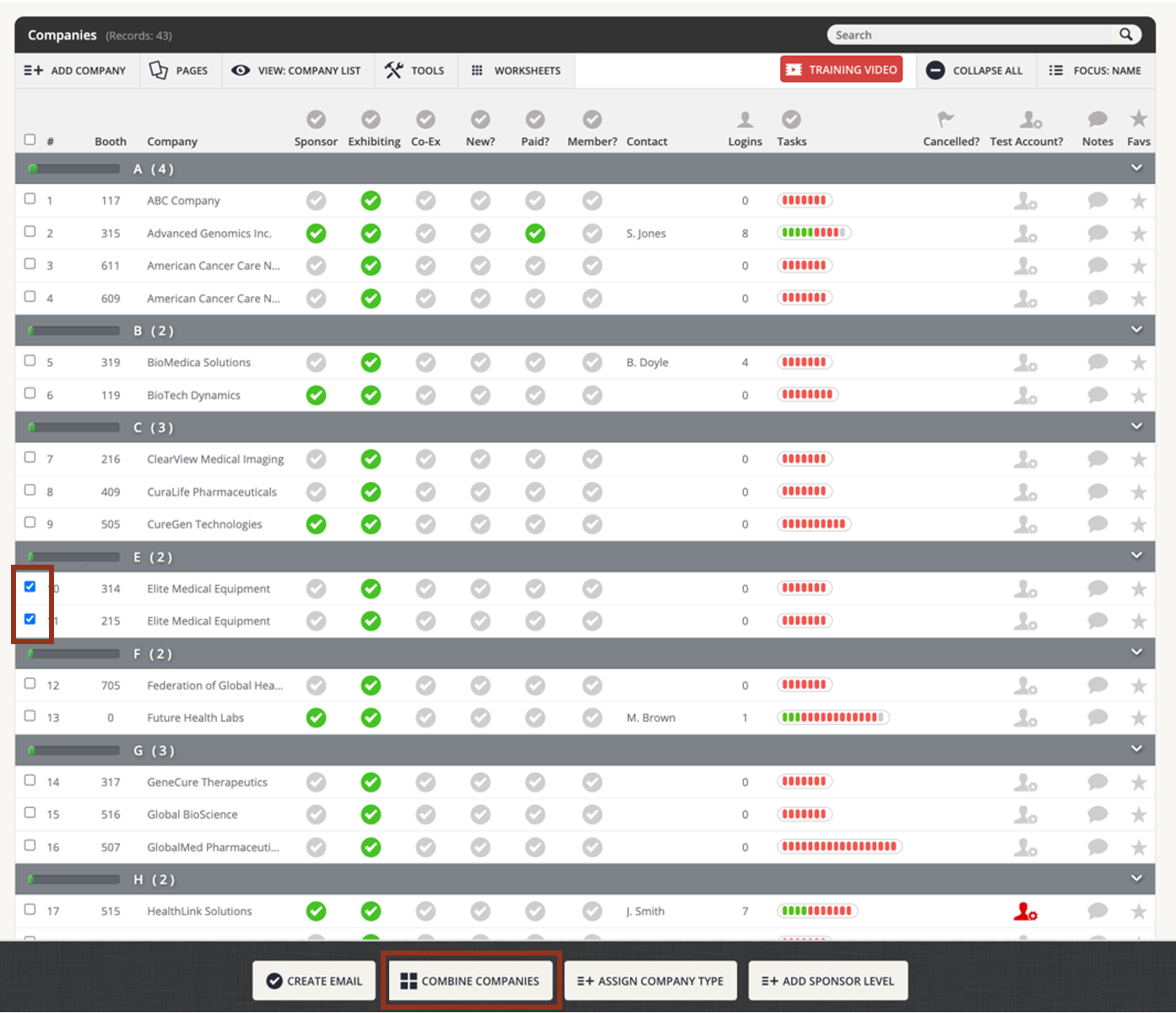
Fig. 2 - Combine Companies Button.
A popup will appear with core information about each of the selected companies. Select the grey bar (Select button) above the company that you’d like to keep. The selected bar should turn green, and the other bar should turn red.
Select the CONTINUE button in the bottom right corner of the popup (Fig. 3).
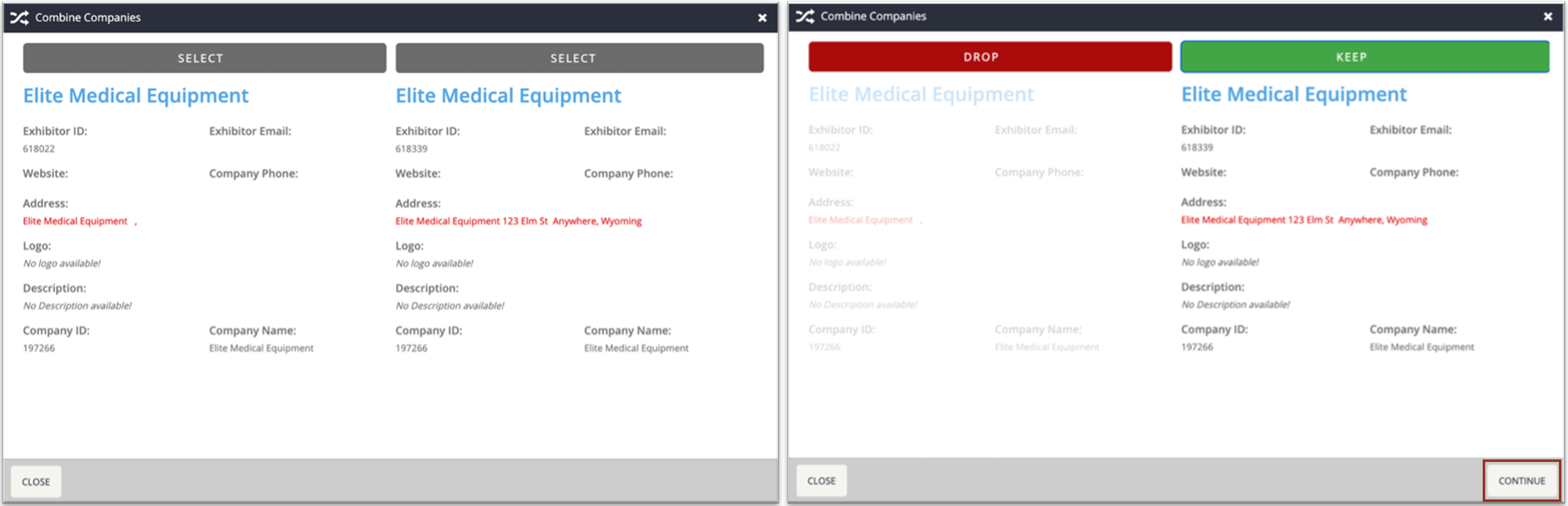
Fig. 3 - Combine Companies Popups.
The next pop-up outlines the changes that will be made, including any task achievements that may be lost, and what will happen to any purchase items or payments.
If you would like to continue, press the COMMIT CHANGES button in the bottom right corner of the pop-up (Fig. 4).
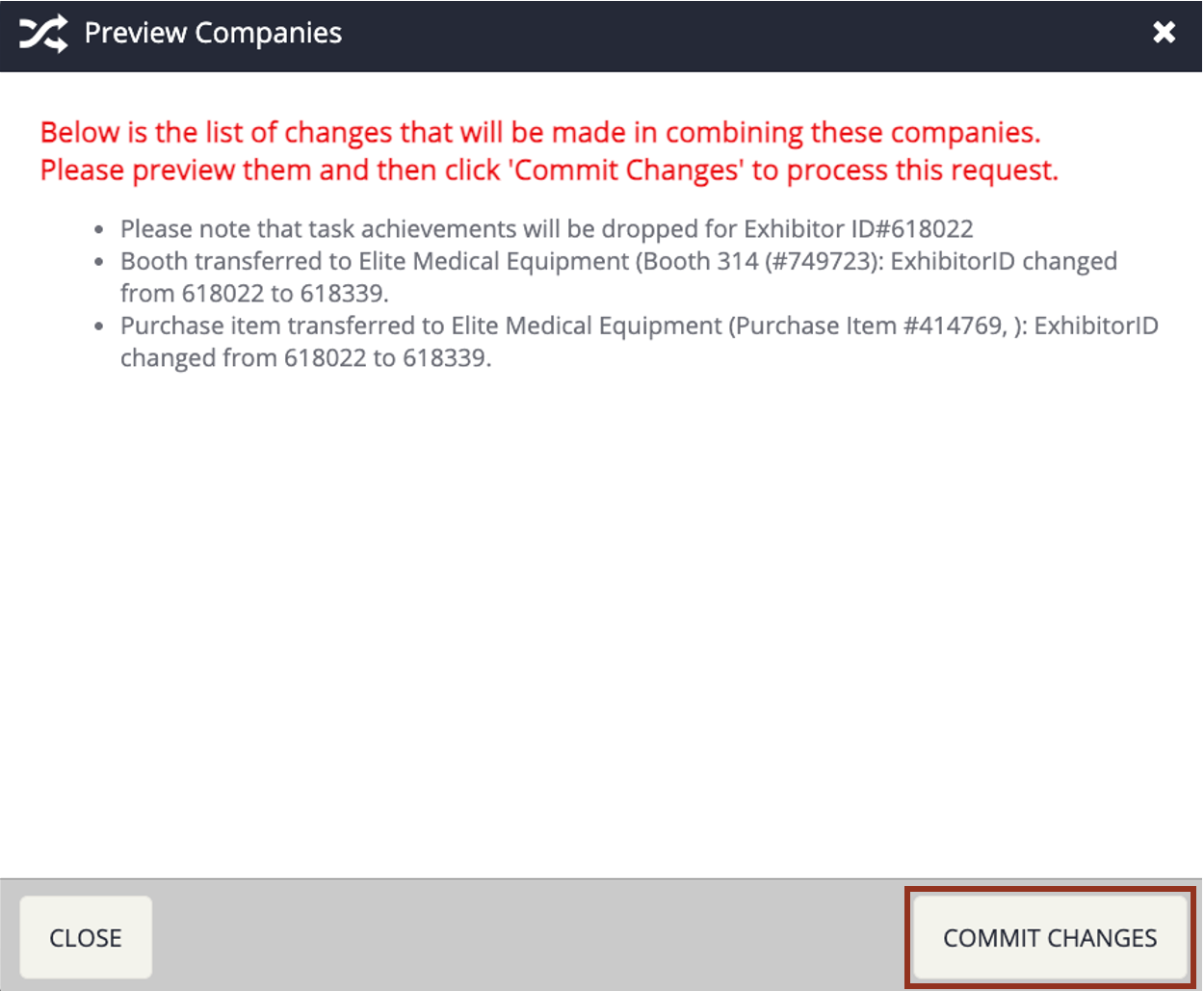
Fig. 4 - Commit Changes Button.
You will be asked to confirm one more time. Select the red YES button (Fig. 5).

Fig. 5 - Confirmation Pop-up.
Navigate back to the Companies page to review that the duplicate companies have been successfully combined.
Was this article helpful?
That’s Great!
Thank you for your feedback
Sorry! We couldn't be helpful
Thank you for your feedback
Feedback sent
We appreciate your effort and will try to fix the article