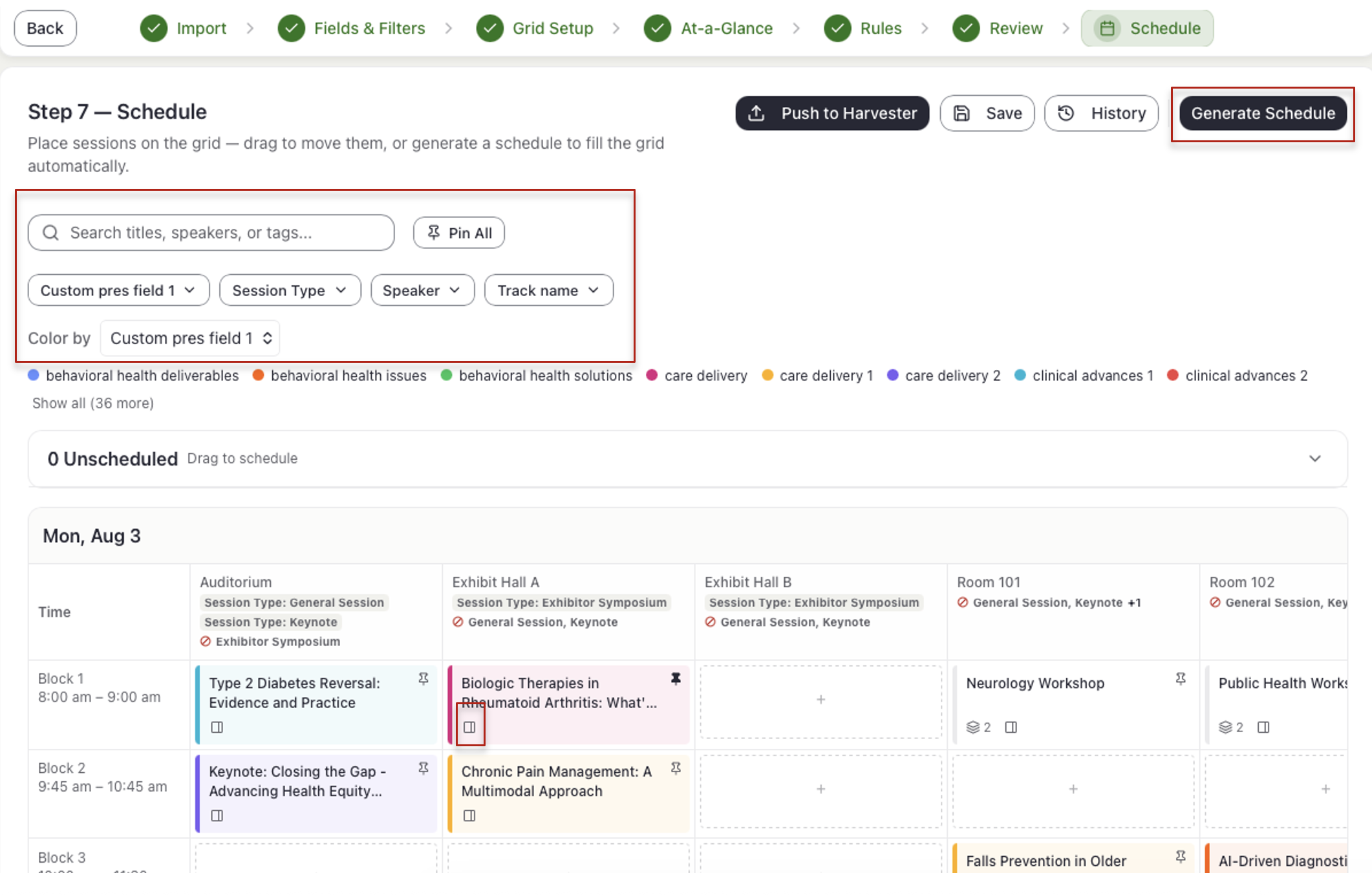
- Select the Generate Schedule button. When it finishes, your presentations/events appear on the schedule.
- Any manual pins or room blocks created in Step 5 will already appear and be honored.
- Select the Details icon on any card to see its speakers, field values, and any other associated data.
- Find presentations/events on the schedule:
- Type in Search titles, speakers, or tags... to find matches.
- Use Color by to color the cards by a field, such as track.
- Use the field filters to narrow the grid.
Automatically place presentations/events into you schedule based on the setup in previous steps. You can also manually adjust and pin, search and filter, manage parent/child grouping, push back to and populate in Education Harvester and more.
IMPORTANT NOTE
Changes in this step are not saved until you select Save. See Save Your Schedule below.
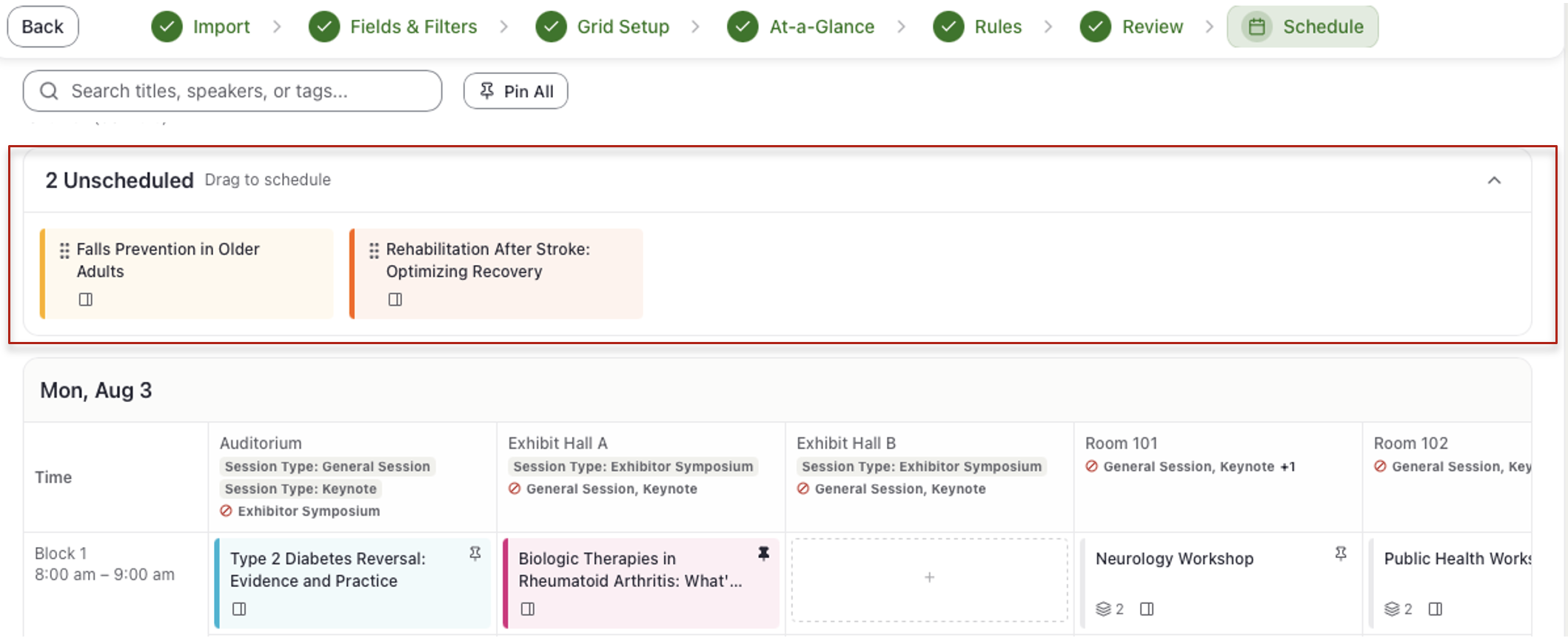
- Check and manage unscheduled presentations/events:
- The Unscheduledtray above the schedule holds every presentation/event Schedule Builder could not place. Expand the accordion to see the unscheduled and reason(s).
- If a significant number exist, you can adjust the tags, rules, or other settings from previous steps, then generate again.
- To place a presentation/event from Unscheduled by hand, select, hold and drag it onto the schedule, or select the + in an empty spot and search for it.
- The Unscheduledtray above the schedule holds every presentation/event Schedule Builder could not place. Expand the accordion to see the unscheduled and reason(s).
- Pinning presentations/events in the schedule:
- Select the Pin icon on a card in the upper right corner (the icon will fill) to lock it into place regardless of how you adjust or re-generate your schedule.
- To release, select the filled Pin icon on a card. The icon will become unfilled.
- To pin or release every placed event/presentation, select Pin All or Unpin All by the search bar.
- Move presentations/events in the schedule by hand:
- Select and hold any card to drag it to a new room and time block. If the spot is taken, the presentations/events already there moves to Unscheduled.
- To take a presentation/event off the schedule, select, hold and drag it into Unscheduled.
- If a move breaks one of your tags or rules, a window lists the conflicts. Select Pin anyway or Cancel.
- Presentations/events you move by hand are automatically pinned.
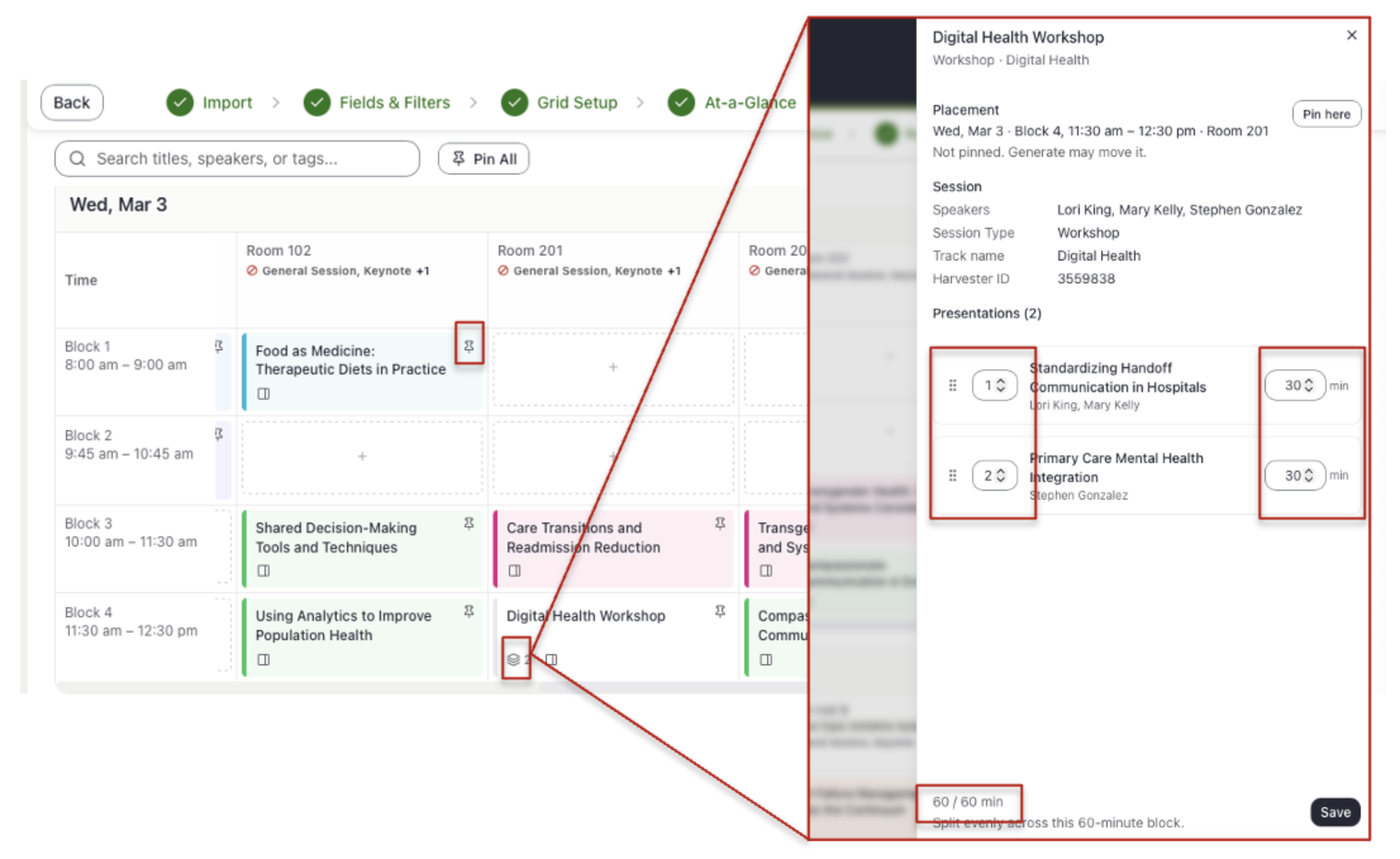
- Manage parent/child groupings, if used:
- A Sandwich icon on a card indicates a parent/child grouping along with the number of children.
- Select the Details icon on a parent/child card, then navigate to the Presentations [number] section.
- Select, hold and drag the Drag handle icon or use the arrows to reorder.
- You may also adjust the length of each child by using the Min arrows or by typing in the Min box. Note, total time for the parent is calculated and tracked at the bottom with overages highlighted in red.
- Select Save to save your changes and return to the schedule.
- Re-generate your schedule:
- If you change tags, rules, or pins, select Generate Schedule again.
- Pinned presentations/events stay where you put them, and everything else may move. A window confirms this first. Select Re-generate.
- Save your schedule and/or restore a previous version:
- Select Save. The Save Version window opens.
- Check the Version Name, or change it, for example to "After speaker adjustments 10.15."
- Select Save Version.
- To load an earlier version, select History, then Restore on the version you want, then Save.
CADMIUM RECOMMENDS
Always select Save before you close the Schedule Builder window. Your work on this step stays only once you’ve save.
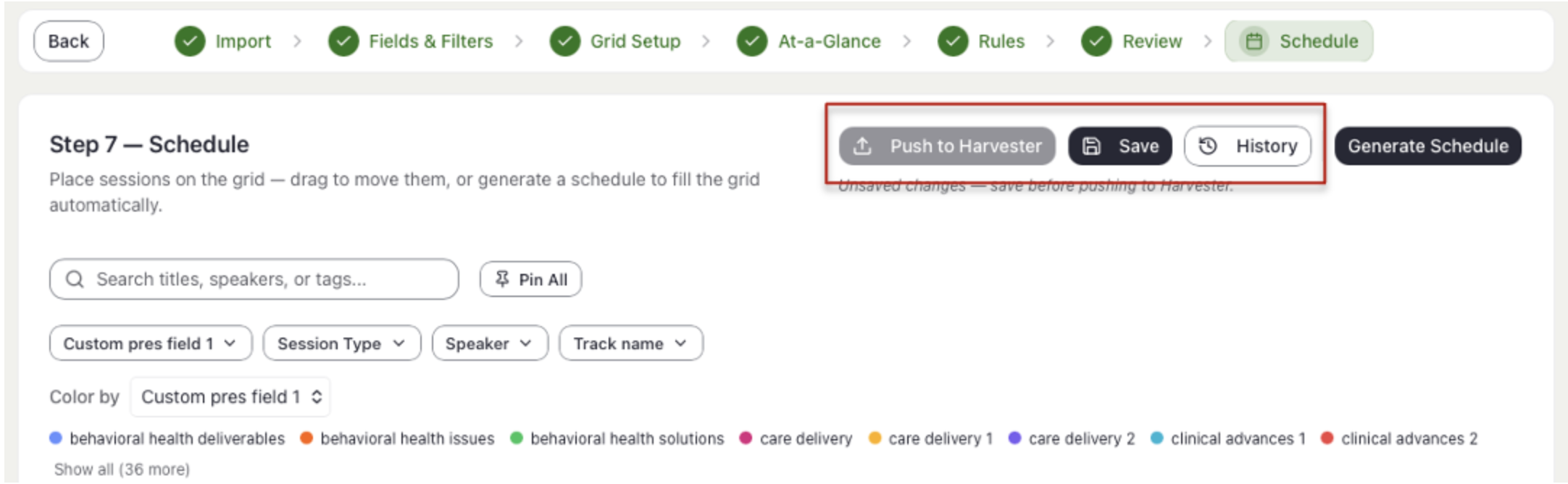
- Push to Harvester to send the date, time, and room of each scheduled presentation/event to Education Harvester:
- If you have not already done so, select Save. Push is available only once saved.
- Select Push to Harvester. The Push Schedule to Harvester window opens.
- Select Preview Export. The window shows how many presentations it will send; note, each child inside a parent counts separately.
- Optional: If records changed in Harvester after your last push (for multiple scheduling runs or re-runs), the window says so. Select Review changes first to decide them on the Rules step, or Push and overwrite to send your schedule as is.
- Otherwise, select Push [number] presentations.
- When the push finishes, you will see "Successfully pushed [number] presentations to Harvester." Select Done.
- A banner confirms the push. After you close it, the line beside the buttons reads In Harvester pushed with the time. If you save changes and have not pushed, it reads Saved changes not in Harvester.
- Once pushed, all records in Education Harvester are automatically populated with date, start/end time and room.
NOTE
Keep the Scheduler Builder window open and your computer awake until the push finishes. If a push stops partway, the window says what to do: select Push again if it shows, or follow its instruction and select Push to Harvester again. Until a push finishes, Education Harvester may hold a mix of old and new times.
Last modified Oct 21, 2026
Was this article helpful?
That’s Great!
Thank you for your feedback
Sorry! We couldn't be helpful
Thank you for your feedback
Feedback sent
We appreciate your effort and will try to fix the article