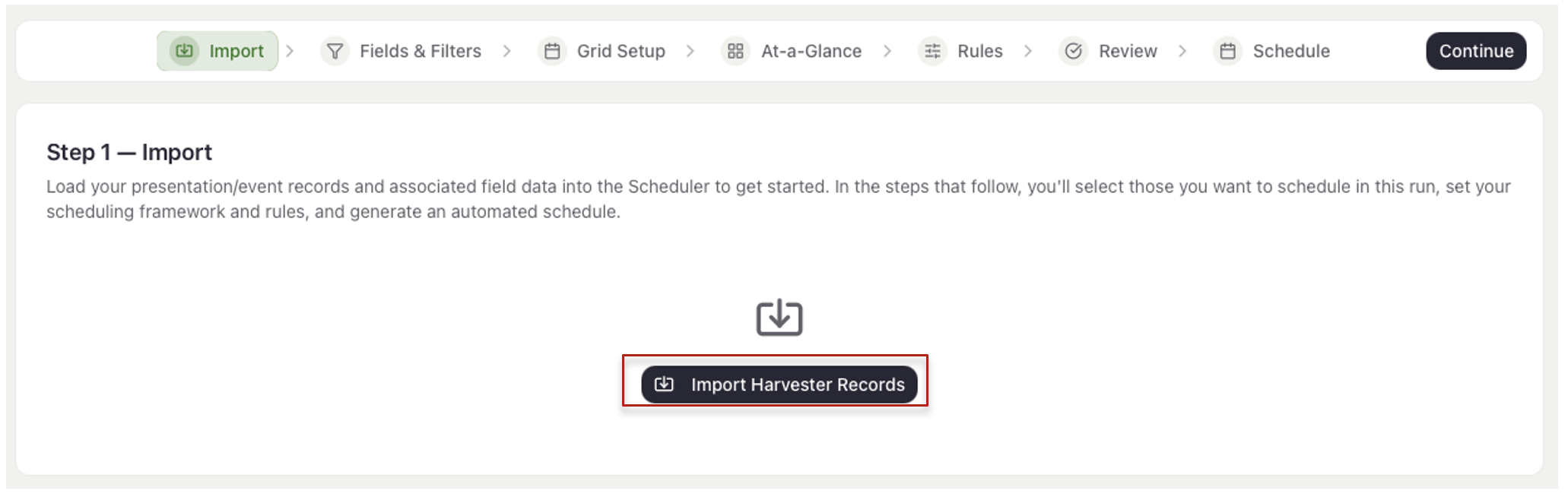
- Select the Import Harvester Records button.
- Wait for the Importing from Harvester panel to finish.
Add your presentation/event records and associated field data into the Schedule Builder to get started.
NOTE
Keep this step open until the import finishes. Extremely large events may take several minutes.
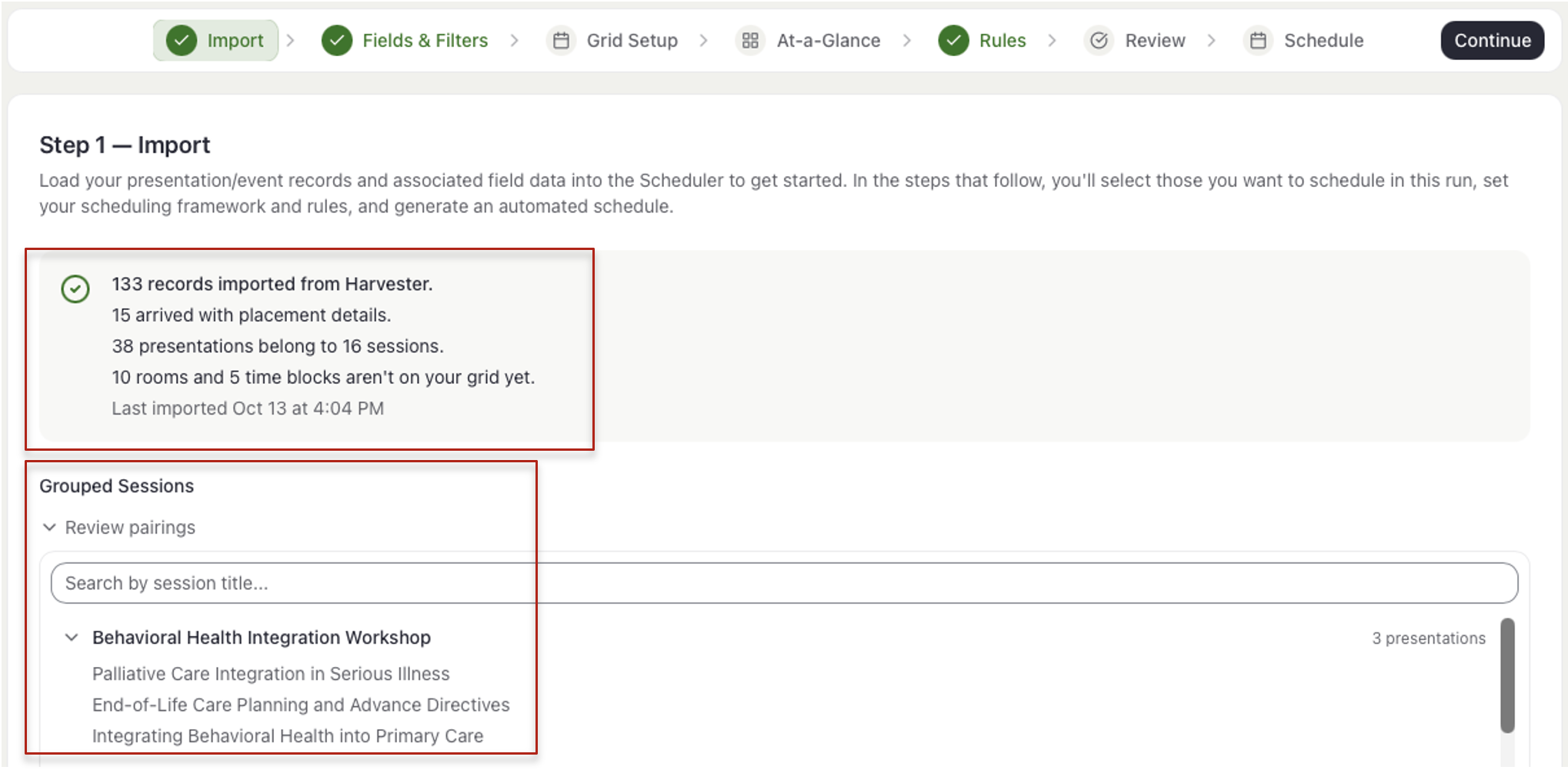
- When the import is finished, check Last imported for the time of your most recent import to ensure it is current.
- Review the summary which indicates how many records were imported, how many arrived with a room or time, and how many Harvester rooms and time blocks are not on your grid yet, if any.
- If your event has parent/child records (typically sessions with presentations inside them), review the Grouped Sessions list. Pairings are defined in Harvester; if something is incorrect, change it in Harvester and re-import.
- If/when your data changes in Harvester, select the Re-Import Harvester Records button. The summary says what changed, including any records removed because it was deleted in Harvester.
- Select Continue to move to Step 2.
Last modified Oct 21, 2026
Was this article helpful?
That’s Great!
Thank you for your feedback
Sorry! We couldn't be helpful
Thank you for your feedback
Feedback sent
We appreciate your effort and will try to fix the article