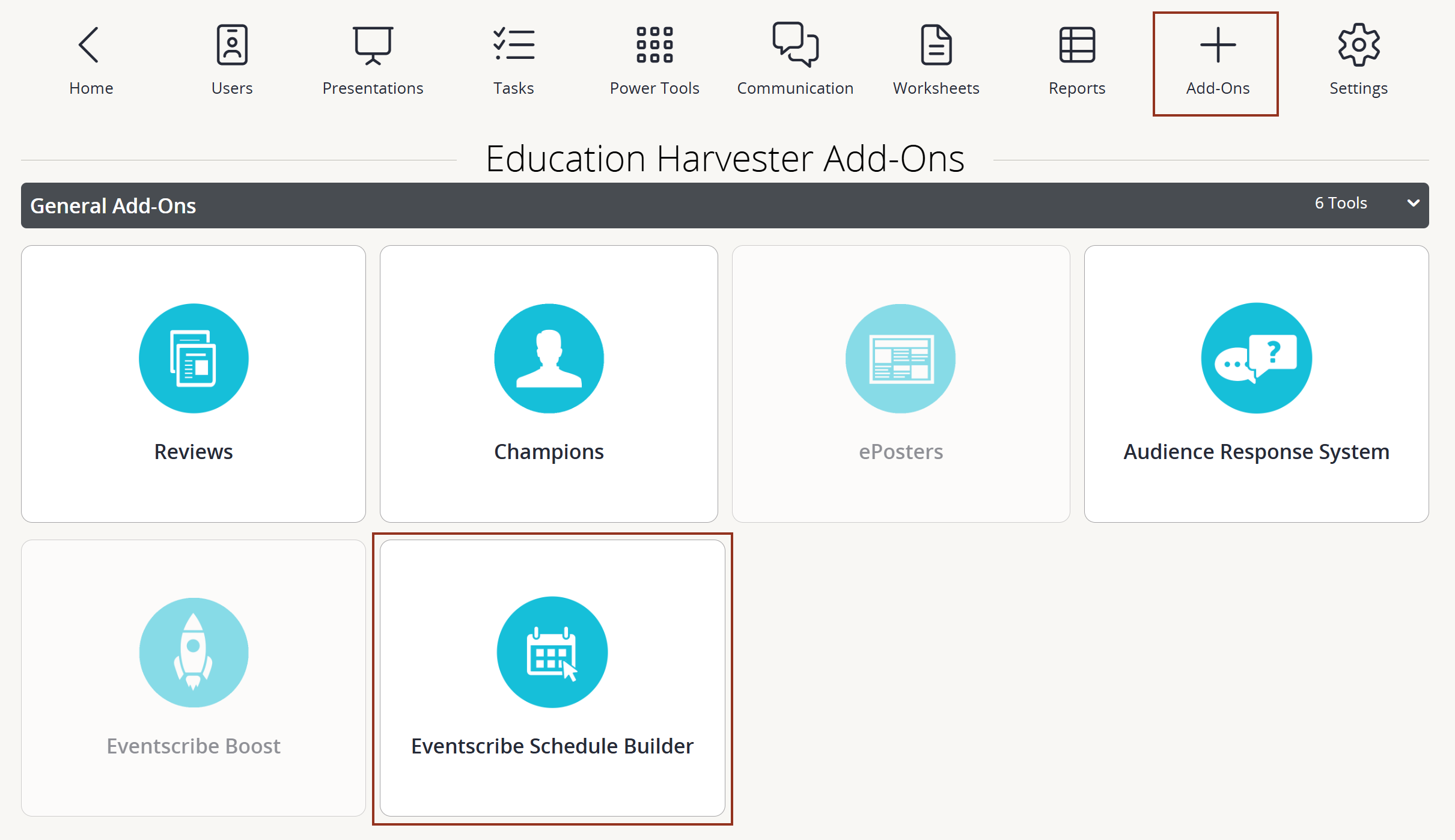
- Select Add-Ons from the main navigation page. Then, expand the General Add-Ons accordion and select Eventscribe Schedule Builder. Scheduler Builder will open in a new browser window.
To Launch the Tool:
- Navigating Schedule Builder:
- The header shows your organization, the event name, and the event dates.
- A progress bar below the header shows each of the scheduling steps and indicates their completion status (Fig 2).
- Select any step name in the progress bar to go straight to that step.
- Select Continue to move to the next step, or Back to return to the previous one. Schedule Builder automatically saves your work between steps.

Fig. 2 - Progress bar below the header shows each of the scheduling steps and indicates their completion status
NOTE
Fields & Filters remains blank until the Import step has been completed; At-a-Glance, Rules, Review, and Schedule remain blank until your grid has at least one room and one time block added.
CADMIUM RECOMMENDS
Have one person build the schedule at a time. Schedule Builder shows who else is logged in and has the schedule open, but it cannot save and merge two people's simultaneous changes.
Last modified Oct 21, 2026
Was this article helpful?
That’s Great!
Thank you for your feedback
Sorry! We couldn't be helpful
Thank you for your feedback
Feedback sent
We appreciate your effort and will try to fix the article