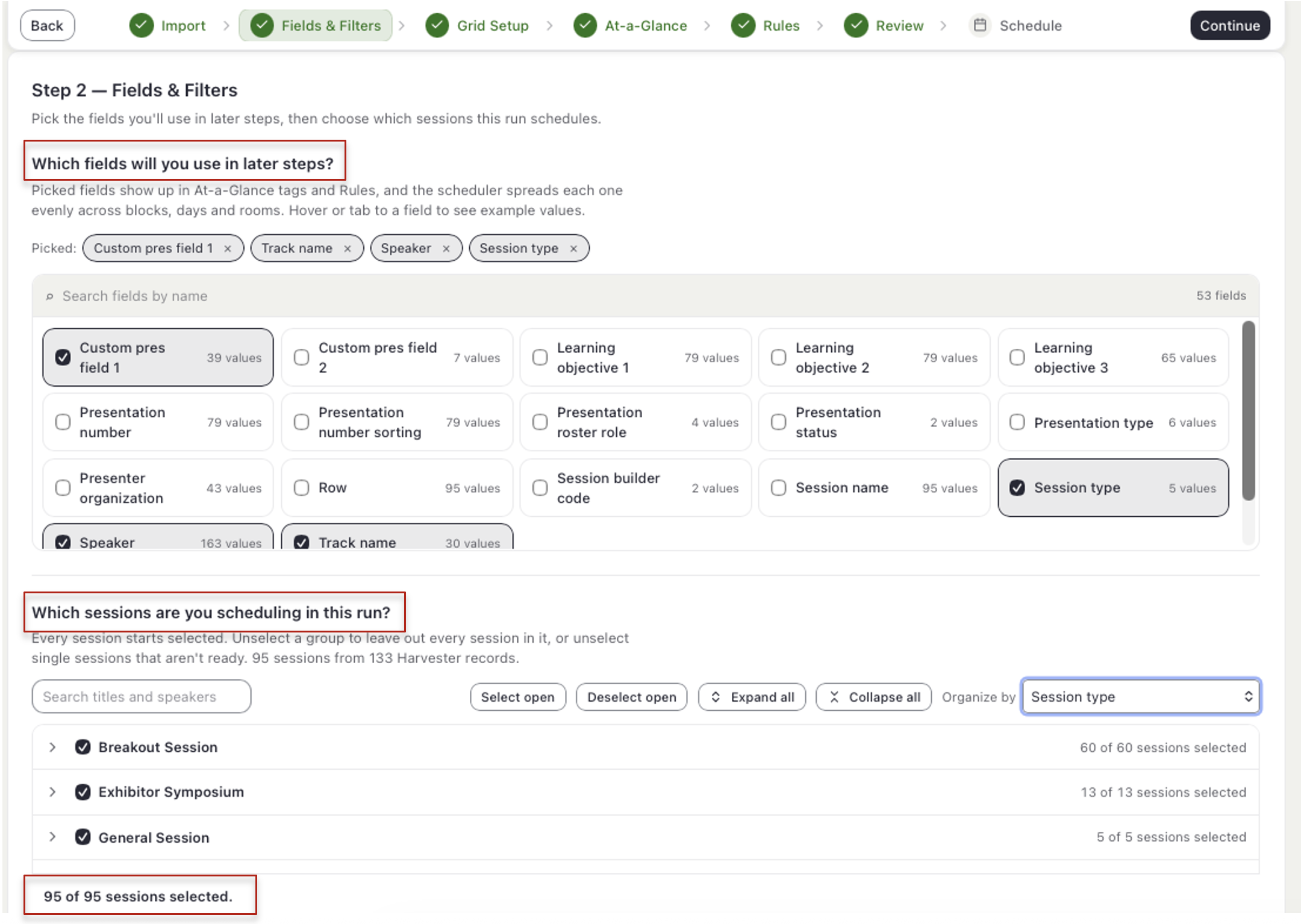
- Under Which fields will you use in later steps? check those you want to prioritize/build rules around, such as track, topic, or speaker. To find a specific field, type in Search fields by name. You may hover over any field to see examples of the data.
- Optional: If you wish to narrow what presentations/events you are scheduling, use the checkbox filters under Which records are you scheduling in this run? Use the search, grouping, and selection tools to further refine your records. Uncheck any value you want to leave out.
- Check the bar at the bottom of the step to double-check the number of records selected.
- Select Continue to move to Step 3.
Choose the fields from your Education Harvester data you wish to prioritize/build rules around during scheduling. You may also use filters to narrow the records to schedule in a given scheduling run.
NOTE
Only the fields you select here are offered later in the At-a-Glance and Rules. However, you may always return to this step and make adjustments.
Last modified Oct 21, 2026
Was this article helpful?
That’s Great!
Thank you for your feedback
Sorry! We couldn't be helpful
Thank you for your feedback
Feedback sent
We appreciate your effort and will try to fix the article