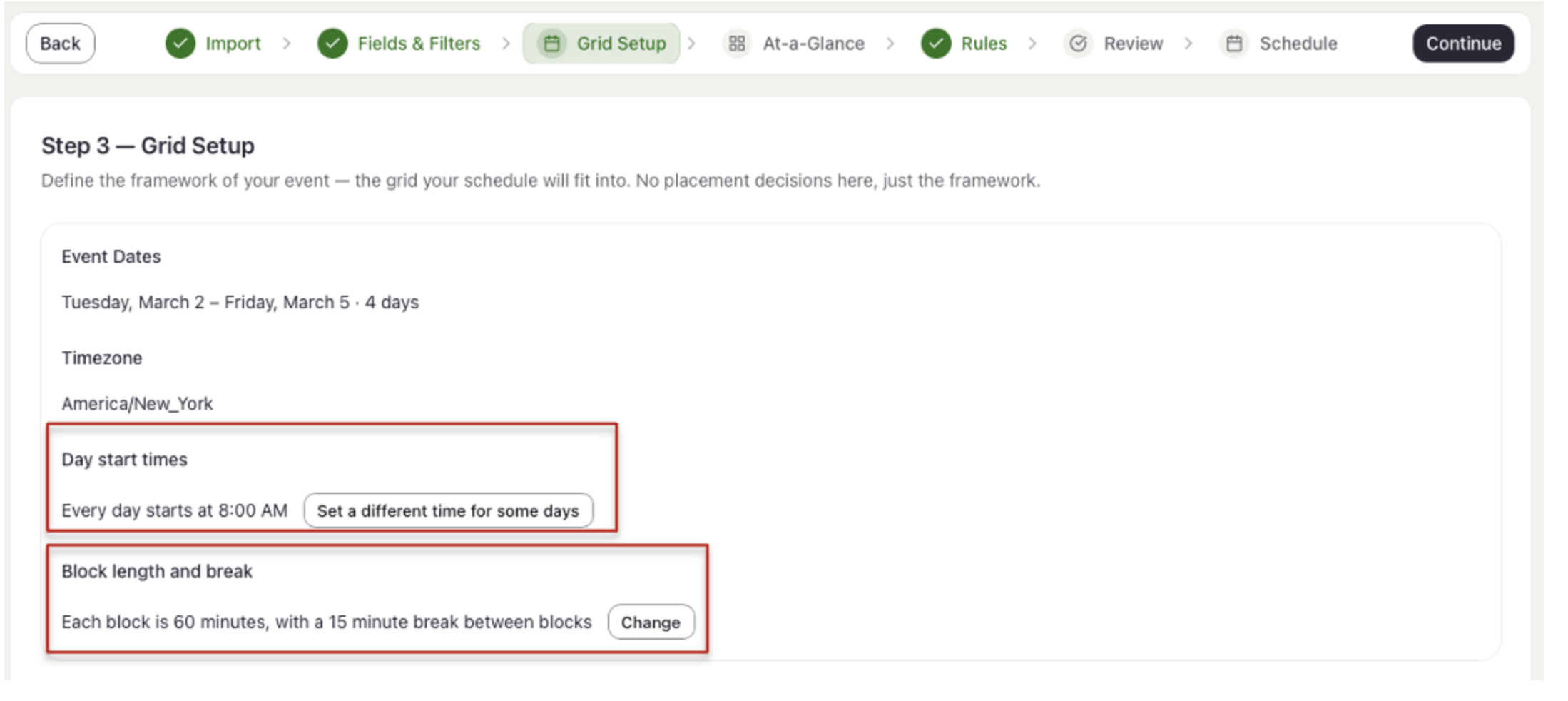
- Under Day start times, check when each day begins. To vary it by day, select Set a different time for some days.
- Under Block length and break, select Change to set the Block duration (minutes) and Break between blocks (minutes) for new blocks. This will set a default for your schedule, but you can always manually adjust individual blocks if needed.
Define the basic framework of your event schedule – days, rooms, and time blocks.
- Add blocks one of two ways:
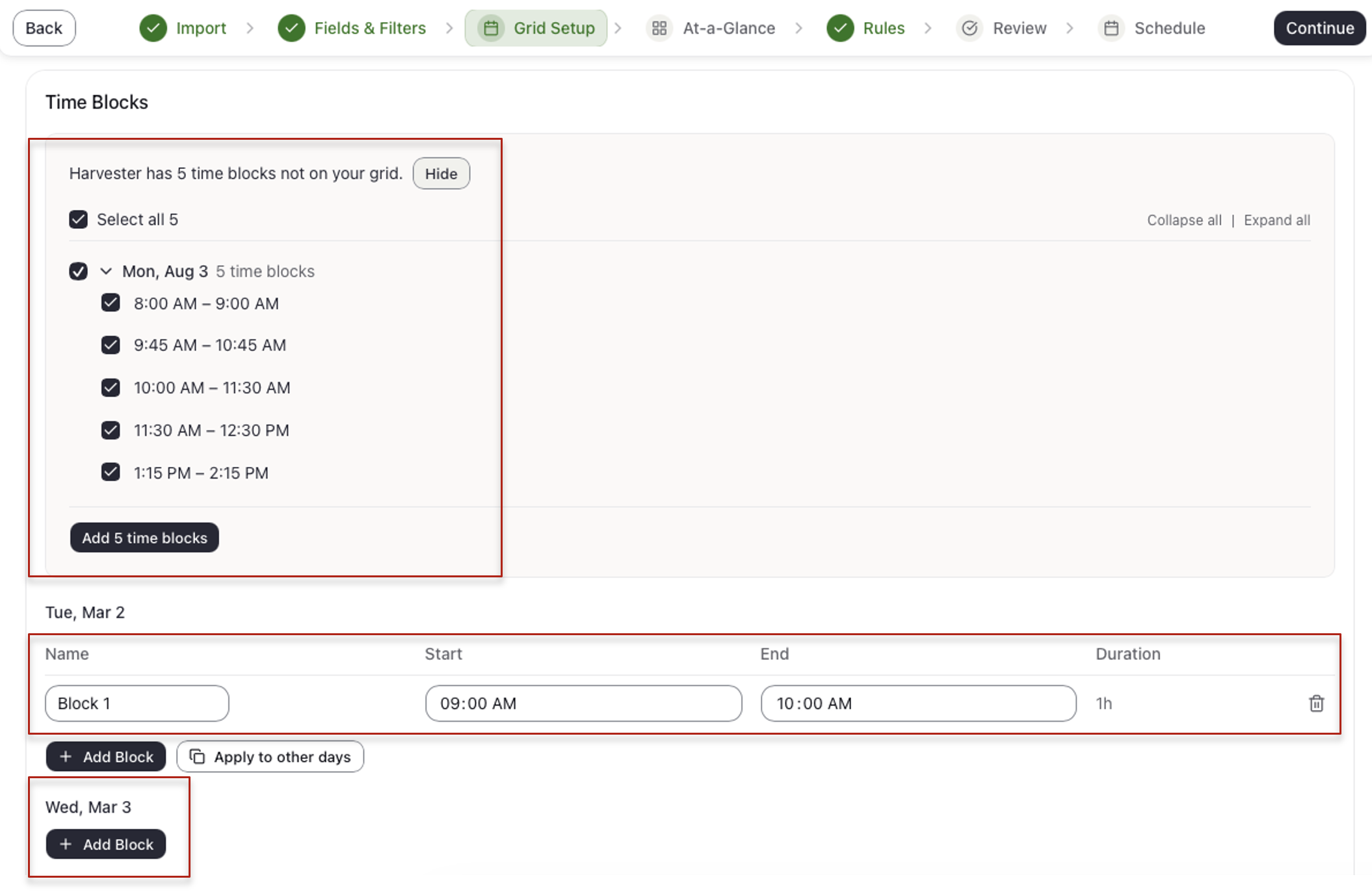
- From Harvester (optional): if Harvester already has time blocks for your event, the Time Blocks card offers them. Select Review [number], check the blocks you want, and select Add [number] time blocks.
- By hand: select Add Block under the day.
- To edit a block once created, change its Name, Start, or End. To delete it, select the trash icon on its row.
- To copy blocks to other days:
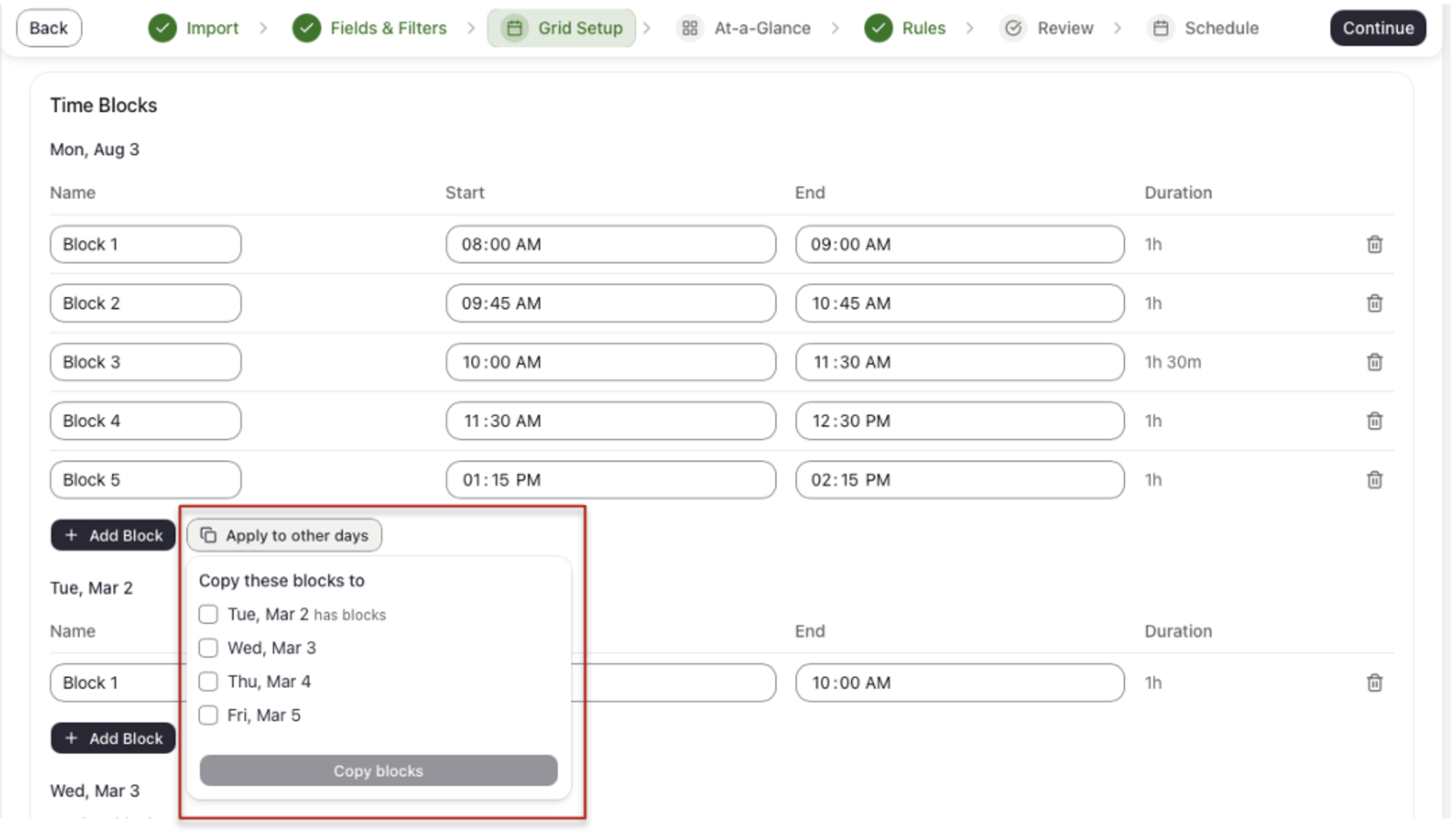
- Under the day you set up, select Apply to other days.
- Under Copy these blocks to, check each day you want.
- If a day already has blocks, choose Replace their blocks or Skip those days.
- Select Copy blocks.
- Add rooms one of two ways:
- From Harvester (optional): similar to time blocks, if Harvester already has rooms for your event, the Rooms card offers them. Select Review [number], check the rooms you want, and select Add [number] rooms.
- By hand: select Add Room and type its name.
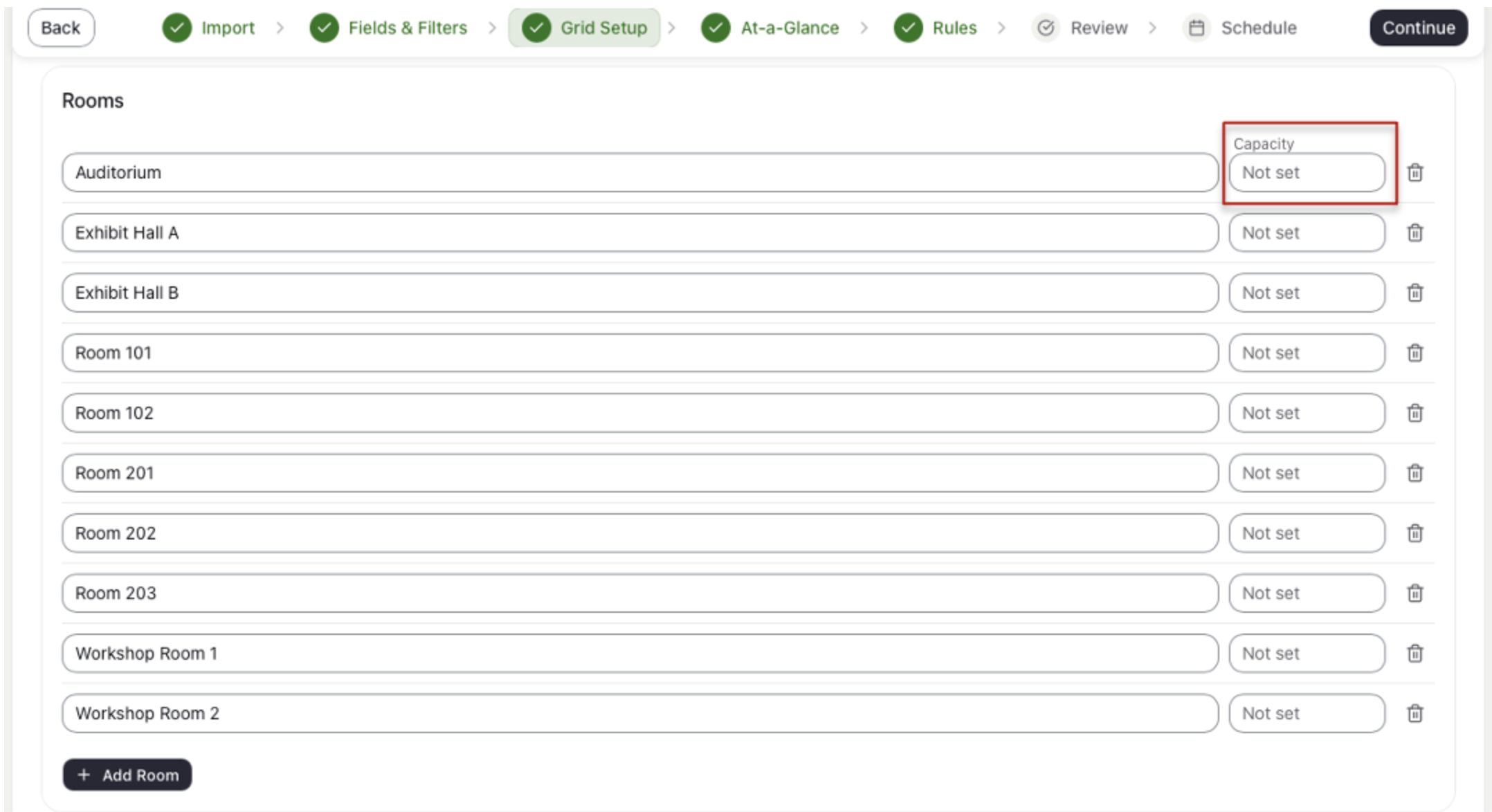
- Optional: enter a Capacity for each room.
- To rename a room, edit its name. To delete it, select the trash icon on its row.
- Select Continue to move to Step 4.
NOTE
Schedule Builder does not use Capacity when placing presentations/events. The capacity shows beside the room name in the final Schedule so you can check fit by eye.
WARNING NOTE
To start your grid over, select Reset Grid in the bottom left corner, then Confirm Reset. This deletes every room, time block, and placement, and cannot be undone. You will rarely need it.
Last modified Oct 21, 2026
Was this article helpful?
That’s Great!
Thank you for your feedback
Sorry! We couldn't be helpful
Thank you for your feedback
Feedback sent
We appreciate your effort and will try to fix the article