To create a new email campaign, click the ‘Create Campaign’ button in the top-right corner of the campaign history page. A dialog will appear asking you to name your campaign.
Enter a descriptive name — this is for your own reference and will not appear in the email itself — then click Continue.
The campaign editor
You will be taken to the campaign editor (Fig 1), which is organized into four steps shown in a sidebar on the right.
- Step 1 — Sender Details: Set the display name and verified email address the campaign will be sent from.
- Step 2 — Content: Write your subject line and message body or optionally use a template.
- Step 3 — Recipients: Choose which group of contacts will receive the campaign.
- Step 4 — Review and Test: Review everything and send a test email before going live.
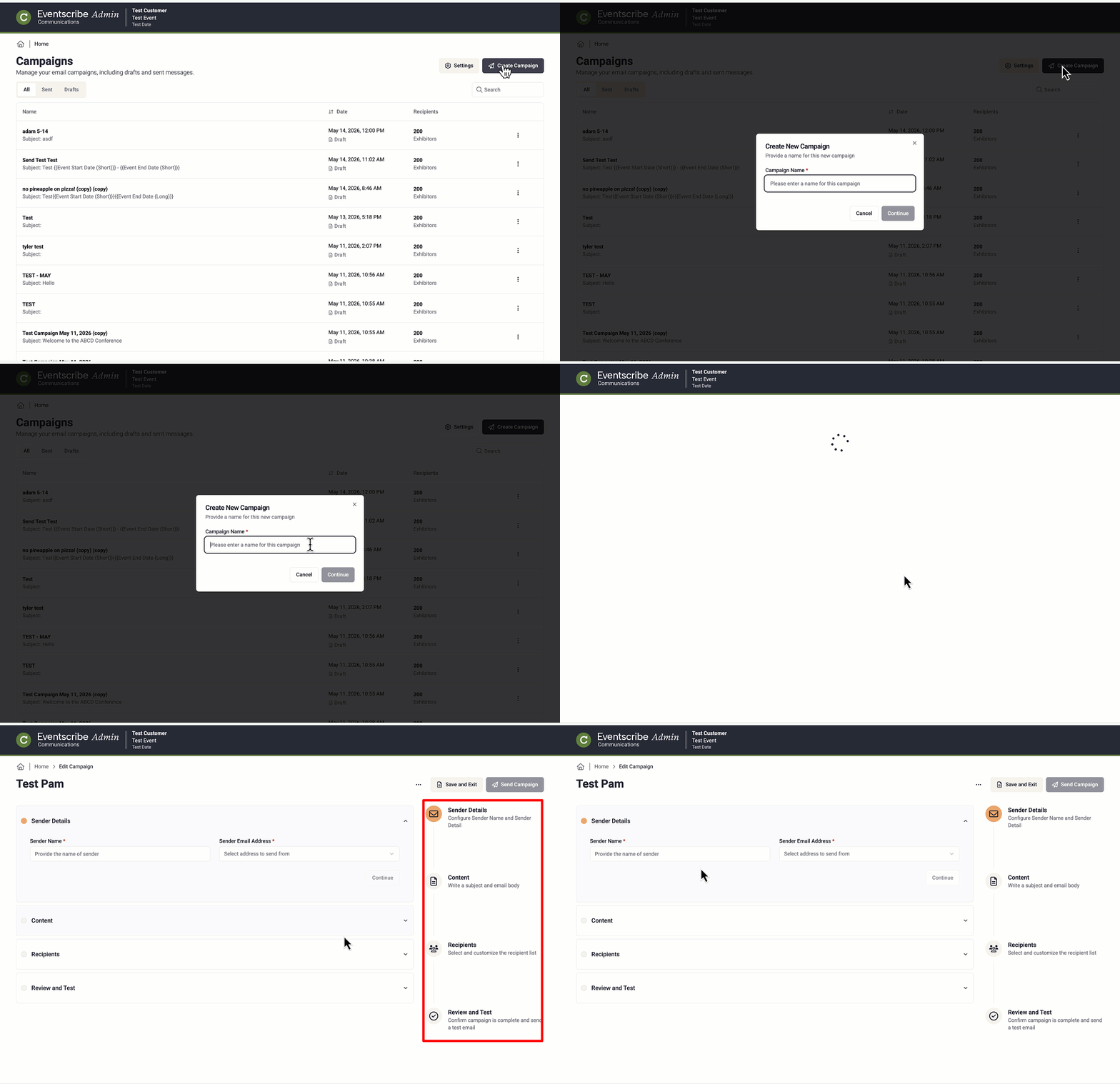
Fig. 1 - Creating a Campaign
You can save your progress as a draft at any time by clicking Save & Exit in the top-right corner of the editor. Drafts are accessible from the Draft tab on the Campaign History page.
Was this article helpful?
That’s Great!
Thank you for your feedback
Sorry! We couldn't be helpful
Thank you for your feedback
Feedback sent
We appreciate your effort and will try to fix the article