Before You Begin
- The event must have Chat and Appointments enabled.
- Profile Sharing must be enabled for both users.
- If an app user does not see this in their app, it is likely turned off for their event.
Step 1: Open a Chat Conversation
- Navigate to Chats and open a one-on-one conversation.
- Appointments can only be created from a direct chat.
Step 2: Open the Appointment Scheduler
- Select the Calendar icon in the Chat header (Fig. 1).
- The Schedule Appointment window will open.
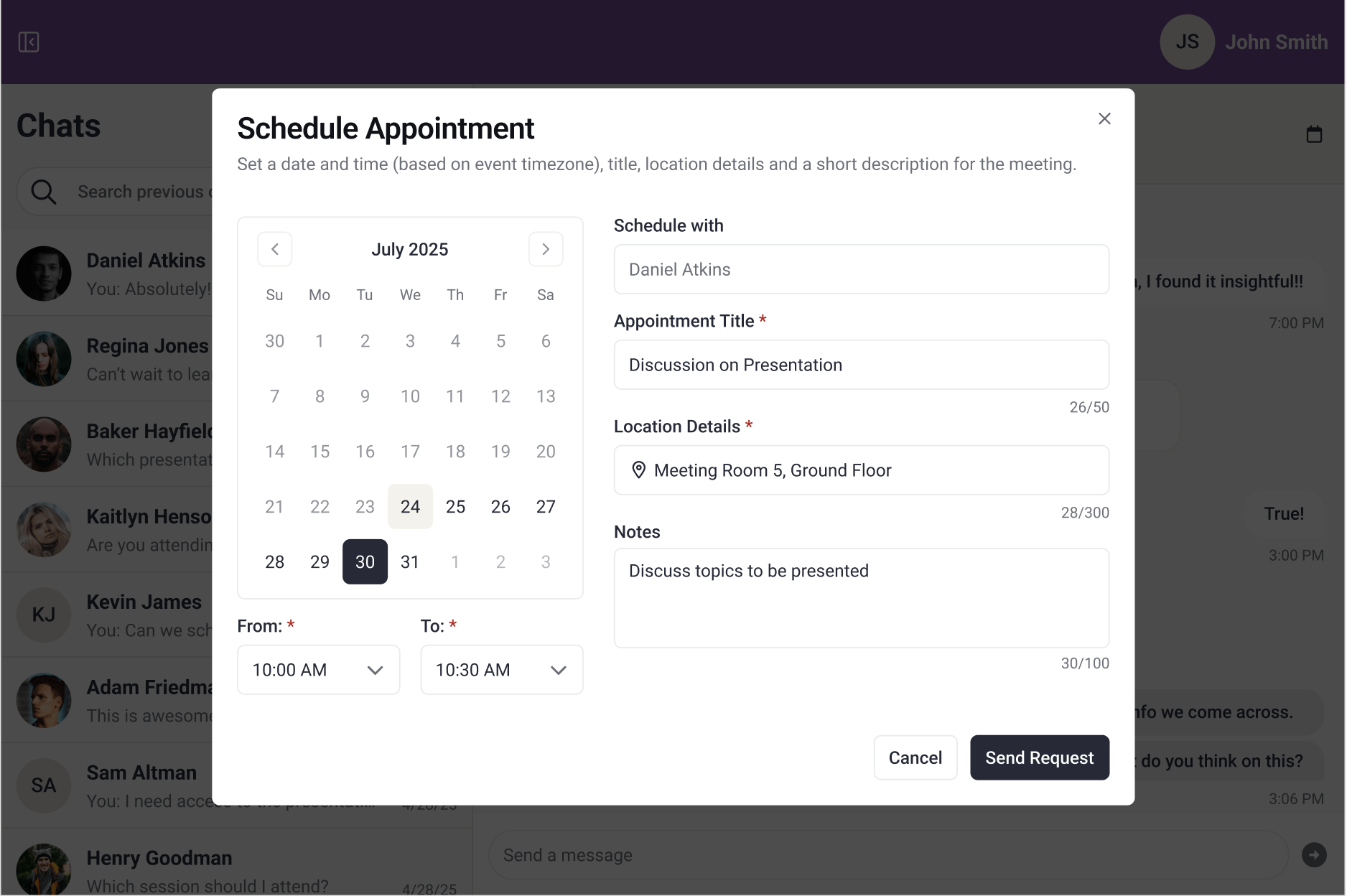
Fig. 1 - Schedule Appointment Window.
Step 3: Enter Appointment Details
- Enter the date, start time, end time, title, location, and notes.
- Select Send Request to submit the appointment.
After Sending
- The appointment appears inline in the Chat as Appointment Requested.
- The recipient receives a notification.
What Happens Next
- If accepted, the appointment is added to both attendees' schedules.
- If declined, the conversation remains open so a new time can be proposed.
Helpful Notes
- Appointments cannot be edited after sending.
- If changes are required, we recommend canceling the appointment and creating a new request.
Last modified Mar 05, 2026
Was this article helpful?
That’s Great!
Thank you for your feedback
Sorry! We couldn't be helpful
Thank you for your feedback
Feedback sent
We appreciate your effort and will try to fix the article