Before You Begin
- You must be logged into the event website.
- Profile Sharing must be enabled.
How Appointment Requests Appear
- Appointment Requests appear within Messages or Notifications on the website.
Step 1: Open the Request
- Navigate to your messages and select the Appointment Request (Fig. 1).
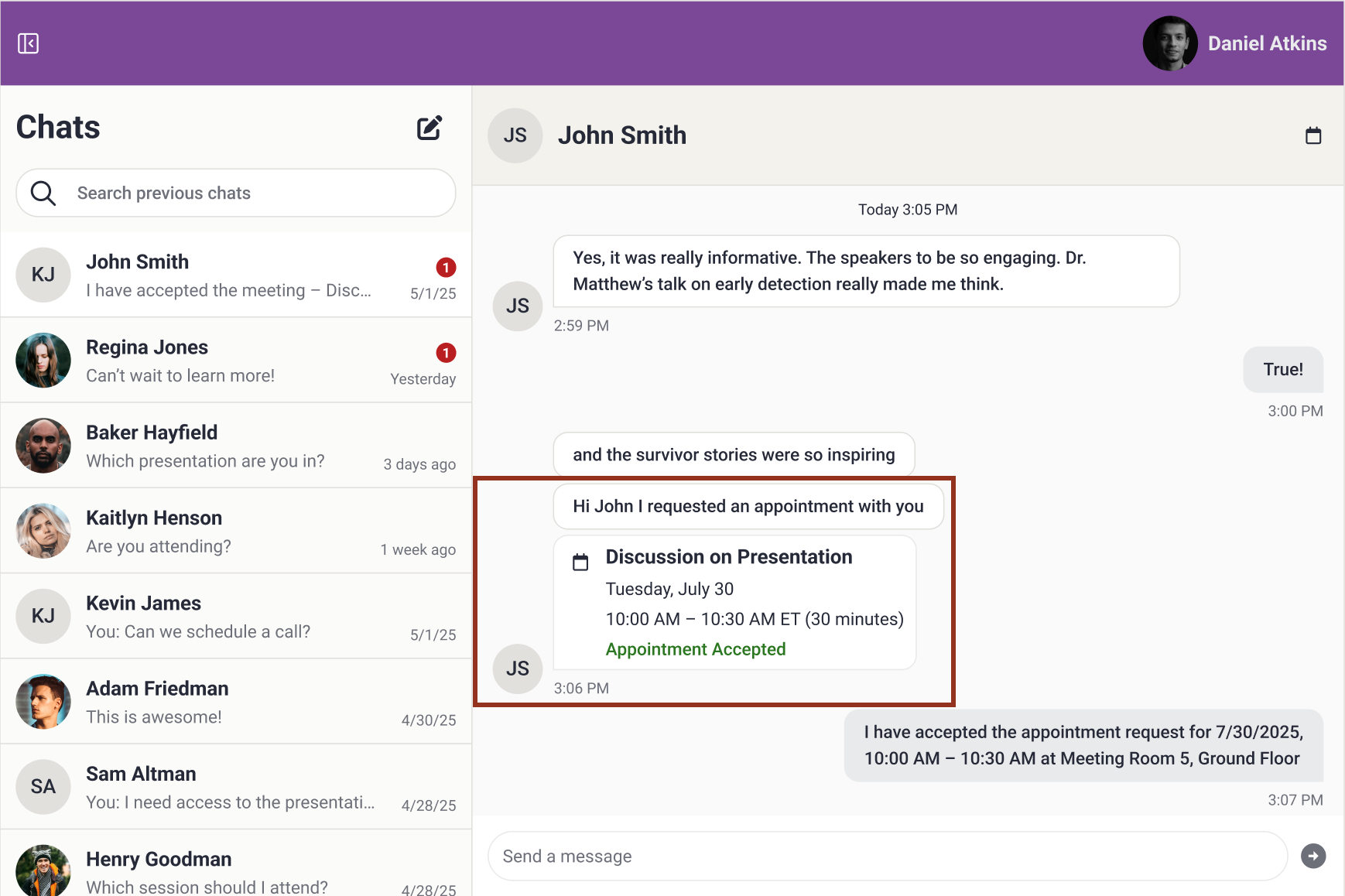
Fig. 1 - Appointment Request on Website Message Page.
Step 2: Review Details
- Review the appointment title, date, time, location, and notes.
Step 3: Accept or Decline
- Select Accept to add the appointment to your schedule.
- Select Decline to reject the request.
After You Respond
- The sender is notified automatically.
- The appointment status updates in real time.
Helpful Notes
- Appointments cannot be edited after being sent.
- All activity remains visible within the message thread.
Last modified Mar 05, 2026
Was this article helpful?
That’s Great!
Thank you for your feedback
Sorry! We couldn't be helpful
Thank you for your feedback
Feedback sent
We appreciate your effort and will try to fix the article