Before You Begin
- Appointments can only be canceled while the status is Appointment Requested.
- If the appointment has already been accepted, create a new appointment instead.
Step 1: Open the Chat Conversation
- Navigate to Chats on the event website.
- Select the attendee associated with the appointment.
Step 2: Open the Appointment Summary
- Select the Appointment Card within the conversation.
- Review the appointment title, date, time, location, and notes.
Step 3: Cancel the Appointment Request
- Select Cancel Appointment and confirm the action (Fig. 1).
- The appointment status updates immediately within the Chat.
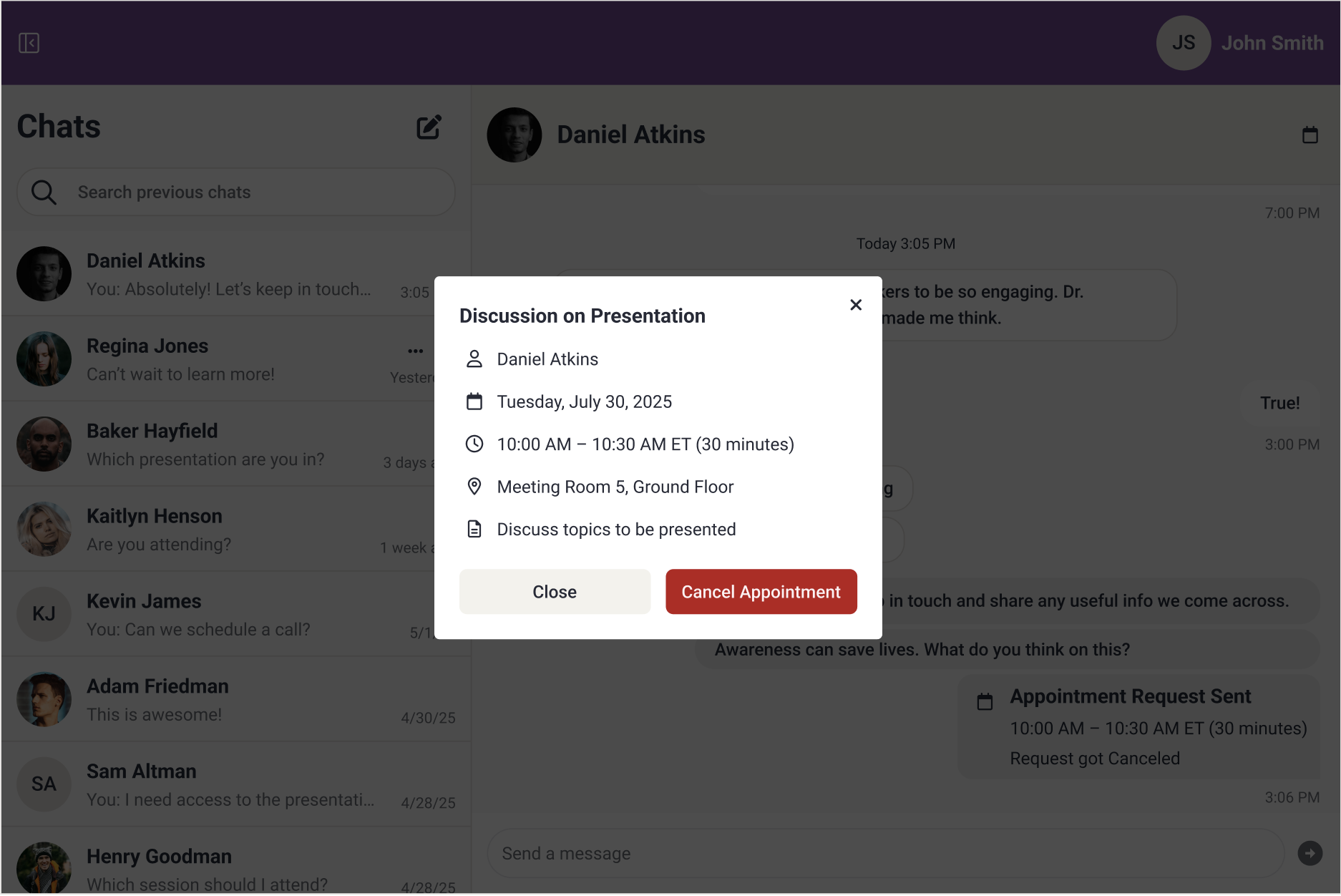
Fig. 1 - Cancel Appointment Button.
After Canceling
- The appointment is not added to either attendee's schedule.
- The conversation remains open so you can continue messaging.
Helpful Notes
- Appointment requests cannot be canceled after they are accepted.
- All appointment activity remains visible within the Chat.
Last modified Mar 05, 2026
Was this article helpful?
That’s Great!
Thank you for your feedback
Sorry! We couldn't be helpful
Thank you for your feedback
Feedback sent
We appreciate your effort and will try to fix the article