App – Schedule an Appointment

Before You Begin

  • Chat and Appointments must be enabled for the event.
  • Both users must have Profile Sharing enabled.

Step 1: Open a Chat Conversation

  • Navigate to Chats within the event app and select the attendee you want to meet with.

Step 2: Create the Appointment

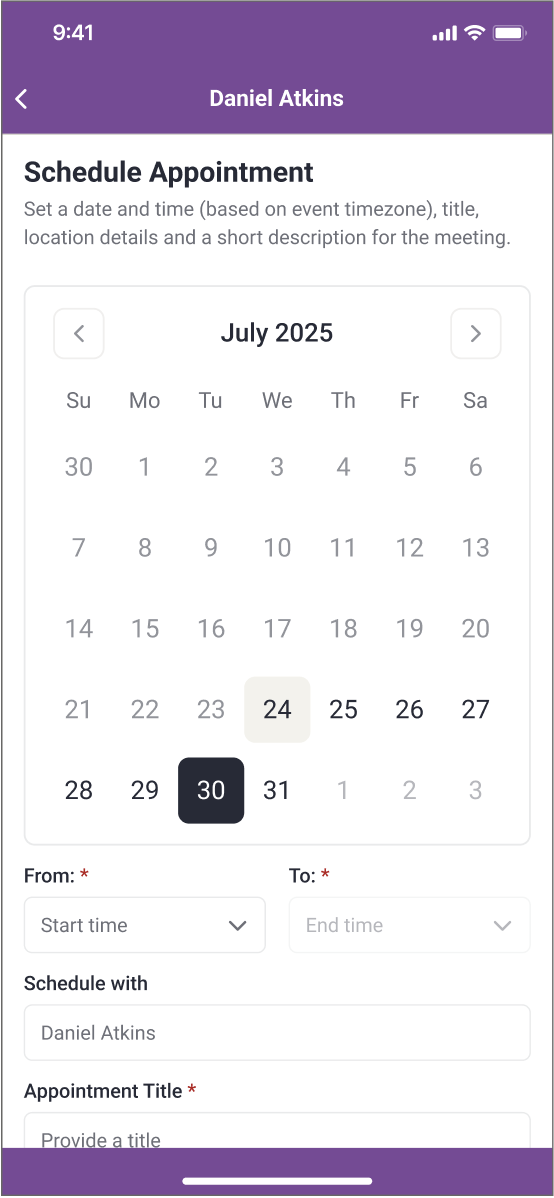
  • Select the Calendar icon within the Chat conversation to schedule an Appointment.
  • Enter the appointment title, date, time, location, and any notes.
Replace Me

Step 3: Send the Request

  • Send the Appointment Request.
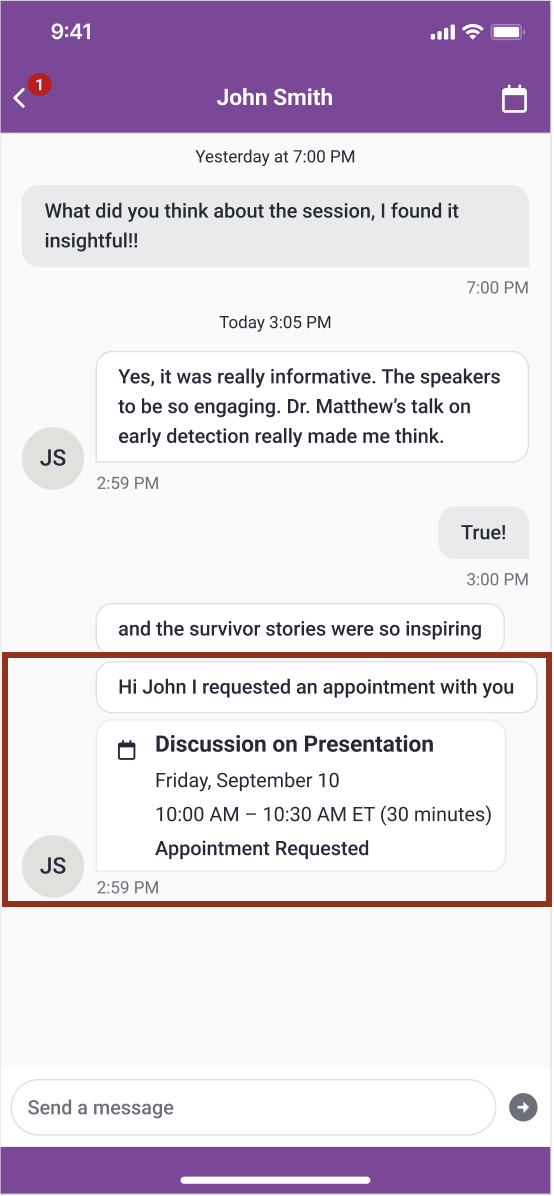
  • The request appears inline in the chat with a status of Appointment Requested.

After Sending

  • The recipient receives a notification.
  • You can track the status directly in the Chat conversation.
Replace Me

Helpful Notes

  • Appointments cannot be edited after sending.
  • If changes are needed, cancel the request and create a new one.

Was this article helpful?

That’s Great!

Thank you for your feedback

Sorry! We couldn't be helpful

Thank you for your feedback

Let us know how can we improve this article!

Select at least one of the reasons
CAPTCHA verification is required.

Feedback sent

We appreciate your effort and will try to fix the article