To add assessments from other events, select the Assessments icon from the top of the page in the Survey Magnet administrative dashboard to open the Assessments page. Select the ADD ASSESSMENT button toward the upper left-hand corner of the page (Fig. 1).
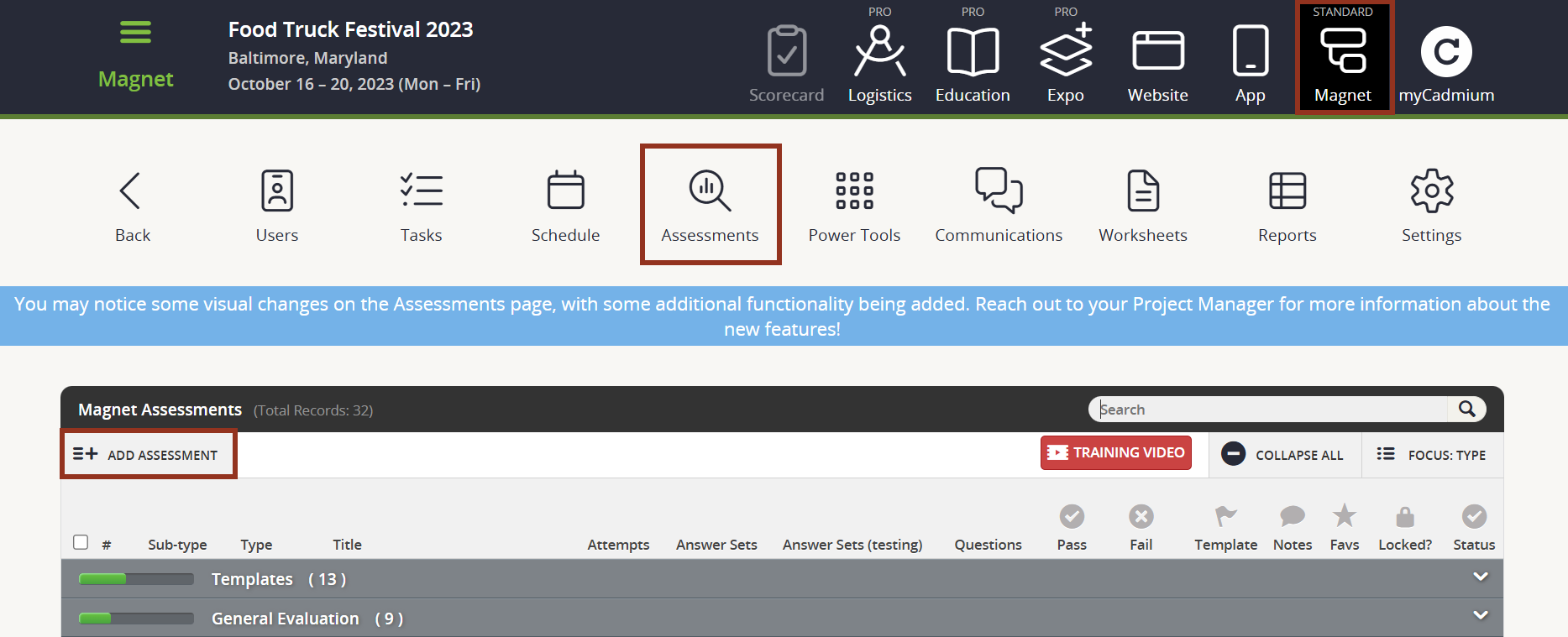
Fig. 1 - Assessments Page Add Assessment Button.
Then, choose Add Assessment From Another Event within the drop down (Fig. 2).
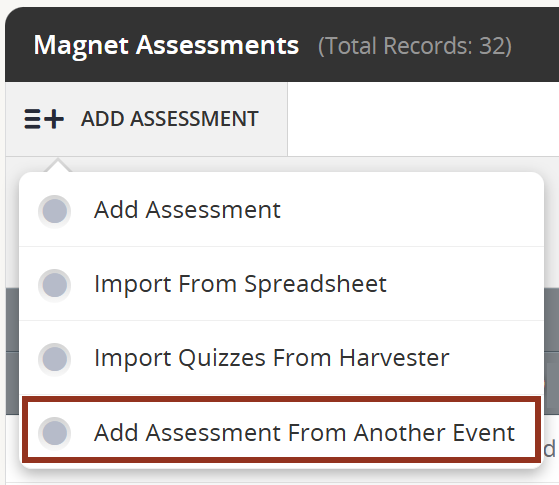
Fig. 2 - Add Assessment Dropdown.
Choose the event within your organization to copy assessments from and then the CONTINUE button (Fig. 3).
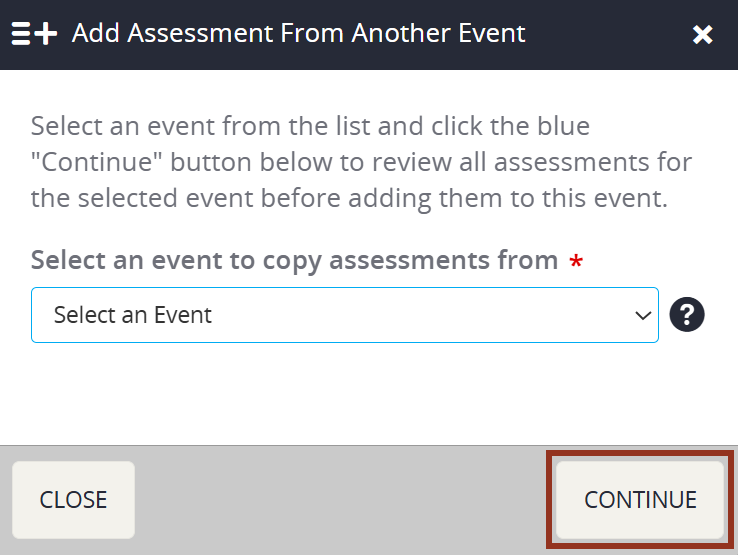
Fig. 3 - Add Assessment From Another Event Dropdown.
By default, all assessments within the event will be selected via check mark. If you do not want to copy any assessments from the selected event, deselect the checkbox next to the assessment. Then, select the ADD ASSESSMENT(S) button (Fig. 4).
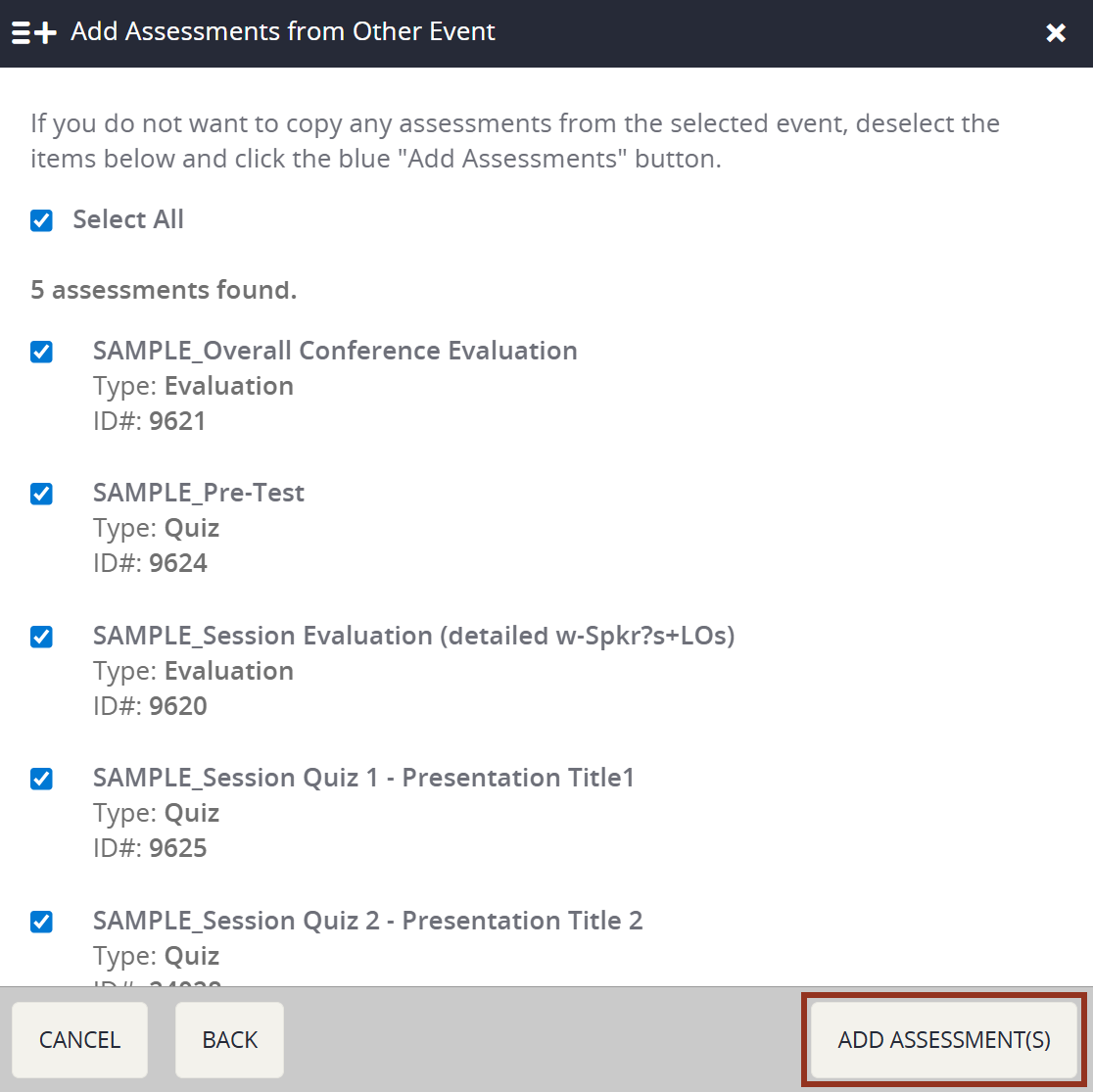
Fig. 4 - Caption can go here
Confirm the assessments were copied over from the event that you selected.
IMPORTANT NOTE
When copying over Evaluations from a previous event, Question Groups will NOT copy over. Groups will need to be re-added and the questions will need to be re-grouped.
If you have further questions about adding assessments from another event, please contact your Project Manager via Boomerang.
Was this article helpful?
That’s Great!
Thank you for your feedback
Sorry! We couldn't be helpful
Thank you for your feedback
Feedback sent
We appreciate your effort and will try to fix the article