Typically, a General (Overall) Evaluation will be accessible to all attendees asking them to evaluate the event/conference as a whole. This type of Assessment must be linked to a Survey Task in order for the evaluation to show on a User's Task List.
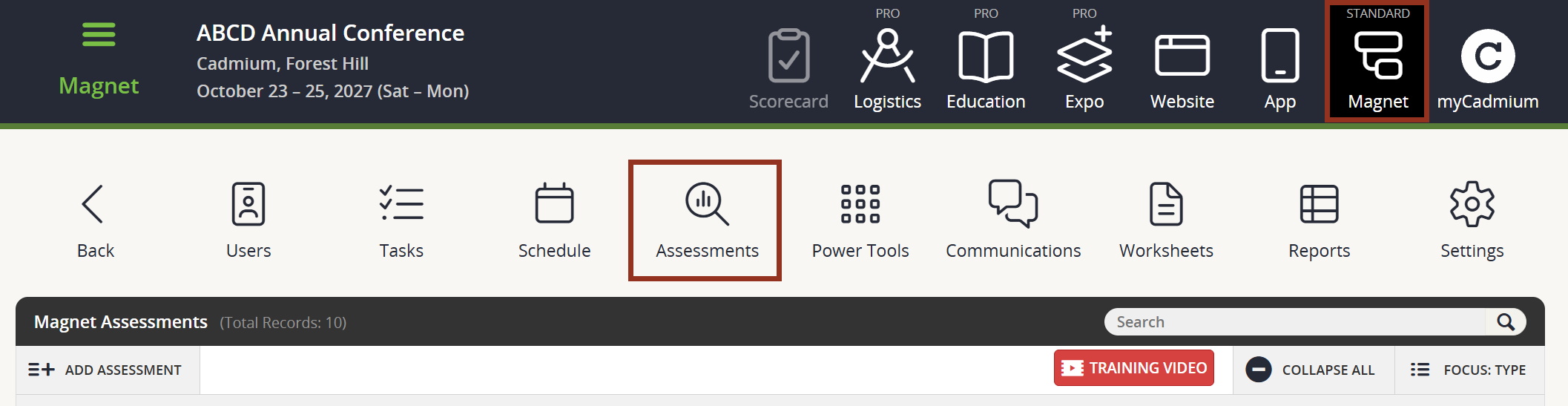
To create a General (Overall) Evaluation, select the Assessments icon from the top of the page in the Survey Magnet administrative dashboard to open the Assessments page (Fig. 1).
Fig. 1 - Assessments Page.
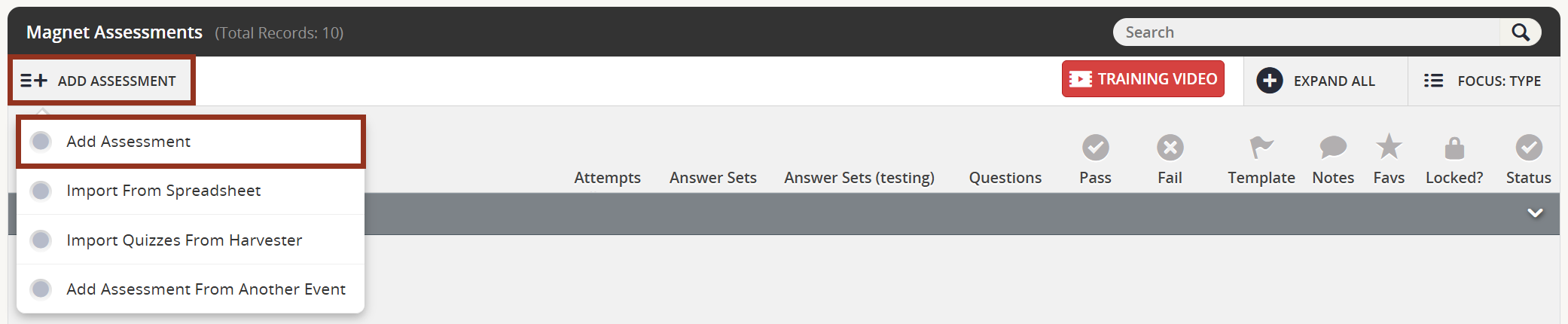
Locate and select the ADD ASSESSMENT button toward the upper left-hand corner of the page. Select Add Assessment from the drop-down menu (Fig. 2).
Fig. 2 - Add Assessment Button Drop-Down.
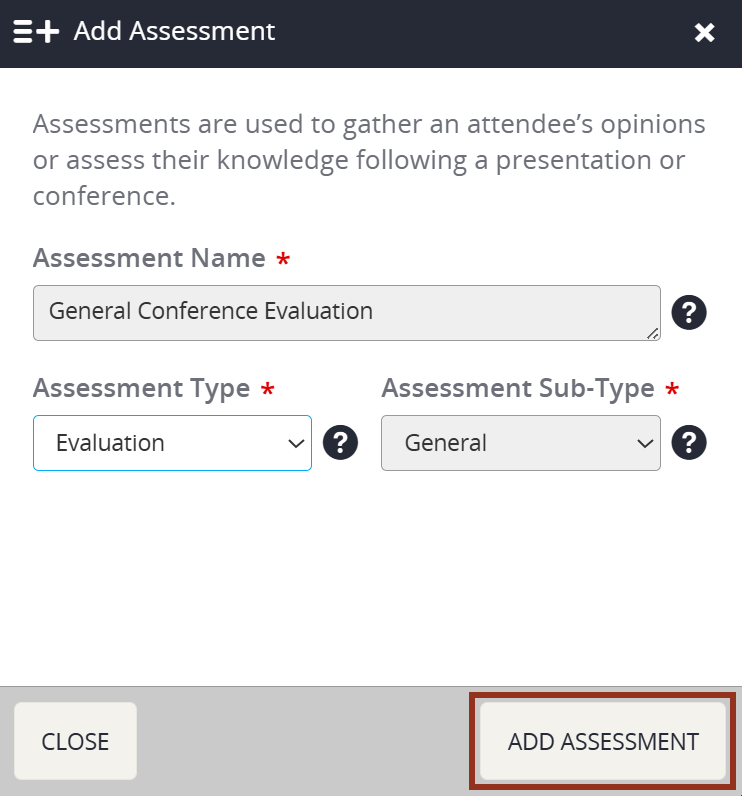
Type or paste the Assessment Name. Select "Evaluation" from the Assessment Type drop down menu.
Within the same window, choose "General" from the Assessment Sub-Type drop down menu.
Choosing "General" will let the Survey Magnet know that this Assessment will only show once per User.
Then, select the Add Assessment button from the lower right corner of the window.
IMPORTANT NOTE
As a reminder, a General (Overall) Evaluation must be linked to a Survey Task in order for the end user to see the Evaluation on their Task List.
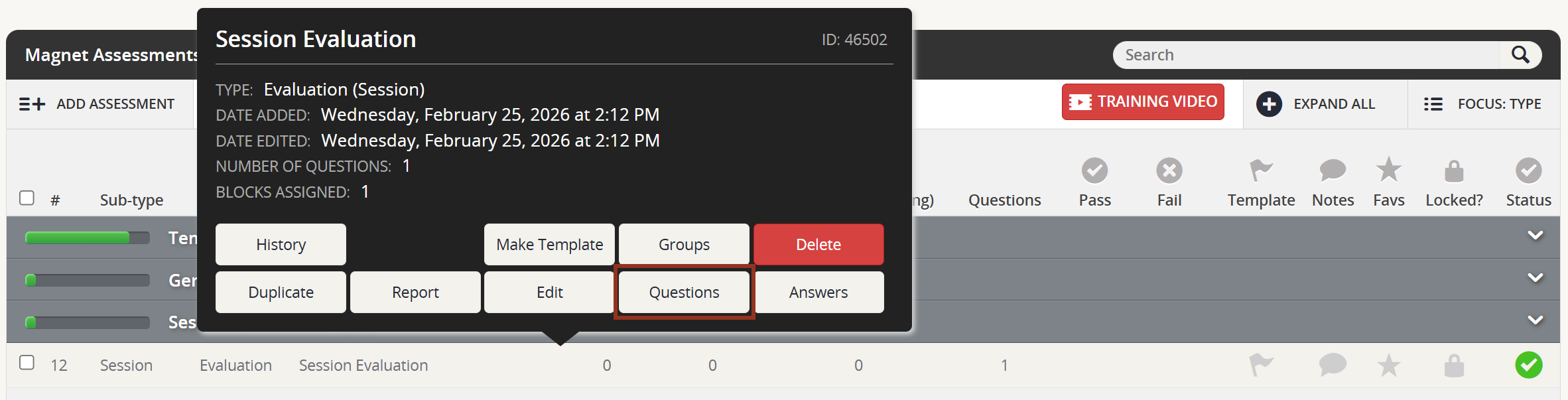
To add questions to the General (Overall) Evaluation, select the row for the evaluation on the Assessments page. Then, select the "Questions" button from the row pop-up (Fig. 4).
Fig. 4 - Session Evaluation Row Pop-up Questions Button.
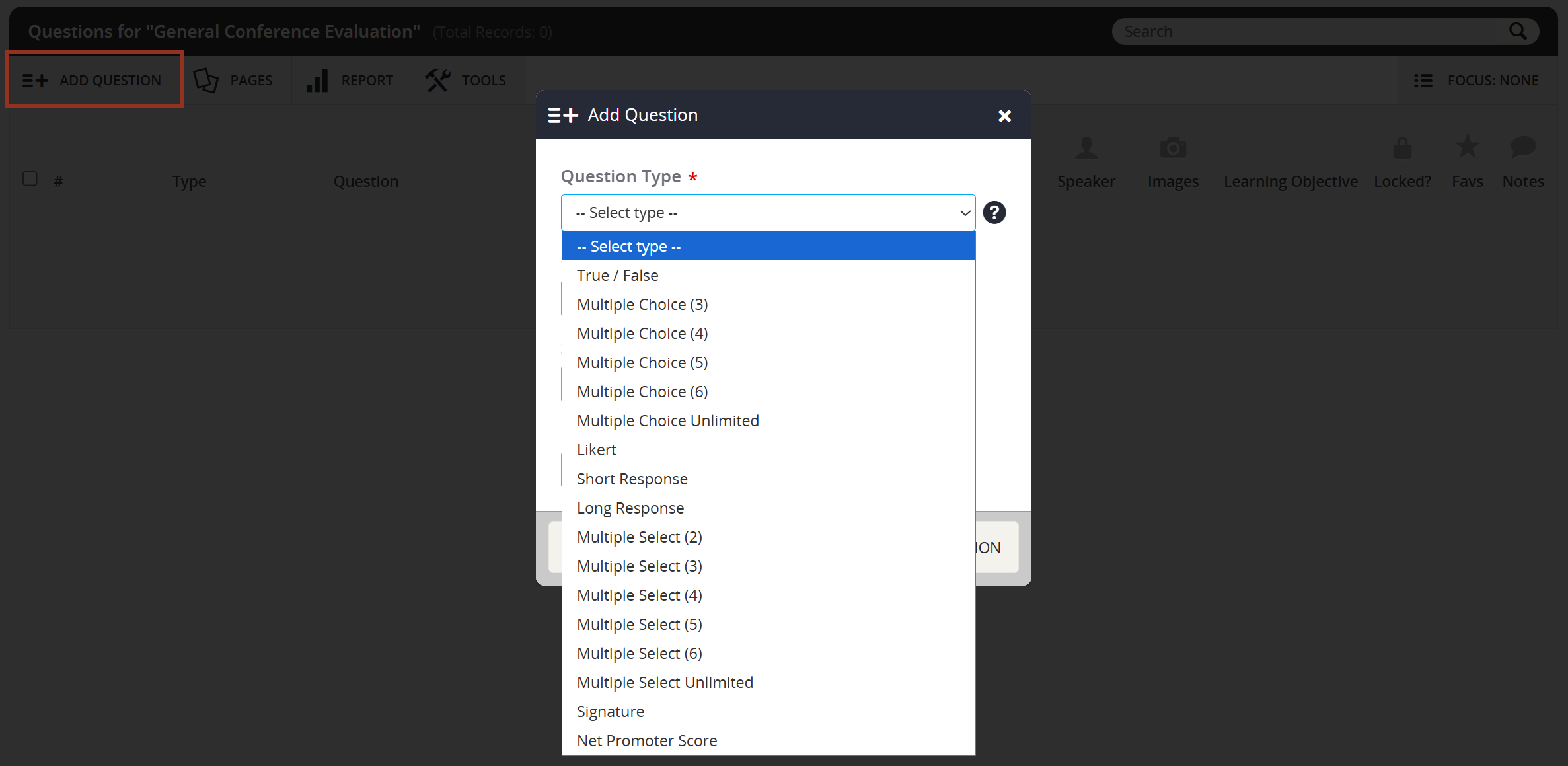
On the next page, select ADD QUESTION toward the upper right-hand corner of the page. Choose the Question Type from the drop down menu (Fig. 5).
Fig. 5 - Add Question Pop-up Question Type Drop Down.
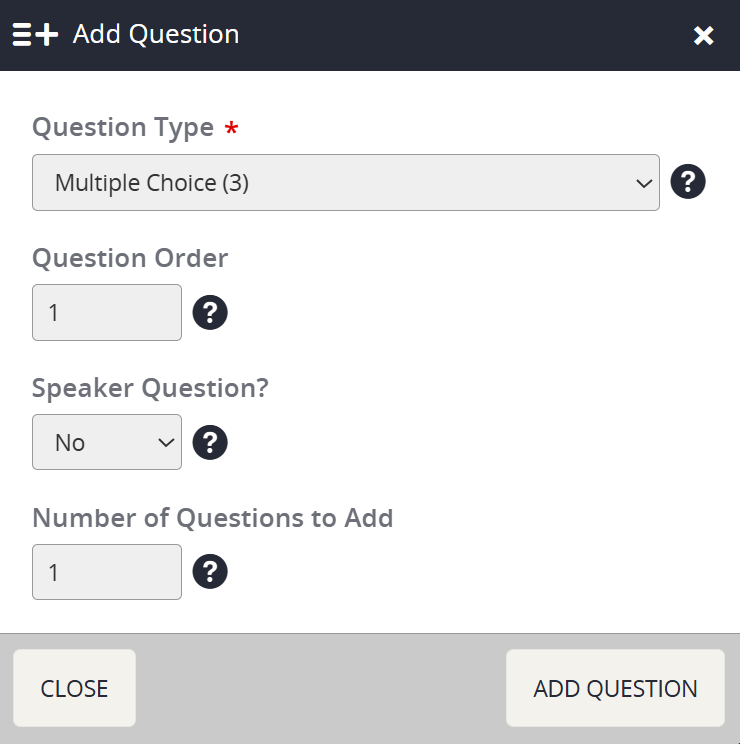
Enter the Question Order. You can use Decimals to keep your question sets organized. For example, 1.1, 1.2, 1.3, 2.1, 2.2, 2.3, etc.
Also, on this window, you may choose how many questions you would like to add of this same question type.
NOTE
For General Evaluation Questions, NONE of your questions should be marked as a Speaker Question. Questions added to the General (Overall) Evaluation should not be session or speaker specific.
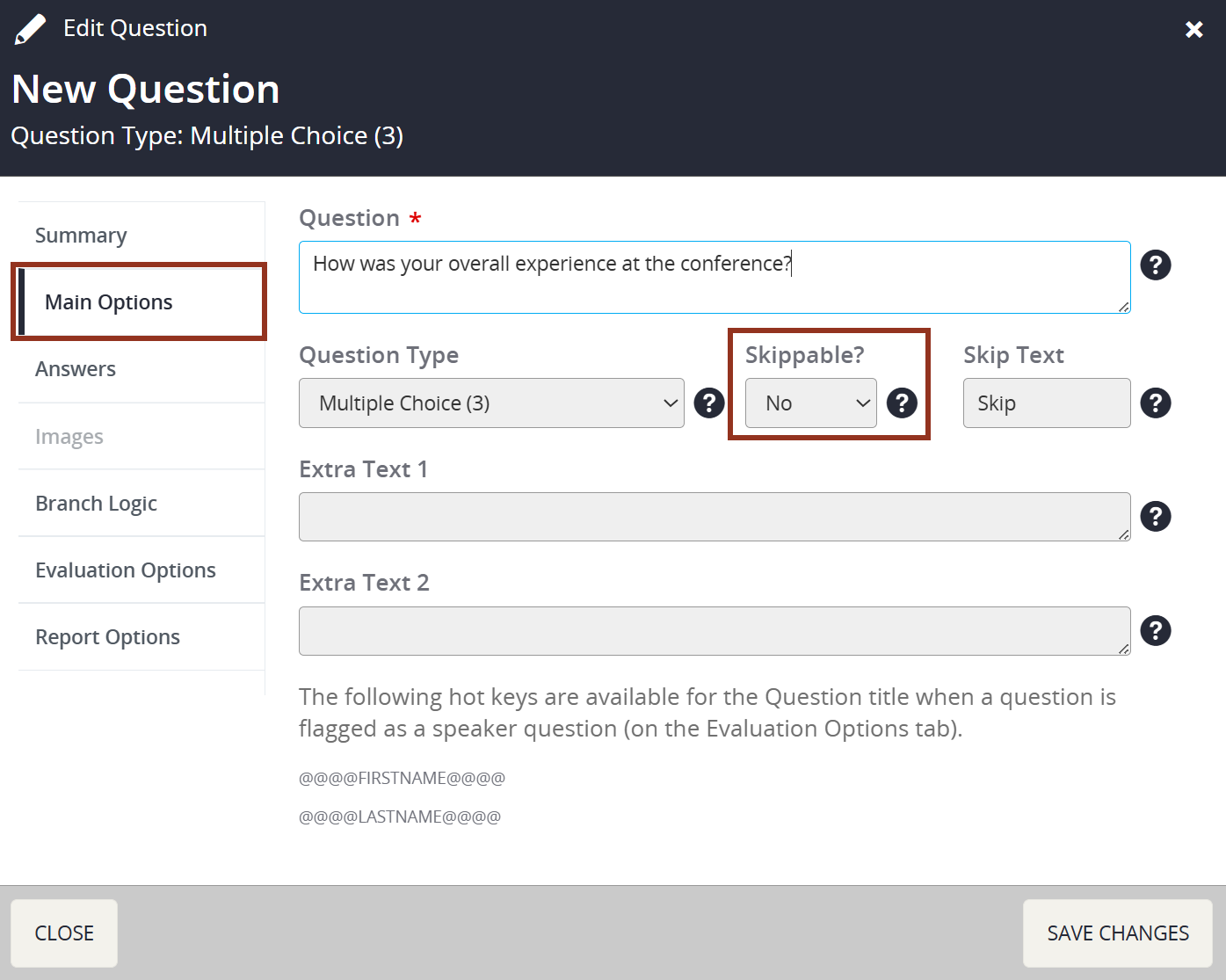
Within the Main Options section of the question settings, enter the Question text. Decide if the question can be Skippable, meaning the User is not required to answer the question (Fig. 7).
Fig. 7 - Edit Question Pop-up Main Options Tab.
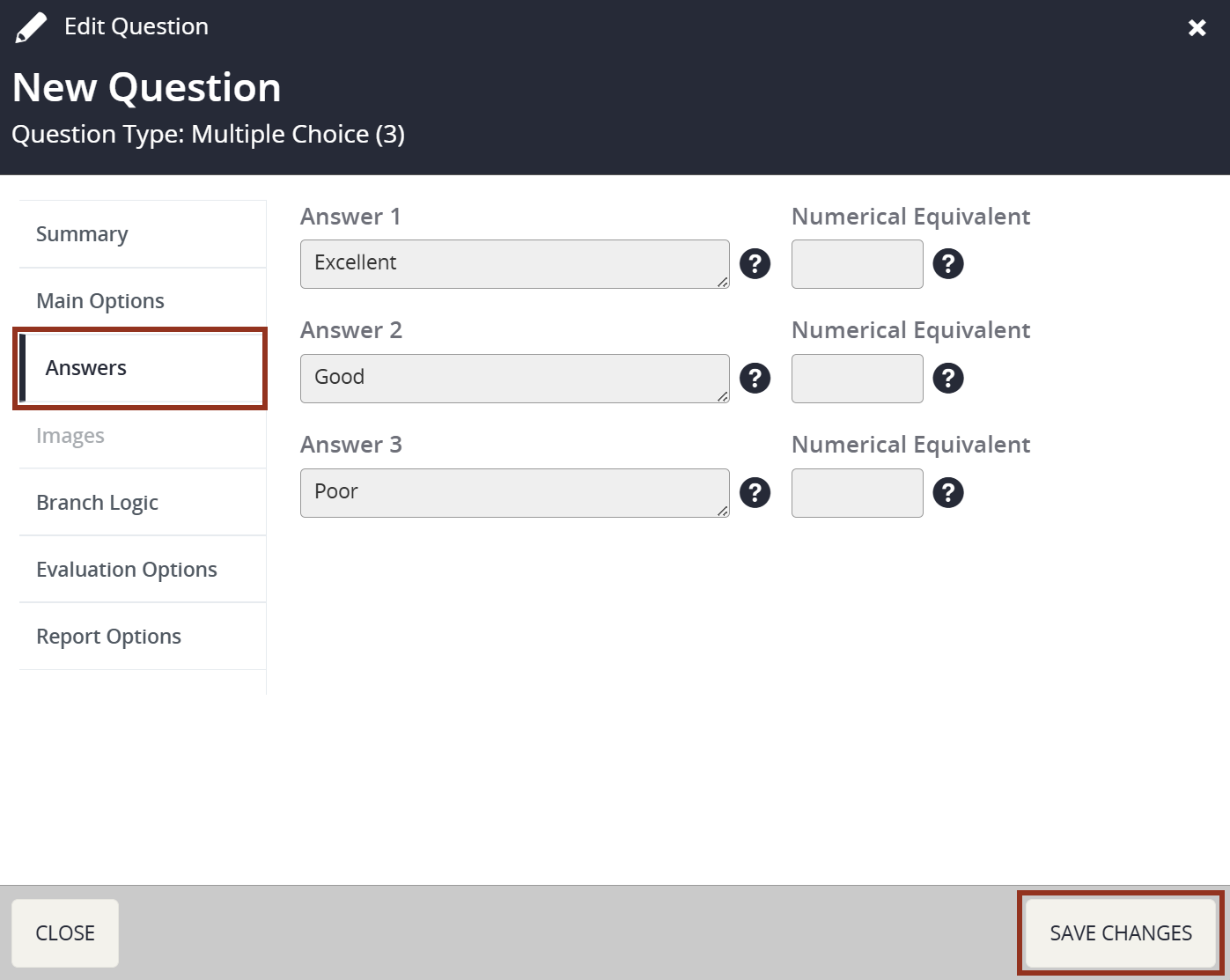
Use the left-hand navigation tabs to go to the Answers tab (Fig. 8). Enter the Answers/Options for the User to select from to complete the question. For True/False, Multiple Choice, Likert, and Multiple Select, this is a required tab. For Short Response, Long Response, and Signature, Answers/Options for the User to select are not needed.
Fig. 8 - Edit Question Pop-up Answers Tab.
IMPORTANT NOTE
For Likert type questions, you will also need to enter a Numerical Equivalent in order for the system to calculate averages.
After all settings have been updated, be sure to select the SAVE CHANGES button toward the bottom right-hand corner of the window pop-up. This will save and add the question to the General (Overall) Evaluation. Repeat for each question in the General (Overall) Evaluation. However, if you have multiple questions with the same question type, answers, instructions, etc., refer to Duplicating Questions for how to duplicate questions.
If you have questions about creating a General Evaluation, please contact your Project Manager via Boomerang.