For General (Overall) and Session Evaluations, question groups can be used to list the group title/heading for a set of questions that are a part of the same category or need to display the same instructions for each question. The most common use of grouping questions is to display the instructions for a set of Likert style questions. Grouping must also be used to have Likert questions with different Likert scales displayed next to each other.
NOTE
Question Groups do not apply to Quizzes, since each question shows on a single frame. For clarification, please reach out to your Project Manager via Boomerang.
This screenshot shows an example, for two different reasons, on why Grouping is needed within Evaluations (Fig. 1).
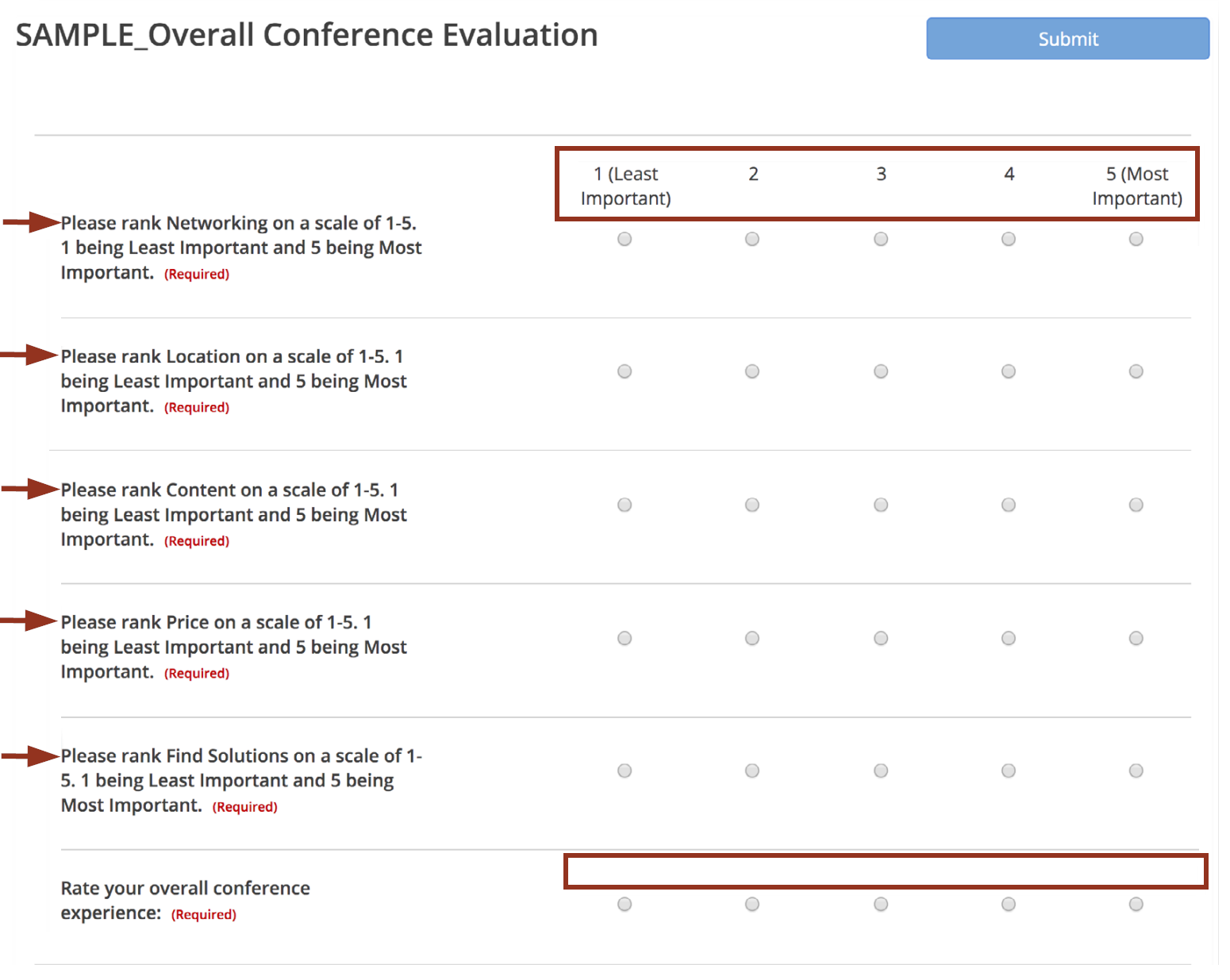
Fig. 1 - Sample Overall Conference Evaluation.
- This example shows repetitive instructional text within questions that are using the same Likert scale.
- The sixth Likert style question, "Rate your overall conference experience." has a different Likert scale, but is not displaying since a question group has not been created to separate the different rating scales.
To create question groups, locate the evaluation on the Assessments page. Select the row for the evaluation, and then select the Groups button from the pop-up window (Fig. 2).
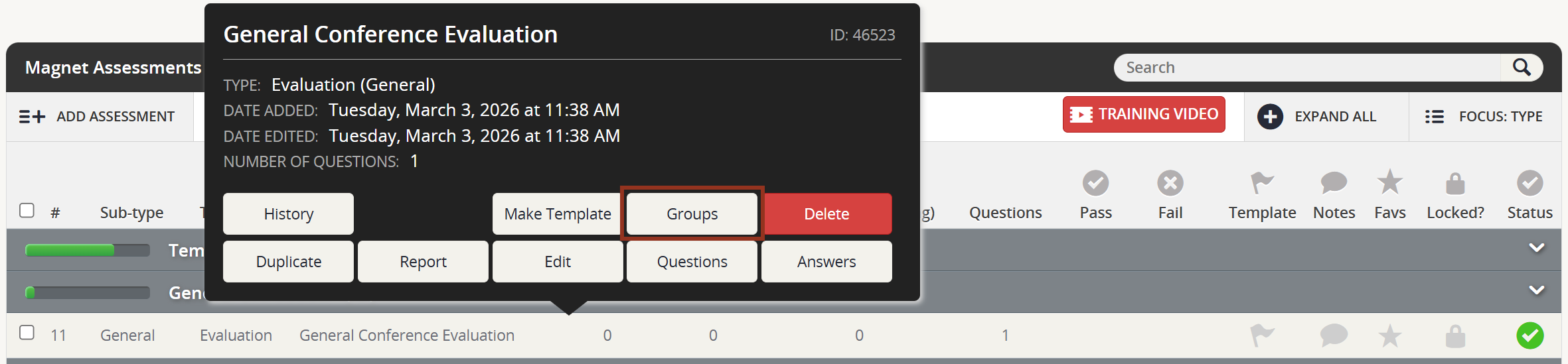
Fig. 2 - Evaluation Row Pop-up Groups Button.
On the next page, locate and click the ADD GROUP button towards the upper lefthand corner of the page (Fig. 3).

Fig. 3 - Add Group Button.
Within the window pop-up, type or paste a Group Title and Instructions and Closing Text if needed. Then select the ADD GROUP button (Fig. 4).
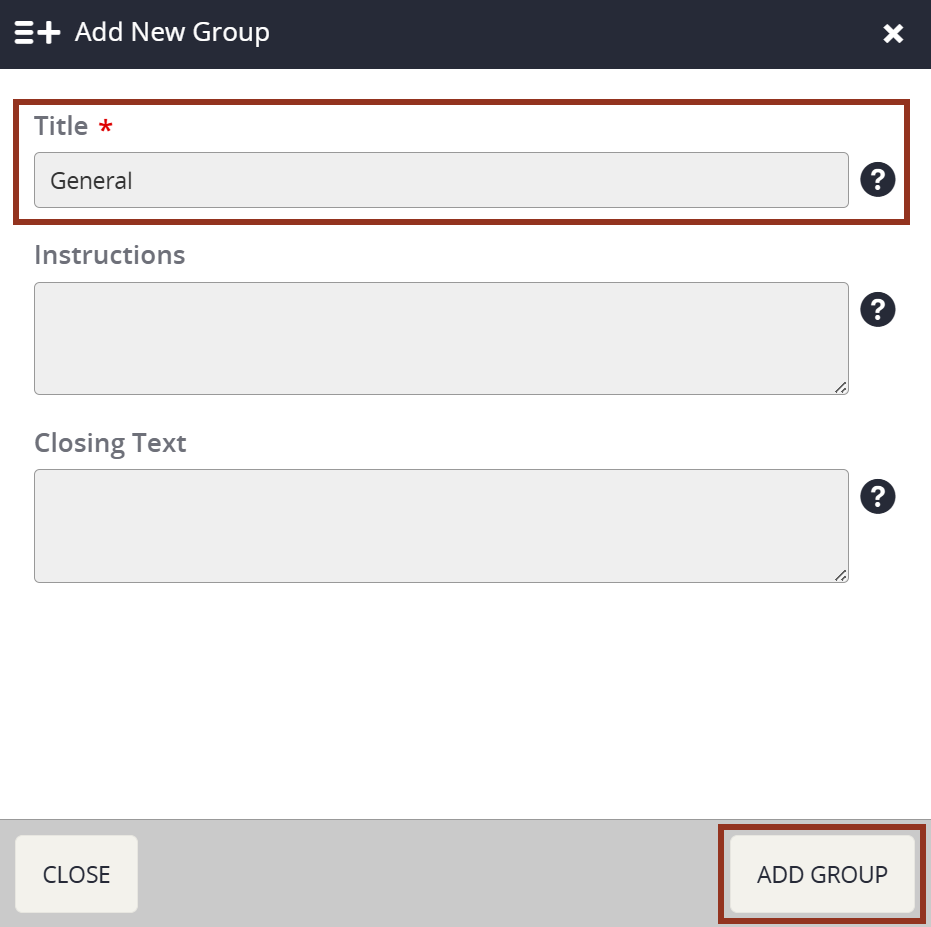
Fig. 4 - Add New Group Pop-up.
Then, link the questions to the newly created Group. Select the row for the Group and select the EDIT button (Fig. 5).

Fig. 5 - Group Row Pop-up Edit Button.
Open the Questions tab. Use the checkboxes to select the questions. Then, select the SAVE CHANGES button once all questions have been added to the Group (Fig. 6). These questions have been updated so the repetitive instructional text is no longer listed within each question.
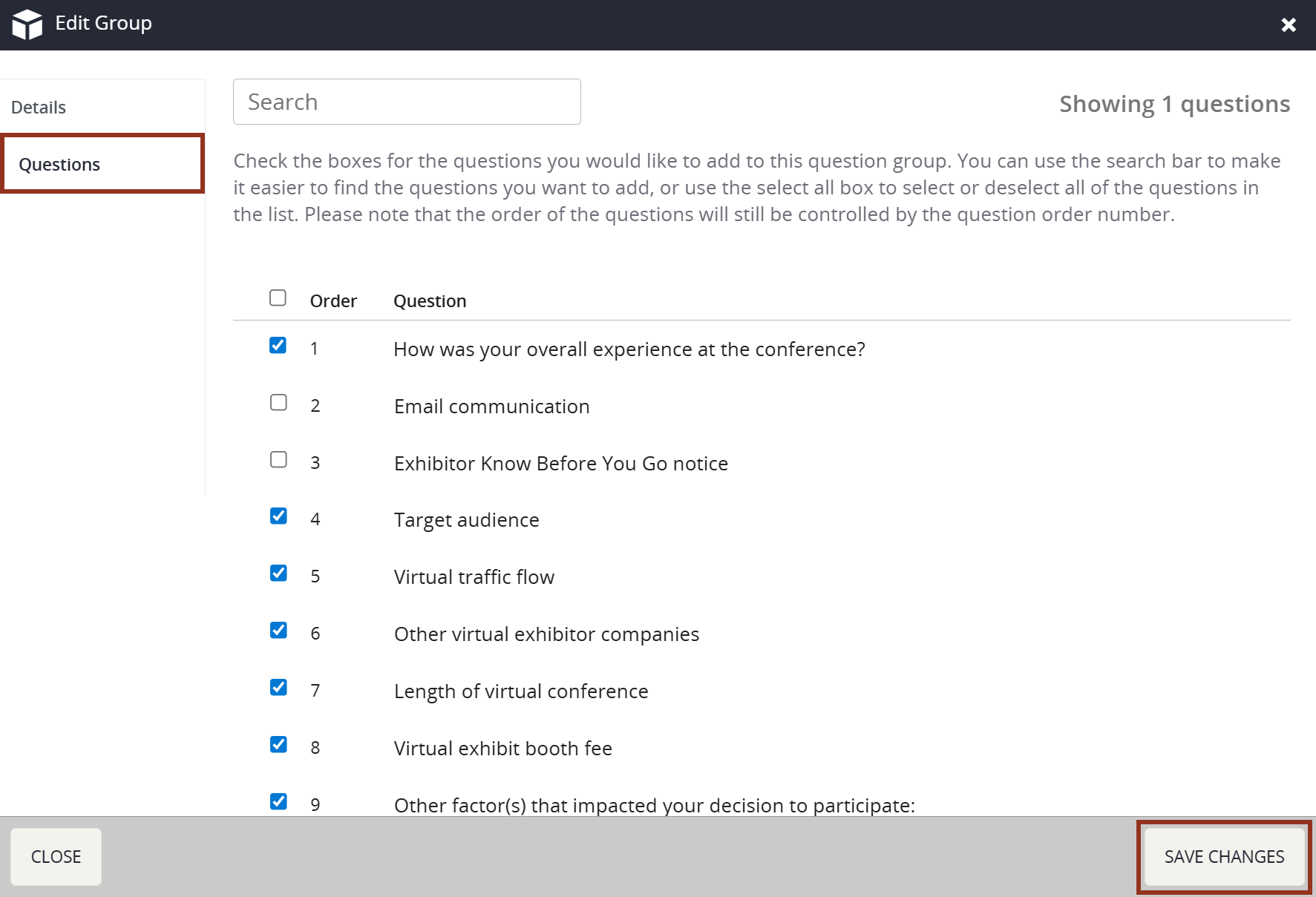
Fig. 6 - Edit Group Questions Tab.
The system will confirm the changes by showing a green confirmation banner at the top of the page (Fig. 7).
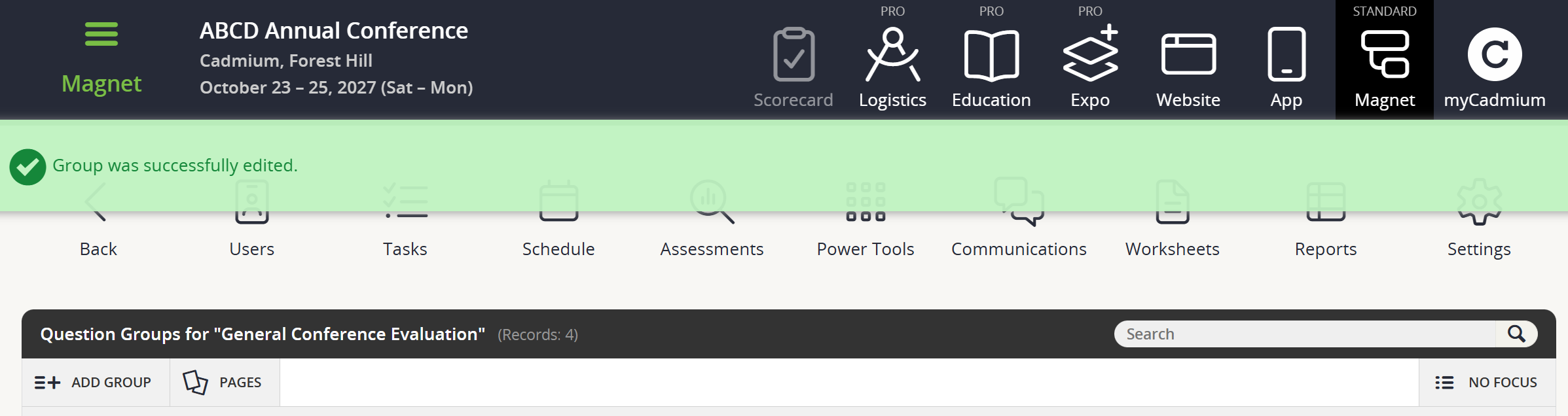
Fig. 7 - Confirmation Banner.
Within the Questions for the Evaluation, you will now see a new bucket with the newly created Group and the questions that were linked in the previous steps (Fig. 8).
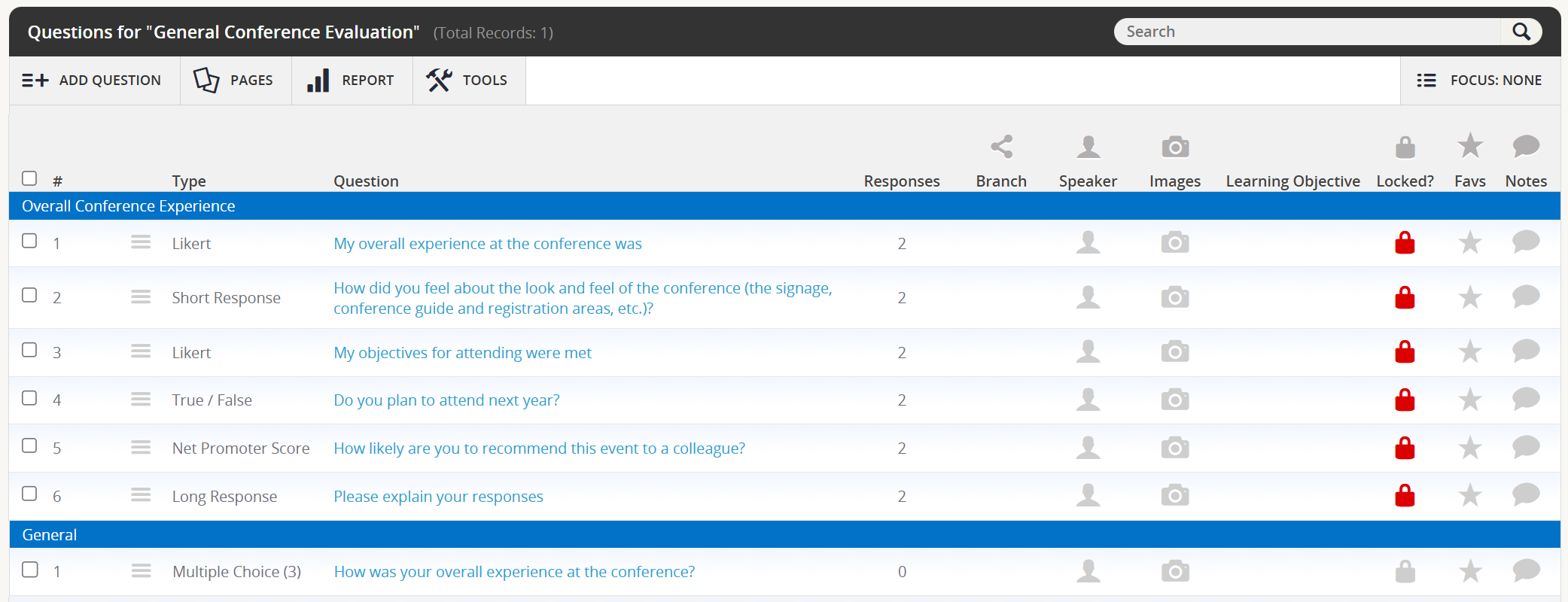
Fig. 8 - Questions Bucketed By Groups.
If you were to test the Evaluation as an end user, you will now see the Group Name and Instructions above the five Likert style questions (Fig. 9).
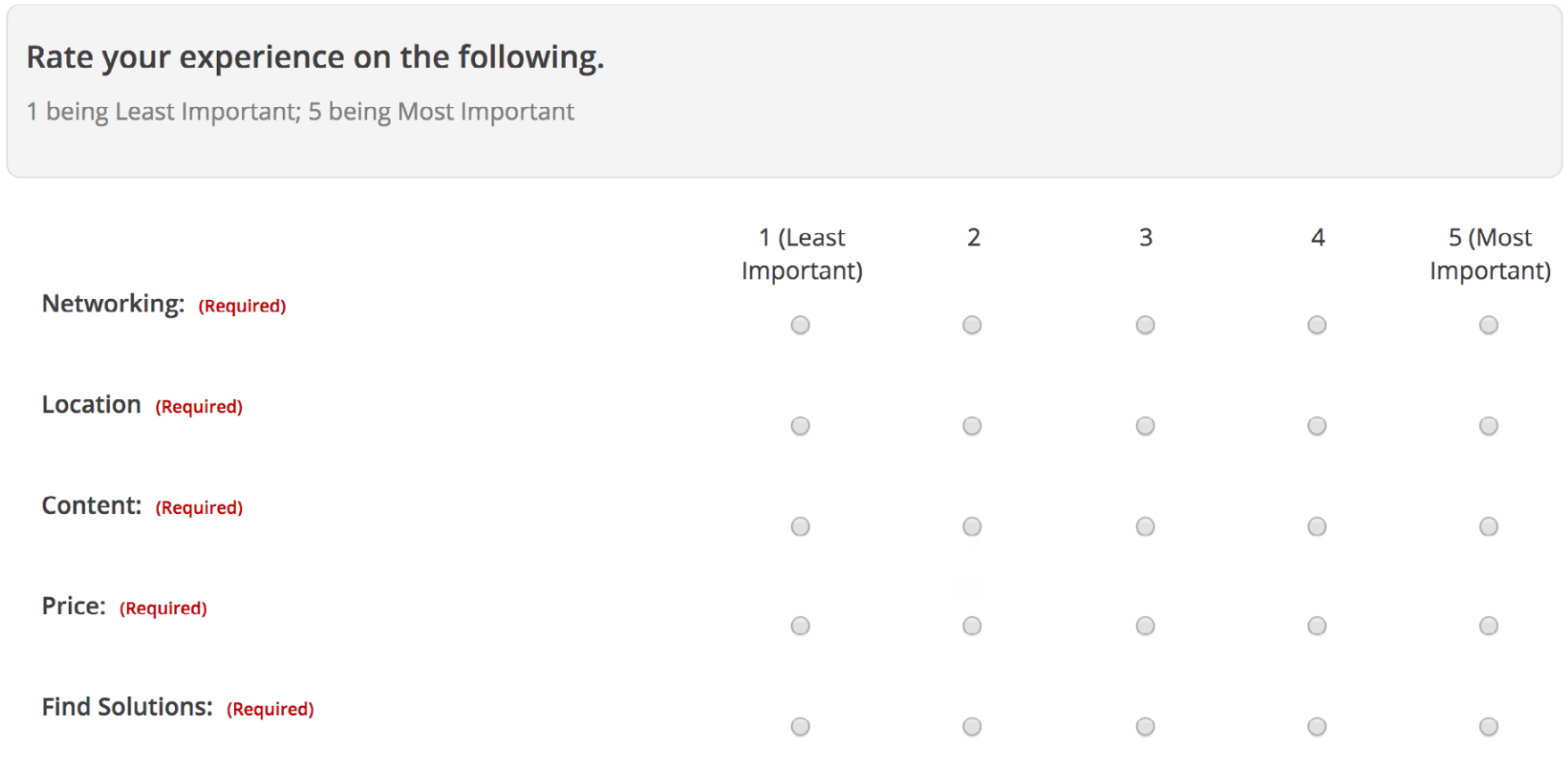
Fig. 9 - Evaluation Showing Group Title.
Once Groups have been created, questions can also be added to a Group on the Questions page. Select the checkbox next to the question number. Within the footer, select the Add to Group button (Fig. 10).
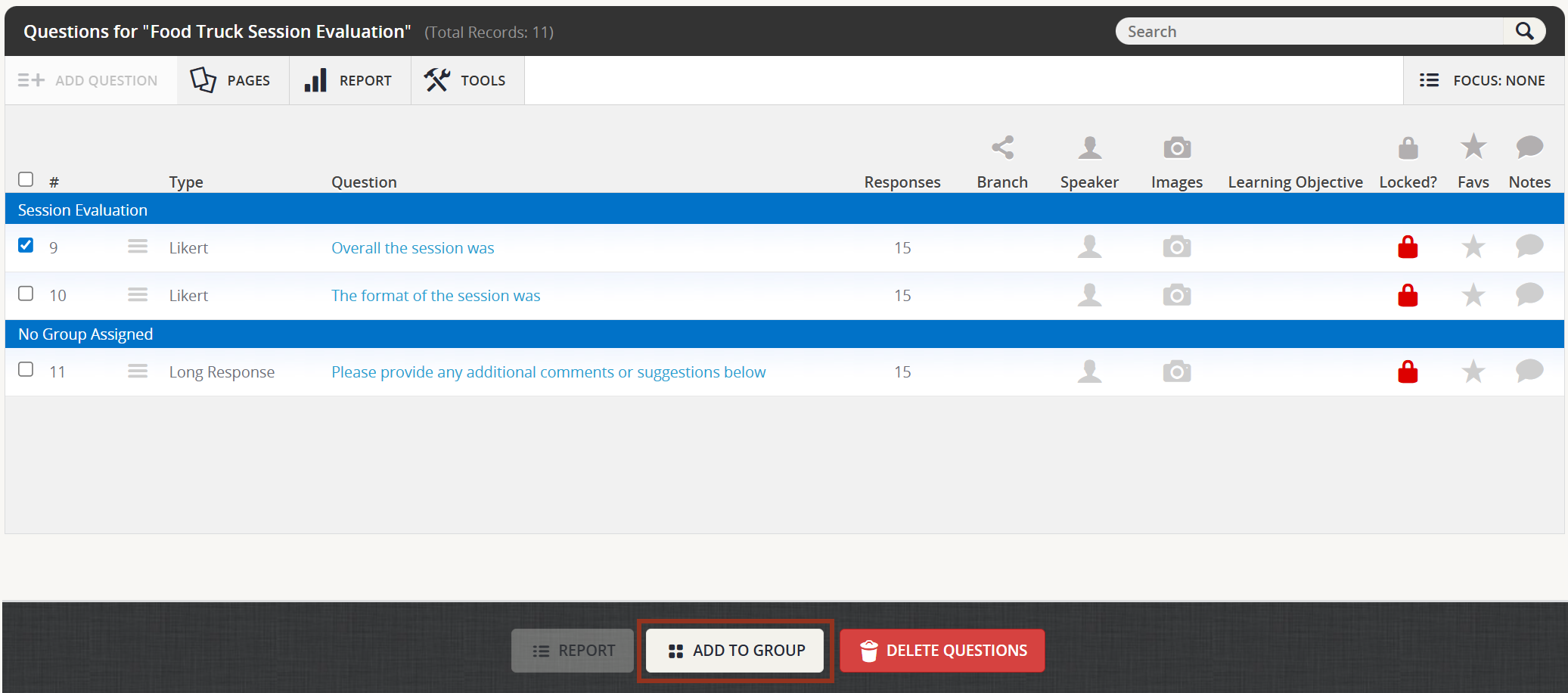
Fig. 10 - Questions Page Add To Group Button.
Select the Group from the drop down menu. Then, select the ADD TO GROUP button (Fig. 11).
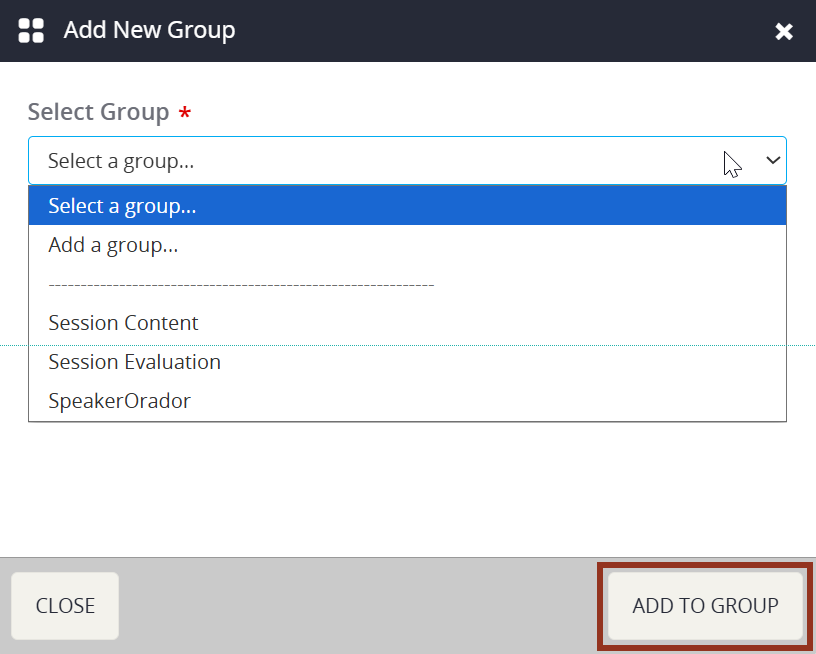
Fig. 11 - Add New Group Pop-up.
Confirm that the question was added to the Group you selected.
If you have questions on Grouping Questions, please contact your Project Manager via Boomerang.
Was this article helpful?
That’s Great!
Thank you for your feedback
Sorry! We couldn't be helpful
Thank you for your feedback
Feedback sent
We appreciate your effort and will try to fix the article