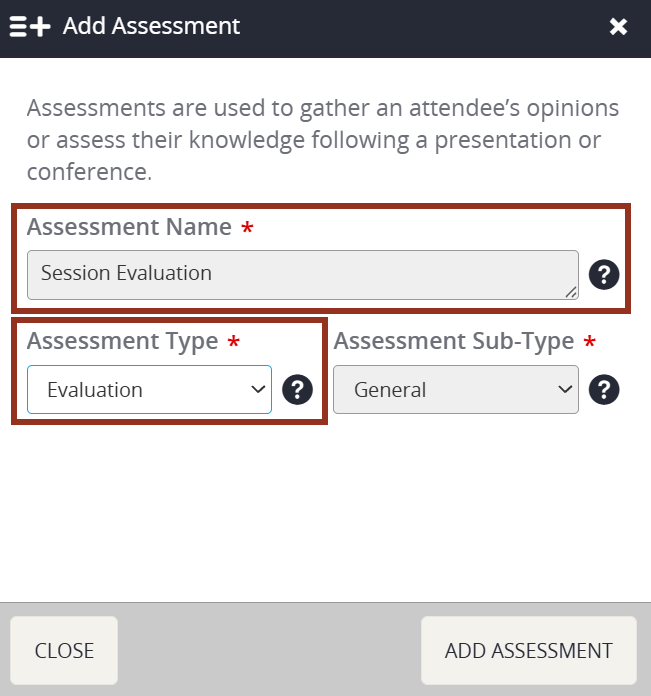
Type or paste the Assessment Name. Select Evaluation from the Assessment Type drop down menu.
To create a Session Evaluation, select the Assessments icon from the top of the page in the Survey Magnet administrative dashboard to open the Assessments page (Fig. 1).
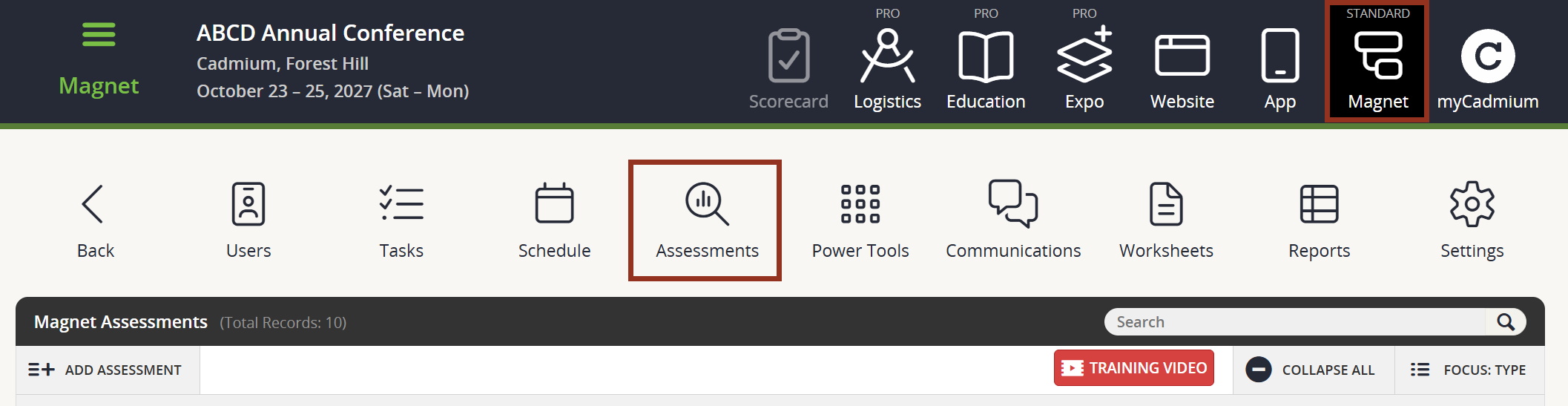
Fig. 1 - Assessments Page.
Locate and select the ADD ASSESSMENT button toward the upper left-hand corner of the page. Select Add Assessment from the drop-down menu (Fig. 2).
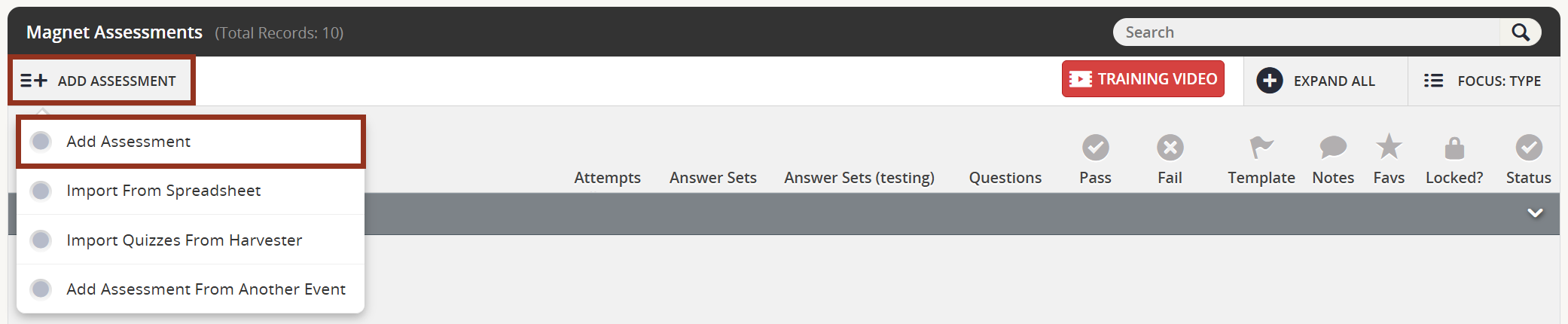
Fig. 2 - Add Assessment Button Drop-Down.
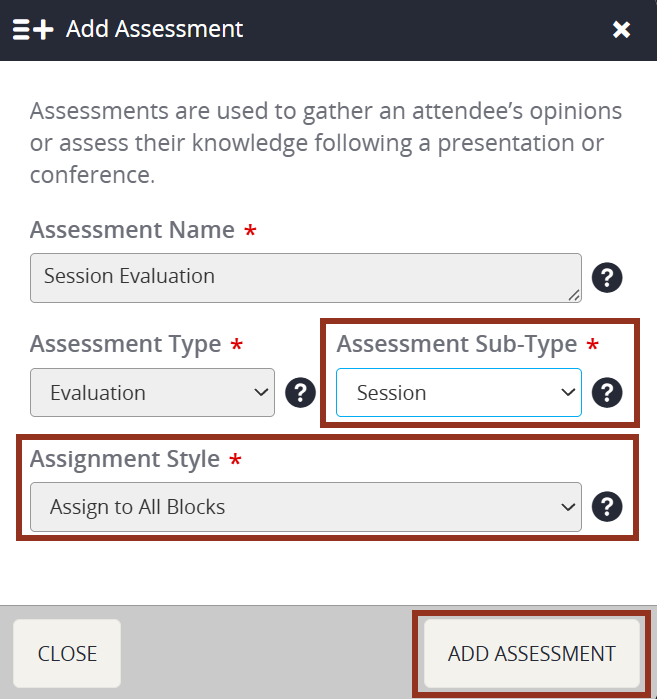
Within the same window, choose Session from the Assessment Sub-Type drop down menu. Choosing Session will allow the Assessment to appear for every session the User selects in the Credit Selection Task.
This will also give you the opportunity to select whether you would like to assign this session evaluation to all blocks within the schedule, or whether you would like to select specific blocks.
Once finished, select the Add Assessment button from the lower right-hand corner of the window.
In the next window that appears, notice the left-hand navigation tabs. Within the Eval Options section, make the necessary adjustments to meet your events needs (Fig. 5).
- Submit Button Text - If desired, update the text label for the Submit Button.
- Bucket Speakers - We recommend to bucket speakers within the session evaluation when there are 3 or more speakers for a presentation.
- Show Speakers in Summary - If toggled to Yes, all speakers will display at the top of the Session Evaluation. To disable the speakers from showing, toggle the setting to No.
- Speaker Role, Position, Organization, Etc. - Choose whether or not to display specific speaker information to your end users within a Session Evaluation. To show Role, Position, or Organization, toggle the respective setting to Yes. If not, keep the respective setting toggled to No.
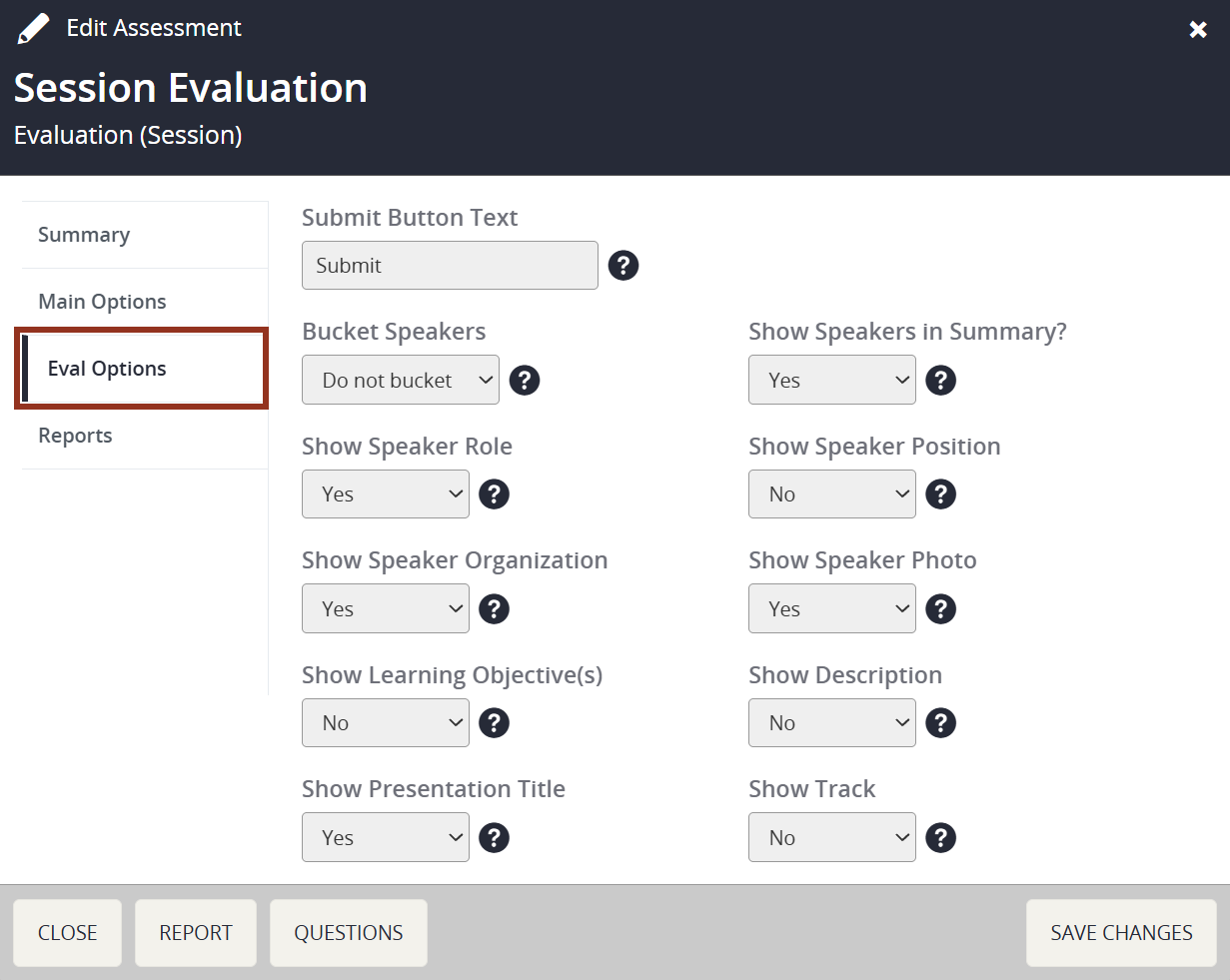
Fig. 5 - Session Evaluation Options.
Next, select the Reports tab. Within the "Reports" section, all of these settings control the data that is displayed on the Session Evaluation Report (PDF) (Fig. 6). These reports allow you to share data with external stakeholders, specifically your speakers. We recommend the following configuration. For a detailed explanation of the setting, hover over the blue question mark icon. For clarification, please reach out to your Project Manager.
If you chose to hide the speakers roles within Eval Options, please make sure Yes (but hide their roles) is selected for Show Speakers Under Presentation Title.
After all settings have been updated, select the SAVE CHANGES button toward the bottom right-hand corner of the pop-up window.
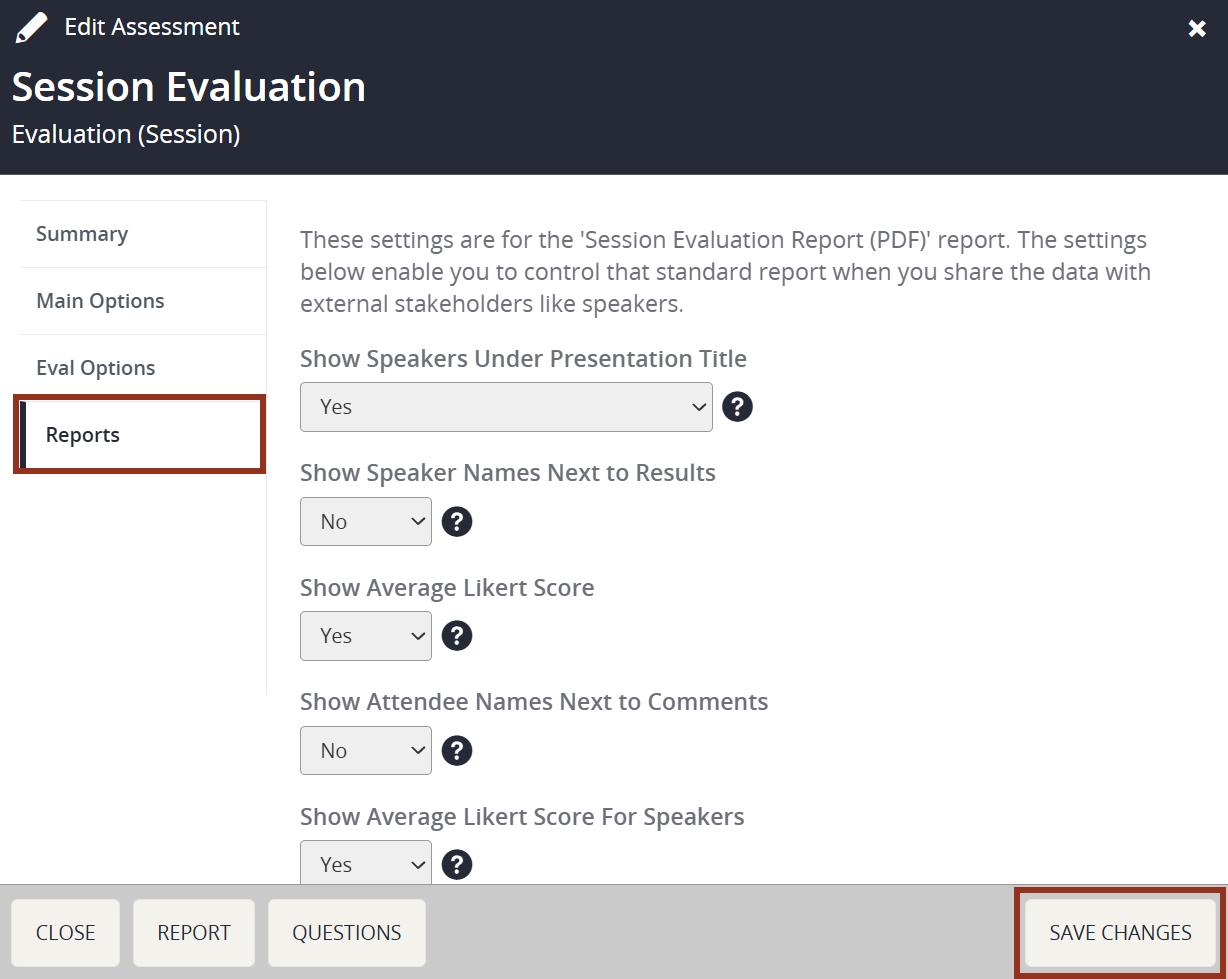
Fig. 6 - Session Evaluation Reports Tab.
To add questions to the Session Evaluation, select the row for the evaluation on the Assessments page. Then, select the Questions button from within the row pop-up (Fig. 7).
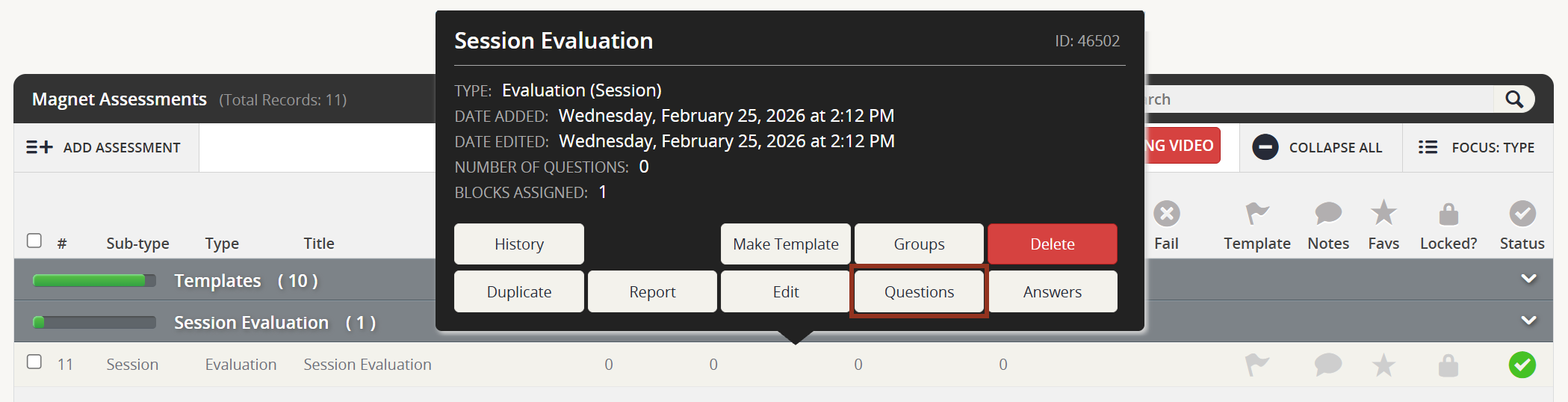
Fig. 7 - Session Evaluation Row Pop-Up Questions Button.
On the next page, select ADD QUESTION toward the upper left-hand corner of the page. Choose the Question Type from the drop down menu (Fig. 8).
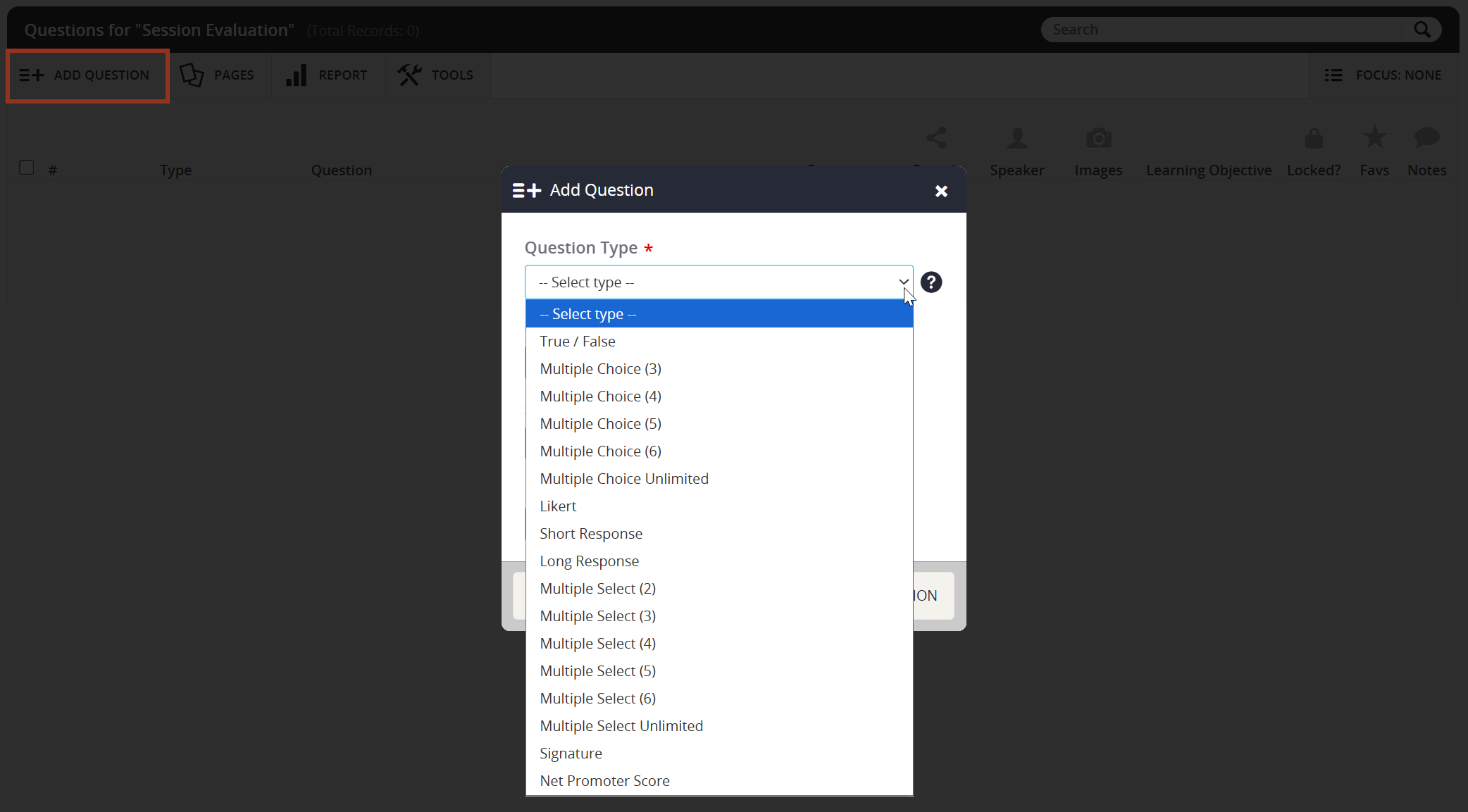
Fig. 8 - Add Question Pop-up Question Type Options.
Enter the Question Order. You can use decimals to keep your question sets organized. For example, 1.1, 1.2, 1.3, 2.1, 2.2, 2.3, etc. Also, select the Number of Questions to Add for this same question type.
Decide if the question you are about to enter is a Speaker Question or a question for the overall Session. If it is a Speaker Question, toggle the drop down to "Yes". This question will display for every speaker on the session evaluation. Select the Add Question button (Fig. 9).
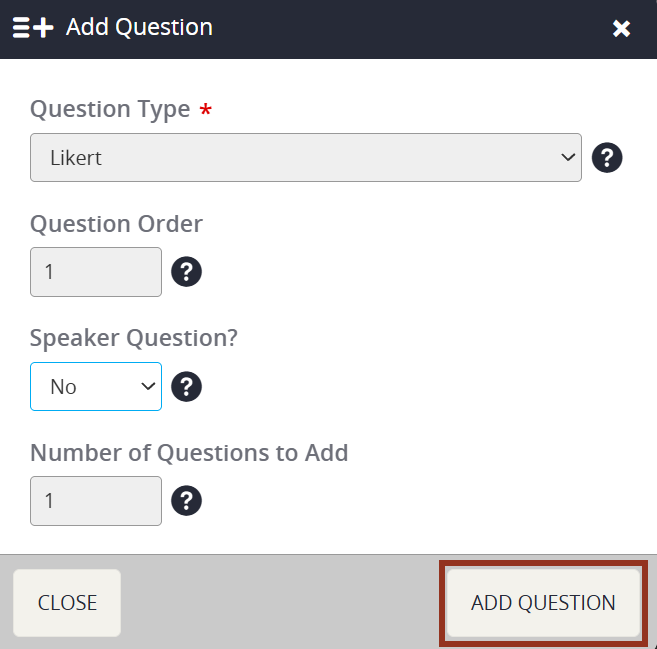
Fig. 9 - Add Question Pop-up Options.
Within the Main Options section of the question settings, enter the Question text. Decide if the question can be Skippable, meaning the User is not required to answer the question (Fig. 10).
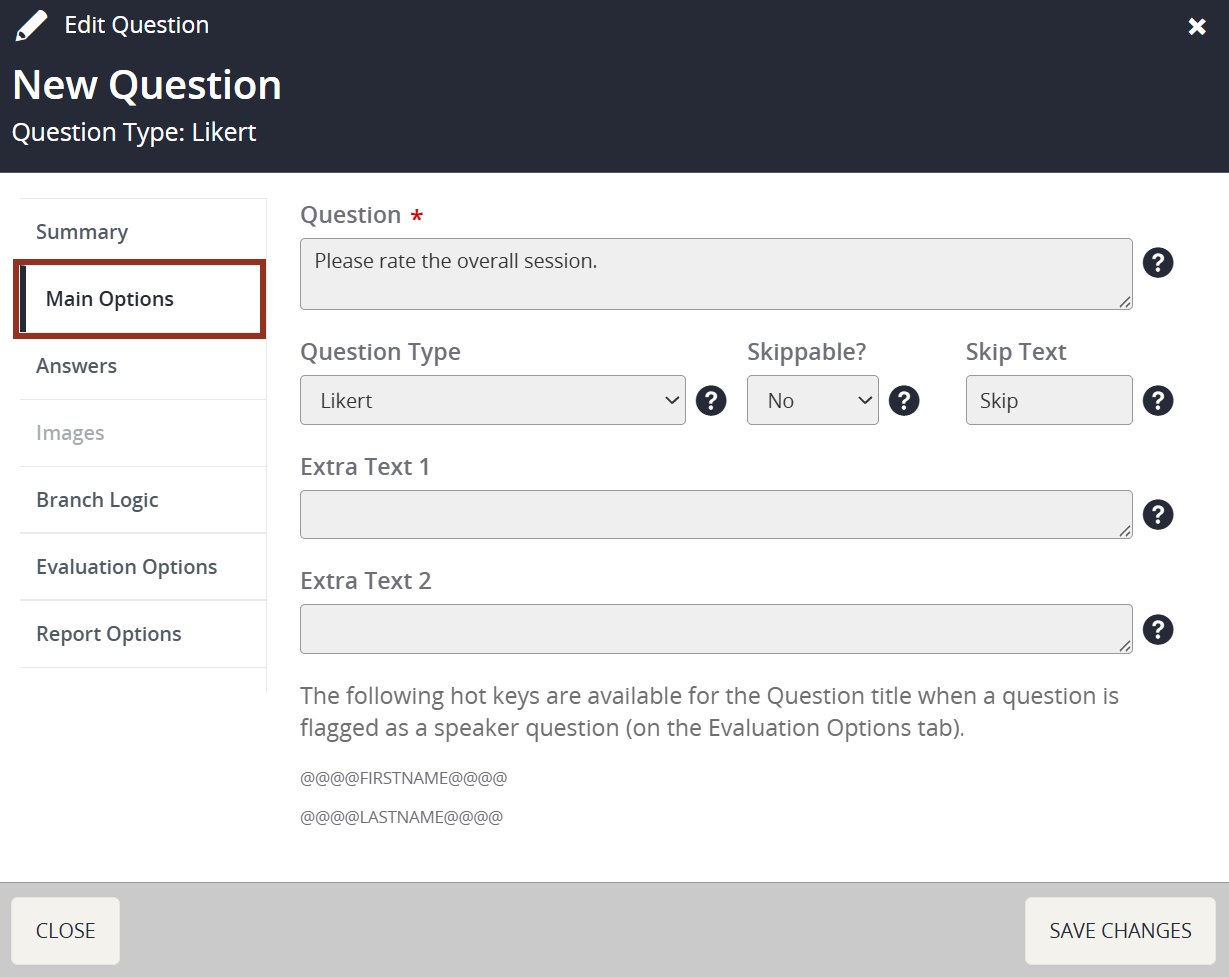
Fig. 10 - Edit Question Pop-up Main Options Tab.
Use the left-hand navigation to click on the Answers tab. Enter the Answers/Options for the User to select from to complete the question. For True/False, Multiple Choice, Likert, and Multiple Select, this is a required tab. For Short Response, Long Response, and Signature, Answers/Options for the User to select are not needed.
For Likert type questions, you will also need to enter a Numerical Equivalent in order for the system to calculate averages. See example in screenshot below. Likert questions need exactly 5-options (Fig. 11).
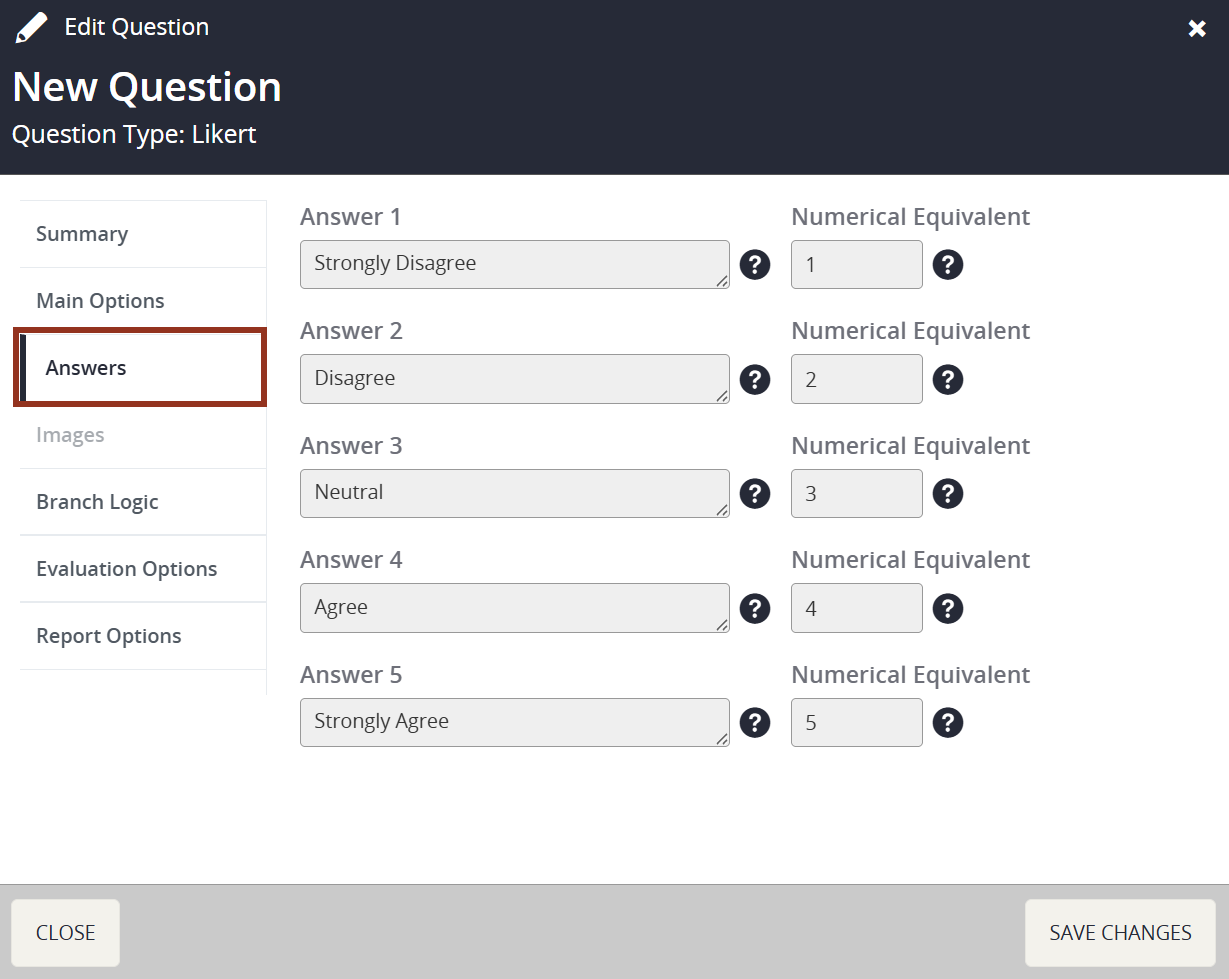
Fig. 11 - Edit Question Pop-up Answers Tab.
If the Session Evaluation requires evaluating individual Learning Objectives, create a True/False type question to link to a specific Objective. Open the Evaluation Options tab and choose the Learning Objective from the drop-down (Fig. 11).
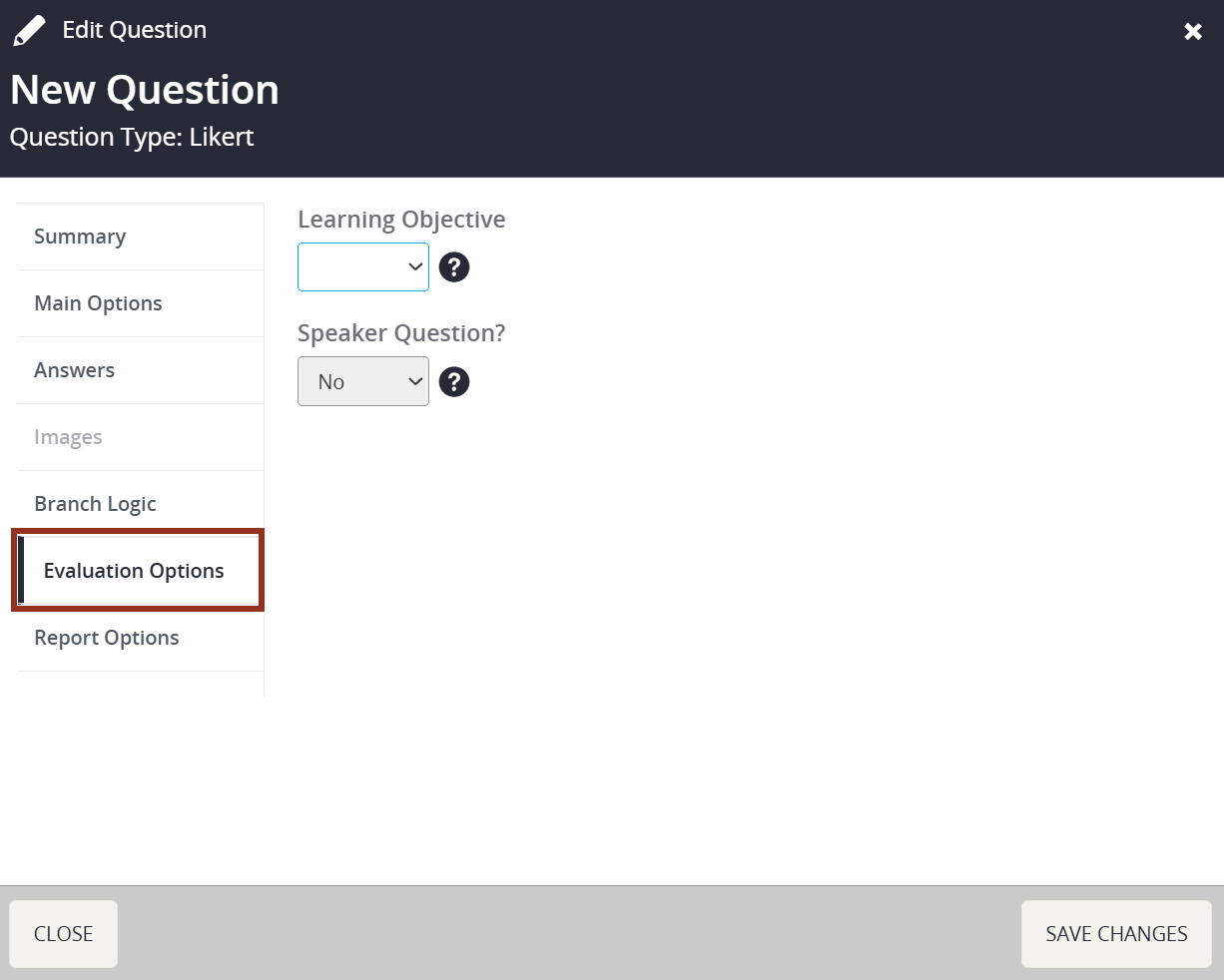
Fig. 11 - Edit Question Pop-up Evaluations Tab.
After all settings have been updated, be sure to select the SAVE CHANGES button toward the bottom right-hand corner of the pop-up. This will save and add the question to the Session Evaluation. Repeat this process for each question in the Session Evaluation. However, if you have multiple questions with the same question type, answers, instructions, etc., refer to Duplicating Questions for how to duplicate questions.
The screenshot below provides an example of questions and question types that you might find within a Session Evaluation. Questions marked with a blue profile within the Speaker column indicated that they are Speaker questions, and will show for all speakers in the session (Fig. 12).
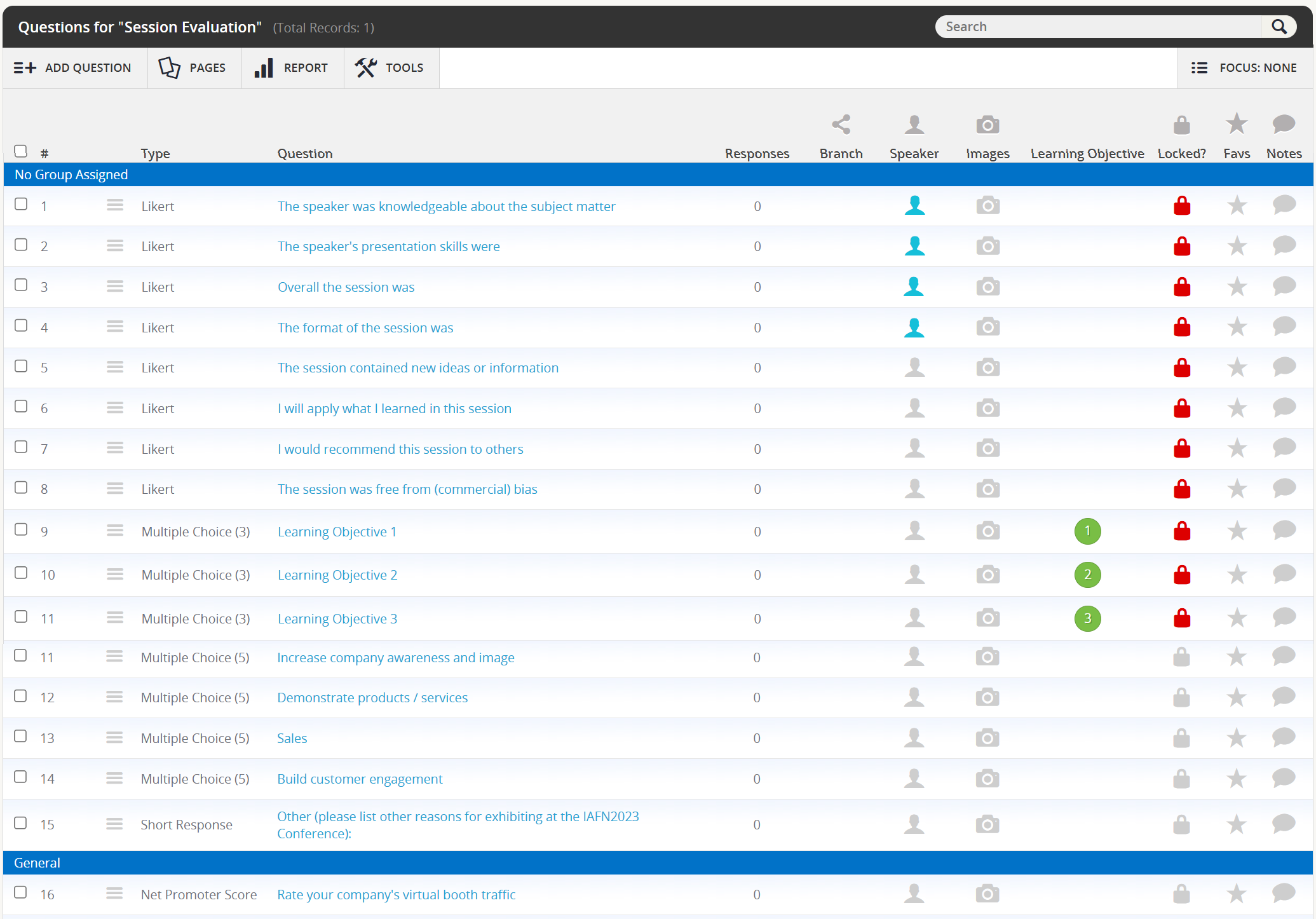
Fig. 12 - Sample Session Evaluation Questions Page.
The Creating a General (Overall) Evaluation article will go over the steps to add a General (Overall) Evaluation. If you have questions about creating a Session Evaluation, please contact your Project Manager via Boomerang.
Last modified Apr 27, 2026
Was this article helpful?
That’s Great!
Thank you for your feedback
Sorry! We couldn't be helpful
Thank you for your feedback
Feedback sent
We appreciate your effort and will try to fix the article