Branch Logic is a feature in the Survey Magnet which allows you to trigger additional questions to appear within the evaluation. As users select certain responses to specific questions that are pre-determined, you have the option to have additional questions appear to help you collect more information about a users' response.
To Set Up a Branch Question
Select the Assessments icon from the top of the page in the Survey Magnet administrative dashboard to open the Assessments page (Fig. 1).
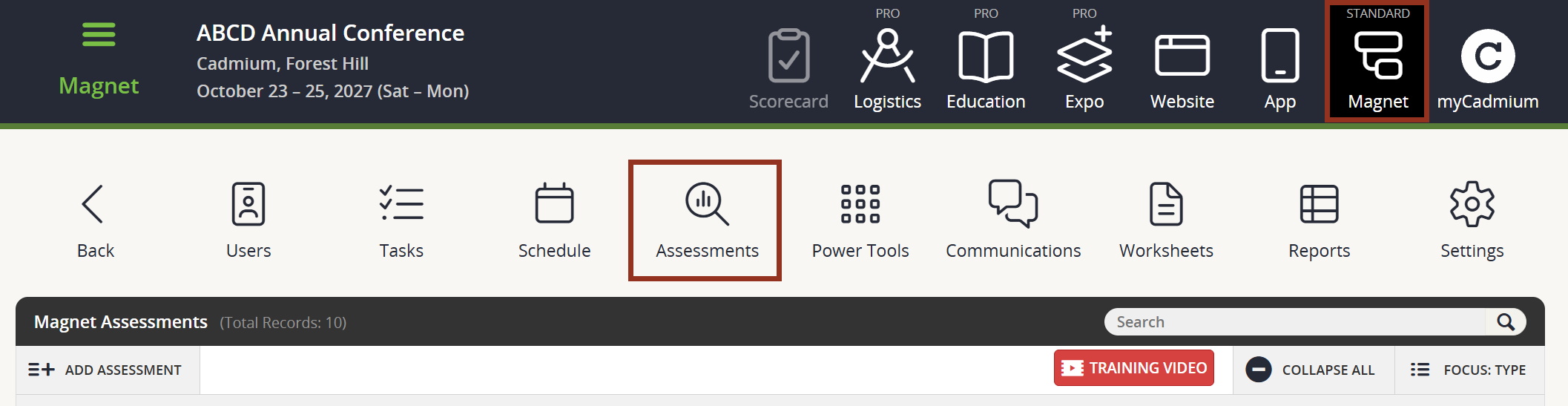
Fig. 1 - Assessments Page.
Within the Questions Page of your desired assessment, select the ADD QUESTION button from the top left corner of the page. Then, complete the pop-up window with the correct Question Type and order from the dropdown menu (Fig. 2). Branch questions are compatible with all Question Types, however the order must be after the trigger question.
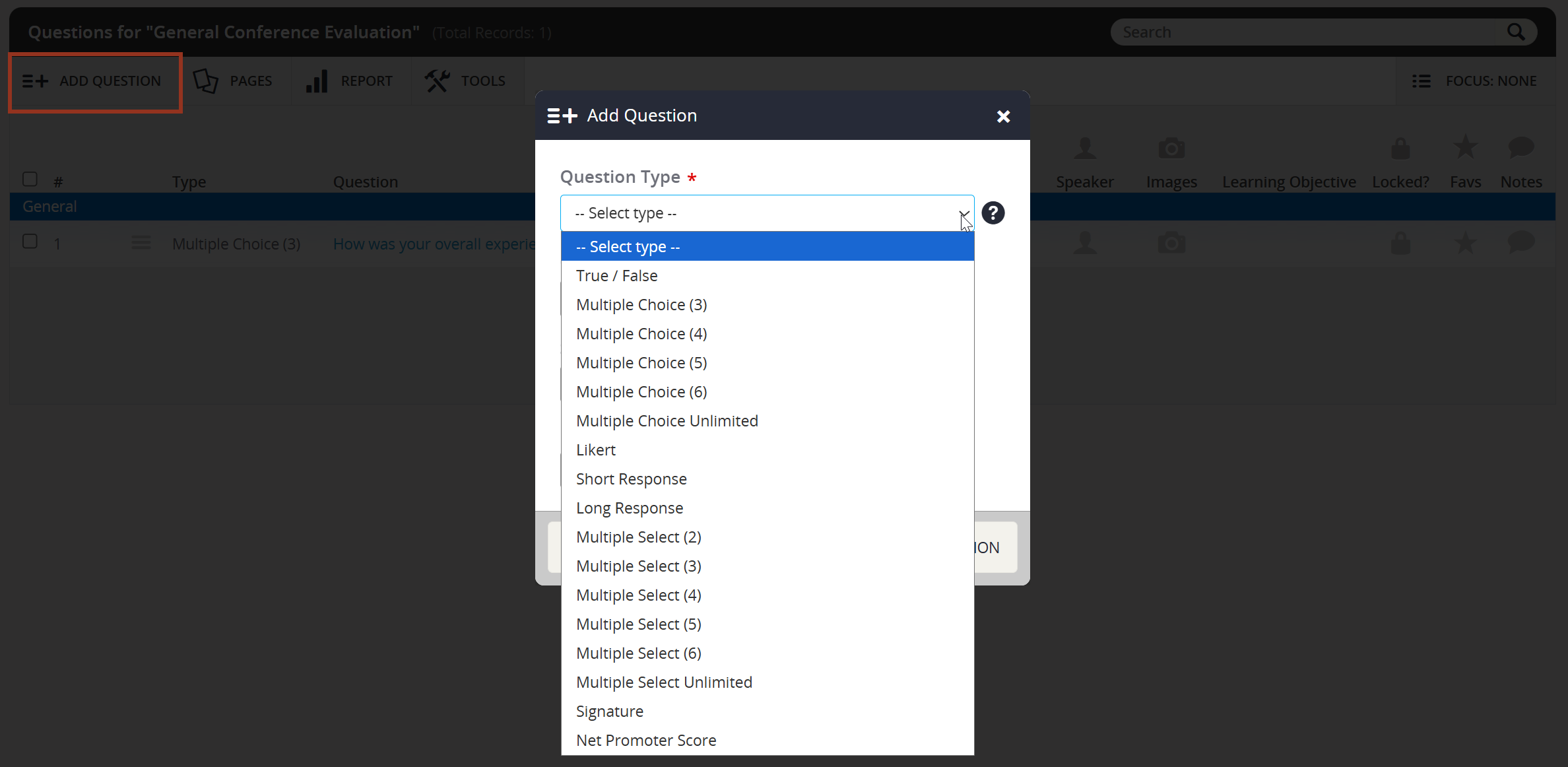
Fig. 2 - Question Type Dropdown.
In the next pop-up window, add the question in the tab labeled Main Options. Then, add the desired answers to the question in the Answers tab (Fig. 3).
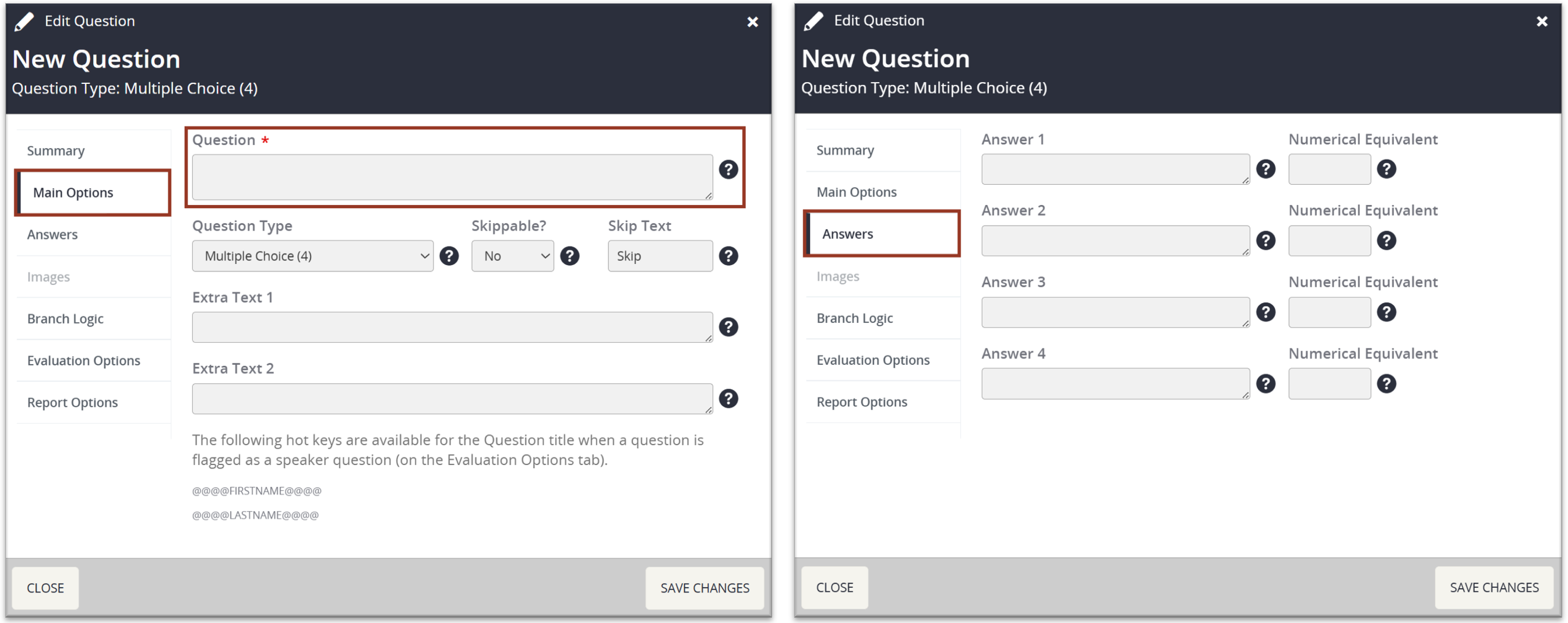
Fig. 3 - Edit Question Pop-up Main Options and Answer Tabs.
Next, Navigate to the Branch Logic tab from this same pop-up window. Here, you will select a previous question and answer that will trigger this branch question. Multiple questions may trigger a single branch question. When finished, select the SAVE CHANGES button (Fig. 4).
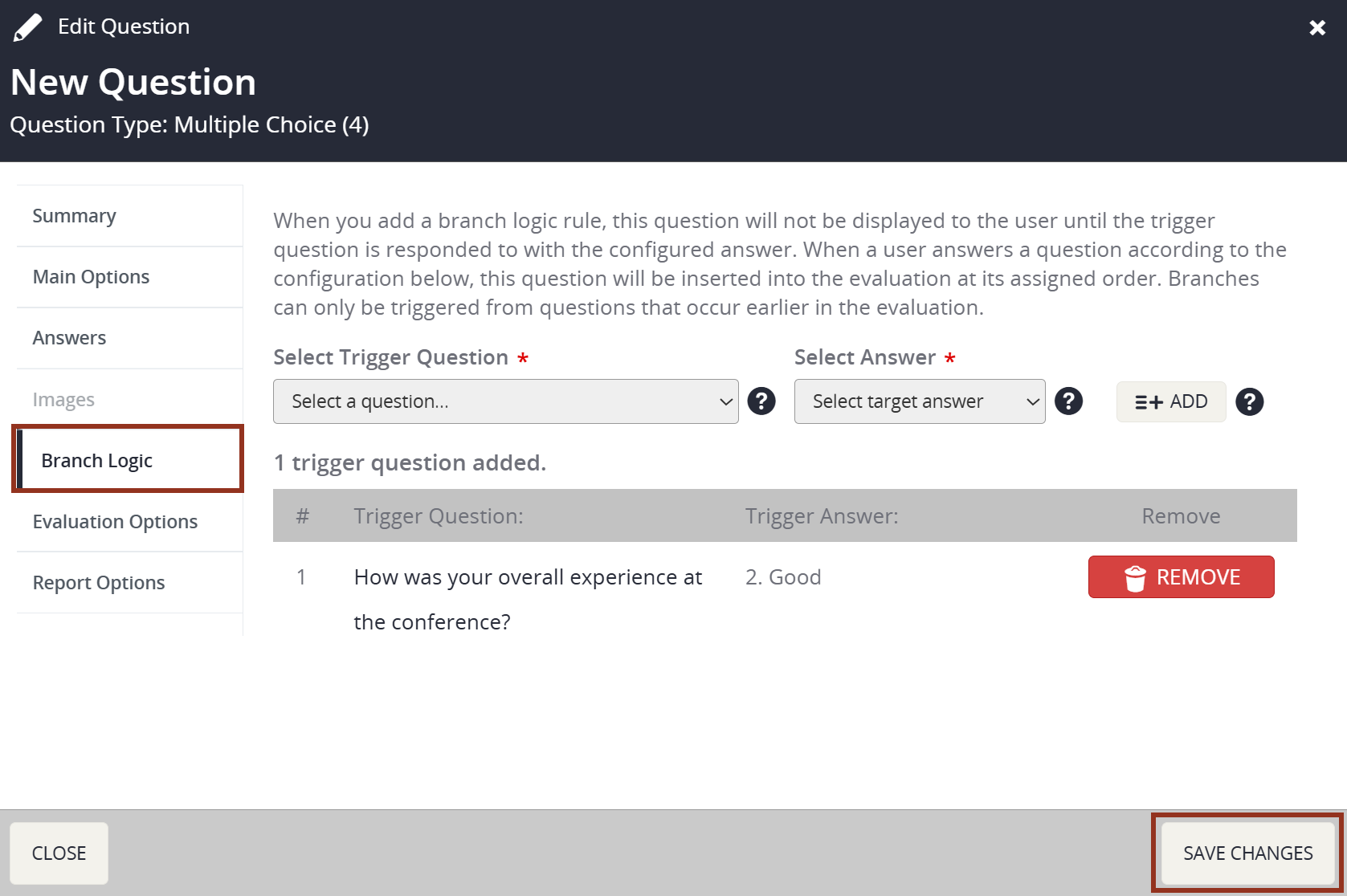
Fig. 4 - Edit Question Pop-up Branch Logic Tab.
NOTE
When setting up a branch question, the order of the branch question must come chronologically after the trigger question.
Recognizing a Branch Question
Locate the assessment containing the question of interest, and then, select the row for this assessment.
Finally, select the Questions button from the row pop-up. This will take you to a list of questions within this assessment.
To confirm that a question is a Branch Question, look for the blue icon in the Branch column (Fig. 5). This question will appear below the question that will trigger it.
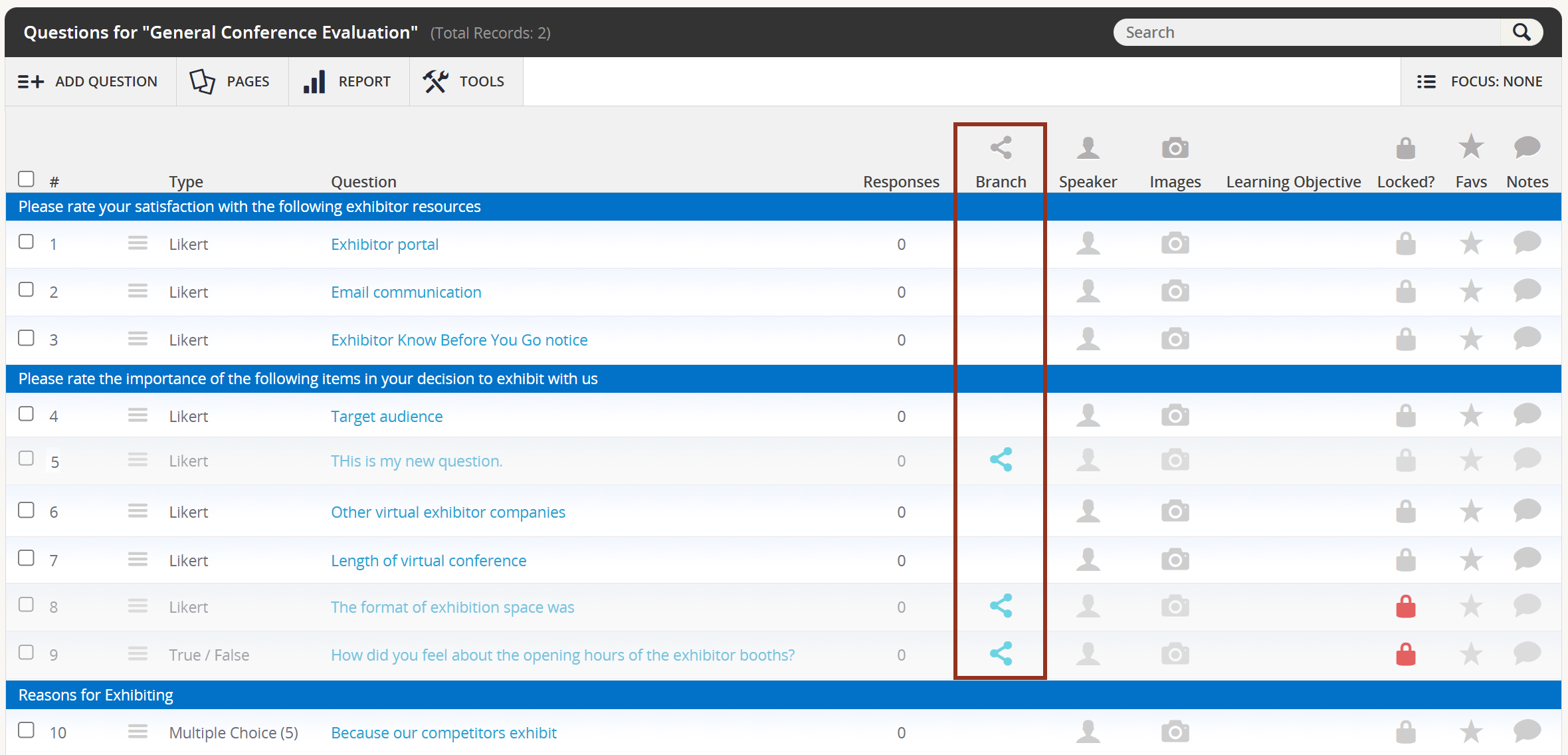
Fig. 5 - Questions Page Branch Column.
If you have further questions about Branch Logic or adding Branch Questions, please contact your Project Manager via Boomerang.
Was this article helpful?
That’s Great!
Thank you for your feedback
Sorry! We couldn't be helpful
Thank you for your feedback
Feedback sent
We appreciate your effort and will try to fix the article