The Credit Selection Task can be used for two different purposes. One option allows conference attendees to self select the number of credit hours they have earned after attending the conference. The other option allows attendees to complete assessments, either quizzes or evaluations, for the sessions they have attended through their selection in the Task.
These instructions will walk you through how to add, edit, and activate a Credit Selection Task.
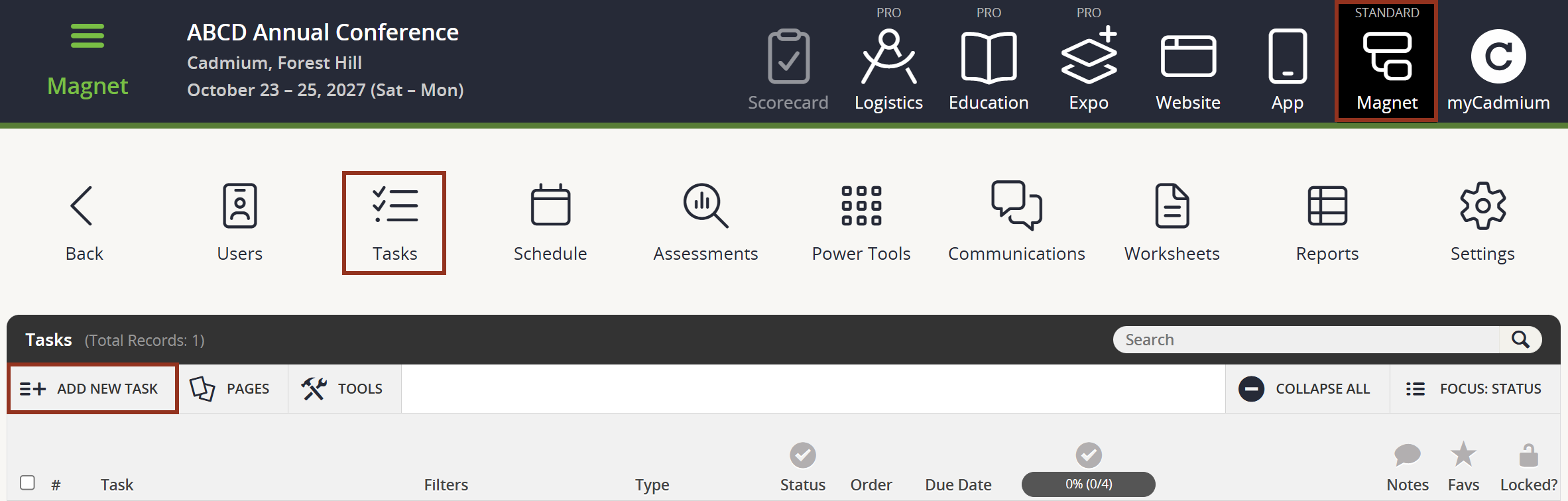
To add a Credit Selection Task, first locate the Tasks page from the Survey Magnet administrative dashboard. Select the ADD NEW TASK button toward the upper left-hand corner of the page (Fig. 1).
Fig. 1 - Tasks Page Add New Task Button.
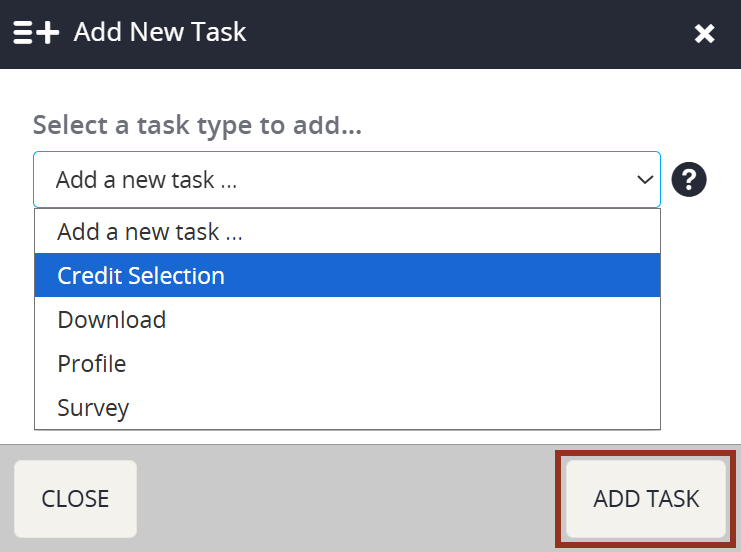
On the pop-up window, select Credit Selection from the drop down menu then the ADD TASK button (Fig. 2).
Fig. 2 - Add New Task Dropdown.
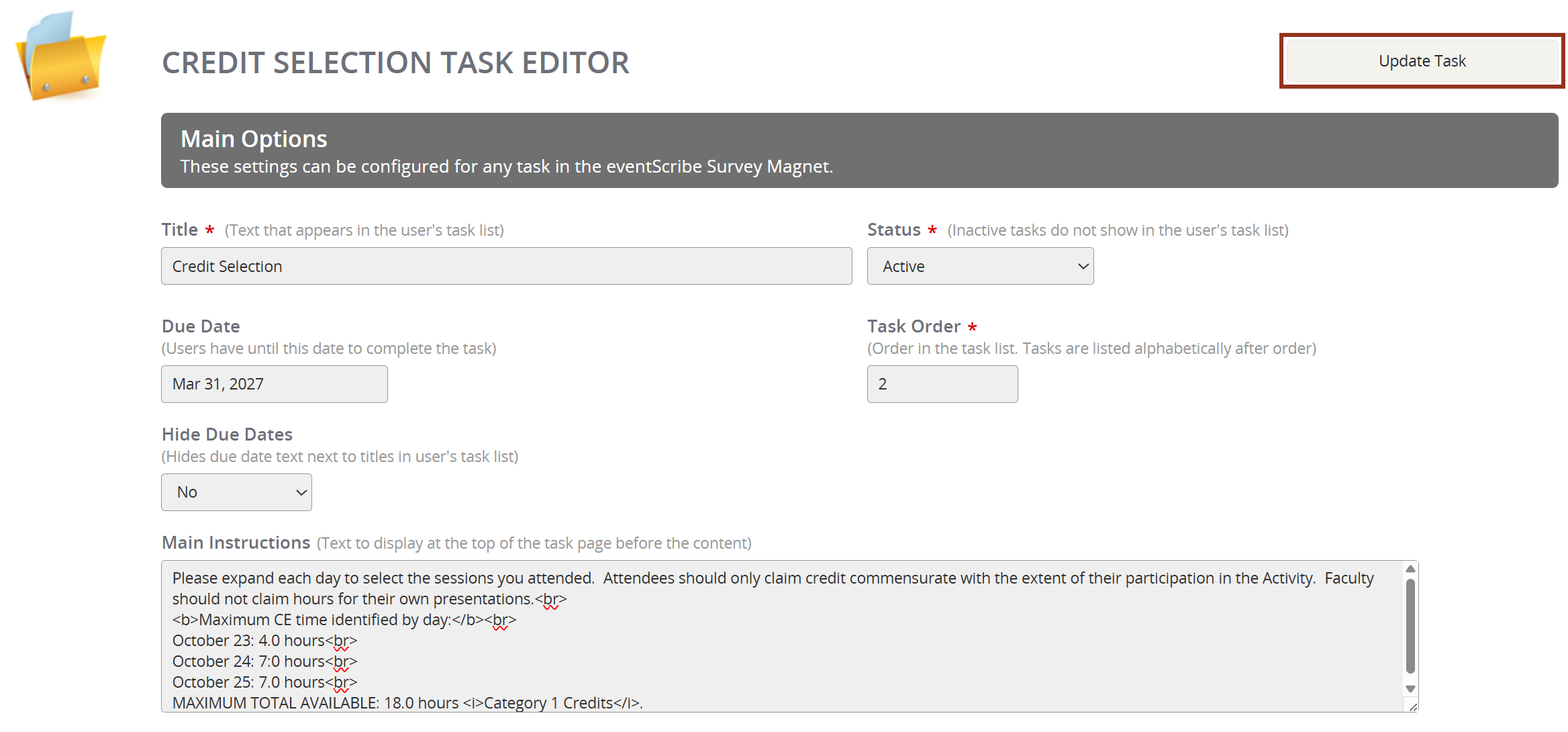
Within the Task editor, start by entering a Title for the Task. This will be the name of the Task the end user will see on their Task List. Then, change the Status to Active. Any Task marked as Inactive will NOT show on the end user's Task List.
Enter the Due Date for the Task. The Due Date is strictly a visual reference that will show at the end of a Task on the user's Task List, and is NOT enforced. The text color will change to red after the Due Date has passed.
If you do NOT want Due Dates to show, simply toggle the Hide Due Dates drop down to Yes.
Enter a number for the Task Order. For a Credit Selection Task, we recommend using 3 or higher, specifically if a Profile Task will also be used by this Survey Magnet.
Enter the Main Instructions that the user will see when they enter the Task. You will want to include detailed information about the conference that will help a user either self enter the number of credit hours, or to help them select the sessions in which they will be evaluating (Fig. 3).
Fig. 3 - Credit Selection Task Editor.
NOTE
The text field will require HTML paragraph formatting. If you need assistance, please contact your Project Manager via Boomerang.
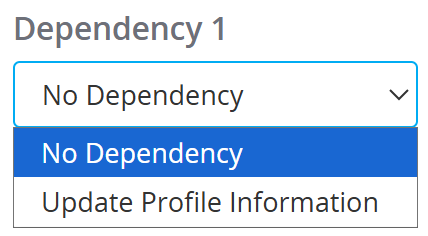
The Task Dependency dropdown allows you can choose if certain Tasks must be completed before this Task is made available to the User.
For example, if the Profile Task should be completed before a User starts on the Credit Selection Task, toggle the dropdown to Profile Task.
If not, keep the dropdown toggled to No Dependency.
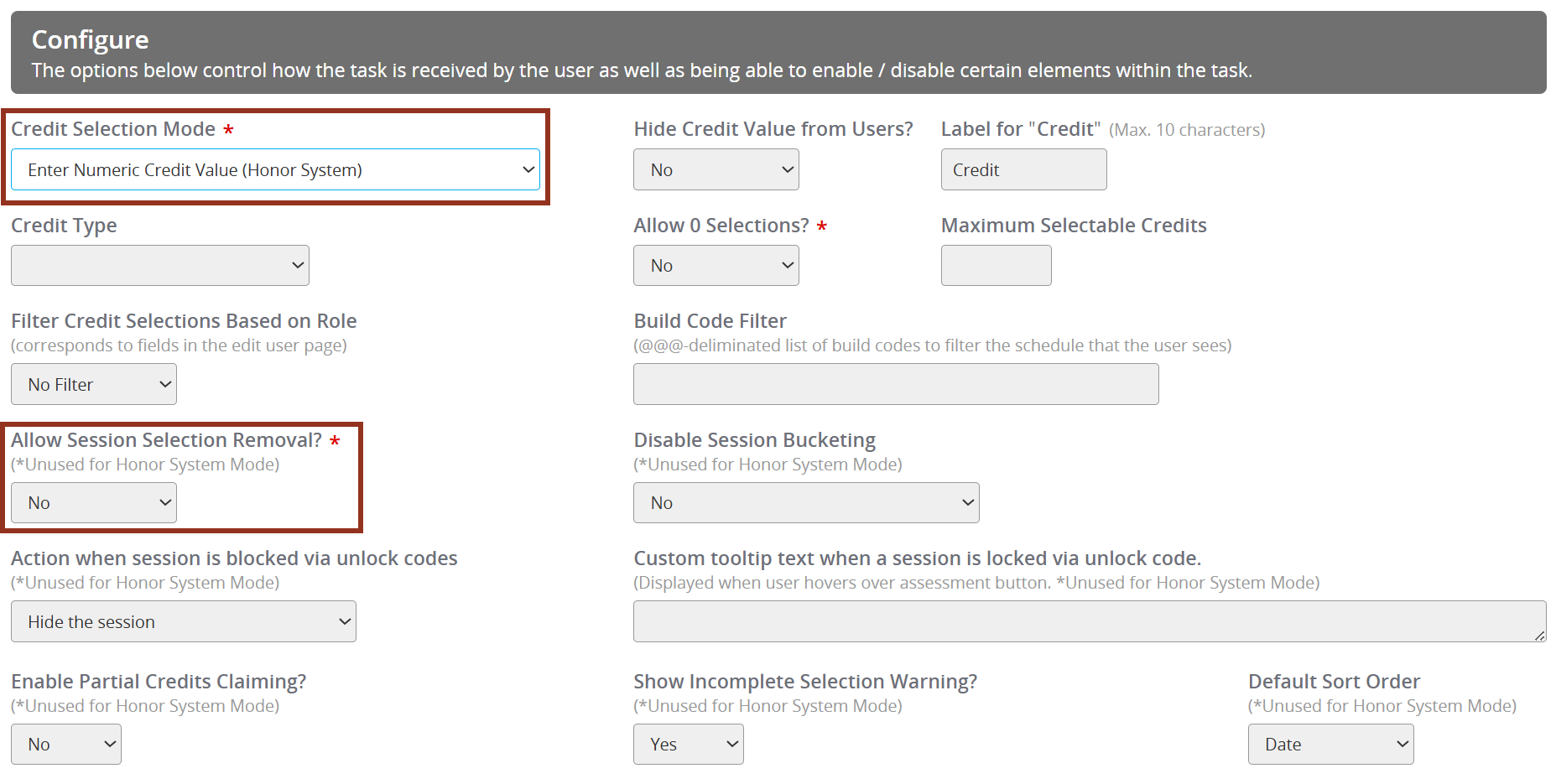
In the Configure section, select the Credit Selection Mode to meet your events' needs (Fig. 5). Please note that more than one Credit Selection Task can be used within one Survey Magnet.
There are three different options to choose from:
- Enter Numeric Credit Value (Honor System) - This will allow a user to self enter the number of credit hours they should be awarded after attending the conference. The number they enter can show on the certificate and tied to the User account information. This setting is used in tandem with the Maximum Selectable Credits field below this drop down.
- User Selects Sessions Attended (No Validation Code) - This will allow the user to self select the sessions that they attended. This setting is used in tandem with the Assessment drop down in the following section. Any session listed within the ‘Schedule’ module will show for the user, unless Unlock codes are being used. Please contact your Project Manager for clarification.
- User Selects Sessions Attended (Validation Code Required) - Selecting this option will require the user to enter a validation code before they can start the evaluation for any session that they self selected. This setting is used in tandem with the Assessment drop down in the following section. Any session listed within the ‘Schedule’ module will show for the user, unless Unlock codes are being used. Please contact your Project Manager for clarification.
If you chose Enter Numeric Credit Value (Honor System) from the previous drop down, enter the Maximum Selectable Credits. This field prohibits the end user from entering more credit hours than the allowable amount.
If you chose User Selects Sessions Attended, either with or without code, adjust the following four settings within the ‘Configure’ section.
To Allow Zero Selections, toggle this setting to Yes. If not, keep the setting toggled to No.
If you would like to hide the Credit Value of the sessions from the users, toggle this setting to Yes. If you have more than one Credit Type, you will want to hide the Credit Values from the Users. If all the Credit Types are the same, you can choose to show the Credit Value by toggling the drop down to No.
If a user should be able to remove a session after selection, toggle this setting to Yes. If not, keep the Allow Session Selection Removal setting toggled to No. This allows the user the ability to remove a session if they no longer wish to evaluate the session, or if they accidentally selected the wrong session.
To filter credit selections based on role, please contact your Project Manager for additional instructions and guidance.
Fig. 5 - Configure Section.
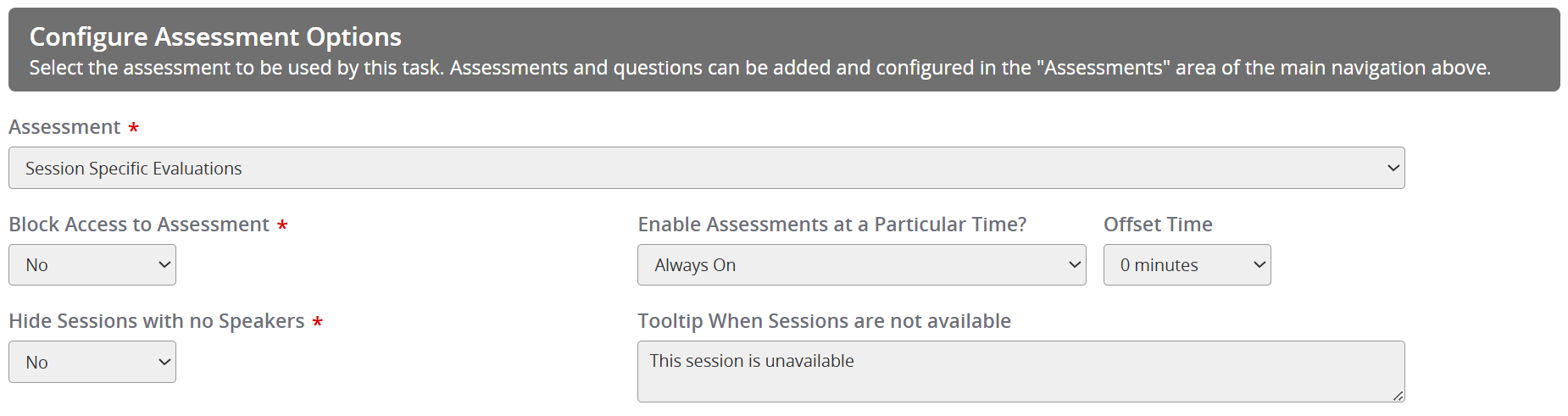
Within the Configure Assessment Options section (Fig. 6), these settings continue to apply for the Credit Selection Mode of User Selects Sessions Attended, either with or without code. Assessments, either Quizzes or Evaluations, must first be created within the Assessments module. Please refer to the articles in the Assessments folder on how to add and edit assessments.
Choose the appropriate Assessment from the drop down menu. This will be the Assessment that the User will complete for all sessions that they have self selected within the Task. If you do not see your Assessment listed, and have already created it within the Assessments module, please reach out to your Project Manager via Boomerang for assistance.
Choose when the Assessment is enabled, or in other words, when the Assessment will be accessible by the end user. During testing, the drop down must be set to “Always On.” After you have completed your testing, you can than adjust the drop down to meet your events needs.
If desired, choose a time amount to offset the time the Assessment will show to the end user. This setting can ONLY be used if Turn on at Presentation Start or Turn on at Presentation End was selected in the previous dropdown. For example, if you have chosen Turn on at Presentation Start and select “10 minutes,” then the Assessment will not show to end users until 10 minutes after the presentations has started. Or vice versa, if you select “-10 minutes,” the Assessment will show to end users 10 minutes prior to the presentation start time.
Fig. 6 - Configure Assessment Options Section.
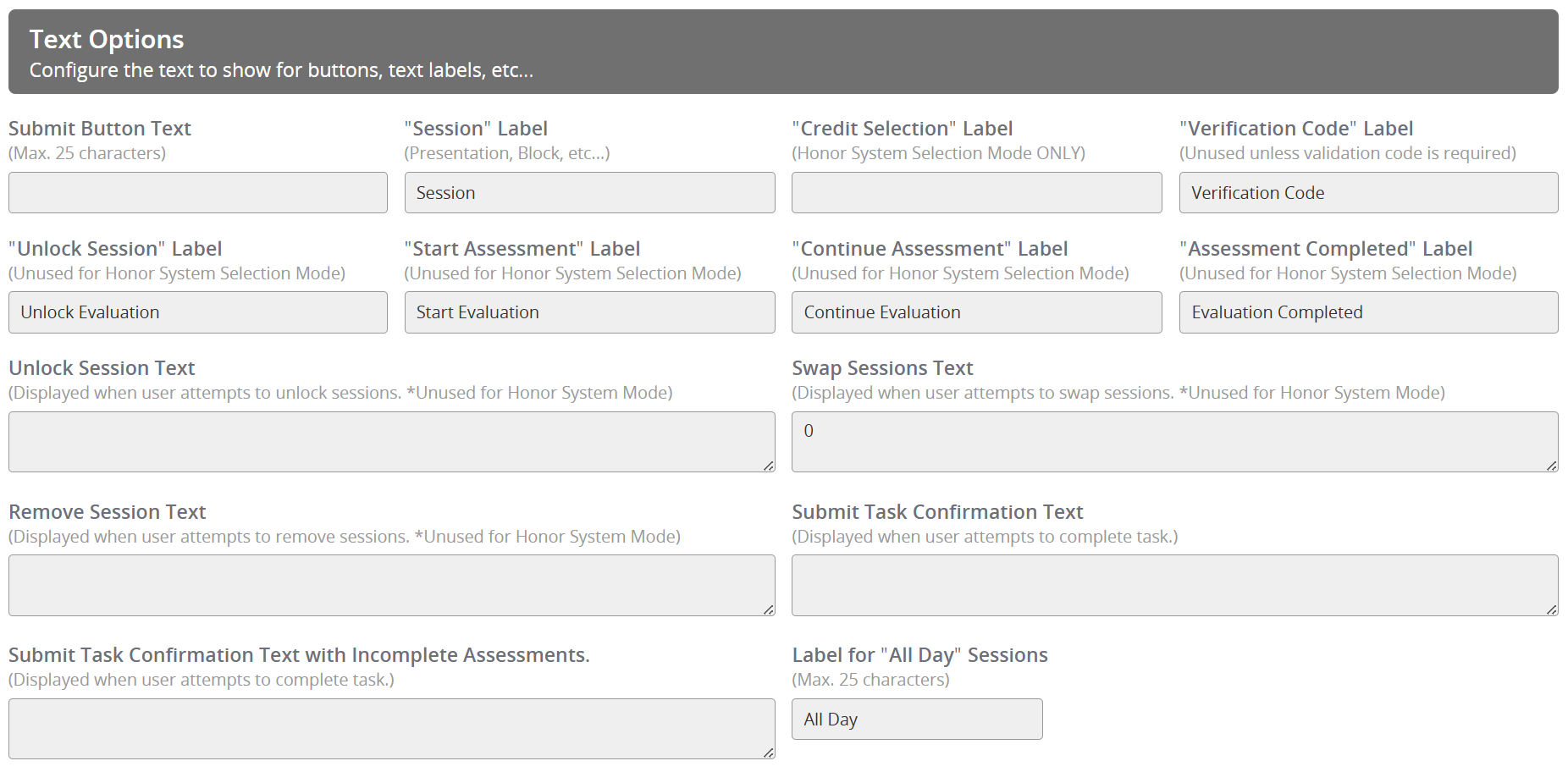
Within the Text Options section, these settings allow you to adjust the default text that displays for buttons, text labels, etc. Please refer to the light gray text below the setting field label for which Credit Selection Mode they are used for. For example, the “Credit Selection” Label is only used for the Honor System Selection Mode. Whereas the “Start Assessment” Label will only show for the Credit Selection Mode of User Selects Sessions Attended, either with or without code.
Fig. 7 - Text Options Section.
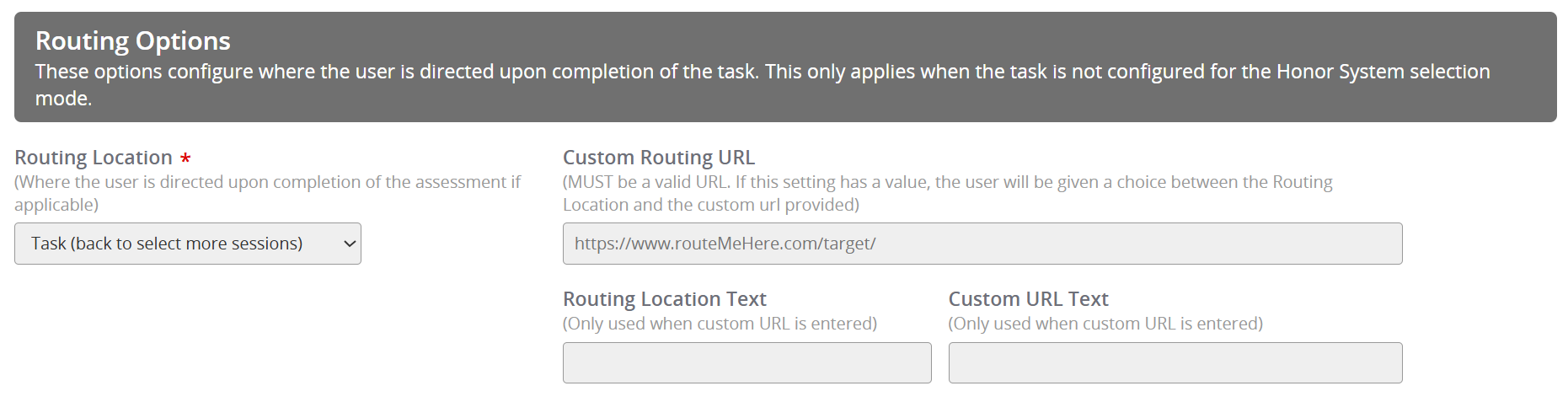
Within the Routing Options section (Fig. 7), this setting will only apply for the Credit Selection Mode of User Selects Sessions Attended, either with or without code. Make sure the Routing Location is set to Home (User’s Task List). For use of a Custom URL, please reach out to your Project Manager for assistance.
Fig. 8 - Routing Options Section.
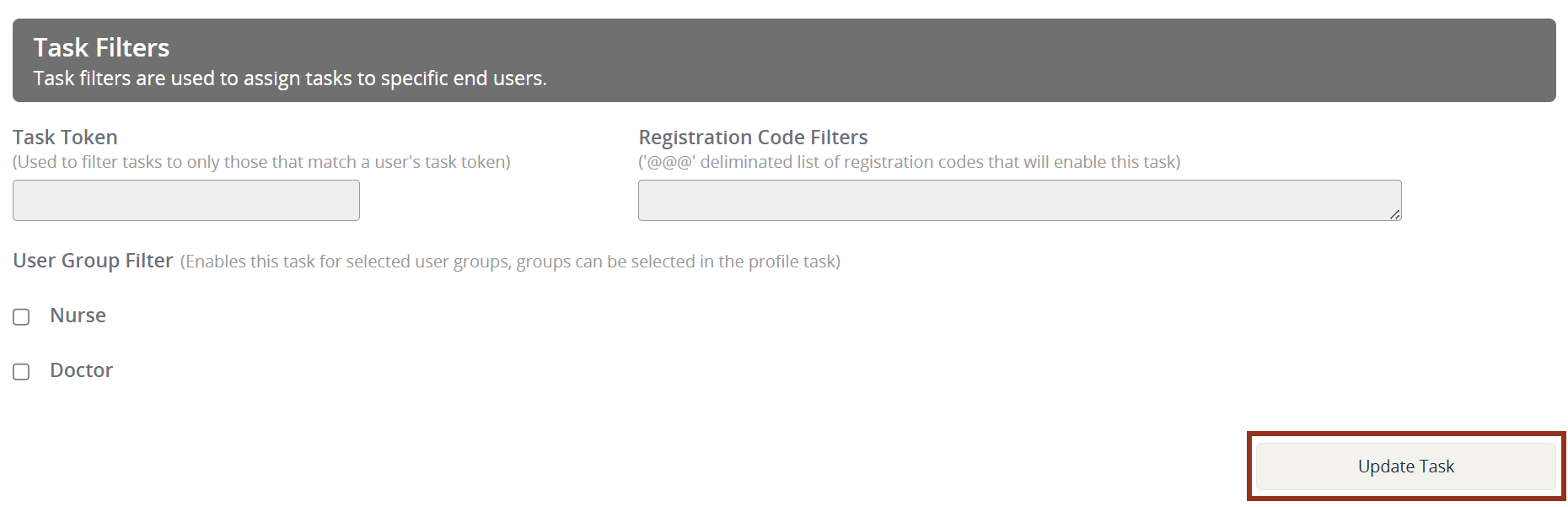
The Task Filters section allows you to filter the Task to specific Users, User Types must first be assigned to your attendees within the Users module after adding them in the Settings page (Fig. 9). User Types can also be added via a Users type worksheet. The list of User Types shown in the screenshot below are the default User Types for all Survey Magnets. Once User Types are added in the Settings page, your new list will override this default list. For clarification, please reach out to your Project Manager via Boomerang.
To Filter the Task to one or more User Type, select the check box before the User Type Label.
To use the Task Token or Registration Code Filters, please reach out to your Project Manager via Boomerang for assistance.
After all edits have been made to the Task, select the Update Task button to save all changes. Then, log in as a User to test the Task.
Fig. 9 - Task Filter Section.
For all other questions regarding the Credit Selection Task, please reach out to your Project Manager via Boomerang for assistance.