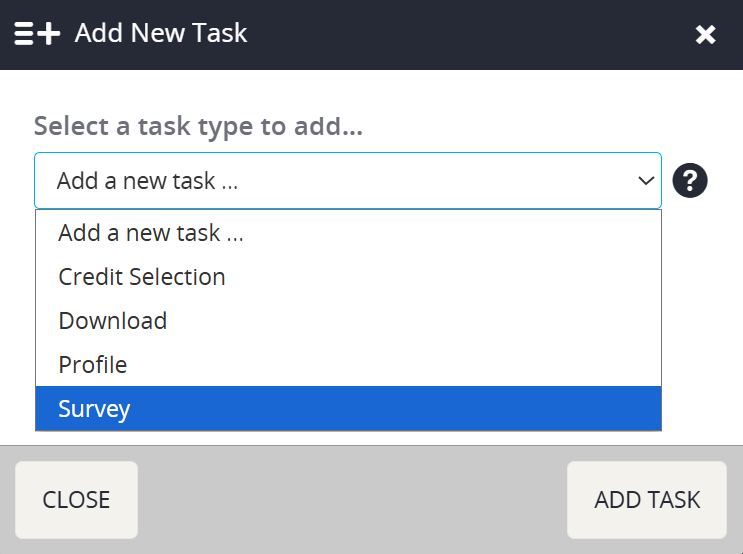
On the pop-up window, select Survey from the drop down menu.
Then select the ADD TASK button.
The Survey Task can be used to serve an end user a specific Assessment. For example a Survey Task is created for an Overall Event Evaluation to show on a User's Task List. The Assessment must first be made in the Assessments module.
The below instructions will walk you through how to add, edit, and activate a Survey Task.
To add a Survey Task, first locate the Tasks page from the Survey Magnet administrative dashboard.
Select the ADD NEW TASK button toward the upper right hand corner of the page.
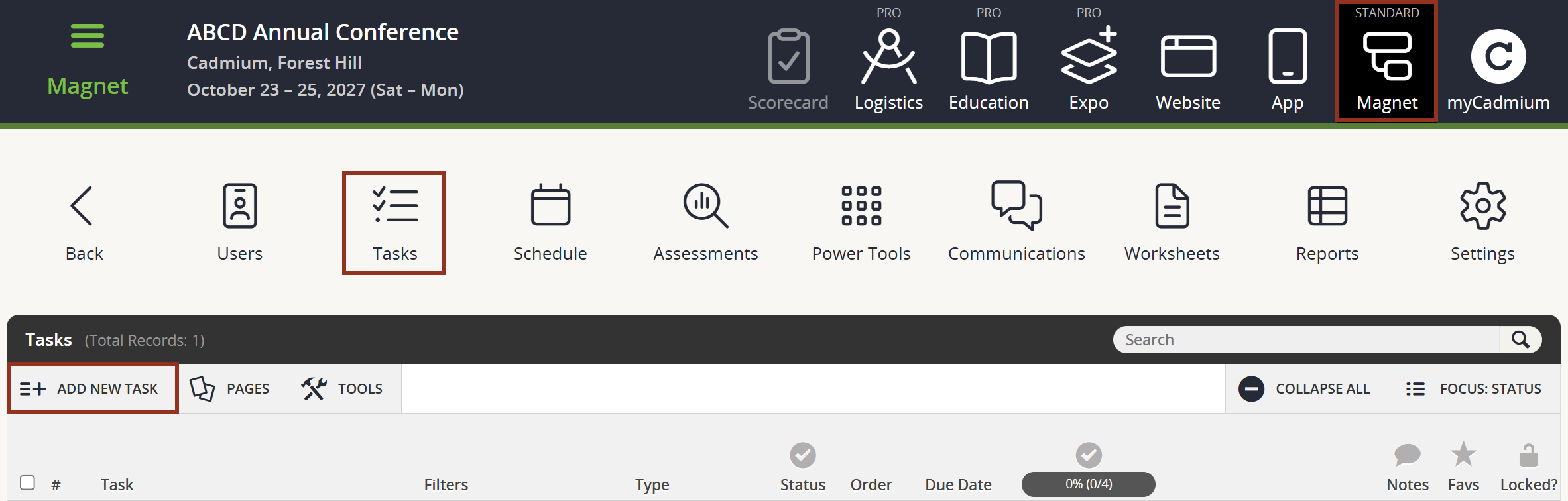
Fig. 1 - Tasks Page Add New Task Button.
On the pop-up window, select Survey from the drop down menu.
Then select the ADD TASK button.
Within the Task editor (Fig. 3), start by entering a Title for the Task. This will be the name of the Task the end user will see on their Task List. Then, adjust the Status from Inactive to Active. Any Task marked as Inactive will NOT show on the end user's Task List.
Enter the Due Date for the Task. The Due Date is strictly a visual reference that will show at the end of a Task on the user's Task List, and is NOT enforced. The text color will change to red after the Due Date has passed.
If you do NOT want Due Dates to show, simply toggle the 'Hide Due Dates' dropdown to Yes.
Enter a number for the Task Order.
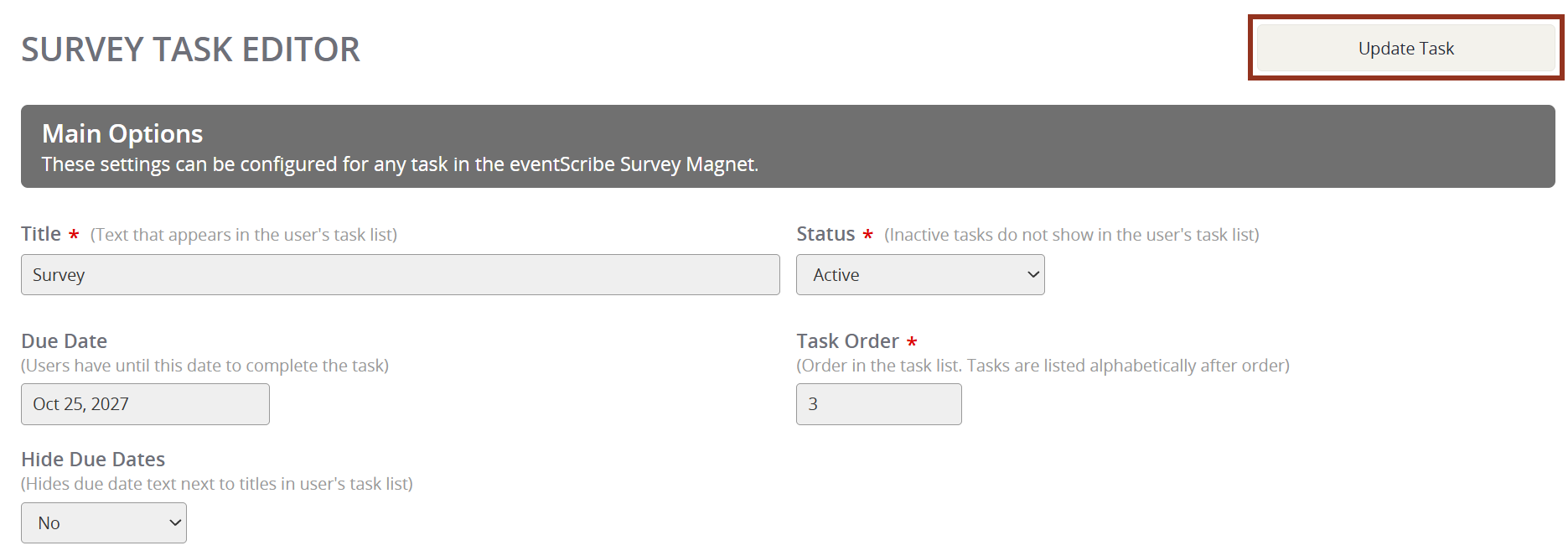
Fig. 3 - Survey Task Main Options.
Within the 'Select Assessment' section (Fig. 4), choose the Assessment to be used by this Task. This will be the Assessment that loads when the Task is opened from the Task List. Please refer to the articles in the Assessments folder on how to add and edit assessments.
If you do not see your Assessment listed, and have already created it within the Assessments module, please reach out to your Project Manager via Boomerang for assistance.
If desired, update the Submit Button Text Label.
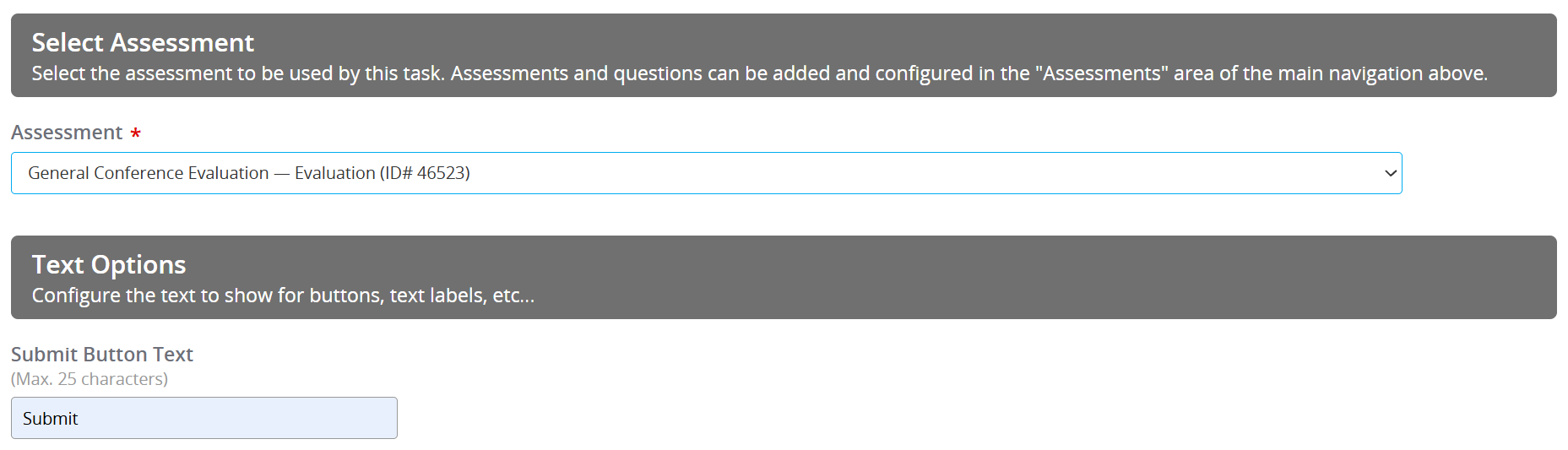
Fig. 4 - Survey Task Select Assessment Section.
Within the 'Routing Options' section, choose the Routing Location. The User can either be directed to the Home page, the Task List, or a Custom URL. If you chose to direct the User to a Custom URL, type or paste the URL in the field directly right of the dropdown. If you are planning on using the Custom URL, please reach out to your Project Manager to verify accuracy of the Task set-up (Fig. 5).

Fig. 5 - Survey Task Routing Options Section.
The next three settings can be adjusted if the Assessment you chose for the Survey Task is a Quiz (Fig. 6).
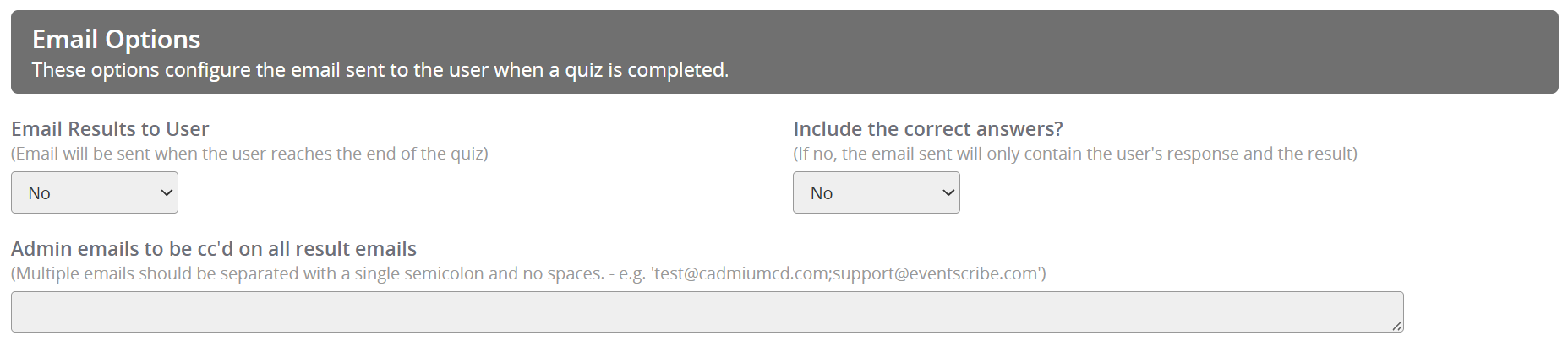
Fig. 6 - Survey Task Email Options.
To Filter the Task to specific Users, User Types must first be assigned to your attendees within the Users module after adding them in the Settings page. User Types can also be added via a Users type worksheet. The list of User Types shown in the screenshot below are the default User Types for all Survey Magnets. Once User Types are added in the Settings page, your new list will override this default list. For clarification, please reach out to your Project Manager via Boomerang.
To Filter the Task to one or more User Type, select the check box before the User Type Label.
To use the Task Token or Registration Code Filters, please reach out to your Project Manager via Boomerang for assistance.
After all edits have been made to the Task, select the "Update Task" button to save all changes. Then, log in as a User to test the Task (Fig. 7).
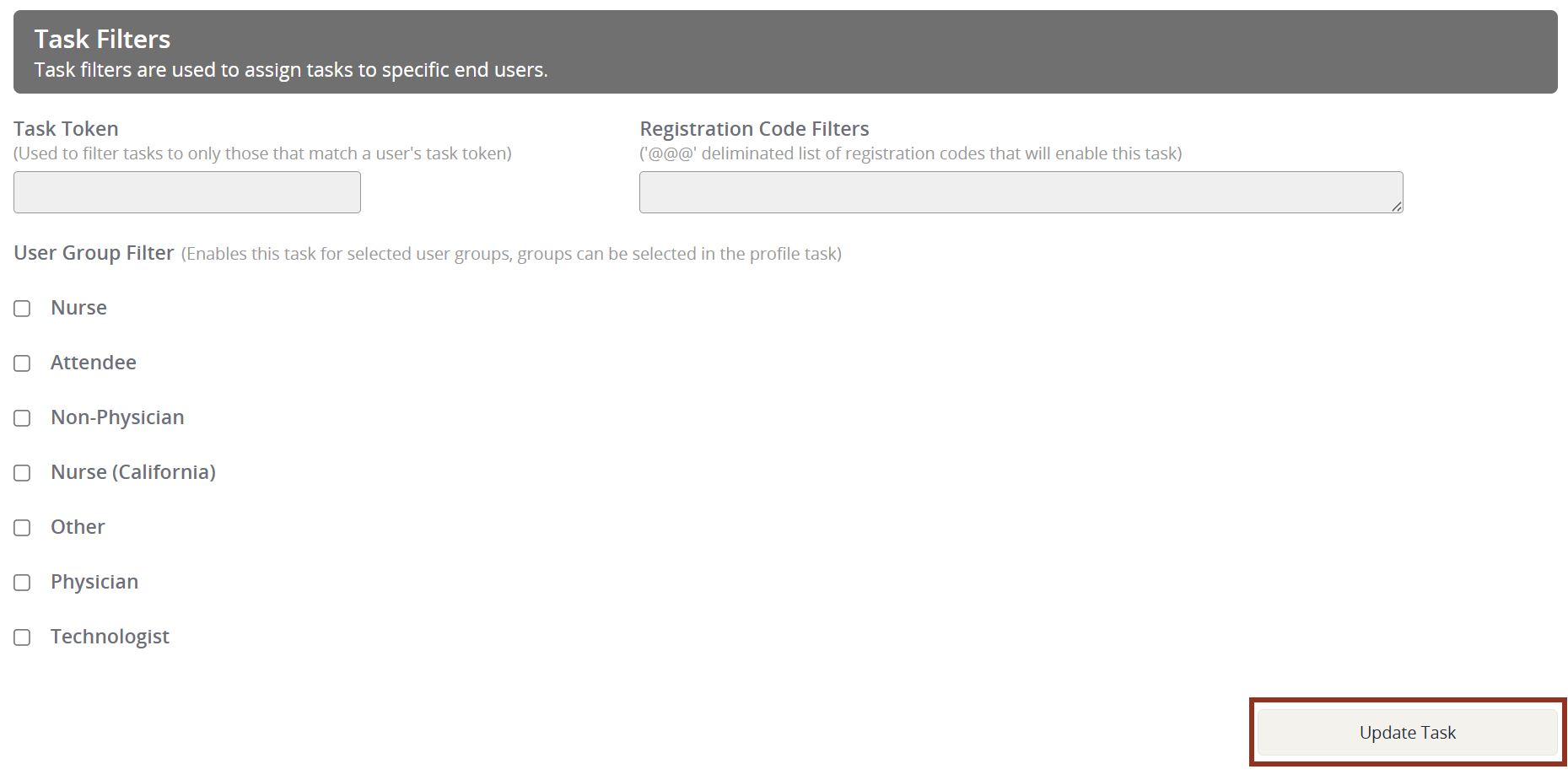
Fig. 7 - Survey Task Task Filters and Update Task Button.
For all other questions regarding the Survey Task, please reach out to your Project Manager via Boomerang for assistance.
That’s Great!
Thank you for your feedback
Sorry! We couldn't be helpful
Thank you for your feedback
Feedback sent
We appreciate your effort and will try to fix the article