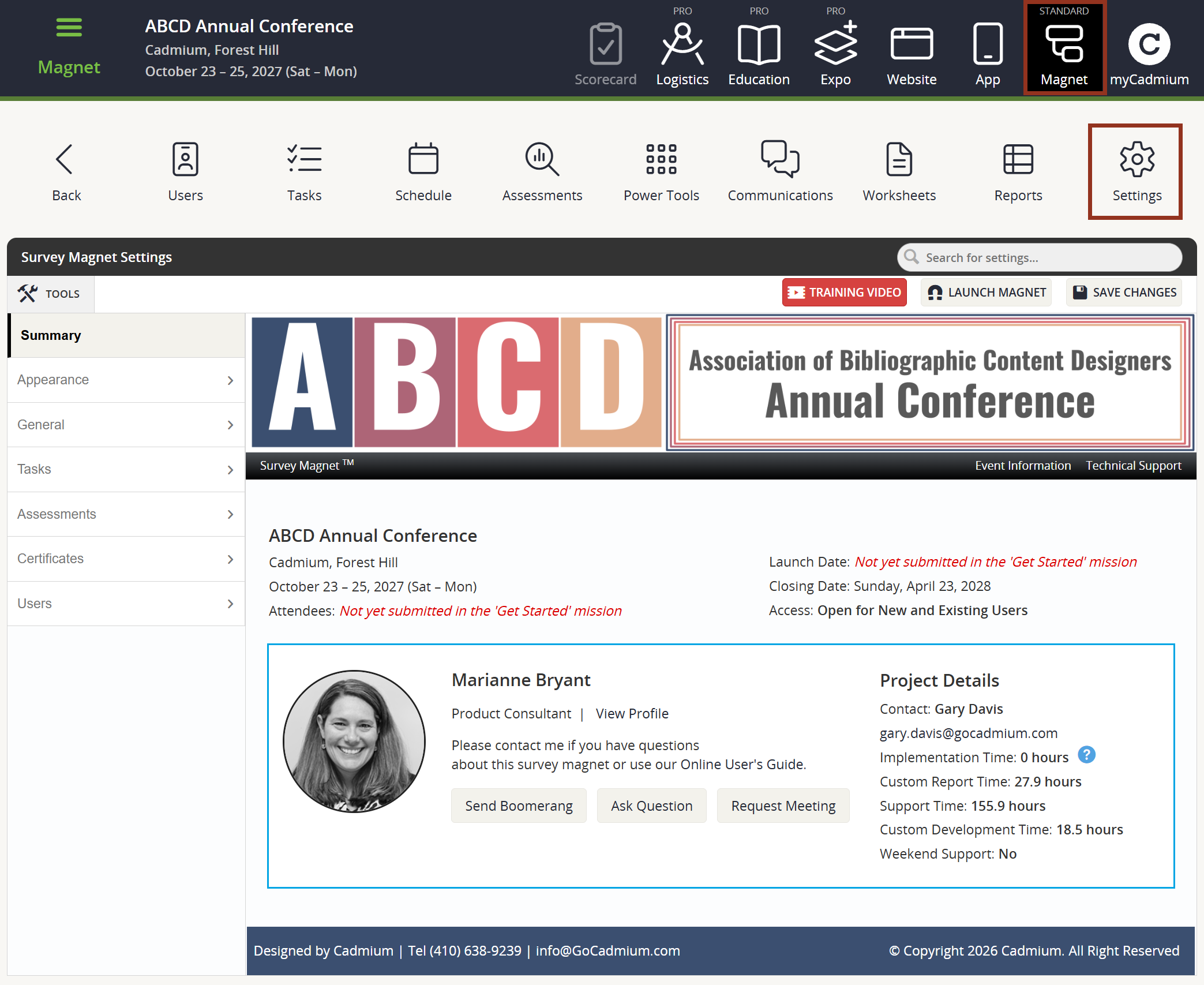
First, select the Settings icon from the top of the page in the Survey Magnet administrative dashboard to open the Settings page. (Fig. 1).
Fig. 1 - Survey Magnet Settings Page.
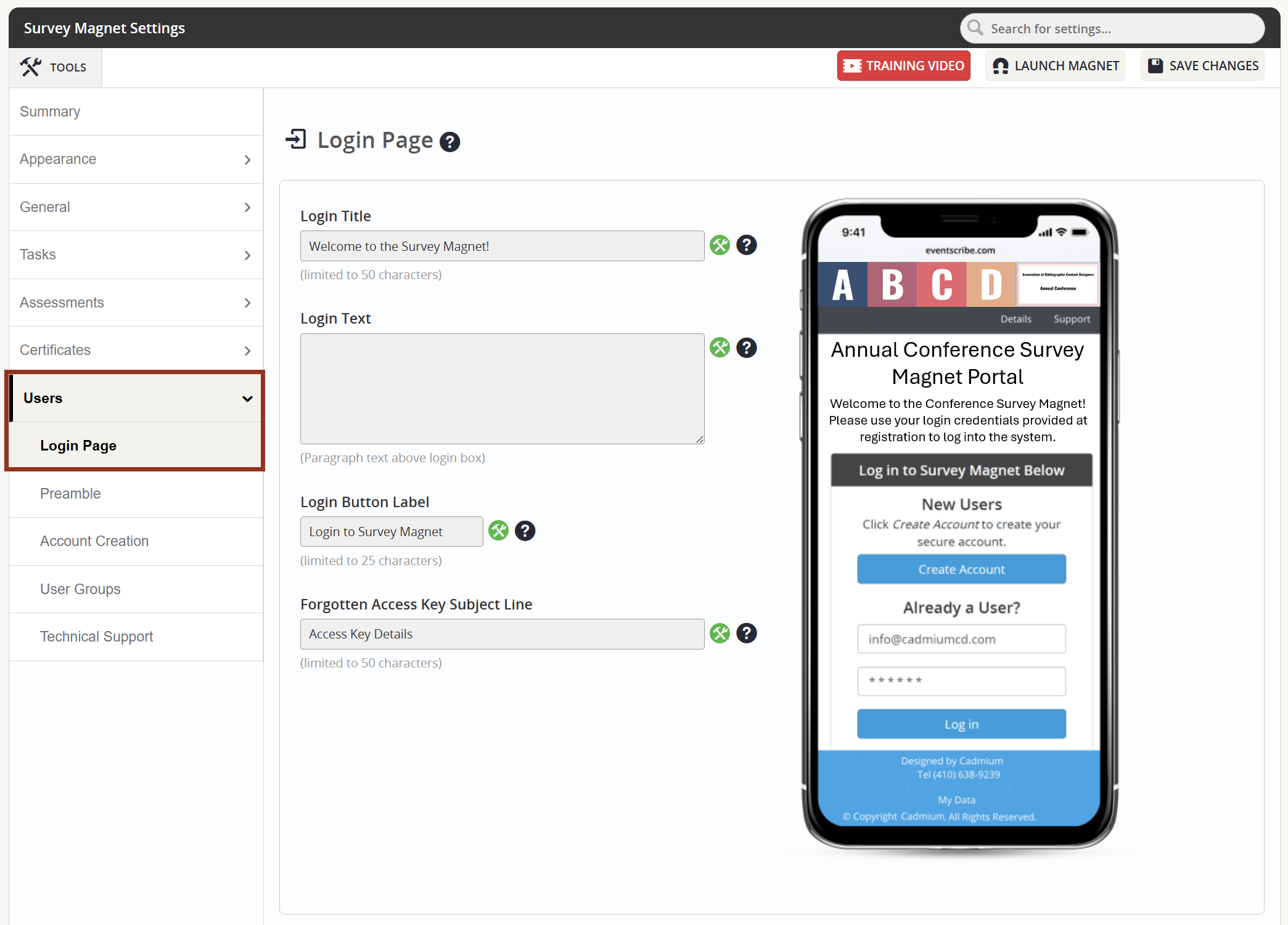
To adjust settings for the login page, locate Users > Login Page within the left-hand navigation panel (Fig. 2). Enter the Login Title which will display above the login box. In addition, enter the Login Text which is the text which will display below the Login Title, still above the login box. If desired, adjust the Login Button Label text.
Next, adjust the Forgotten Access Key Subject Line. If the User has a Magnet account but cannot remember the Access Key/Password, simply select "Forgot Password?" and the User will receive an email with the account information. This field offers the opportunity to customize the title of the email the User will receive so that the message is very clearly labeled as being generated from the event. If this field is not filled in with a customized title, the default email title states Access Key Details. Limited to 40 characters.
Fig. 2 - Users Tab Login Page Sub-Tab.
The use of the following Login Option settings will vary depending on how Users will be accessing the Survey Magnet. For example, your event may be allowing Users to access the Task List of the Survey Magnet directly from your Eventscribe Website or Mobile App. Or, your event may only be allowing Users to access the Magnet through the direct URL, which is "Magnet Login Screen" link on the administrative dashboard.
CADMIUM RECOMMENDS
Please be sure to consult with your Project Manager to discuss how Users will be accessing your Survey Magnet.
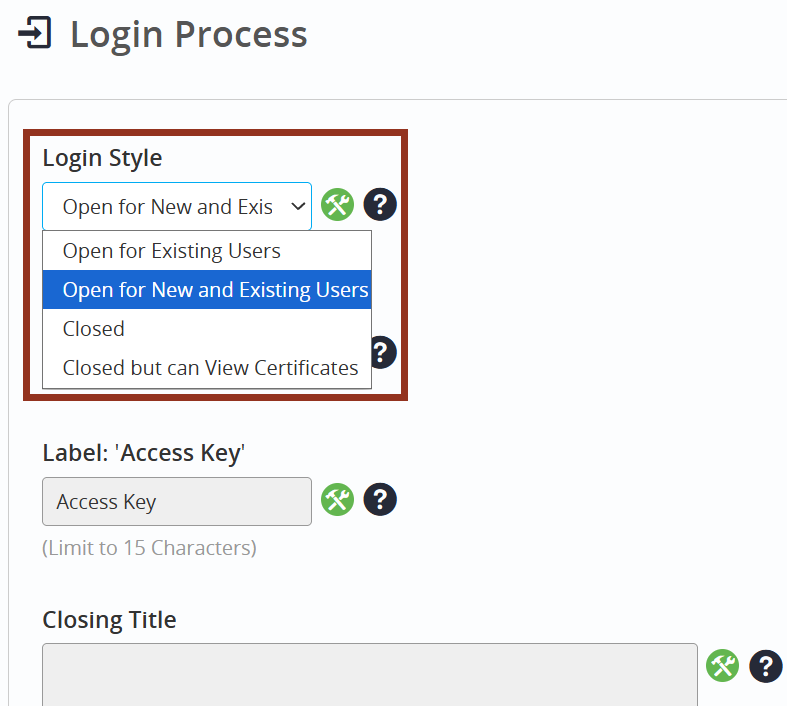
Scroll down to the Login Process section. Choose the Login Style for your Survey Magnet. The Login Style selection is essential if Users will be given the direct URL for the Magnet and will be seeing the Login Page.
Open for Existing Users - This option will only allow Users who already have an account to login to the Magnet. New Users will NOT be able to create an account on the login page.
Open for New and Existing Users - This option WILL allow New Users to create an account in the Magnet. In addition, Users who already have an account will be able to login to the Magnet.
Closed but can View Certificates - This option will ONLY allow Users to login to access their certificate, if the Download Task has been completed. The User will NOT be able to complete any additional Tasks that may have been previously assigned to them on their Task List.
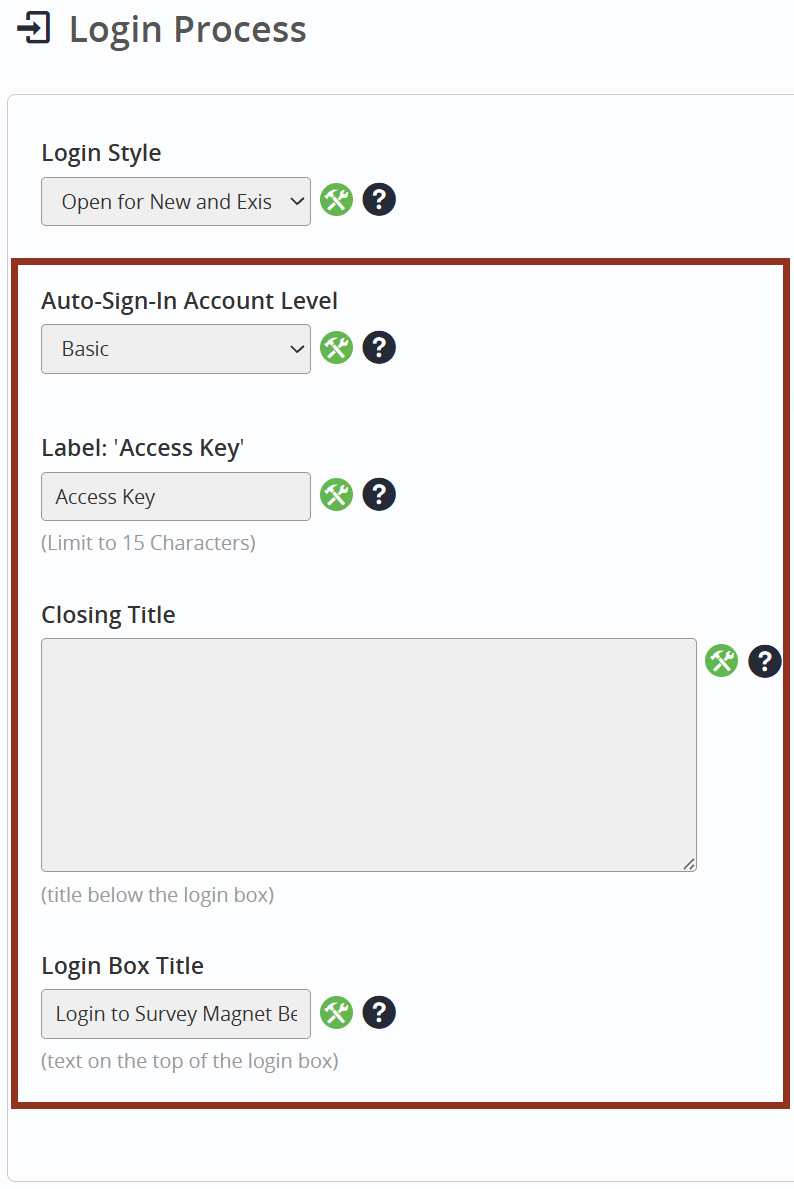
Next, choose the Auto-Sign-In Account Level. When a new account is established in the Magnet, unless otherwise specified, the user account will default to this Account Level. New accounts are established from a variety of sources: Create an account from a URL, imported from a spreadsheet, or linked from another Cadmium product (App or Website). This level of access is critical in events which use the levels to limit access to tasks. For example, Basic Users may be allowed access to feedback evaluations, but only Premium Users may have access to credit earning tasks.
If desired, adjust the label for Access Key, enter text for the Closing Title, and/or adjust the Login Box Title.
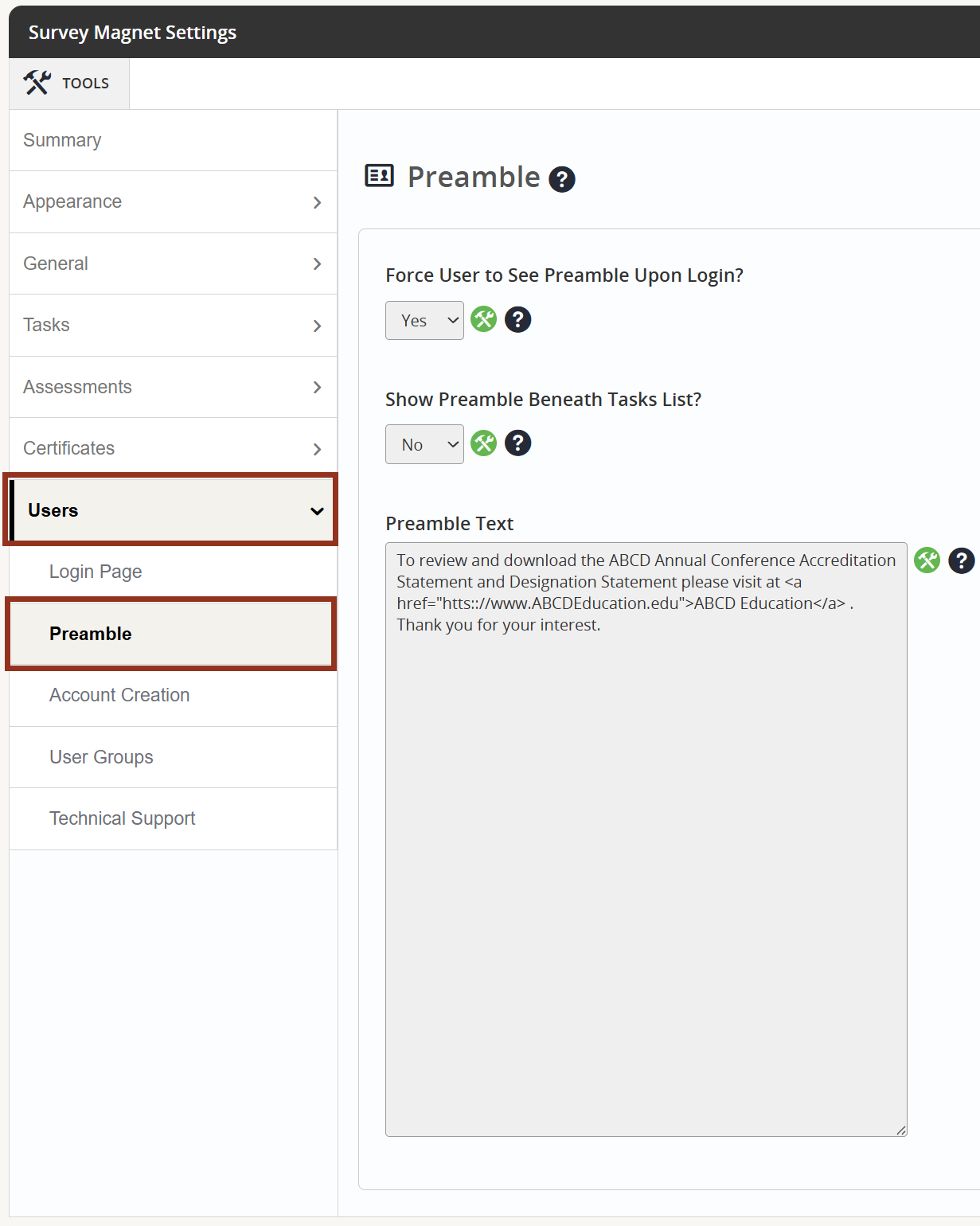
If desired, you can add a Preamble that users will see after the login page, but before they reach the task list page. Locate Users > Preamble within the left-hand navigation panel.
A preamble is special text, a preliminary or preparatory statement, or an introduction which is intended to be read prior to entering the evaluation process. An example is an accreditation organization which requires a statement of verification, or the listing of disclosures to be available to the users/attendees. By selecting Continue, the user claims that this statement has been read.
The preamble can also display beneath the user's task list. In order to see the Preamble beneath the task list, the "Force User to See Preamble Upon Login?" setting must be set to "No".
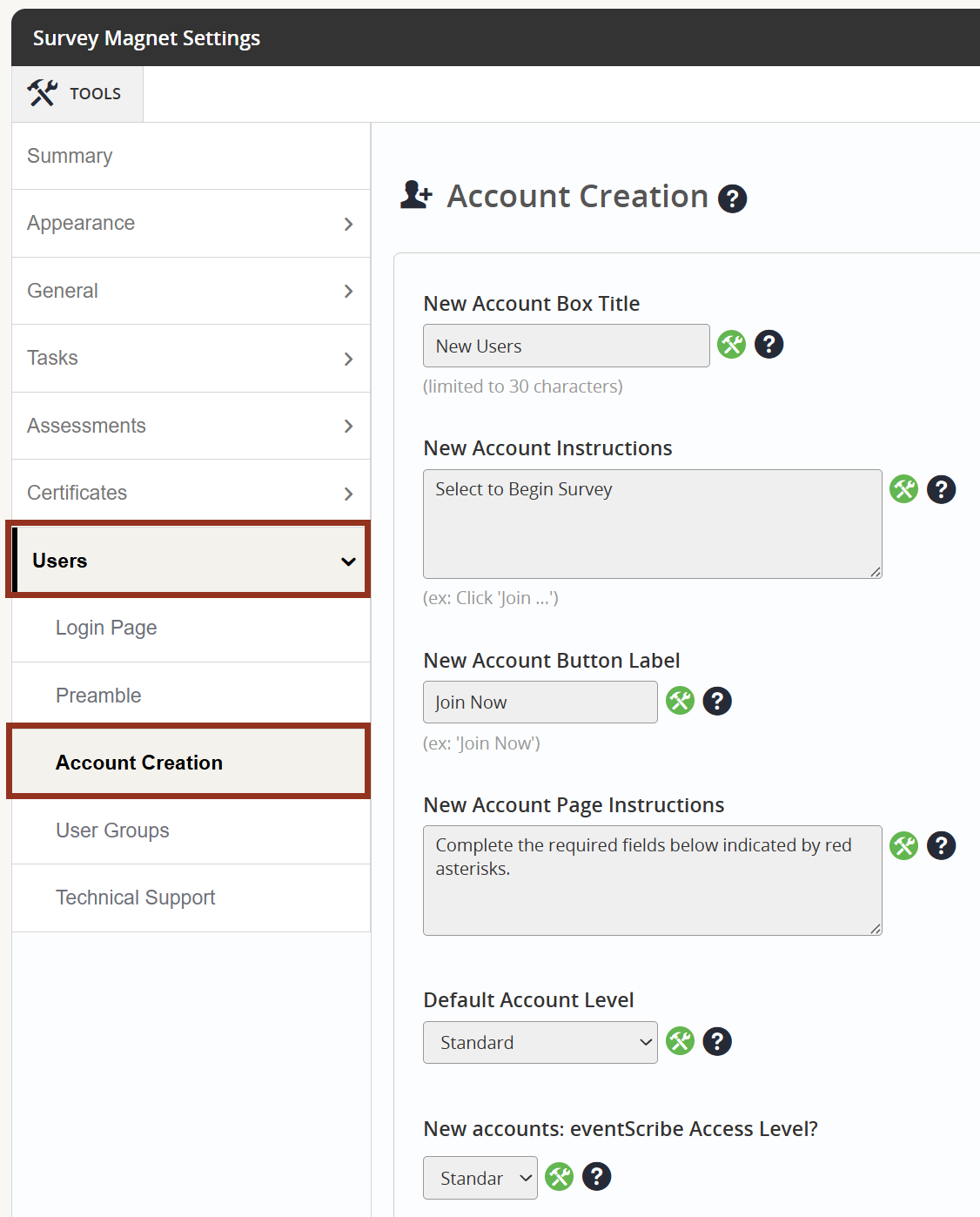
Next, navigate to Users > Account Creation section within the left-hand navigation panel.
Enter text or adjust any of the default text for the following fields:
- New Account Box Title
- New Account Instructions
- New Account Button Label
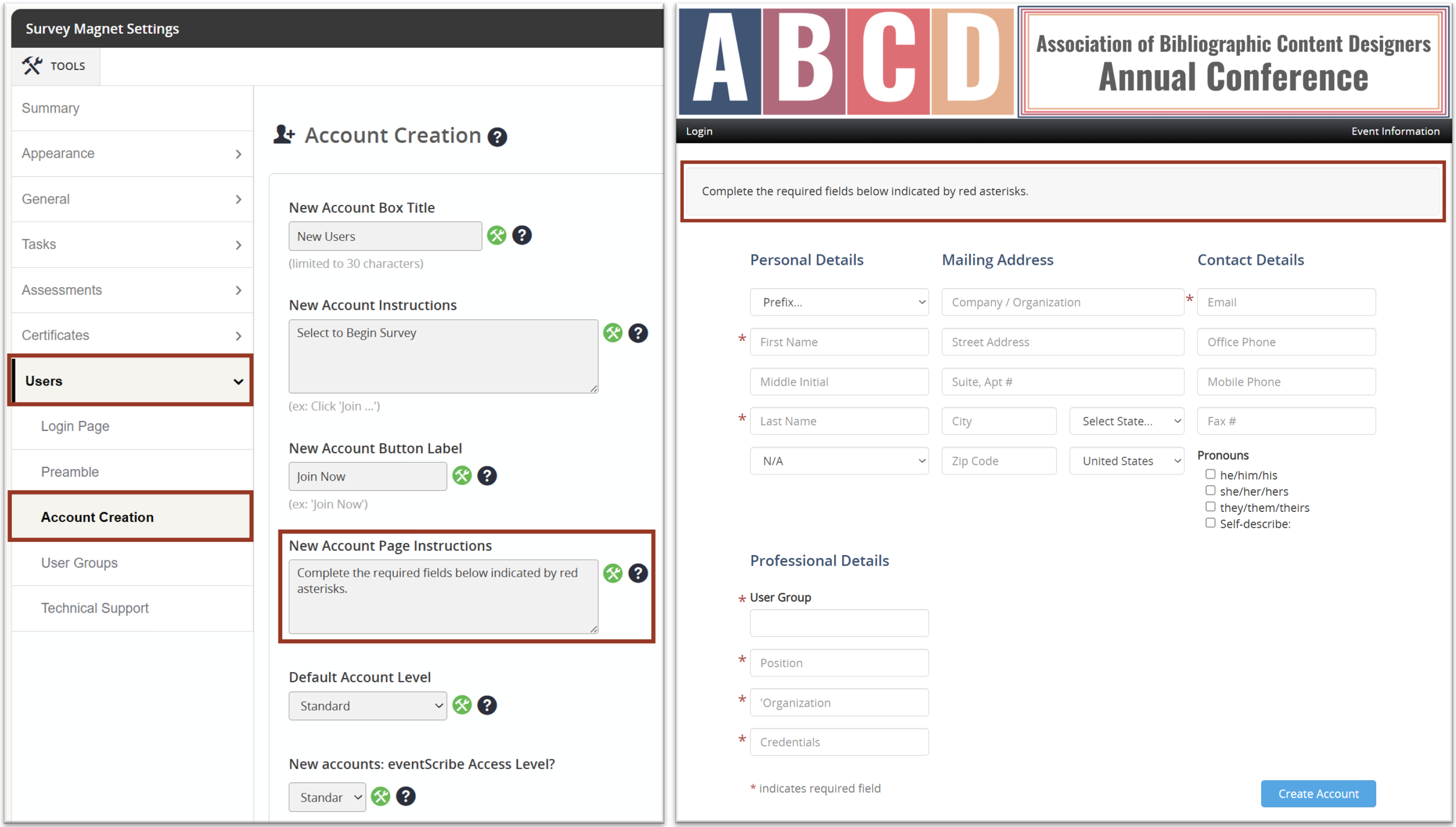
If Users will be able to access the login page, and create an account, you can make adjustments on the new account page. Start by updating the New Account Page Instructions, if needed (Fig. 7).
Fig. 7 - Users Account Creation Settings And New Account Page.
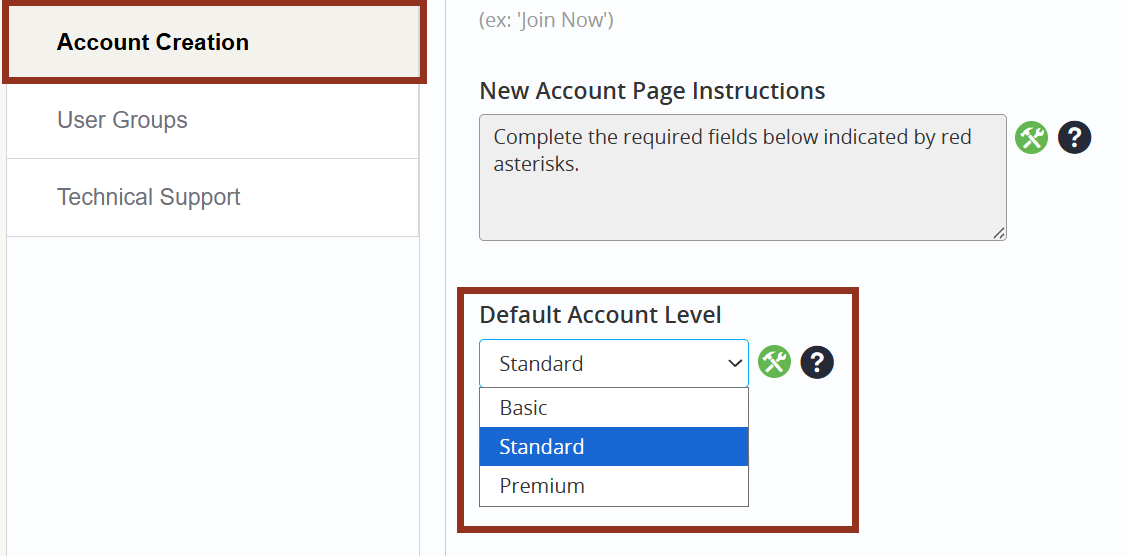
Next, choose the Default Account Level for new accounts, after consulting with your Project Manager to understand Basic, Standard, and Premium levels within the Survey Magnet (Fig. 8). Only First Name, Last Name and Email Address will be required from the User unless the Professional Details section has been turned on.
Fig. 8 - Users Tab Account Creation Sub-Tab Default Account Level Option.
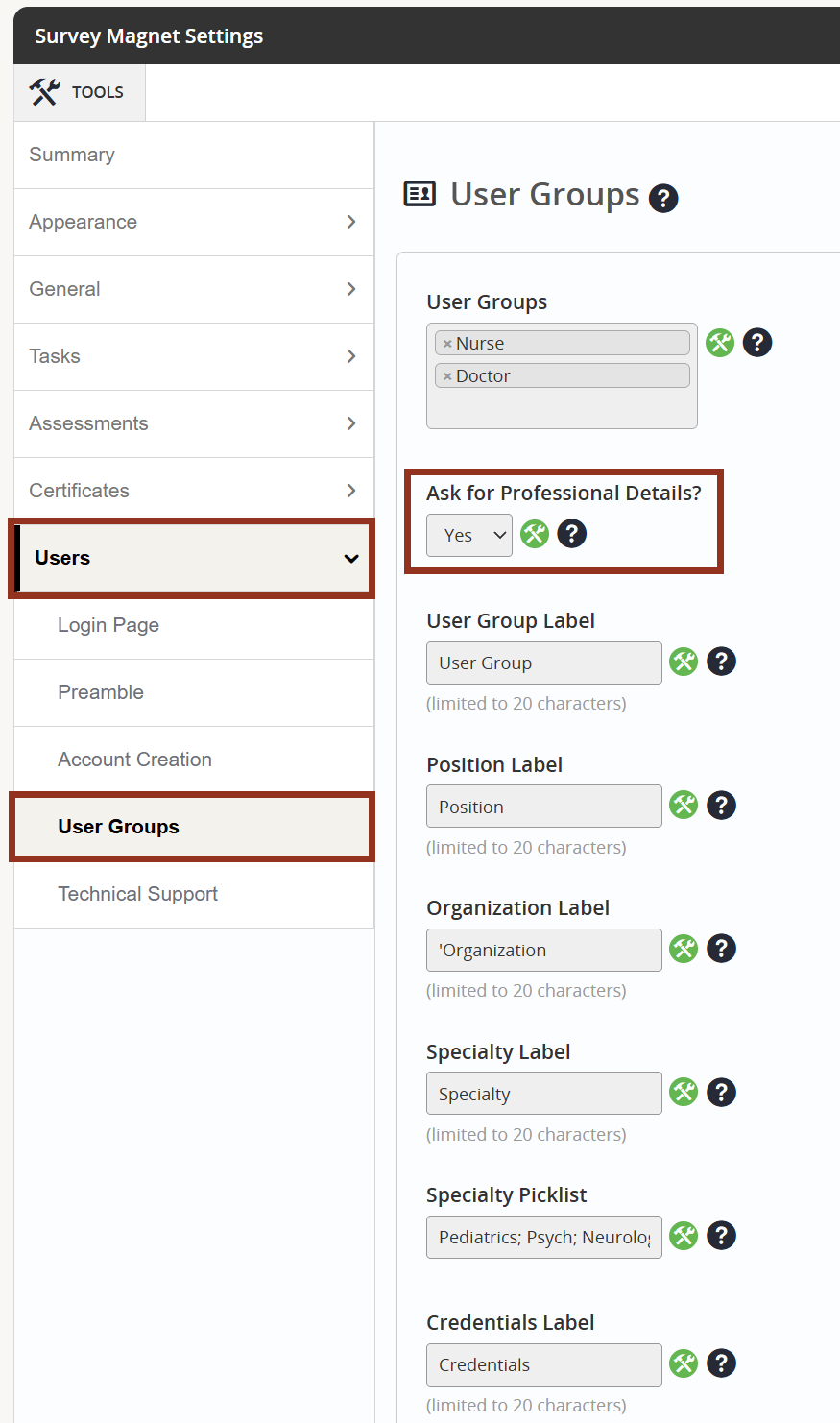
To turn on the Professional Details section on the new account page, locate Users > User Groups within the left-hand navigation panel. Then, toggle the Ask for Professional Details? drop down to "Yes." This will allow you to collect information from your Users such as Group, Position, Organization, Specialty, and Credentials. To activate one of the Professional Details fields, enter text for the Label. For Group, Specialty, and Credentials, then enter the possible answers separated by semi-colons below the field that says Picklist.
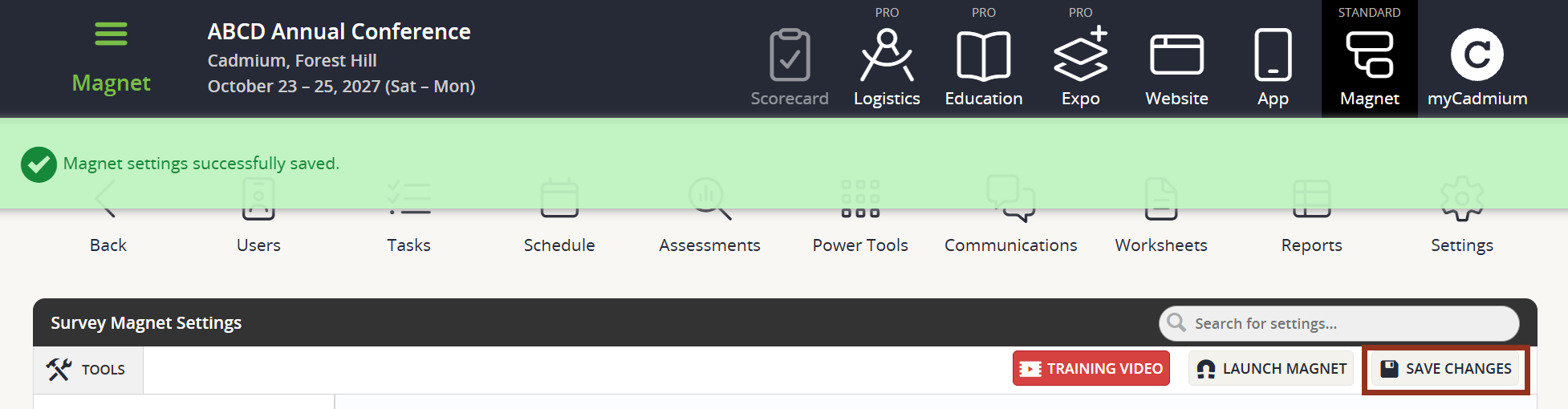
Remember to select the 'Save Changes' button. A temporary confirmation banner will appear (Fig. 10).
Fig. 10 - Save Changes Button and Confirmation Banner.
Be sure to checkout the additional Help Tips next to each setting.
NOTE
If you have further questions about Survey Magnet settings, please contact your Project Manager via Boomerang.