First, select the Settings icon from the top of the page in the Survey Magnet administrative dashboard to open the Settings page. (Fig. 1).
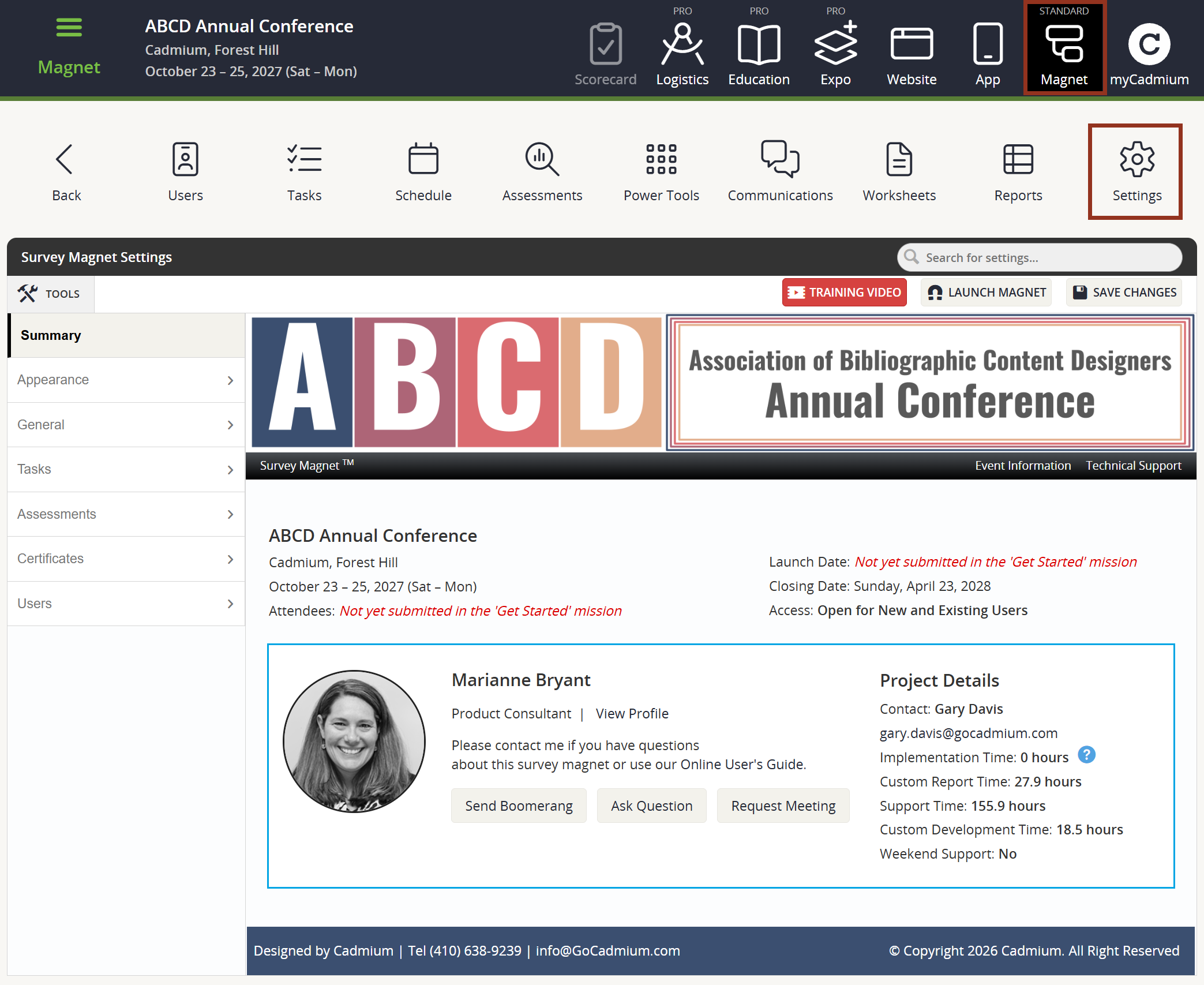
Fig. 1 - Survey Magnet Settings Page.
To adjust text that will display on the Task List, locate Tasks > Tasks List on the left-hand navigation panel (Fig. 2).
- Title for Information Section Above Task List: This title of the section that will display above the user's list of tasks. This text will always display in capital letters. Limited to 30 characters.
- Content Text Above Task List: This text will display above the user's list of tasks. Use this area to enter instructions on how to complete the tasks and earn credits.
- Title for Information Section Below Task List: This title of the section that will display below the user's list of tasks. This text will always display in capital letters. Limited to 30 characters.
- Content Text Below Task List: This text will display below the user's list of tasks. Use this area to enter follow up instructions for after tasks have been completed by the user.
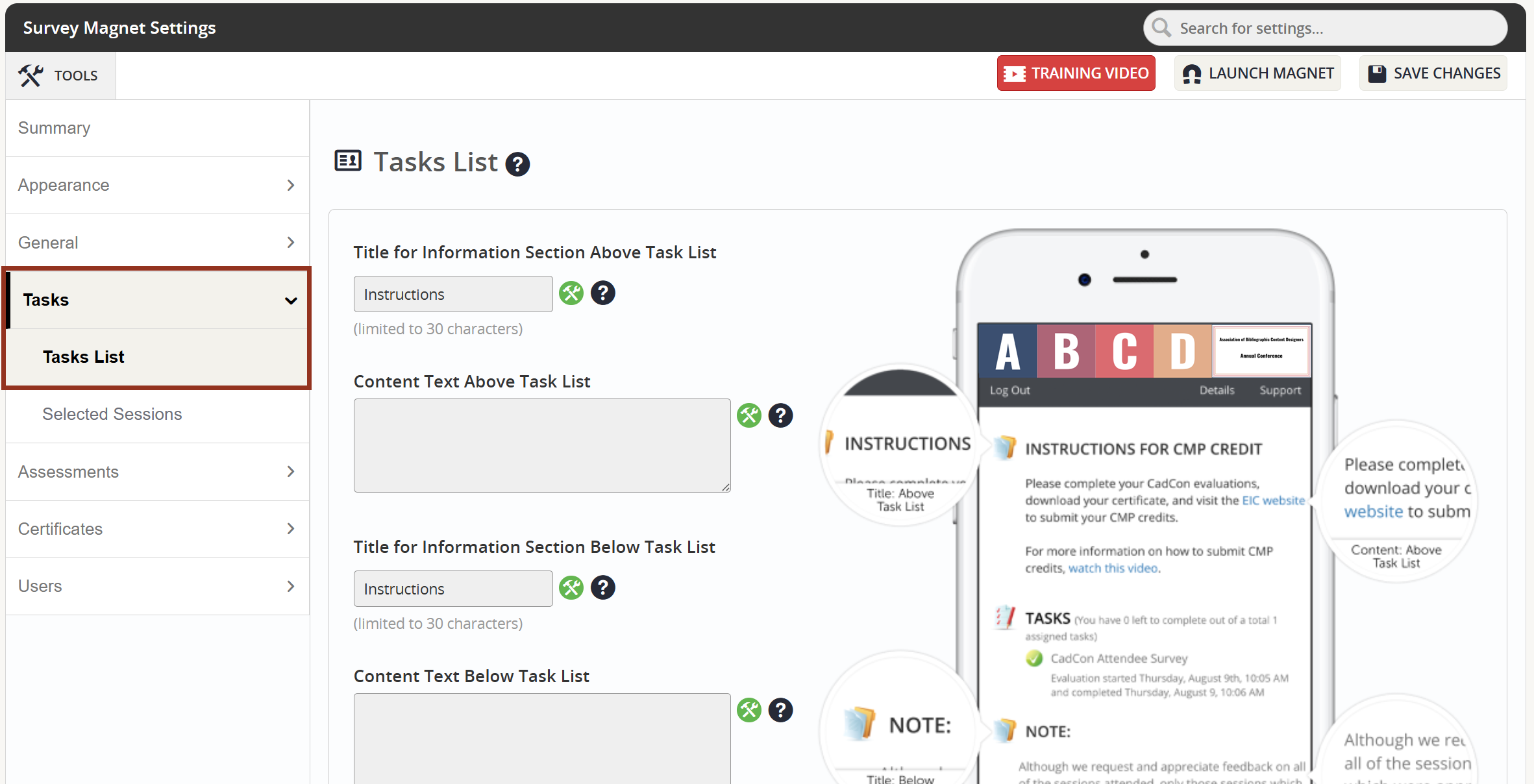
Fig. 2 - Tasks Tab Tasks List Sub-Tab.
If your Survey Magnet will have Session Evaluations, adjust the following settings in the Tasks tab > Selected Sessions sub-tab (Fig. 3):
- Show Earned Credit Transactions: This toggle controls the option to list the presentation titles below the task list for which the evaluations have been completed for credit. The toggle is located in the tab "Selected Sessions." If it is set to "No," the credits from any selected session will show to the user. If it is set to "Yes," only the credits from completed assessments will show to the user. This will help the user see how many credits have been selected to claim.
Please note that if set to "No," the credits shown on the task list page may NOT reflect the actual credits collected in the system or shown on the user's certificate.
- Hide Session Selections: This toggle will show or hide the list of sessions (which appears beneath the list of tasks) that a user has selected to evaluate. The choice to show the selections for which an assessment has been selected, completed, or completed for credit is then controlled by the "Show Earned Credit Transactions" and "Hide Credit Values" settings under this same section.
- Selected Sessions Title: the title for the section below the user's list of tasks, which displays the sessions they've selected to evaluate within their tasks.
Note that this text will always be displayed in bold capital letters. Limited to 40 characters. We recommend using "Sessions Selected" or "Completed Evaluations" depending on how the Credit Selection Task will function.
If the setting for Hide Session Selections is toggled to "Yes," then the Session Selections Title and the selected sessions will NOT display. If toggled to "No," then the Session Selections Title and the selected sessions WILL display.
- Hide Credit Values: If you are using more than one Credit Type, you will want to hide Credit Values from showing next to sessions selected/evaluated on the Task List page by toggling the setting to "Yes." If the Credit Types are all the same, you can choose to display the Credit Values by toggling the setting to "No."
- Default text when a user has not selected any sessions: If needed, adjust the default text a user will see when they have not selected/evaluated any sessions.
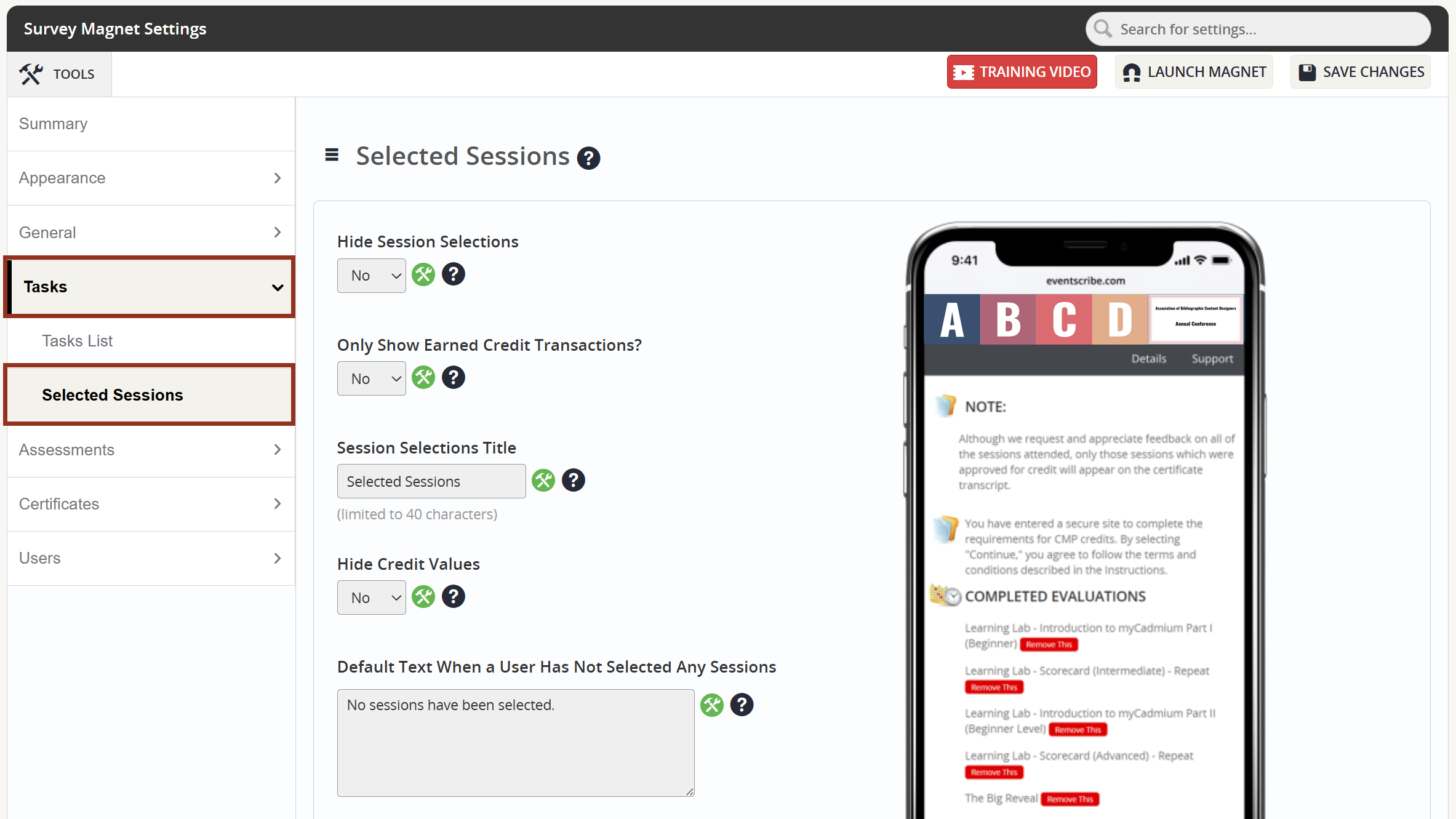
Fig. 3 - Tasks Tab Selected Sessions Sub-Tab.
Remember to select the 'Save Changes' button.
Was this article helpful?
That’s Great!
Thank you for your feedback
Sorry! We couldn't be helpful
Thank you for your feedback
Feedback sent
We appreciate your effort and will try to fix the article