First, select the Settings icon from the top of the page in the Survey Magnet administrative dashboard to open the Settings page. (Fig. 1).
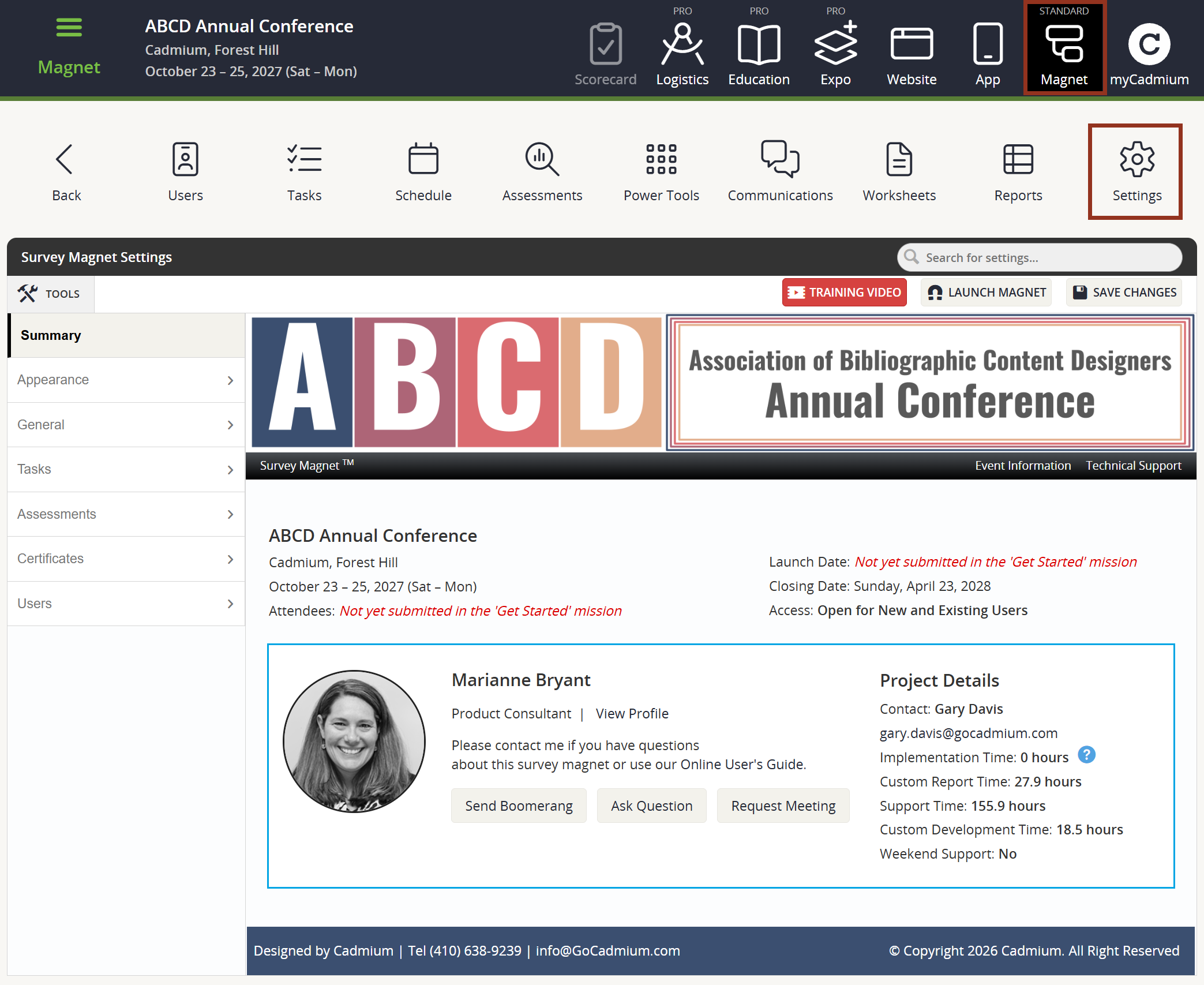
Fig. 1 - Survey Magnet Settings Page.
To adjust any event specific information, such as the Event Name or Event Website, locate General > Event Information on the left-hand navigation panel (Fig. 2). These fields will be populated with the data that was entered in the "Get Started" mission. Use the blue help tips to learn more about where these fields will display on the end user site. Then select the 'Save Changes' button.
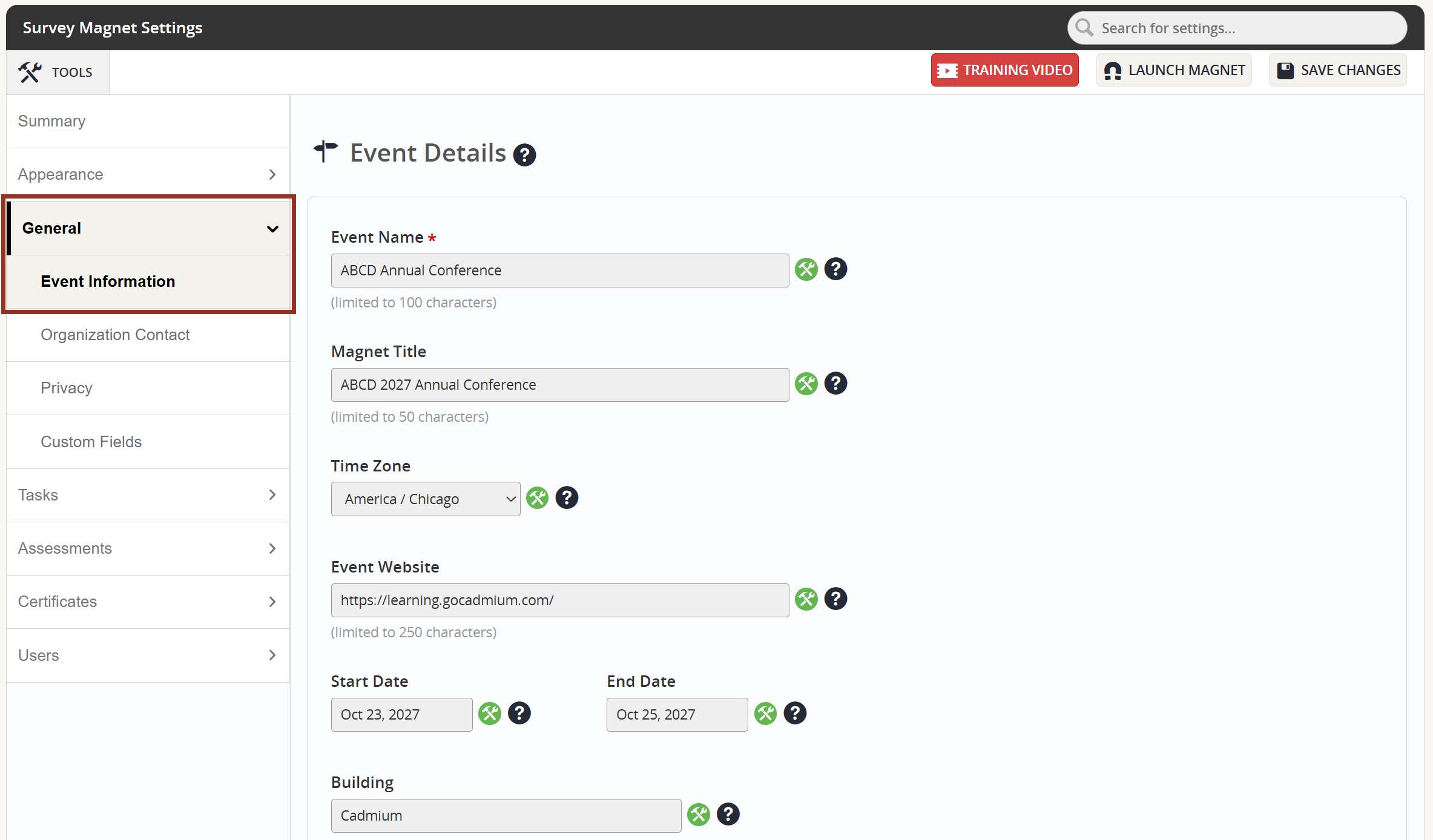
Fig. 2 - Settings Page General Tab Event Information Sub-Tab.
Adjust or enter the following dates (Fig. 3). Please note that the Magnet Closing Date is requested within the Basic Settings Mission Task.
- Displayed Closing Date: This date will appear within the Awesome Bar, and is for display purposes only.
- Displayed Closing Time: This time will appear within the Awesome Bar, and is for display purposed only.
- Displayed Closing Time Zone: This time zone will appear within the Awesome Bar, and is for display purposes only. It is essential to indicate the correct time zone where your event is being held. This will affect the time stamp shown on emails and certificates.
- Enforced Closing Date: The date that the Magnet portal will CLOSE for attendee evaluations. After this date, attendees will still be able to access their certificates, but no other tasks may be completed.
- Enforced Closing Time: The time, in Eastern Time, on the selected closing date that the Magnet portal will CLOSE for attendee evaluations. After this time, attendees will still be able to access their certificates, but no other tasks may be completed.
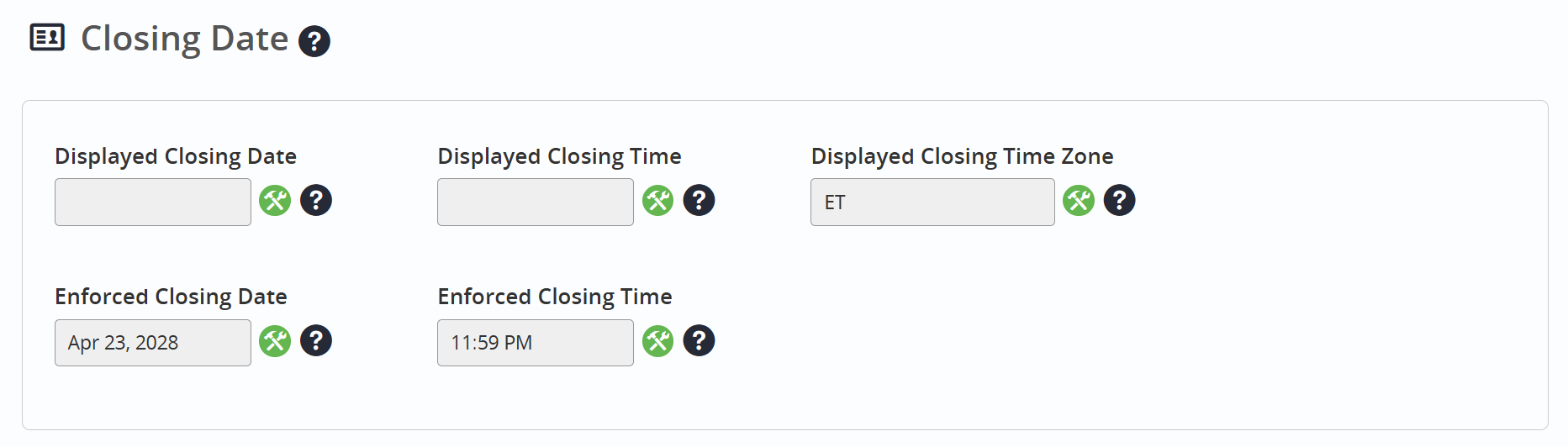
Fig. 3 - General Tab Event Information Sub-tab Closing Date Options.
To Hide the Event Details Section in the Awesome Bar, toggle the drop down shown in the screenshot below to "Yes" (Fig. 4). This will completely remove the "Event Details" link from showing next to "Technical Support" link.
To adjust the name for "Event Details," adjust the second field, Event Information Title, shown in the screenshot below.
For the Awesome Bar, choose whether or not you would like to show the Event Date, Event Name, or the Support Ticket Section. To show, toggle the drop down to "Yes." To hide, toggle the drop down to "No."
For the Awesome Bar, choose whether or not you would like to show the Support Ticket Section. To show, toggle the drop down to "No." To hide, toggle the drop down to "Yes."
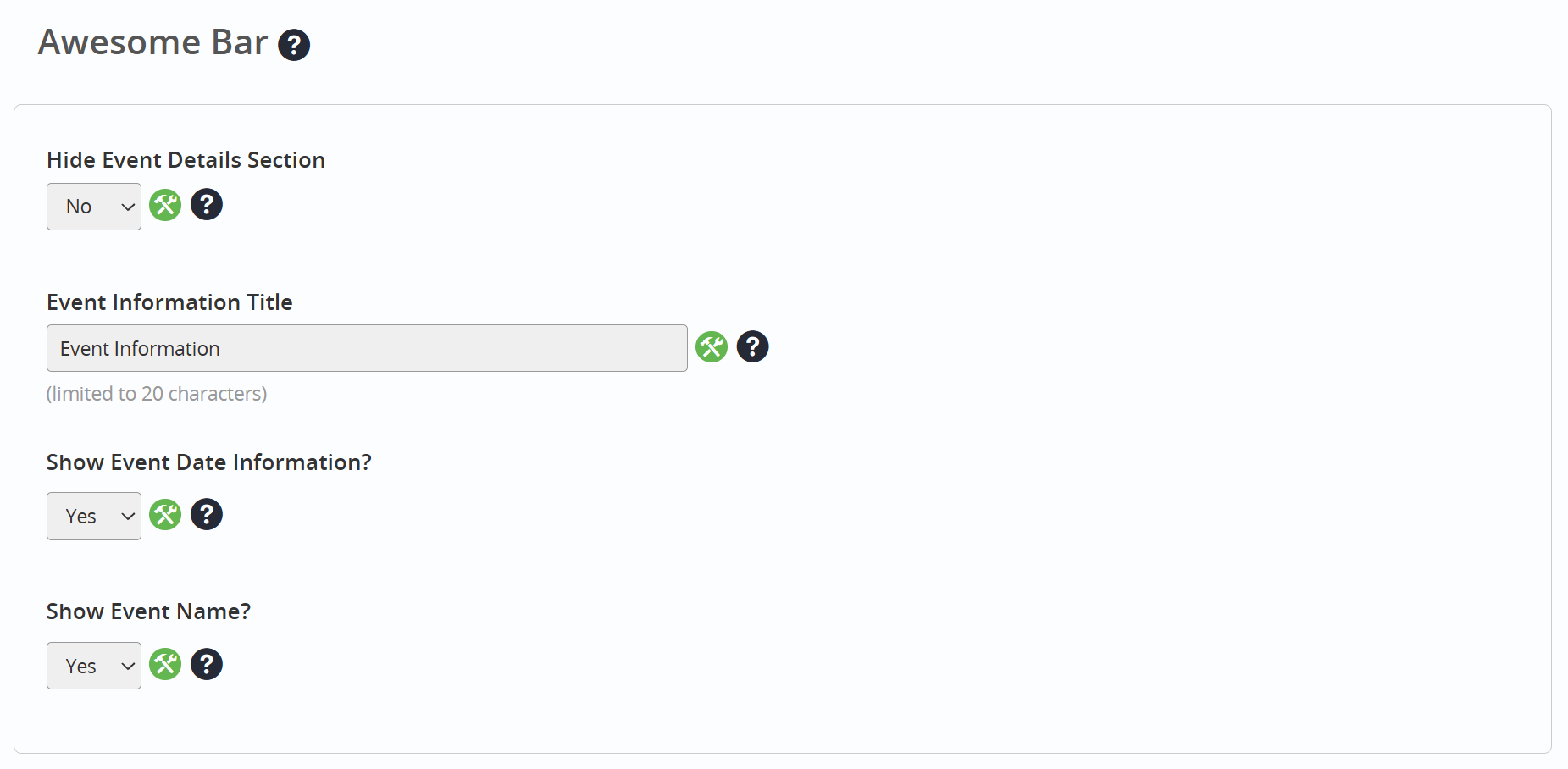
Fig. 4 - General Tab Event Information Sub-Tab Awesome Bar Options.
To adjust contact details for the organizer, such as the Email or Phone Number, locate General > Organization Contact on the left-hand navigation panel (Fig. 5). These fields will be populated with the data that was entered in the "Basic Settings" mission. Then select the 'Save Changes' button.
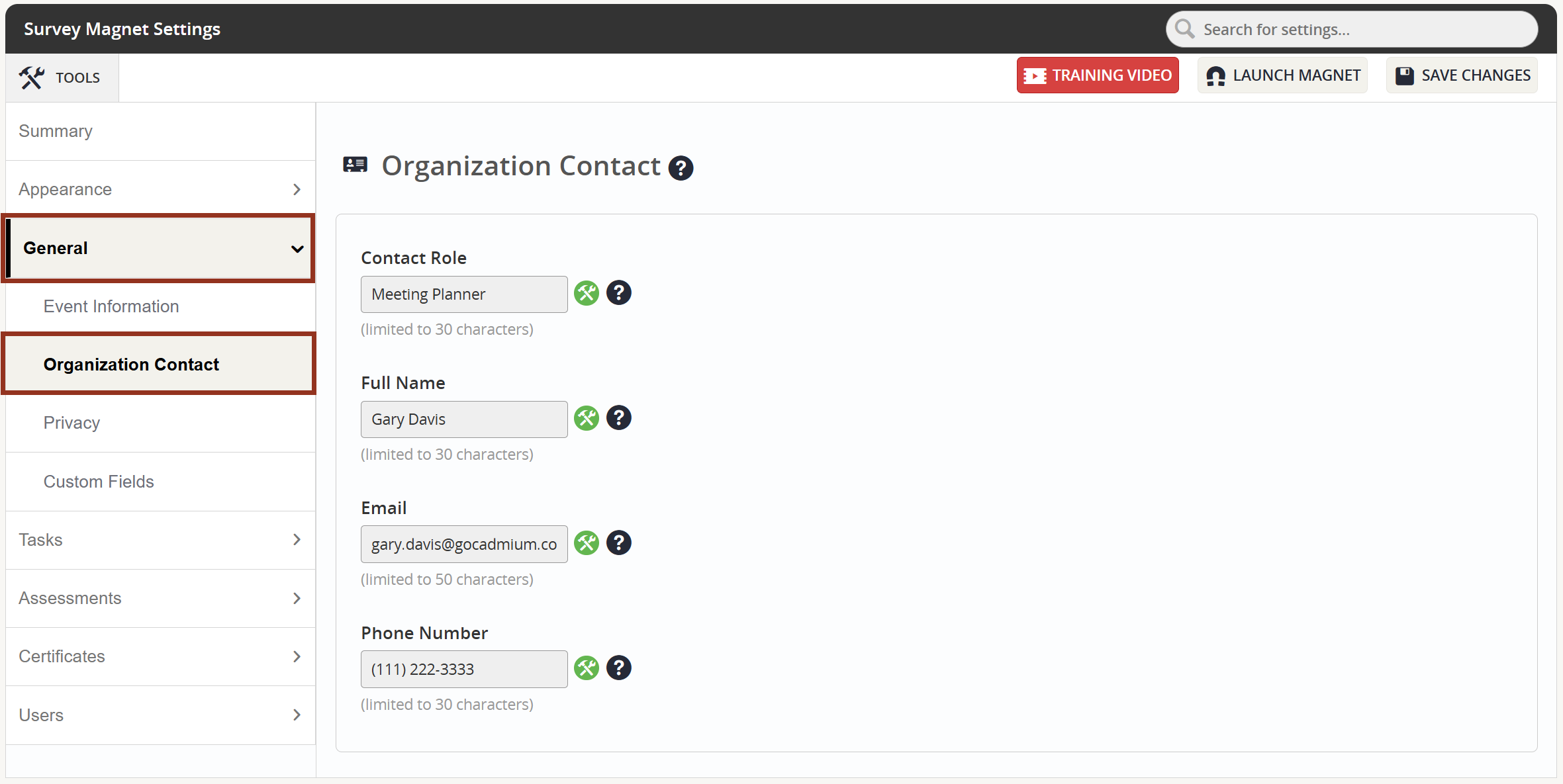
Fig. 5 - General Tab Organization Contact Sub-Tab Contact Options.
Was this article helpful?
That’s Great!
Thank you for your feedback
Sorry! We couldn't be helpful
Thank you for your feedback
Feedback sent
We appreciate your effort and will try to fix the article