First, select the Settings icon from the top of the page in the Survey Magnet administrative dashboard to open the Settings page (Fig. 1).
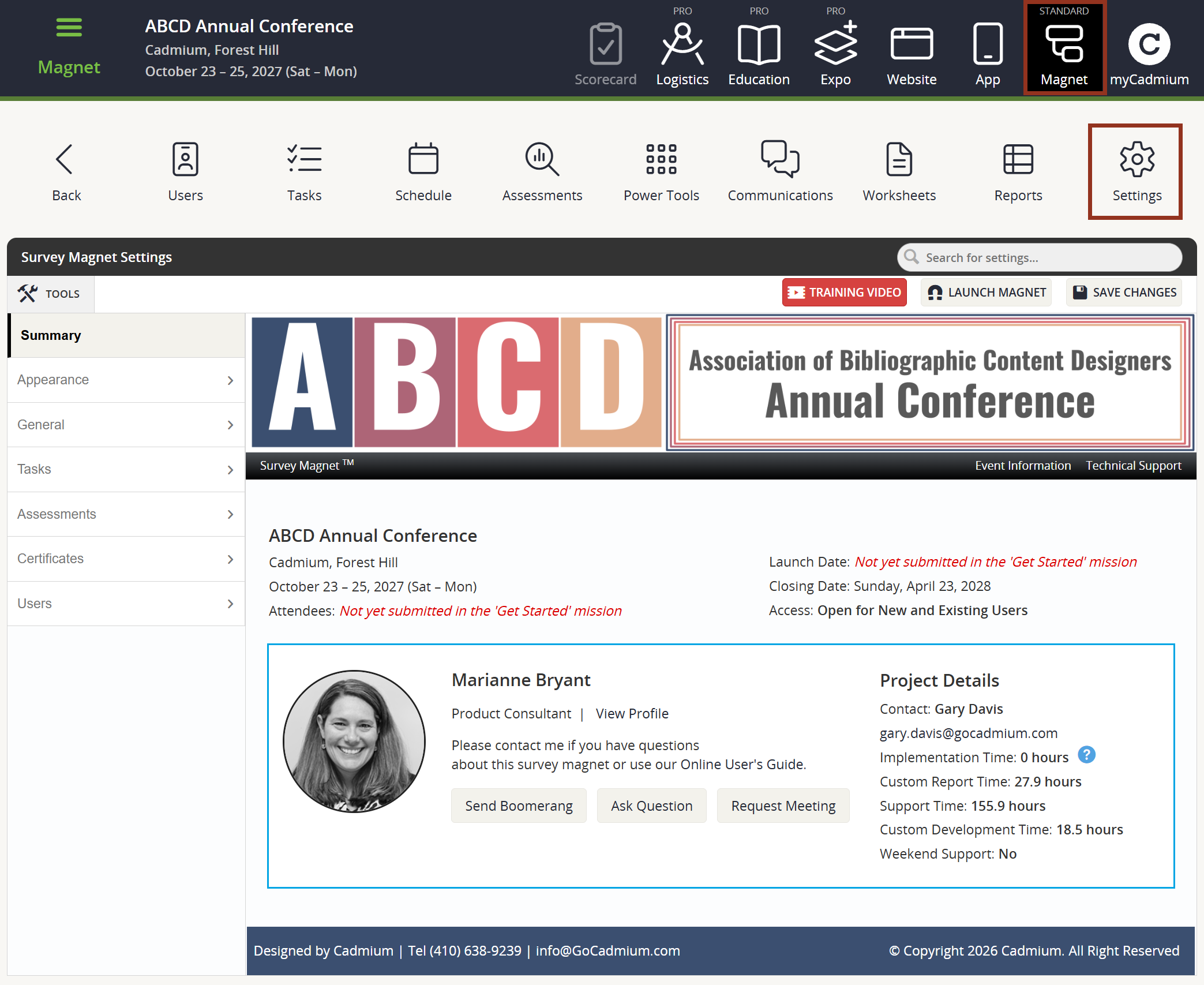
Fig. 1 - Survey Magnet Settings Page.
To add or adjust an Event Banner, select the "Appearance" tab on the left, and then select Core Graphics. Next, drag your image file to the drop zone, or select the "Upload" button to browse for the file. The Settings page will allow banners with spec sizes of 1920 pixels wide x 180-280 pixels tall. Then select the 'Save Changes' button. A temporary confirmation banner will appear (Fig. 2).
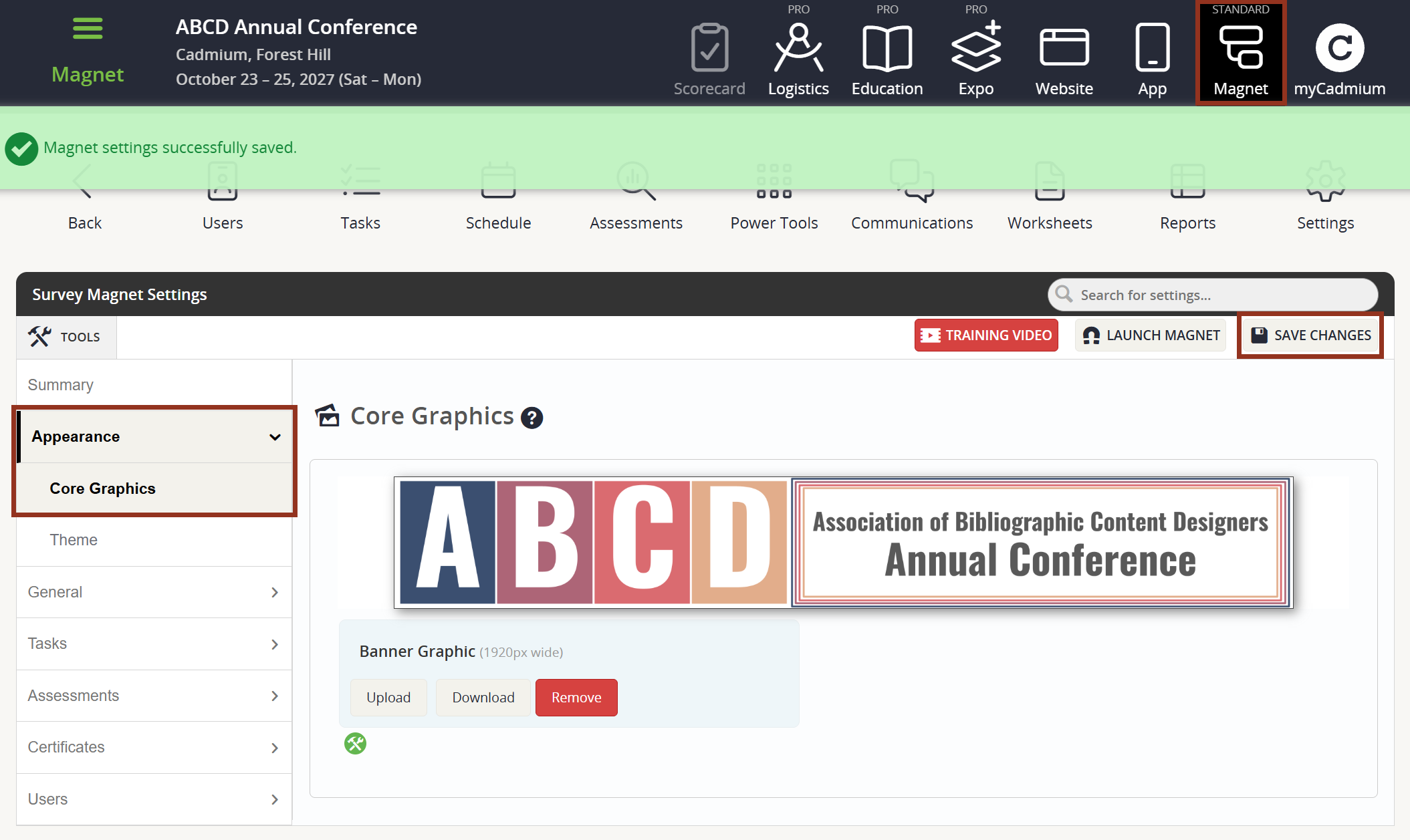
Fig. 2 - Settings Page Appearance Tab Core Graphics Sub-Tab.
NOTE
The event banner may also be uploaded in the Basic Settings Mission.
Next, locate Appearance > Theme on the left-hand navigation panel. This is where you will adjust the colors of the Awesome Bar, Footer Bar, Login Page, and the General Appearance. Enter HTML color codes, or use the color picker to choose colors that will coordinate with your Event Banner. Then select the 'Save Changes' button. Use the blue help tips to learn more about where these colors will display on the end user site (Fig. 3).
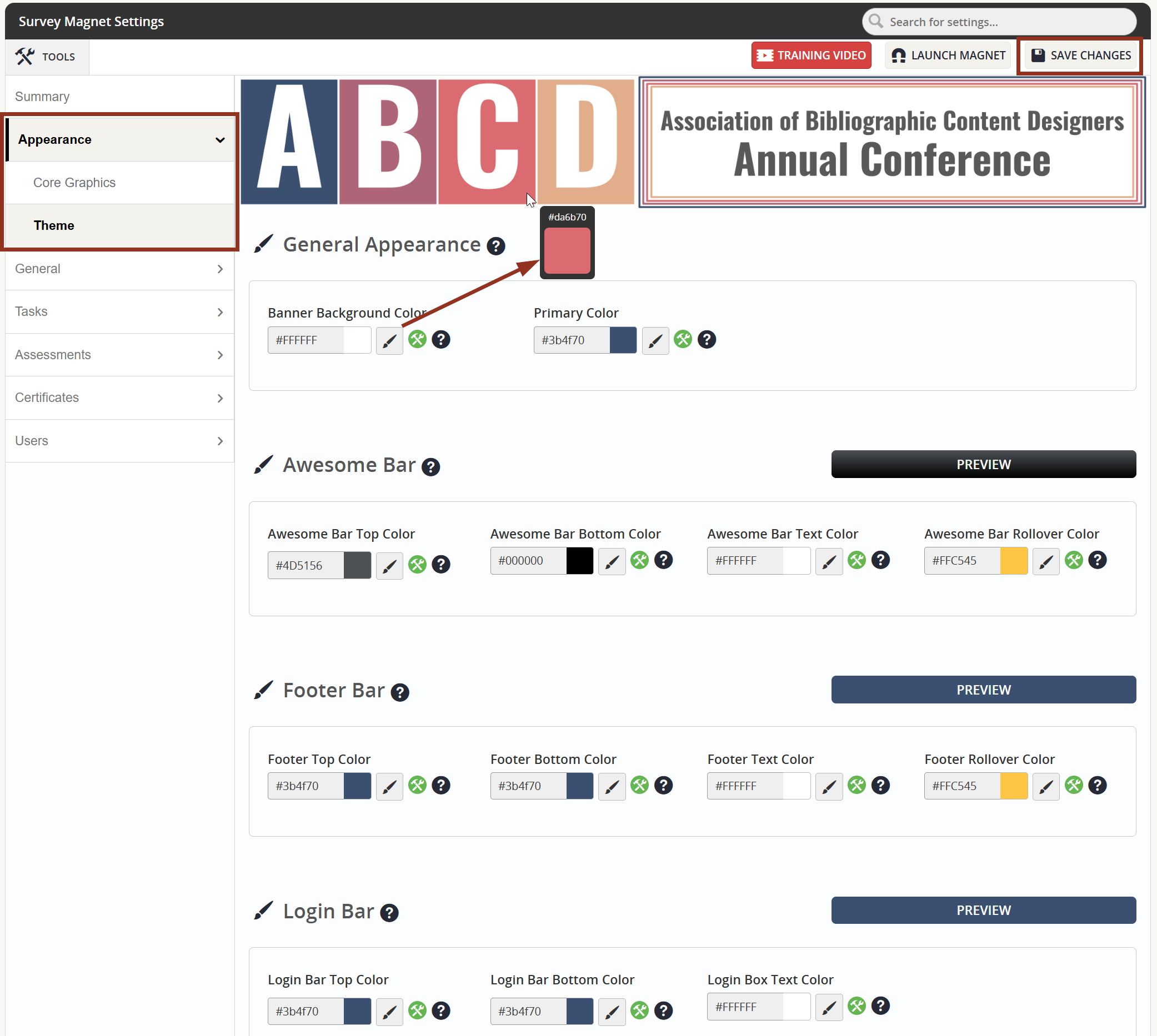
Fig. 3 - Settings Page Appearance Tab Theme Sub-Tab.
Was this article helpful?
That’s Great!
Thank you for your feedback
Sorry! We couldn't be helpful
Thank you for your feedback
Feedback sent
We appreciate your effort and will try to fix the article