First, select the Settings icon from the top of the page in the Survey Magnet administrative dashboard to open the Settings page. (Fig. 1).
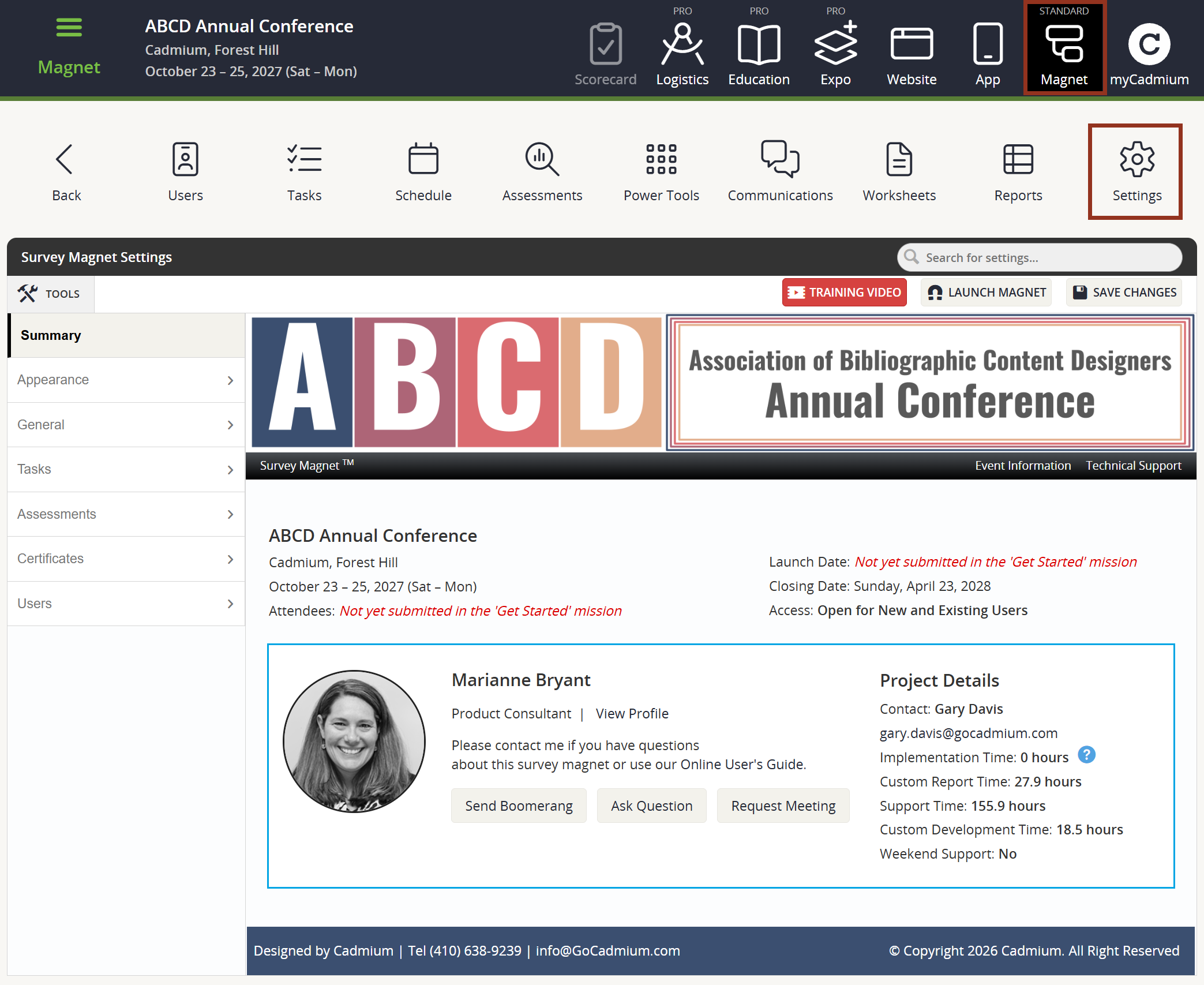
Fig. 1 - Survey Magnet Settings Page.
To adjust settings related to Survey Magnet certificates, locate Certificates > Options within the left-hand navigation panel (Fig. 2).
Overlay Print/Save Instructions: Toggle the drop down to "Yes" to have an instructional message to highlight the location of the download options "Print," "Save as PDF," or "Email This" when the certificate is open in the browser for the current user.
Printing Orientation: The certificate design may open in the browser view in portrait or landscape. This orientation will be sent to the "Save As PDF" and "Print" commands found above the certificate in view.
Decimal Places for Total Credits: When the number of credits are to be totaled on a certificate by using a system hotkey, this setting determines to which decimal place the overall total is rounded.
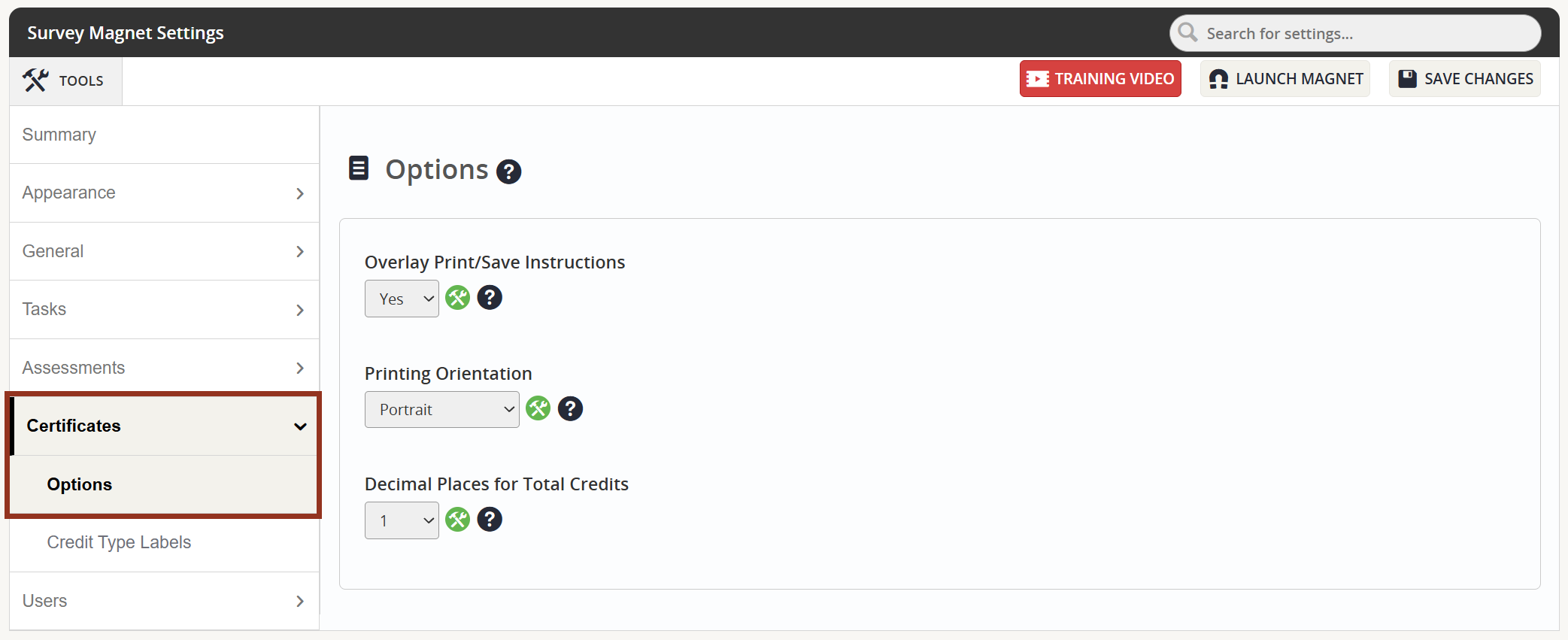
Fig. 2 - Certificates Tab Options Sub-Tab.
To add credit type labels, locate Certificates > Credit Type Labels within the lefthand navigation panel (Fig. 3).
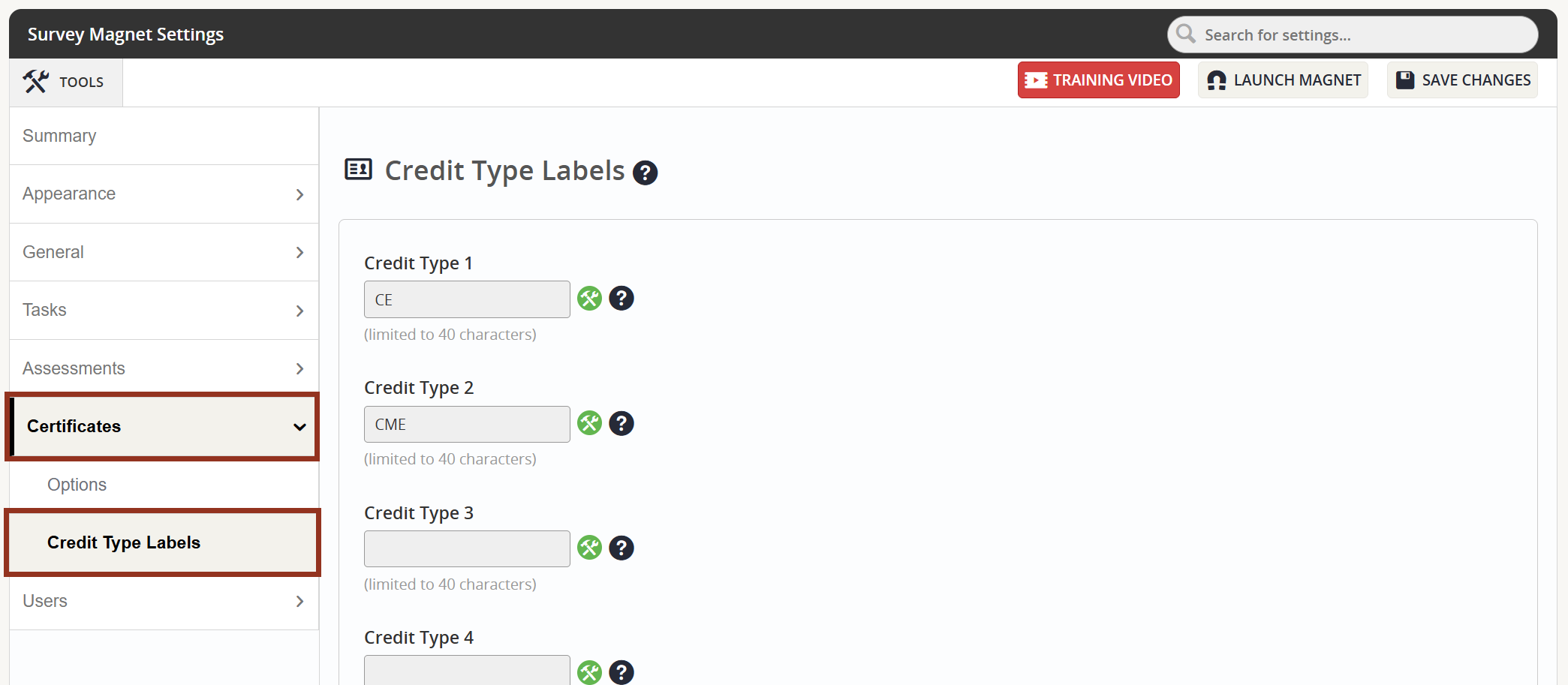
Fig. 3 - Certificates Tab Credit Type Labels Sub-Tab.
A credit type is an element of the presentation information and can be 'pulled' from the PresentationCredits1 field in the Harvester into the Survey Magnet Schedule data. Credits should be entered into the Harvester for each presentation entry for the most effective management of data. You can use up to 30 Credit Type Labels. Limited to 40 characters.
Remember to select the 'Save Changes' button.
For further explanation, please reach out to your Survey Magnet Project Manager via Boomerang.
Was this article helpful?
That’s Great!
Thank you for your feedback
Sorry! We couldn't be helpful
Thank you for your feedback
Feedback sent
We appreciate your effort and will try to fix the article