If you are creating Session Evaluations for presentations that are in your Education Harvester, you can import the presentations directly into the Survey Magnet.
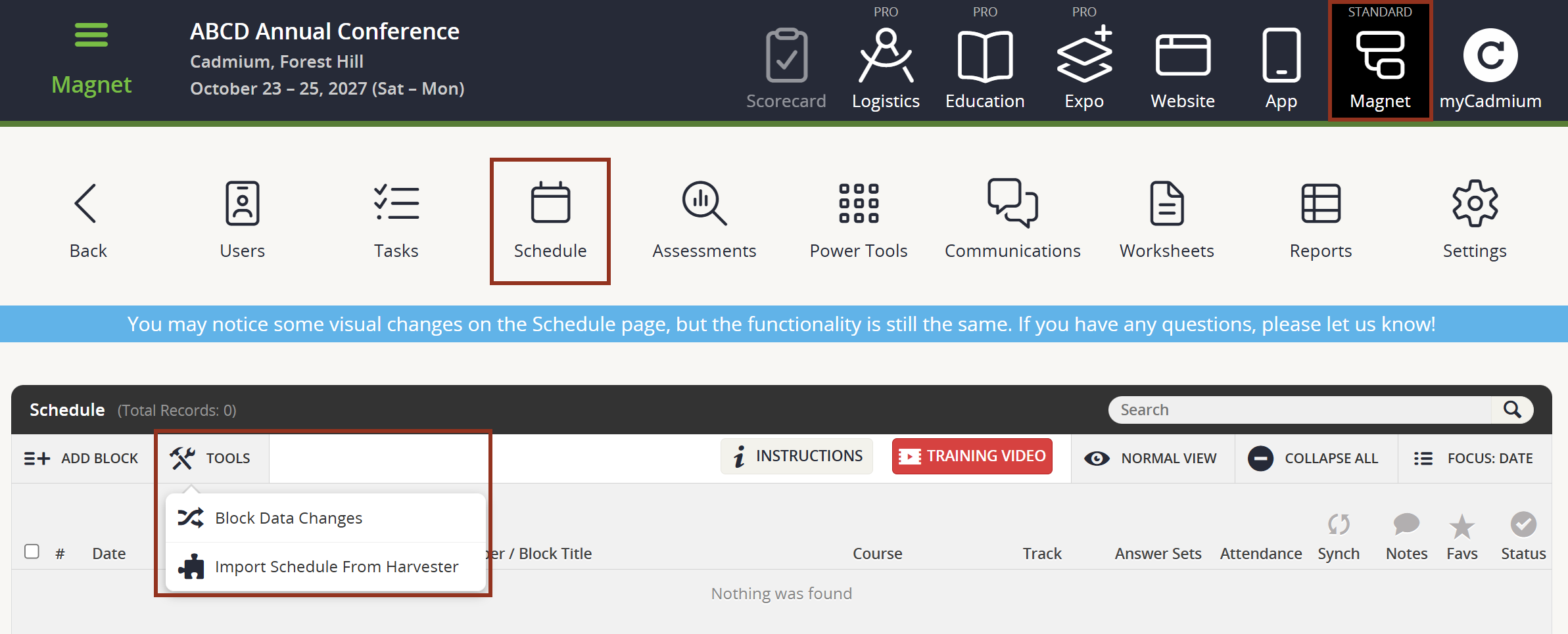
To get started, first select the Schedule page icon from the top row of icons on any page in the Magnet.
Select the TOOLS button toward the upper left-hand corner of the page. Then, select Import Schedule from Harvester from the dropdown menu (Fig. 1).
Fig. 1 - Schedule Page Tools Button Dropdown.
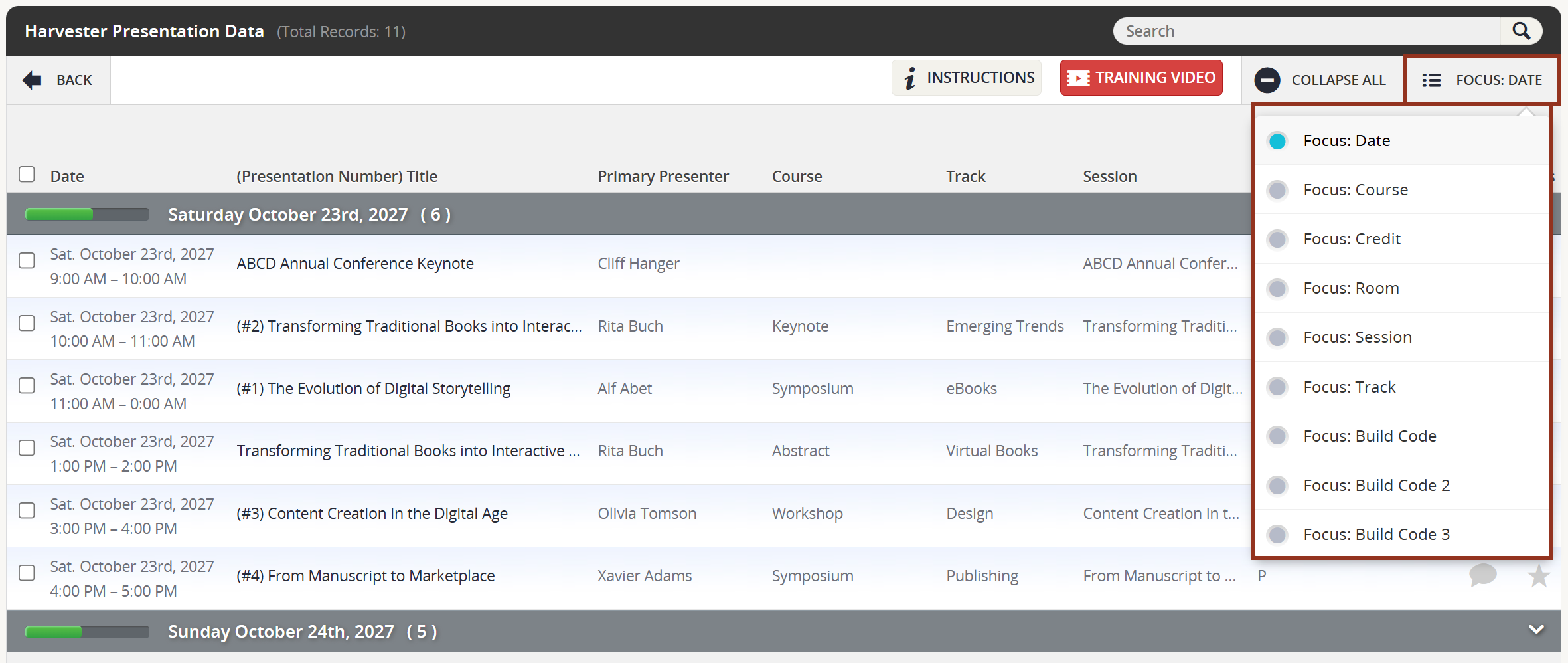
On the next page, you will see a list of all your presentations that are currently in the Education Harvester. Presentations will be grouped by Date in buckets on the page. Expand a bucket by selecting the gray row. To change how the presentations are bucketed, select the Focus: Date button toward the upper right-hand corner of the page. Within the drop down, you can choose a new Focus for the page such as Course Name, Session Name, Track, or a particular Build Code (Fig. 2).
Fig. 2 - Import Schedule from Harvester Page Focus Button.
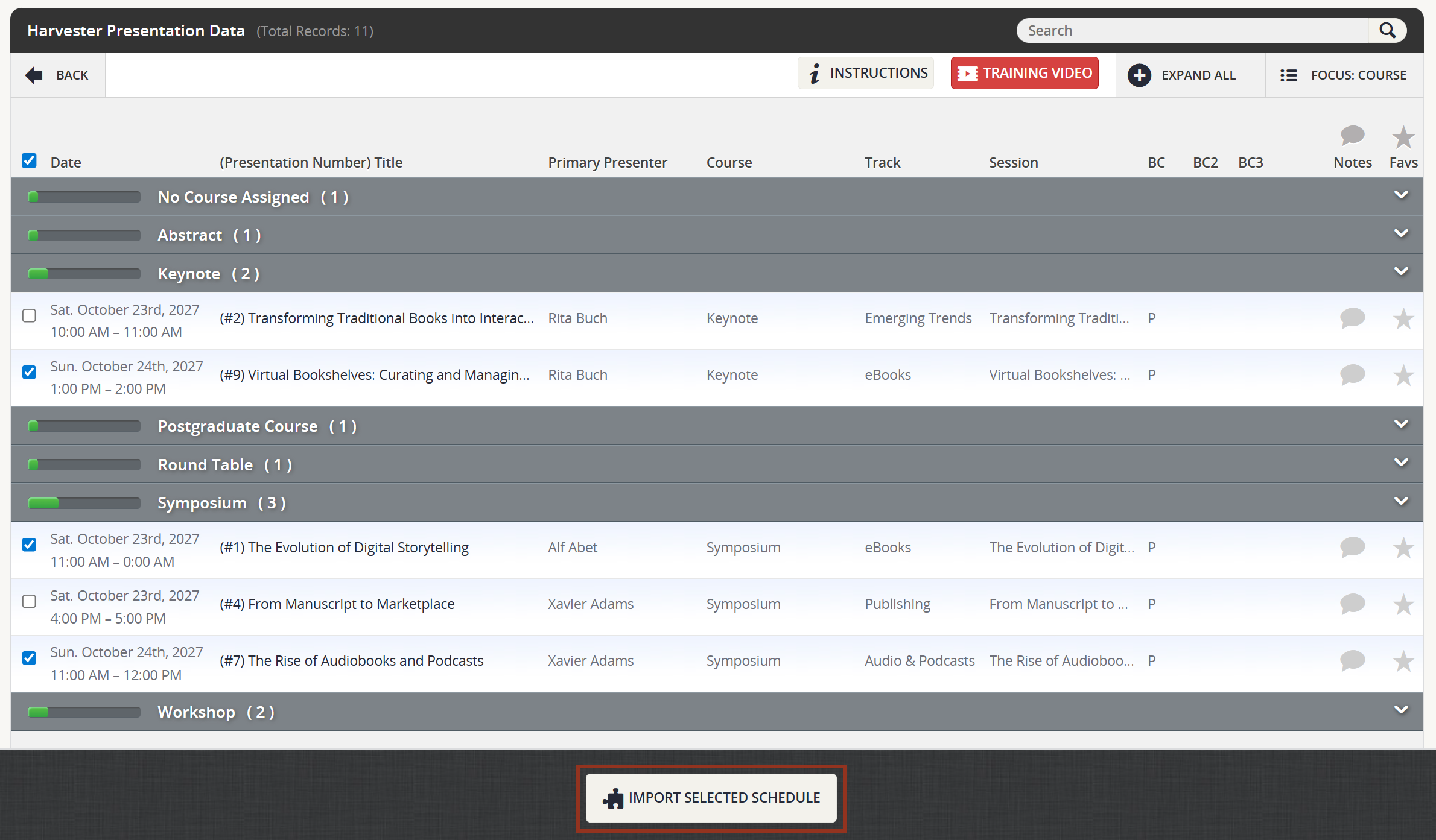
Once the appropriate Focus is selected, expand and/or collapse any buckets with presentations you do not want to import. Then, select the checkbox toward the upper left-hand corner of the page to select all presentations. If there are any presentations that should not come over to the Survey Magnet, you can deselect the checkbox on the row for the presentation. After you have selected the presentations to be imported to the Survey Magnet, select the Import Selected Schedule button that appears at the bottom of the page (Fig. 3).
Fig. 3 - Import Selected Schedule Button.
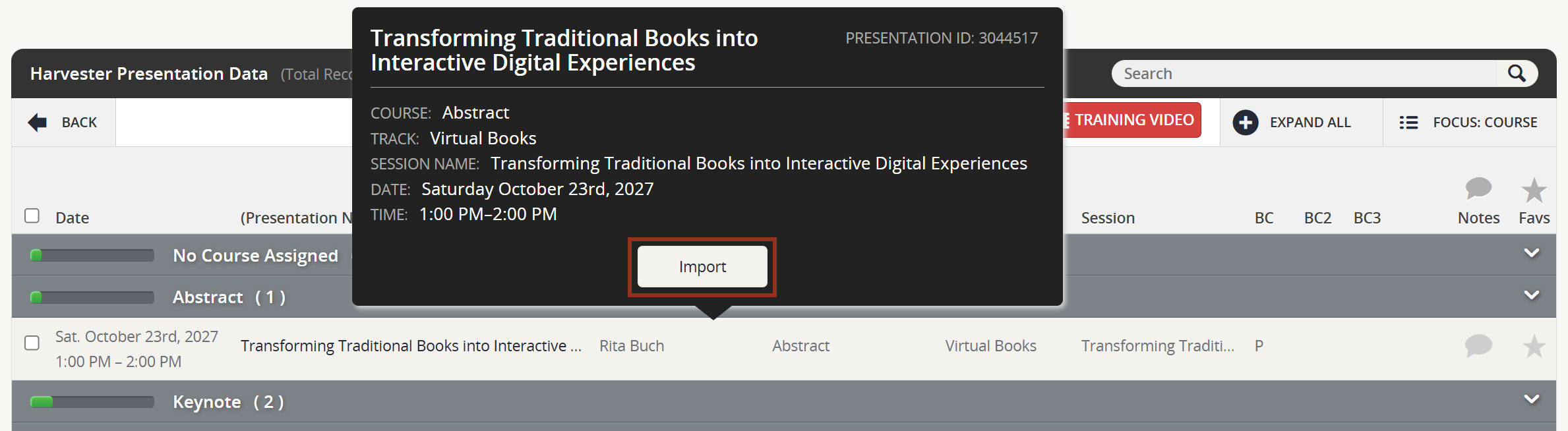
Additionally, you can select the row for one presentation, and select the Import button shown in the row pop-up to import one presentation (Fig. 4).
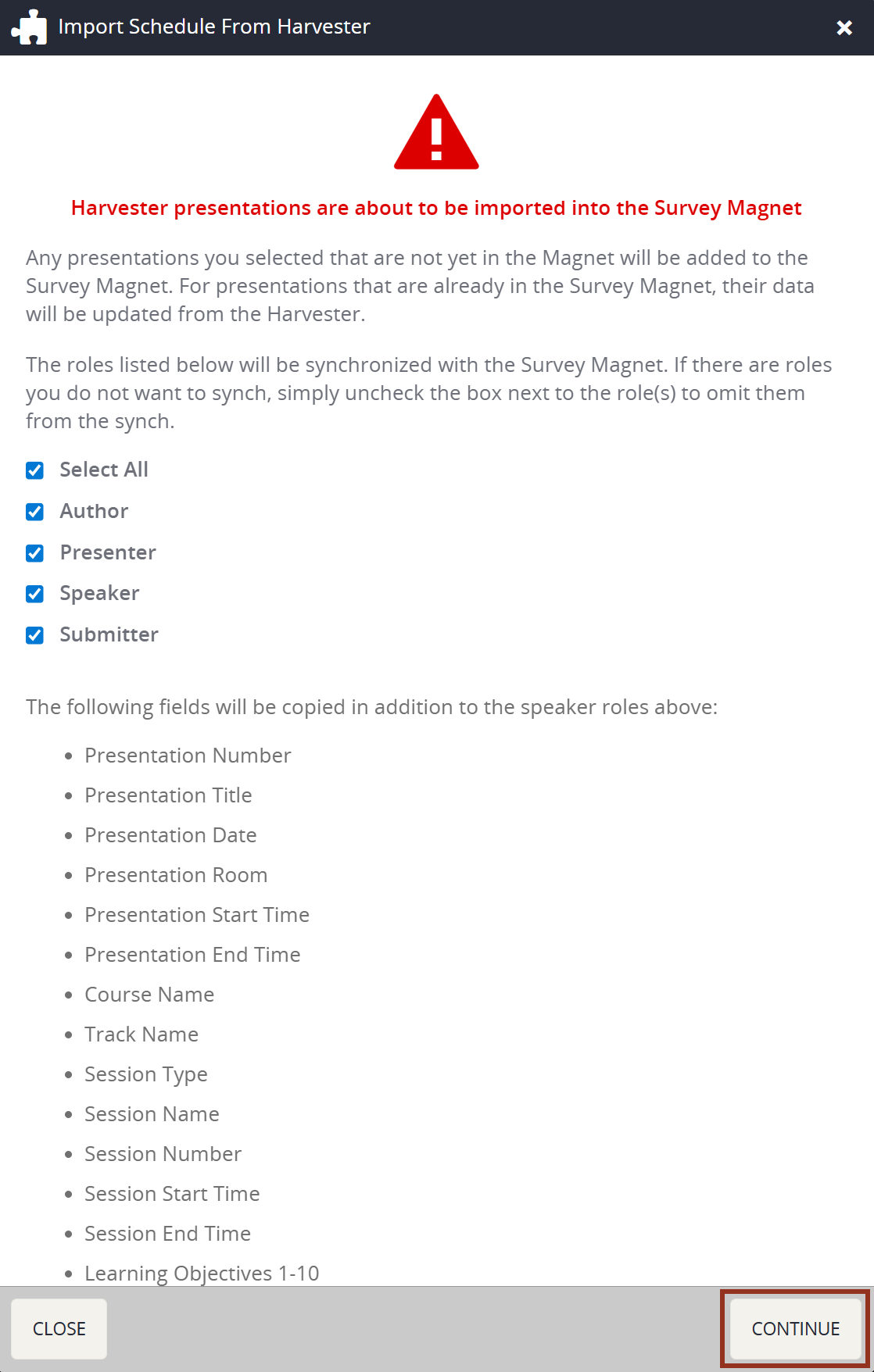
Once you choose to start an import, you will see a pop-up window where you will be alerted that the presentations will be synched to Survey Magnet if you continue.
More importantly, you can choose which roles should be imported into the Magnet. For example, if you are not planning on having speaker evaluations for the role of "CoPresenter," deselect the checkbox to the left of the role. Or if there are submitters or staff members listed on the presentations, you can exclude those roles from pulling into the Survey Magnet.
The pop-up also displays the fields that will be imported from the Education Harvester. Confirm the import by selecting the CONTINUE button.
NOTE
If the presentation has previously been imported to the Survey Magnet, the tool will simply update that presentation with the updated Harvester information.
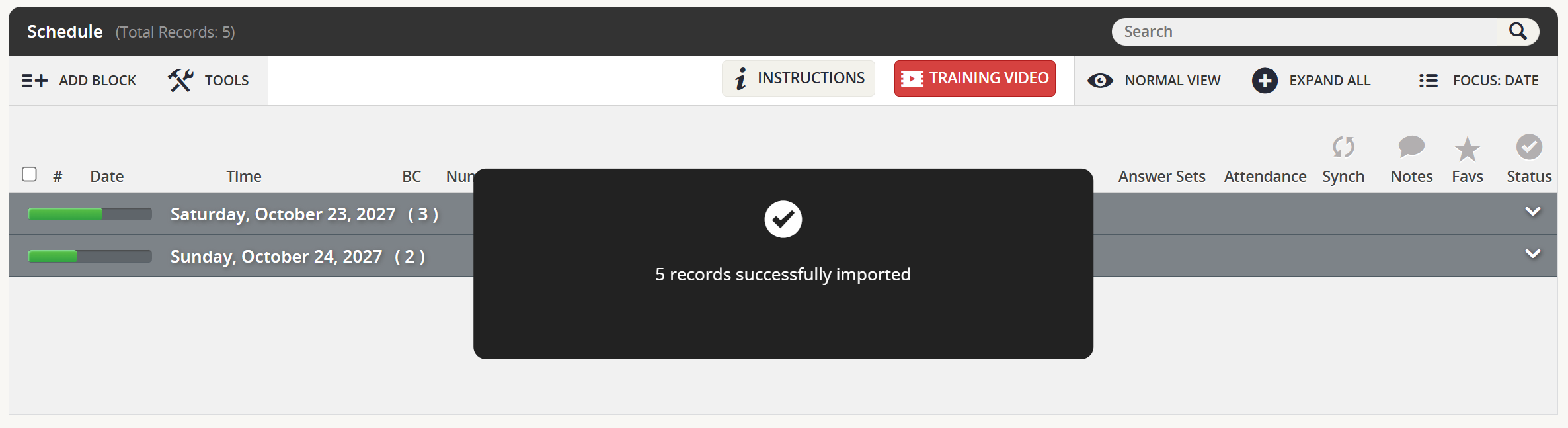
You will see a temporary pop-up confirming the action and a list of all presentations that have been imported from the Education Harvester.
Fig. 6 - Confirmation Message.
If you have additional questions about importing presentations from the Education Harvester, please reach out to your Project Manager with a Question Boomerang.