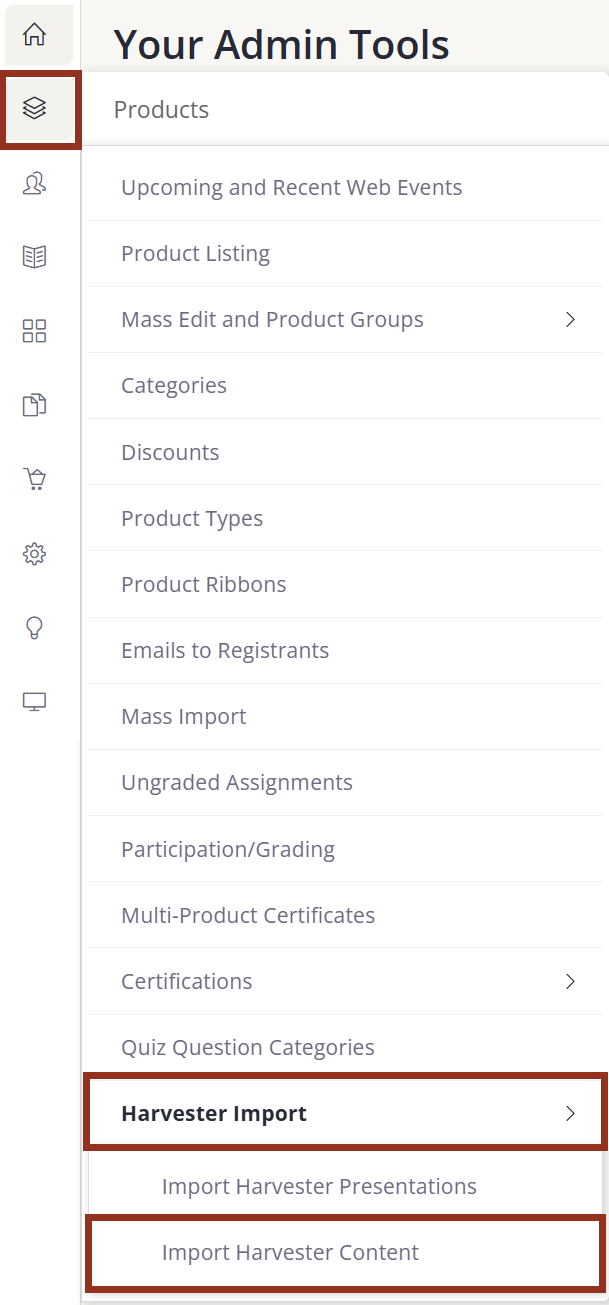
From the Administrative Control Panel, navigate to Products > Harvester Import > Import Harvester Content.
This function allows admins to return to previously imported products to refresh or replace newly added content from the presentations in the Education Harvester following the initial import. Only content contained in the Education Harvester presentations (video, audio, handout, slide, and poster image files and presenters attached to those items) is available for import. Presentation and presenter-related data will not be updated and should be handled in the Elevate product and speaker records accordingly.
There are two methods to update imported presentation content:
Method 1
On the Import Harvester Content to Products page, begin with the Select Event(s) dropdown to find presentations previously imported as products. The resulting list will display products details about those presentations from the previous import (Fig. 2). Select one or many Products and then select the Import Harvester Content button.
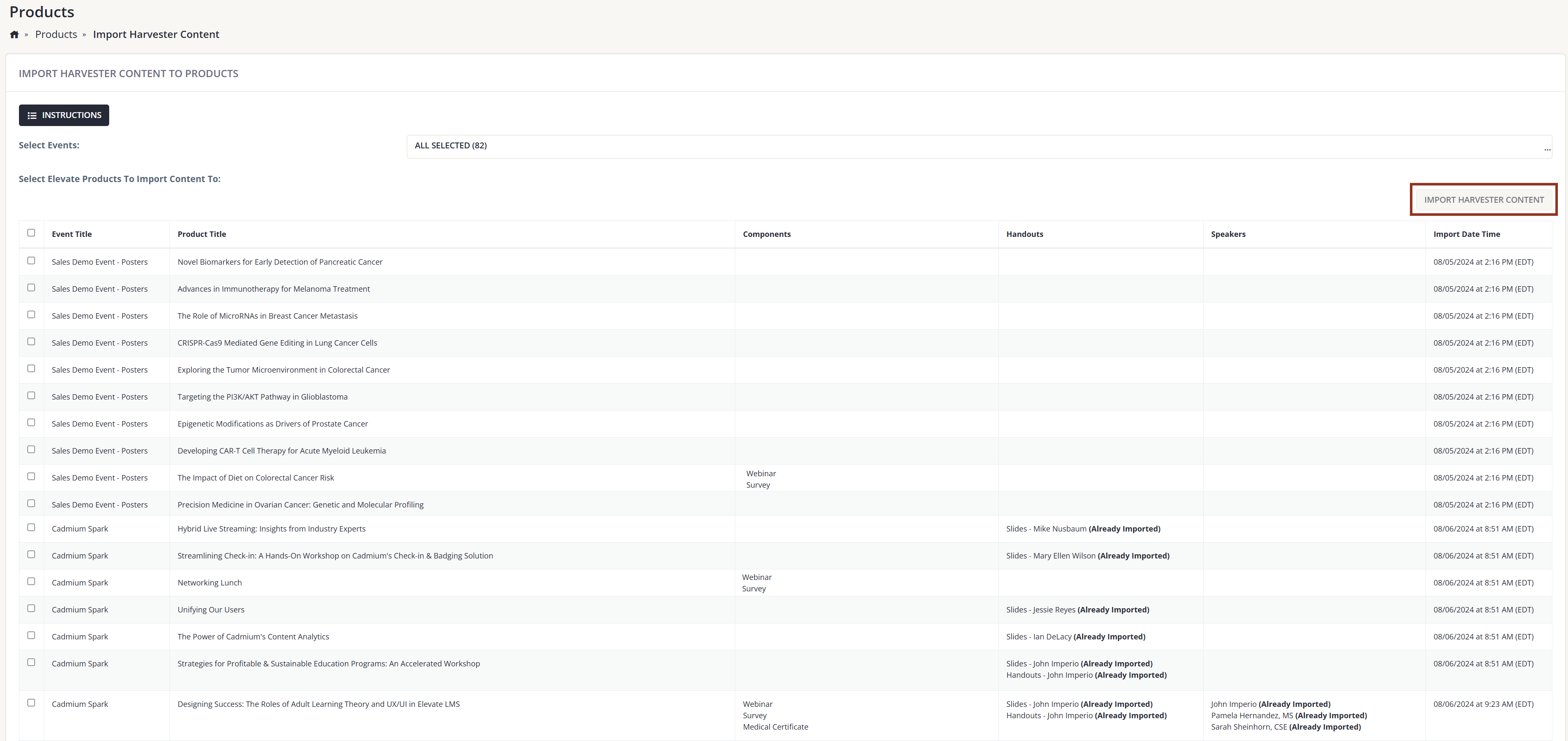
Fig. 2 - Import Harvester Content to Products Page.
Next, select the Import Type. For Import Type, you have the option to find and add ONLY new content that was not previously imported OR to replace all imported content. Replace all will not replace any of the basic product information such as title or description or speaker details, nor will is remove any content added to the product manually outside of the import.
Next, select the appropriate information related to the Content Types.
Once all information has been selected, select the Import Presentation Content button (Fig. 3).
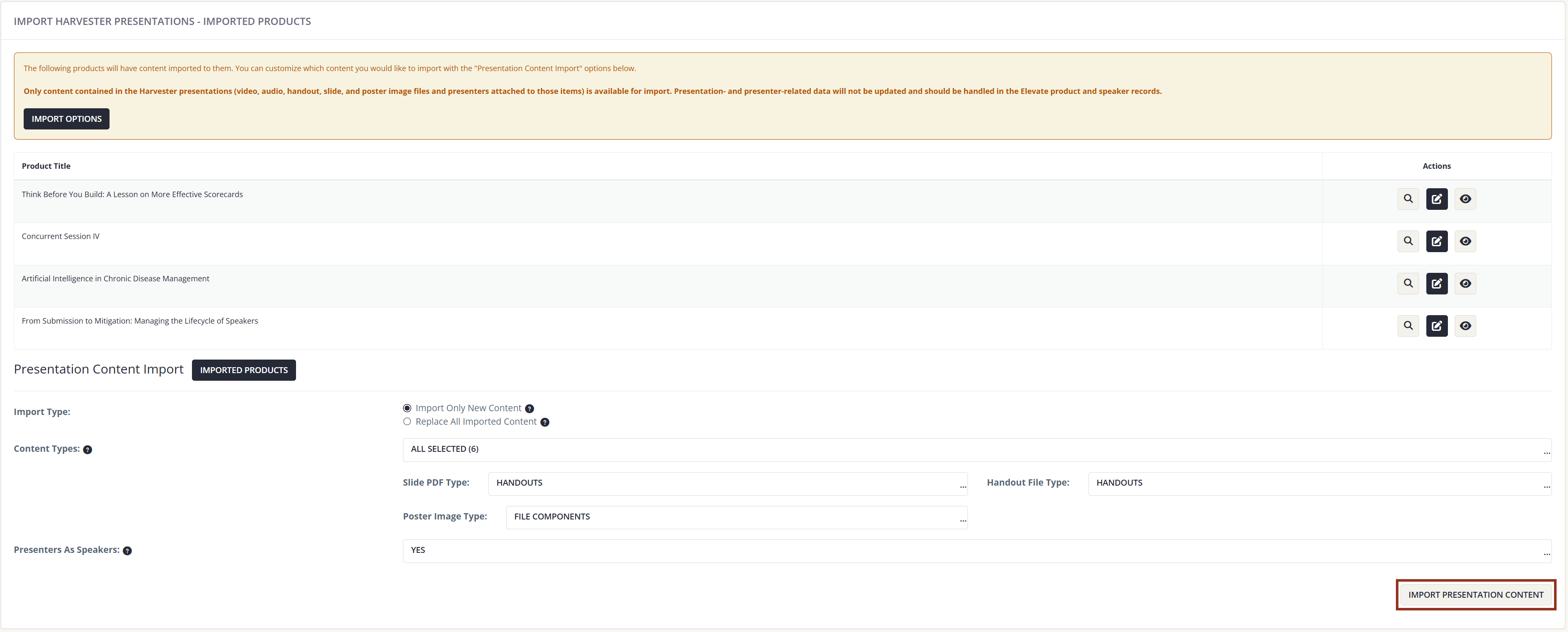
Fig. 3 - Import Presentation Content Button.
Once your content import selections are made, you will receive a Confirmation page displaying all the newly created products, overview of what was imported to those products and actions buttons to edit those products (Fig. 4).
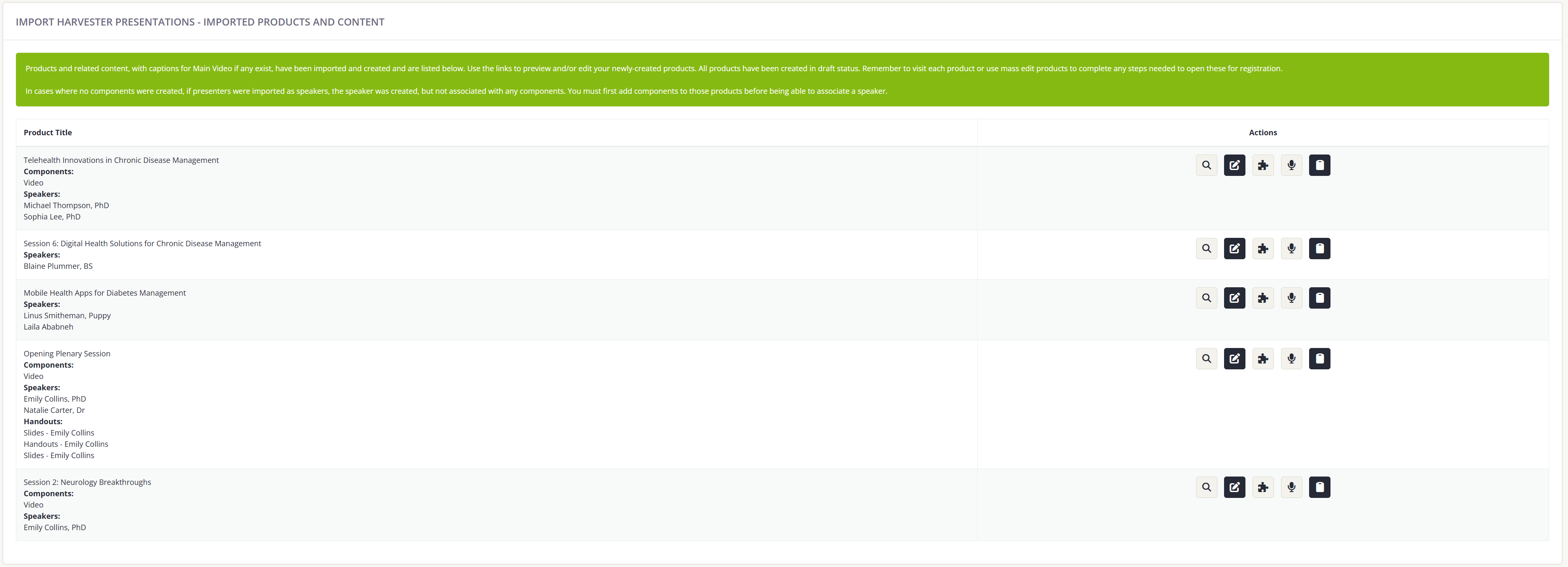
Fig. 4 - Confirmation Page.
Once your import of presentations and content is complete, be sure to check the products and make final adjustments. Products created during the import process can be found on the product listing on your site.
Method 2
Navigate to Products > Product Listing, then find the name of the Product that was created during the initial import process.
From the product listing, you will now see a new icon when a product was imported from Education Harvester, labeled Imported Harvester Content. Select this to view content imported during the import process (Fig. 5).
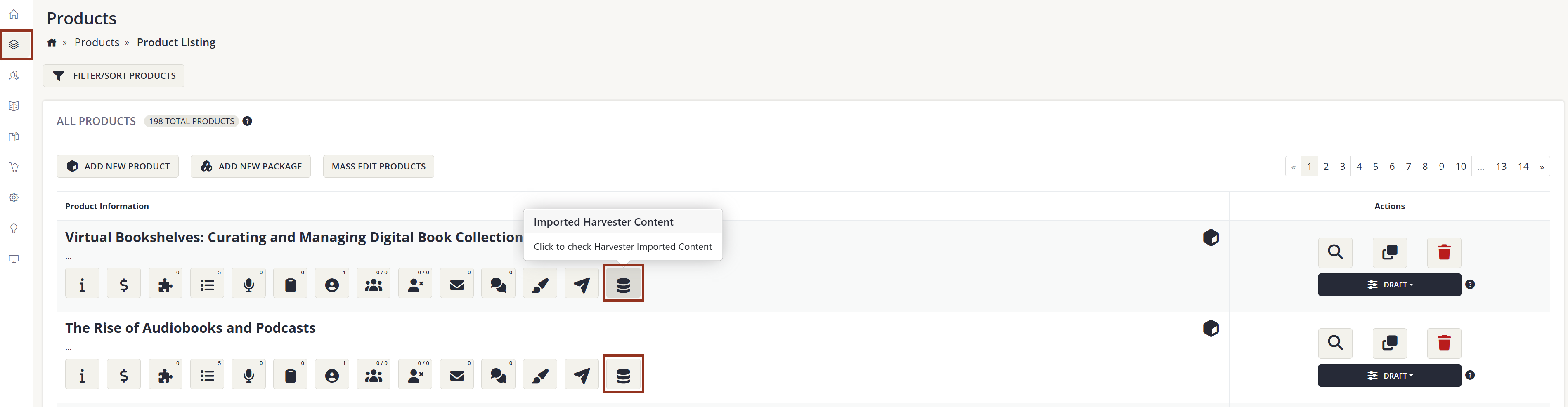
Fig. 5 - Product Listing Page.
From the Imported Harvester Content area of the product, you can see all content previously imported at a glance and select the Import or Replace Harvester Content button to refresh the content specific to this product. Doing so will bring you into the same workflow noted previously, except this product will already be selected.
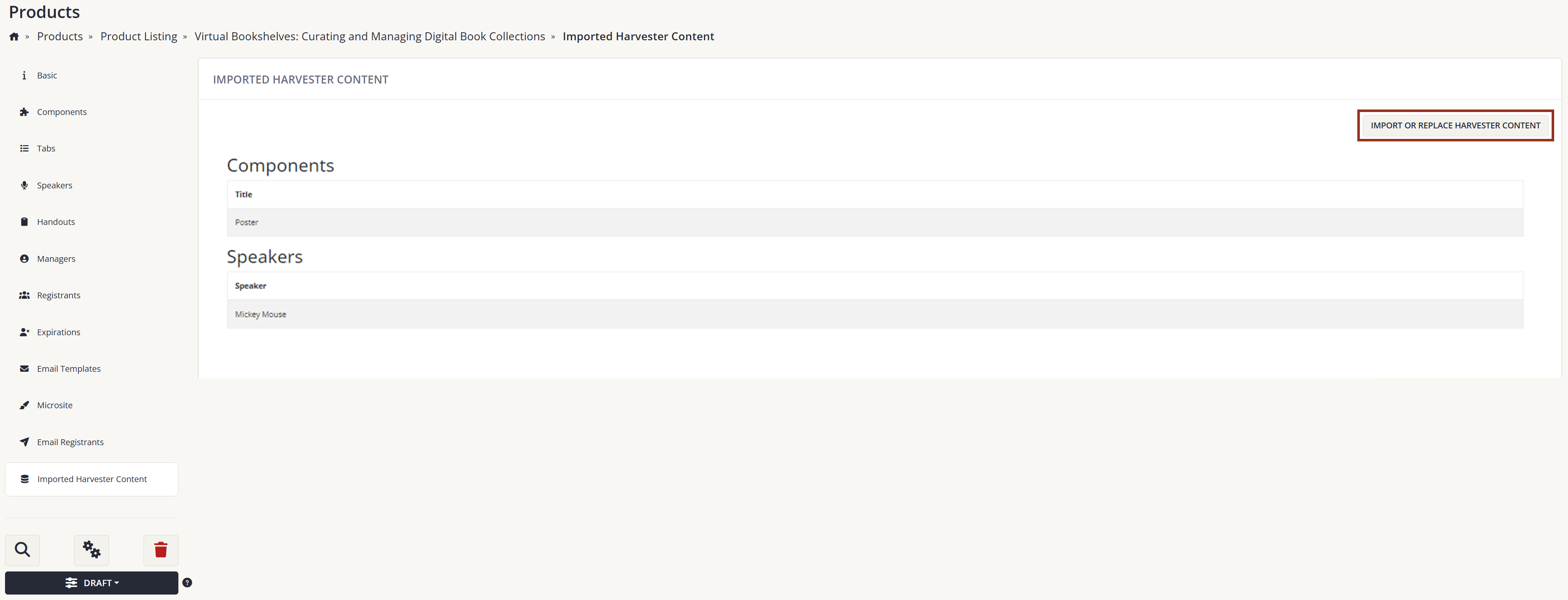
Fig. 6 - Imported Harvester Content Page.
Last modified Mar 02, 2026
Was this article helpful?
That’s Great!
Thank you for your feedback
Sorry! We couldn't be helpful
Thank you for your feedback
Feedback sent
We appreciate your effort and will try to fix the article