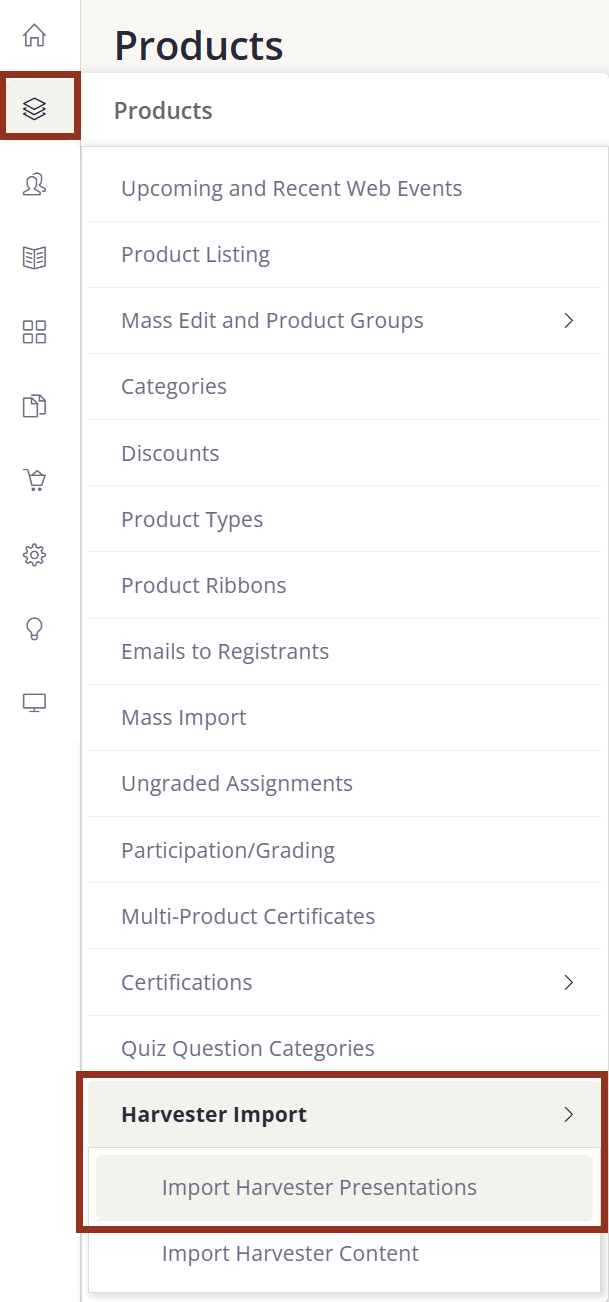
Once the integration is set up, navigate to:
Products > Harvester Import > Import Harvester Presentations
Integration with Cadmium’s Education Harvester and Eventscribe products allows for easy import of sessions, speakers, posters, and session content post-conference. A quick, one-time setup allows customer admins to look up and select content from any Education Harvester or Eventscribe event, whether it has already occurred or is upcoming. Admins can select sessions or posters from those events to create as Products in Elevate and customize the product import by setting the summary, description, pricing, categories, and more.
Admins can import content from those presentations, including video/audio files, Warpwire content, slide PDFs, handouts, and speakers. Using this process, an entire conference can be imported into Elevate as enduring content.
WARNING NOTE
This is not a real-time sync. The content available in Education Harvester at the time of import is what will be brought into Elevate. You can import additional content and assets after the initial import.
NOTE
If you use Cadmium’s Eventscribe products, please contact us at elevate-support@gocadmium.com for a one-time integration setup. This is a no-cost implementation that allows you to bring conference content into Elevate.
Once the integration is set up, navigate to:
Products > Harvester Import > Import Harvester Presentations
1. Select the Event(s) you wish to import presentations or posters from (Fig. 2).
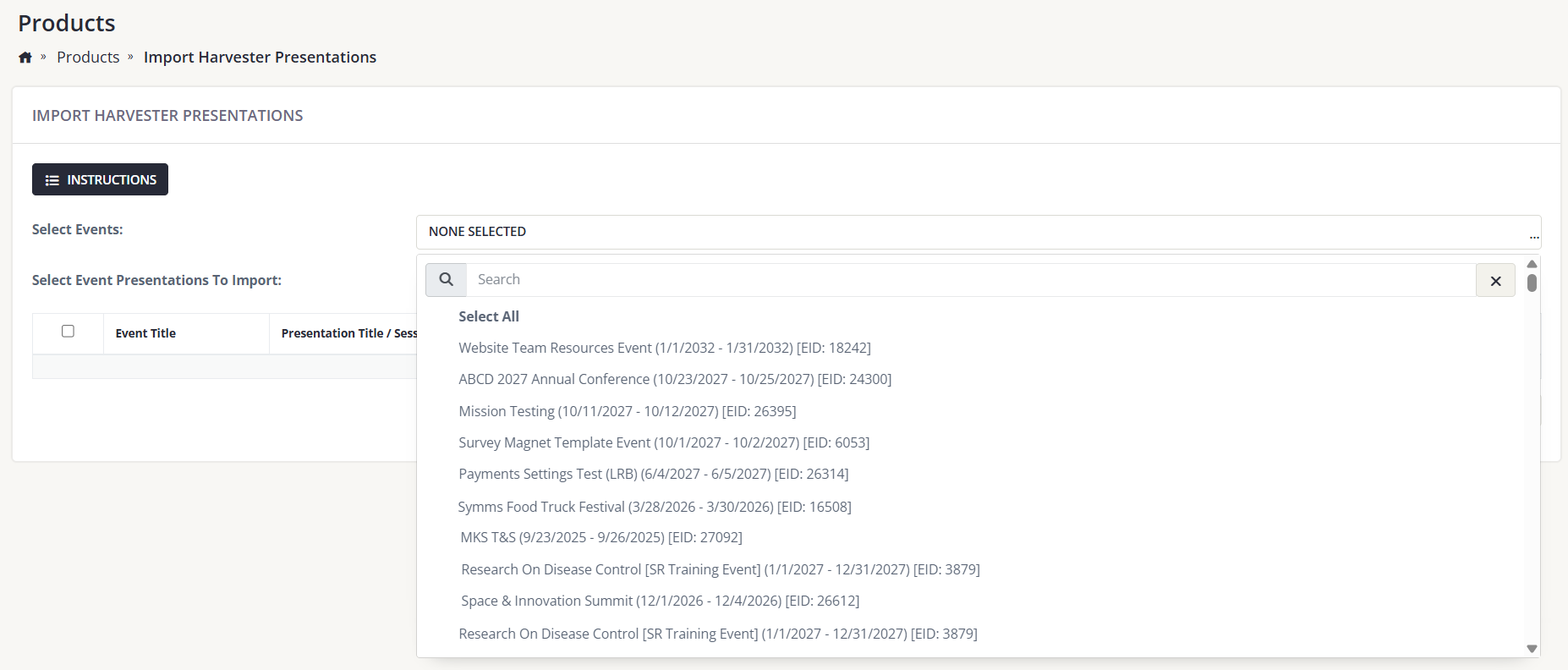
Fig. 2 - Caption can go here
2. Select the presentations you wish to import by selecting the checkbox next to each presentation name.
3. Select Import as Products.
The Import Harvester Presentations page lists presentation dates and times, as well as Harvester Build Codes, to help you easily identify which presentations or posters you would like to import as Products. Select the Import as Products button (Fig. 3).
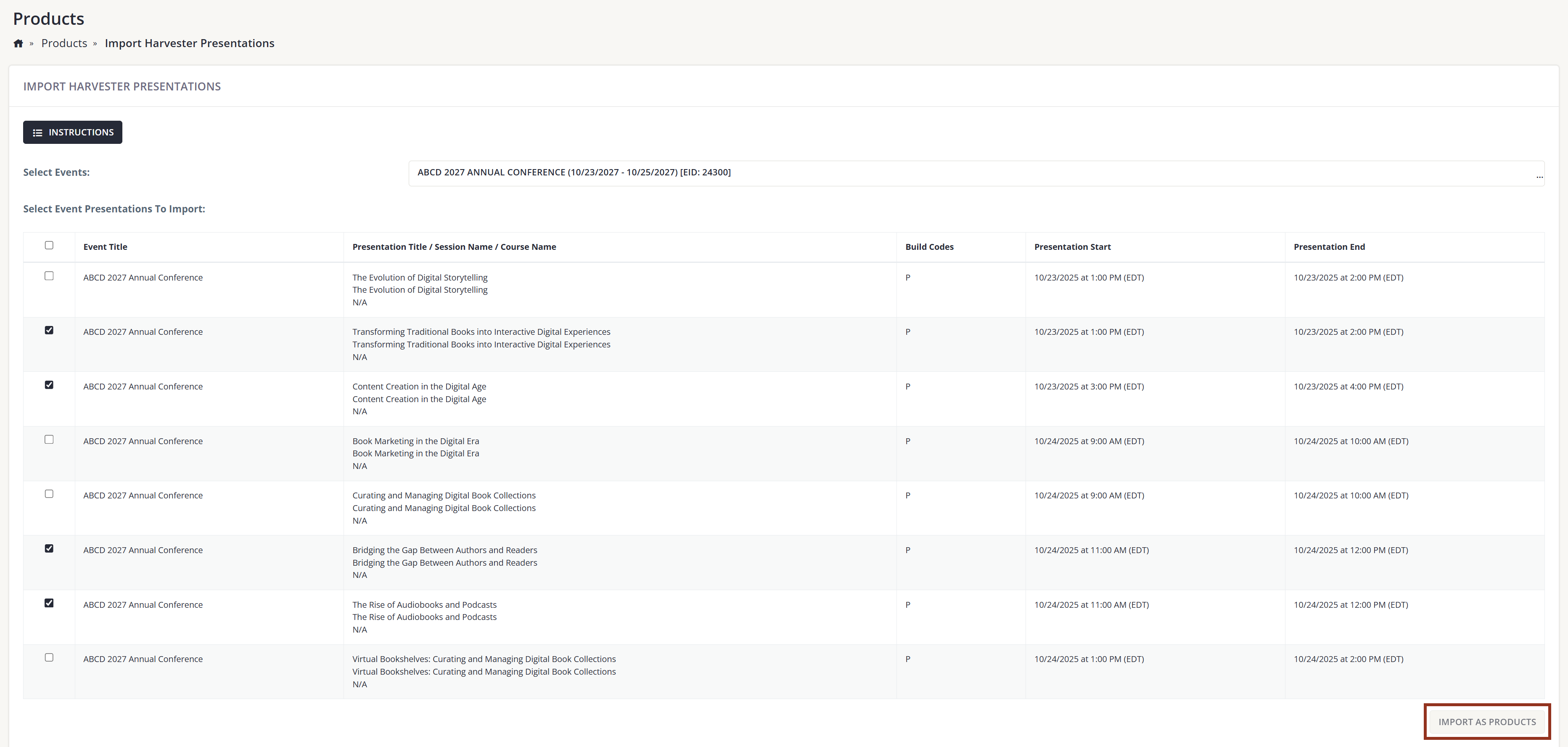
Fig. 3 - Select Presentations to Import Page.
4. A modal will appear allowing you to customize what information is displayed in the newly created Product(s) in Elevate.
5. Select whether the Presentation Title, Session Name, or Course Name should be used as the Product Title in Elevate. Your selection will depend on your naming conventions in Education Harvester (Fig. 4).

Fig. 4 - Product Title Options Dropdown.
6. Enter specific text and/or one or more tag fields into the Product Summary field. If using a tag, ensure it corresponds to the correct field in Education Harvester.
7. Enter specific text and/or one or more tag fields into the Product Description field. Numerous tags are available, each corresponding to specific fields in Education Harvester (Fig. 5).

Fig. 5 - Available Tags.
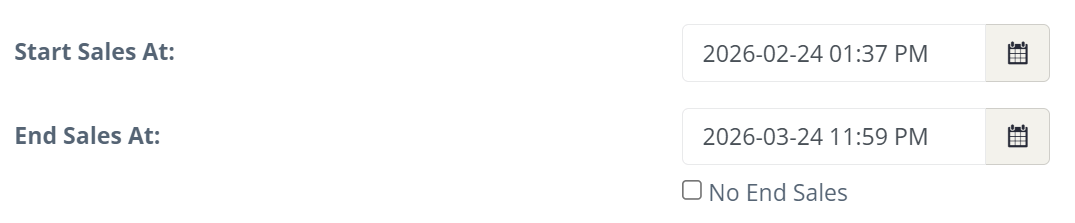
8. Enter the Start Sales At and End Sales At dates by clicking the calendar picker icon. If there is no end sales date, select the No End Sales checkbox.
9. Select as many or as few Categories and Product Types as you would like to assign to the presentations and/or posters you are importing.
10. Select a Remote Accounting Code from the dropdown menu, if applicable.
11. Select the Accounting Date, if applicable.
12. Select as many or as few Social Networking Sharing Links as you would like to include (Fig. 7).

Fig. 7 - Categories, Remote Accounting Code, Accounting Date and Social Media Options.
13. If you would like to set pricing for these Products, you may do so at this time.
If the Set Prices for All of These Products option is selected, you will be prompted to enter pricing information. The pricing options displayed here are the same as those available within each individual Product. After entering all applicable information, select the Import Presentations button. You will be taken to a page where you can view, edit, and select the content types to be imported (Fig. 8).
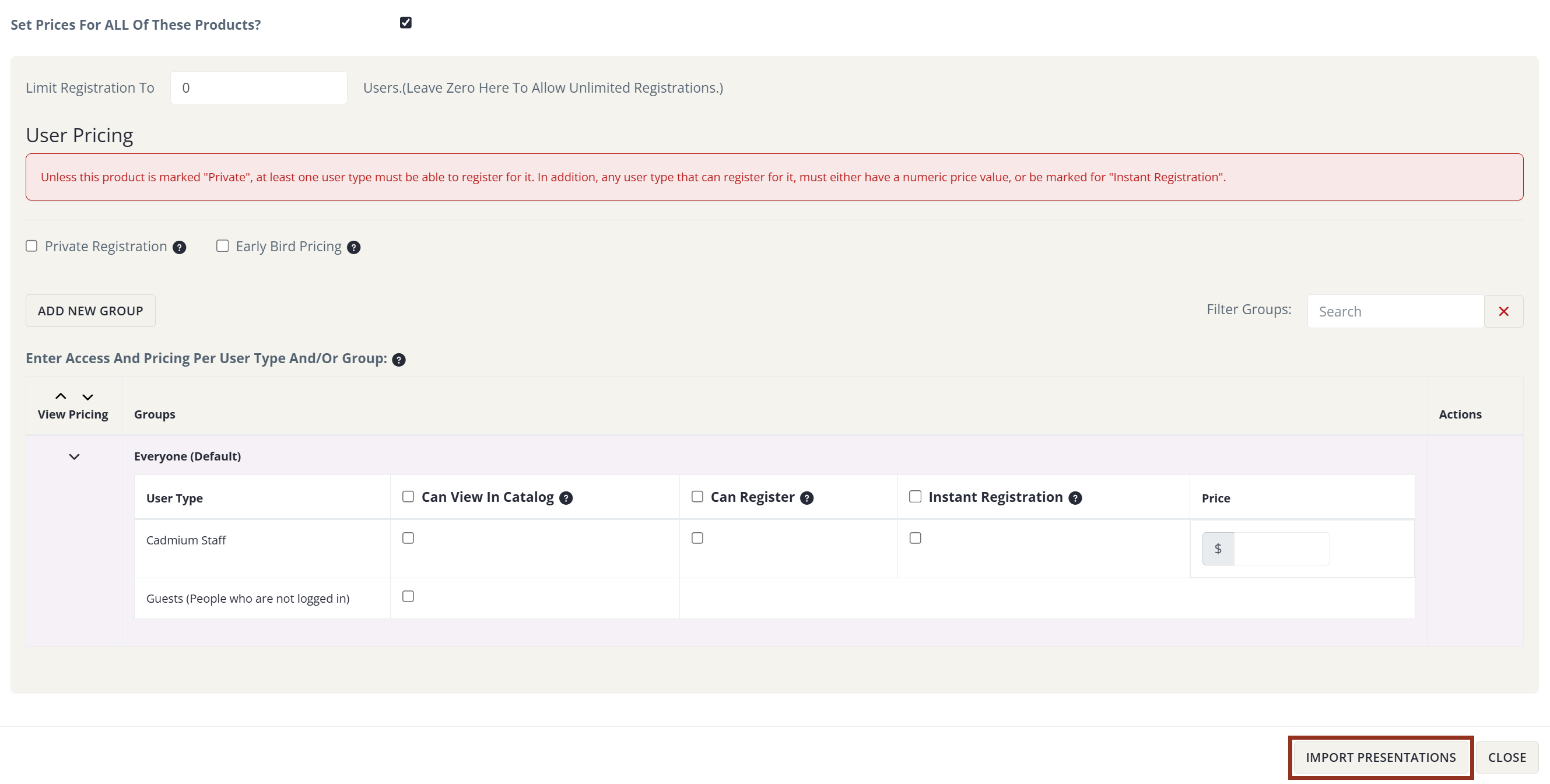
Fig. 8 - Set Prices for All These Products Options.
If you would like to preview the imported presentations, select the Preview icon after the presentation import to see what content is available from Education Harvester for that presentation (Fig. 9).
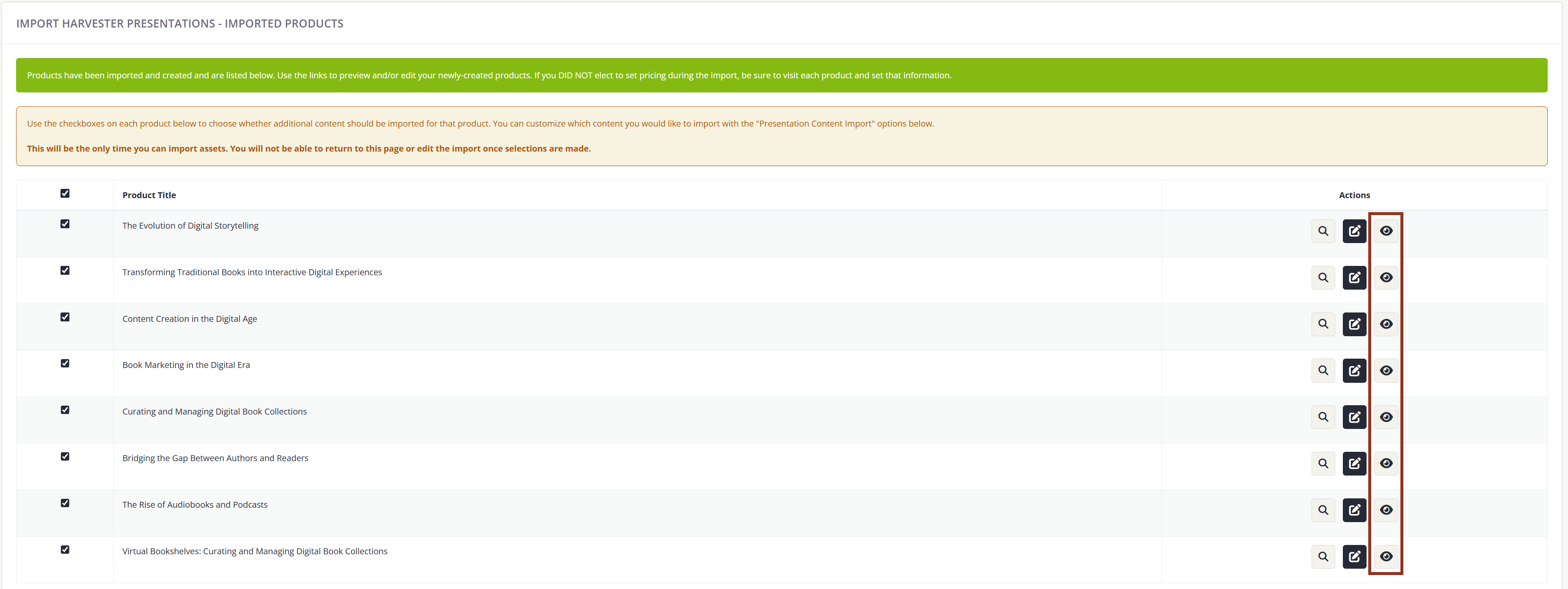
Fig. 9 - List of Imported Products Preview Buttons.
14. Within the Presentation Content Import section, select the Content Types you would like to import into the Products.
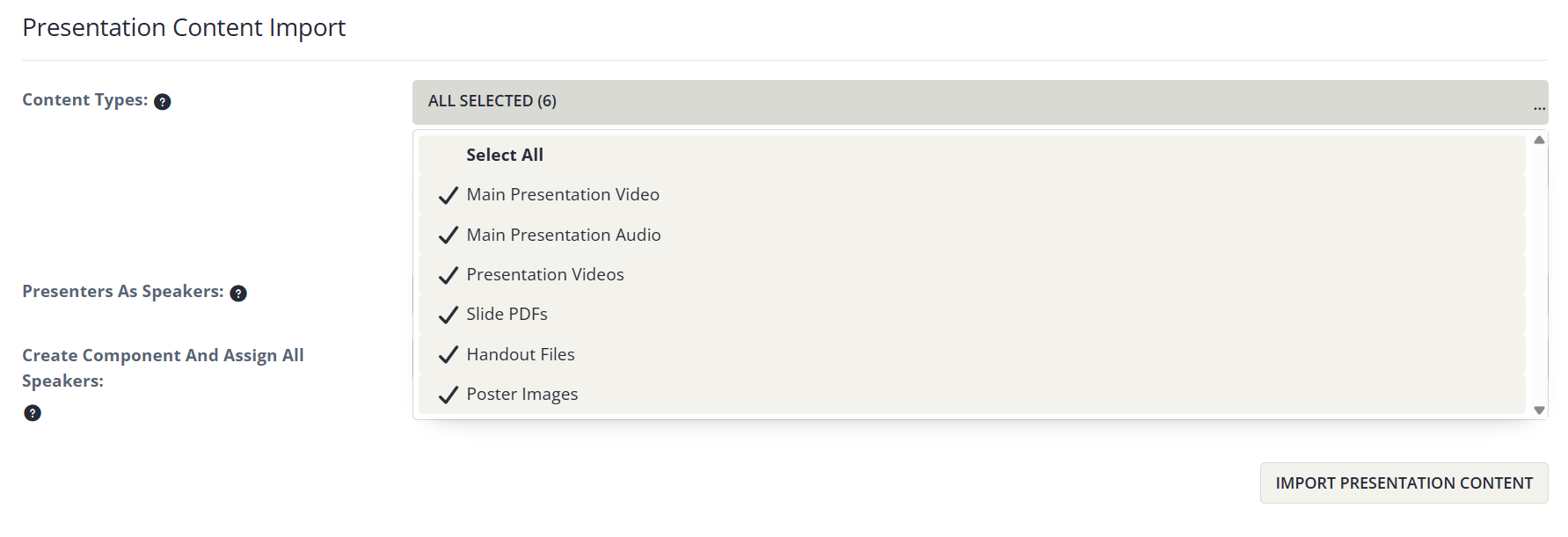
15. If importing Slide PDFs, select whether they should be imported as a Handout to the Handout tab or as a File Component.
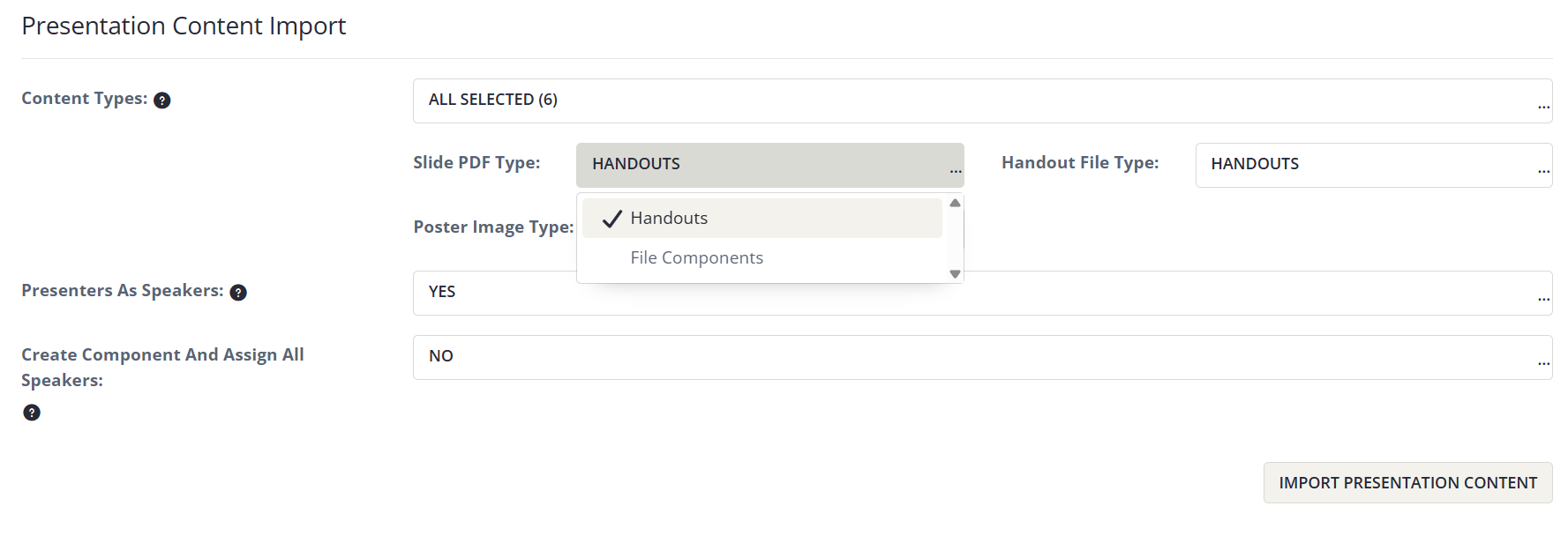
16. If importing Handouts, select whether they should be imported as a Handout to the Handout tab or as a File Component.
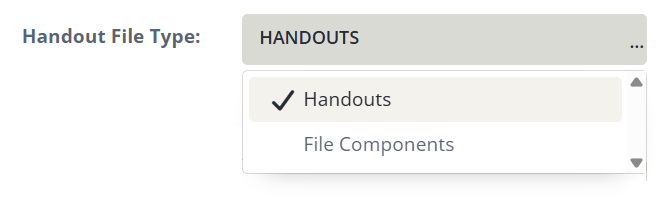
17. If importing Posters, select whether they should be imported as a Handout to the Handout tab or as a File Component.

18. If your presentations include presenters, select whether presenter information should be imported and added as Speakers to the Product.
When presentations are imported without associated Components Administrators can choose to automatically create a minimal (shell) Component during import, allowing all presentation speakers to be assigned even when no Component exists in the destination Product. This enables teams to manage speaker data in advance and configure webinar or content components later in Elevate. This allows flexibility for teams using Education Harvester primarily for speaker management while preparing content configuration separately within Elevate.
In the Create Component And Assign All Speakers dropdown option, select one of the Component Types if you wish to create one during import of Presentation content and you wish to assign all the presentation speakers to this newly created Component (Fig. 14).
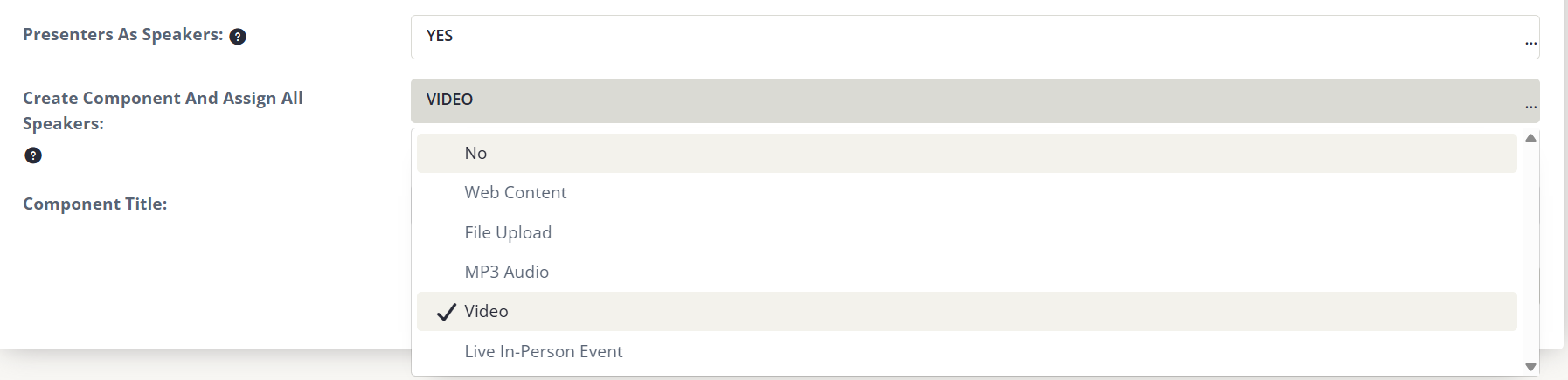
Fig. 14 - Speaker Options.
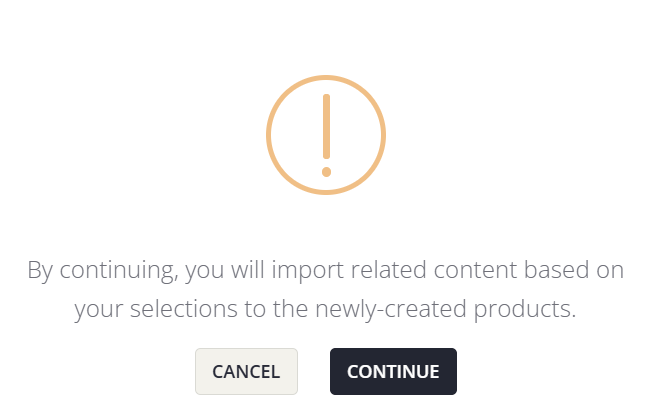
19. Once all settings are configured, click Import Presentation Content. You will receive a notification informing you that content will be imported based on your selections into the newly created Products. Select Continue to proceed.
Once your content import selections are complete, you will see a Confirmation page (Fig. 16) displaying:
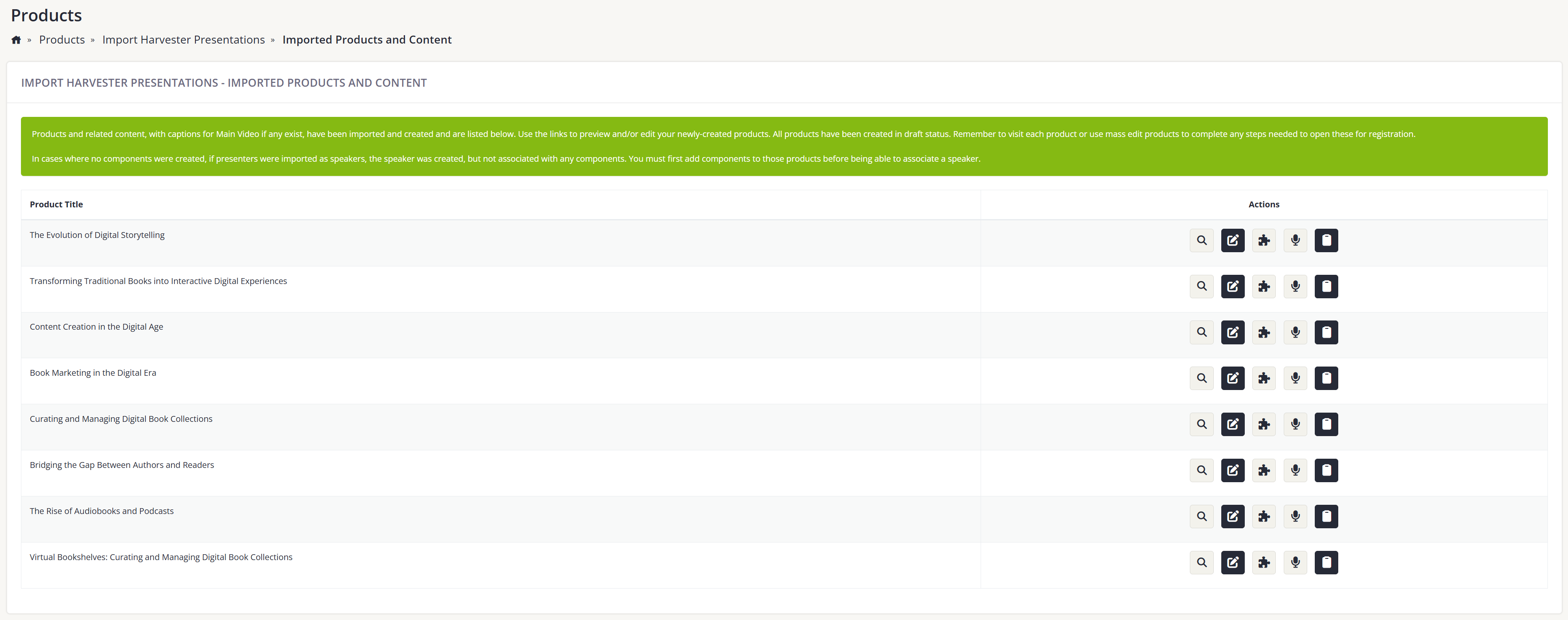
Fig. 16 - Confirmation Page.
After the import of presentations and content is complete, be sure to review the Products and make any final adjustments. Products created during the import process can be found in the Product listing on your site.
That’s Great!
Thank you for your feedback
Sorry! We couldn't be helpful
Thank you for your feedback
Feedback sent
We appreciate your effort and will try to fix the article