Sync Presentations from Education Harvester
If you have made changes to specific fields in the Education Harvester, and need those changes to appear in the Survey Magnet, you can sync presentation records.
To get started, first select the Schedule page icon from the top row of icons on any page in the Magnet (Fig. 1).

Fig. 1 - Schedule Page Tools Button Dropdown.
Then locate the presentation record (block) on the Schedule page. Select the row for the presentation, and then select the Harvester Sync button on the pop-up window (Fig. 2).
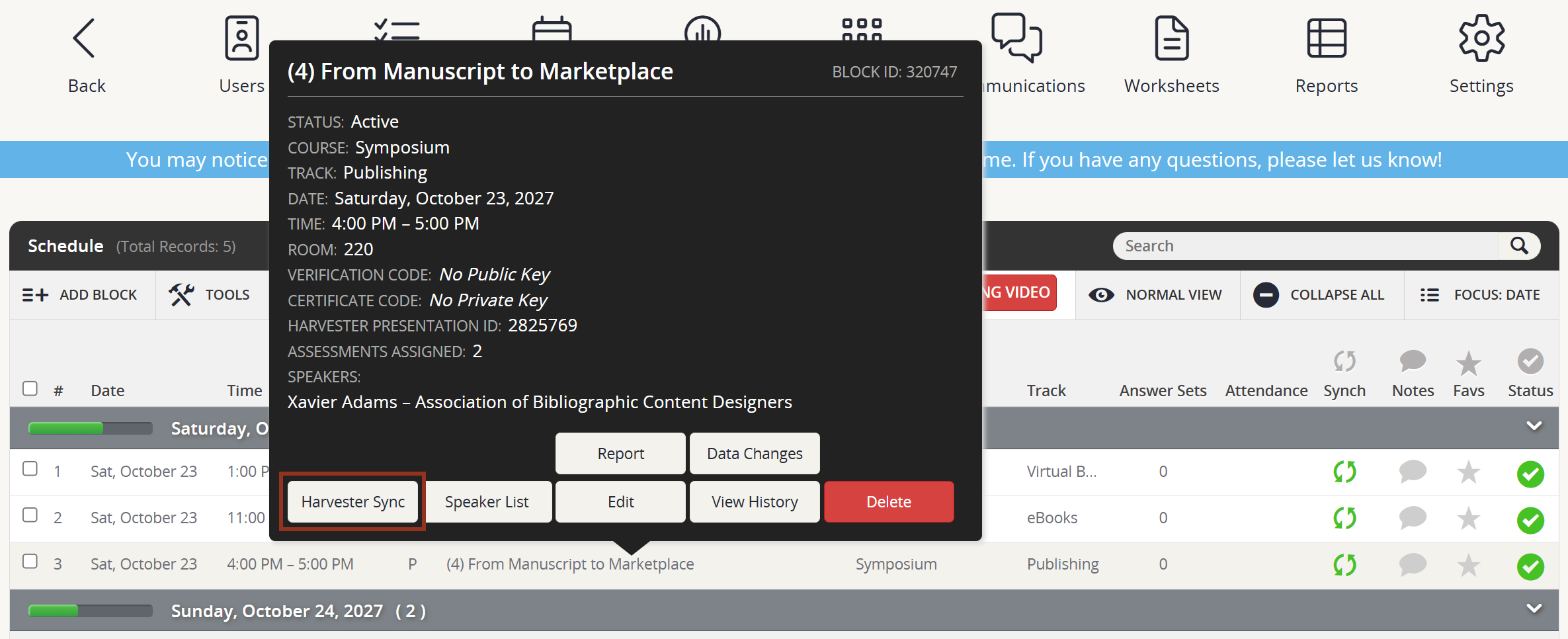
Fig. 2 - Row Pop-Up Harvester Sync Button.
On the next pop-up, choose which Education Harvester fields you would like to sync. If there are fields you do not want to sync, deselect the field by selecting the checkbox to the left of the field (Fig. 3).
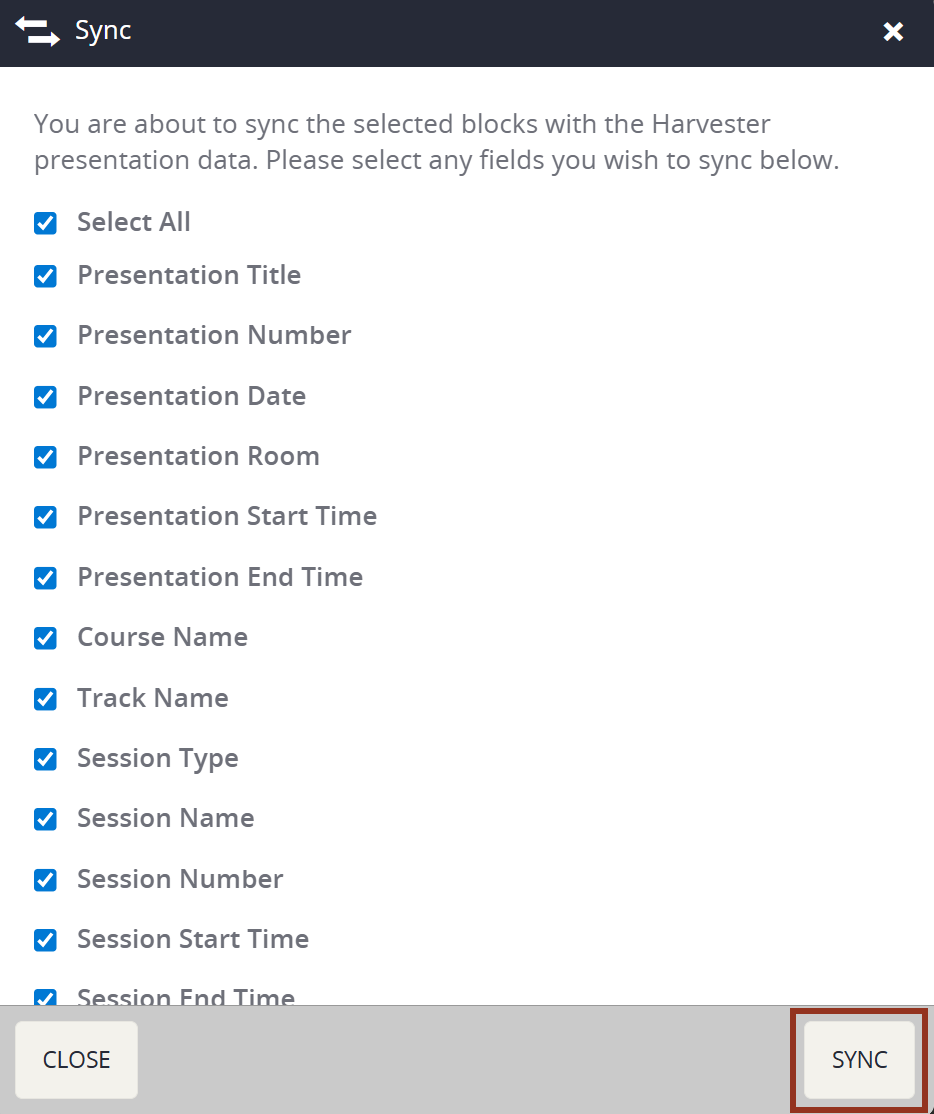
Fig. 3 - Fields to Sync Pop-up.
To sync multiple presentation records, multi-select the presentations on the Schedule page by selecting the checkbox to left of the presentation name. Or, choose to use the select all checkbox toward the upper left-hand corner of the page (Fig 4). The same pop-up will then appear for you to decide which Education Harvester fields you would like to synch.
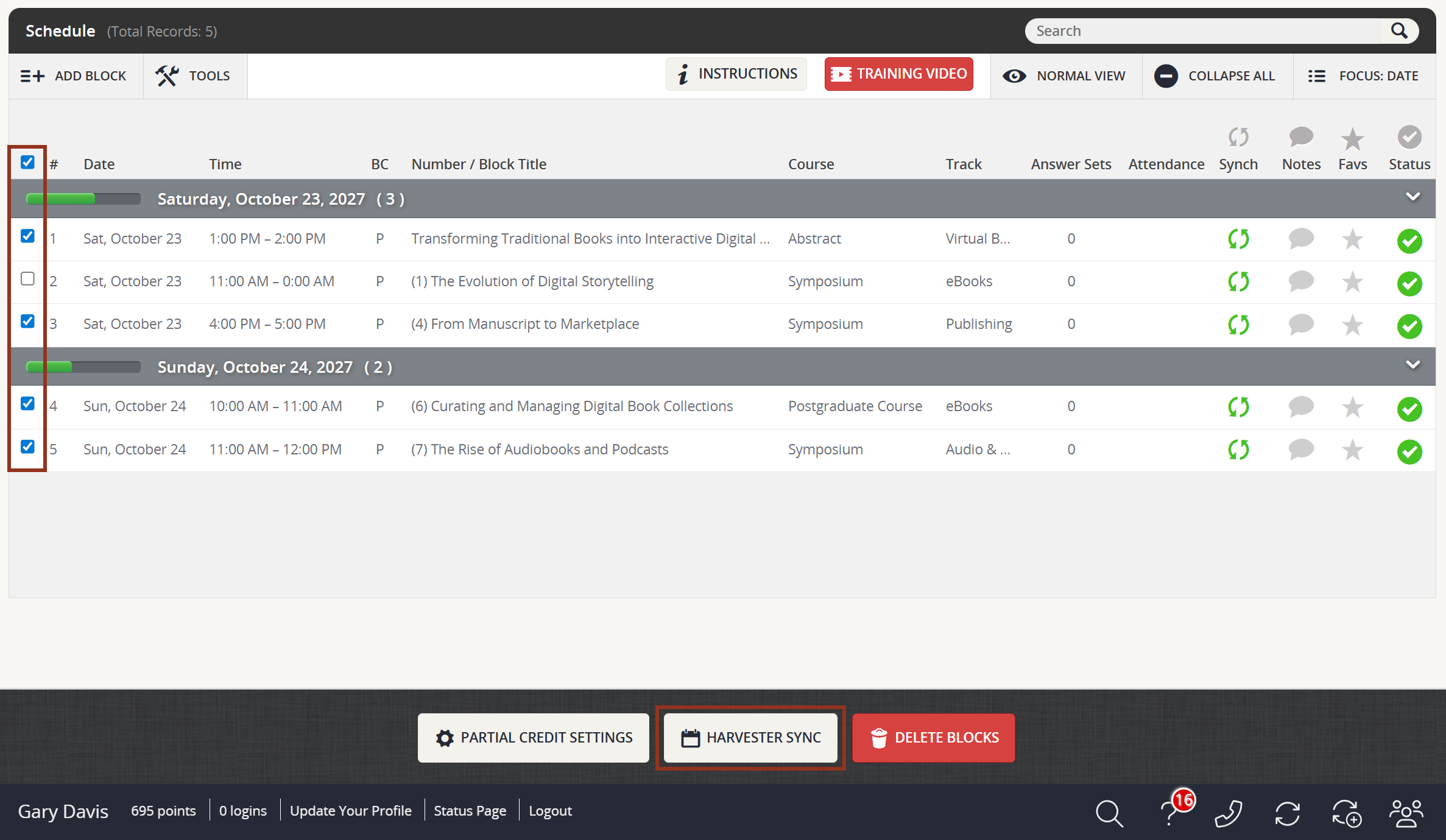
Fig. 4 - Presentation Rows Check Boxes.
Turn Off Education Harvester Sync
If you have made changes to presentations in the Survey Magnet, and would like to prevent the changes from being reverted during a Harvester sync or import, you can turn off the Harvester sync for specific presentations. To do so, locate the presentation(s) within the Schedule module and select the row for the presentation. Then, select the Edit button (Fig. 5).
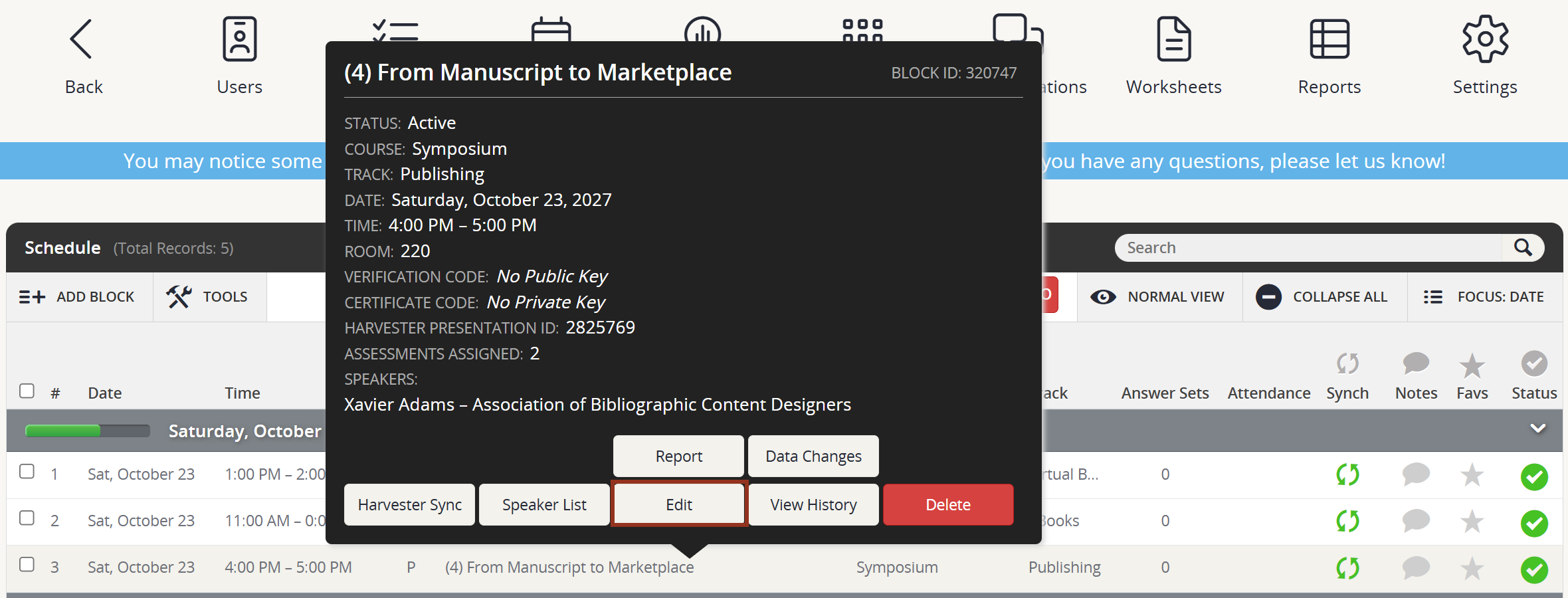
Fig. 5 - Row Pop-up Edit Button.
Within the window pop-up locate the Advanced Options tab. Then, toggle the Update Data For This Block When It Is Synchronized With Harvester? drop down to No. Then, select the Save button from the lower right corner (Fig. 6).
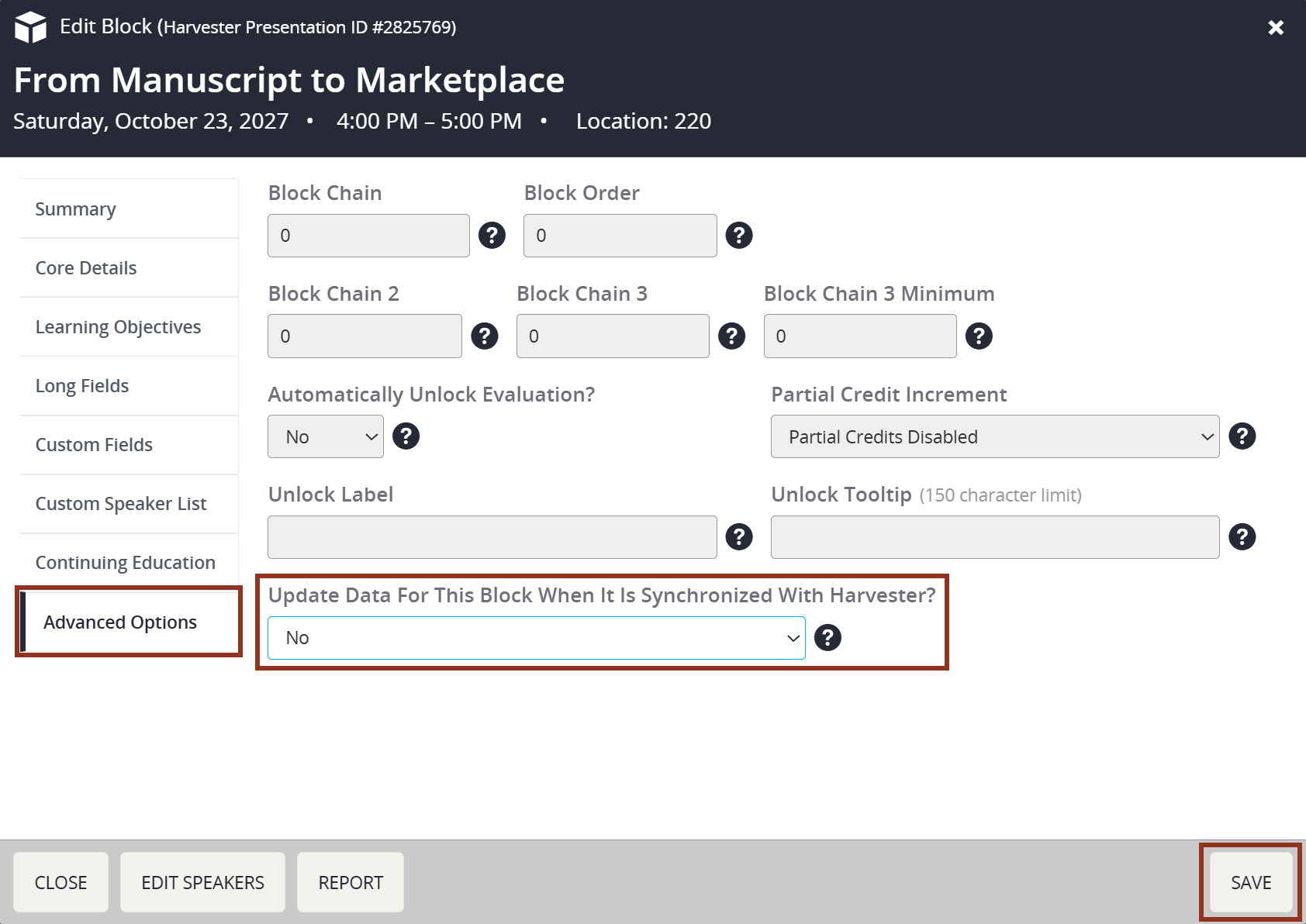
Fig. 6 - Advanced Options Tab.
Back on the list of presentations, you will notice that the green sync icon has turned to red (Fig. 7).
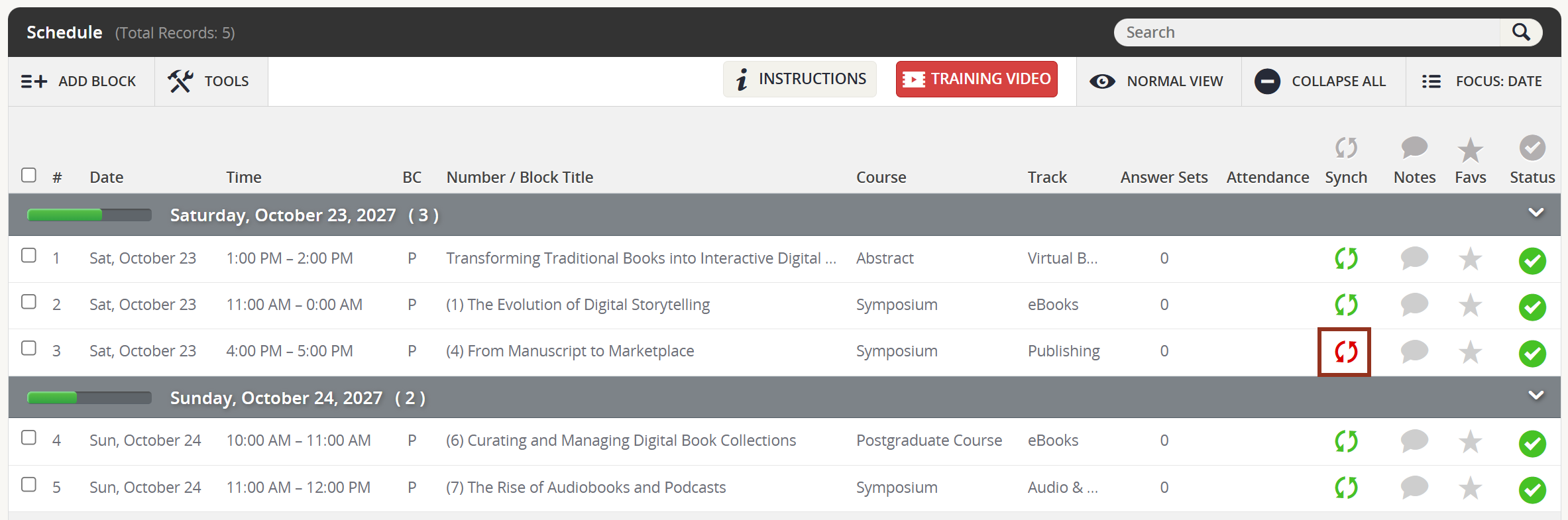
Fig. 7 - Red Sync Icon.
If you have further questions, please reach out to your Project Manager with a Question Boomerang.
Was this article helpful?
That’s Great!
Thank you for your feedback
Sorry! We couldn't be helpful
Thank you for your feedback
Feedback sent
We appreciate your effort and will try to fix the article