- To create distribution rules:
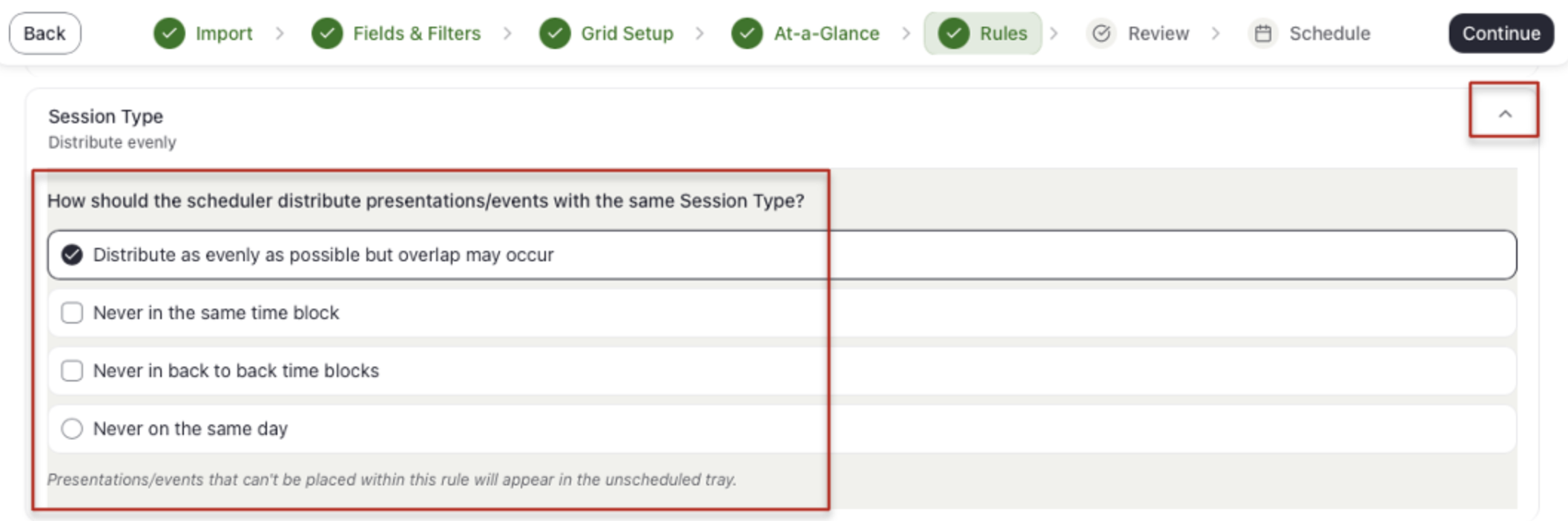
- Under Scheduling Rules, select the down arrow to open the accordion for any given field in which you wish to create a rule.
- Under "How should the scheduler builder distribute presentations/events with the same [field]?", choose an option:
- Distribute as evenly as possible but overlap may occur is the default.
- Never in the same time block keeps presentations/events with the same value from running at the same time.
- Never in back to back time blocks puts at least one block between them.
- Never on the same day keeps them on different days.
Control how presentations/events that share a field value (topic, track, session type, or other criteria) are spread across your schedule. By default, Schedule Builder spreads as evenly as possible across days, time blocks and rooms, so add a rule only when a field needs a stricter limit. This step is also where you review anything already scheduled in the Education Harvester, and/or create manual overrides and pins.
EXAMPLE
Example: I have four sessions about Heart Surgery and want attendees to have the option to see at least one any day of my 4-day event. Open Topic and choose Never on the same day.
IMPORTANT NOTE
Speaker Scheduling: Schedule Builder never books a speaker in two places at once. It is a hard system rule; you do not need to create a rule for this.
CADMIUM RECOMMENDS
Unscheduled Risk: A stricter rule and/or an extensive number of rules can leave more presentations/events unscheduled. It is best to start with rules you prioritize most; you may always return to this step and adjust to add or loosen rules.
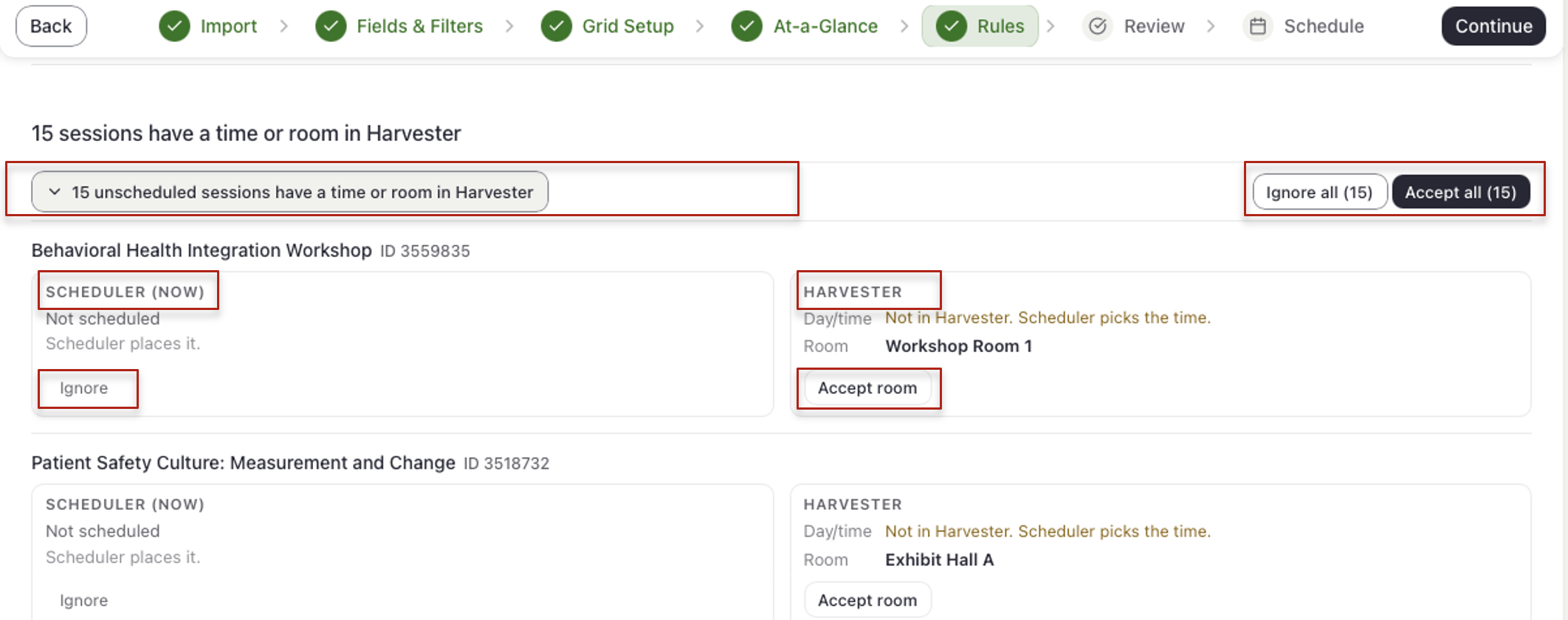
- To review scheduling already done in Harvester, if any:
- Some presentations/events arrive with a room or time already set in Education Harvester. Each will be listed with a comparison of the information in Scheduler Builder versus that in Harvester.
- For each presentation/event, choose whether to keep Schedule Builder's placement, use Harvester's existing time and/or room, or let Schedule Builder determine the placement. Available options will vary based on the presentation/event's scheduling status.
- To decide all rows at once, use the buttons in the section’s heading.
- Creating Manual Overrides:
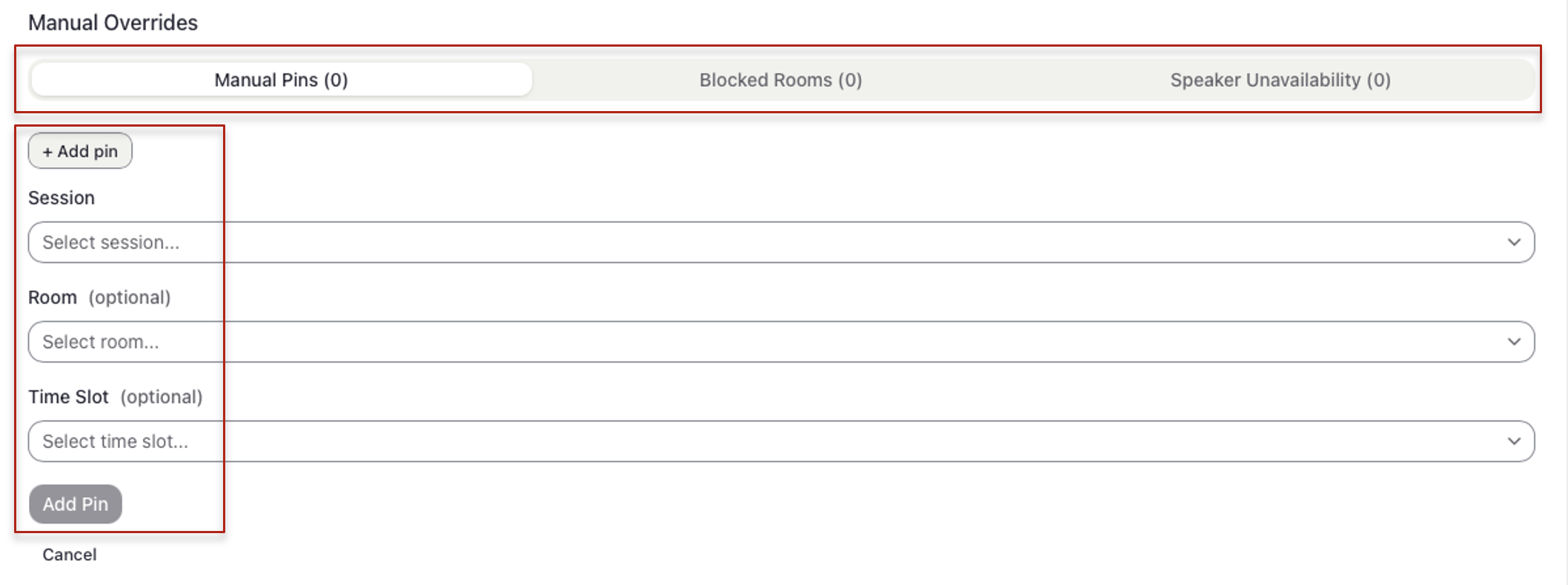
- Manual Overridesallow you to control specific placements and availability before generating your schedule. You can:
- Manual Pins: Lock a presentation/event to a specific room, time slot, or both.
- Blocked Rooms: Prevent scheduling in a room during specific time slots or entire days.
- Speaker Unavailability: Prevent a speaker from being scheduled during specific time slots or entire days.
- To add a manual override:
- Under Manual Overrides, select the appropriate tab.
- Select + Add pin, + Block a room, or + Add speaker unavailability.
- Choose the applicable presentation/event, room, speaker, and/or time slot.
- Select Add Pin, Add Block, or Add Unavailability to save.
- Manual Overridesallow you to control specific placements and availability before generating your schedule. You can:
- Select Continue to move to Step 6
IMPORTANT NOTE
If a manual pin conflicts with your existing tags or rules, you will be prompted to either proceed with Pin anyway or Cancel.
Last modified Oct 21, 2026
Was this article helpful?
That’s Great!
Thank you for your feedback
Sorry! We couldn't be helpful
Thank you for your feedback
Feedback sent
We appreciate your effort and will try to fix the article