- Select the room/day/time block you wish to tag with a specific attribute.
- From the Select field... dropdown, choose a field, such as Track.
- Check each value the room/day/time block should take.
- Optional: check Keep these out of every other room/day/time block to send these presentations/events only to this room/day/time block. Under Also on, select other days to apply the same tag.
- Select Save [number] values. The room/day/time block will now show the tags chosen; a grey cell in your grid also indicates a tag.
- To remove a tag, select the room/day/time block, then select the X on the tag you want to remove.
- Select Continue to move to Step 5.
View your basic schedule grid and apply tags to rooms, days and time blocks to control which types or groups of presentations/events can be placed in them. Schedule Builder never places a presentation/event where a tag does not allow it; a room with no tags can accept any presentation/event.
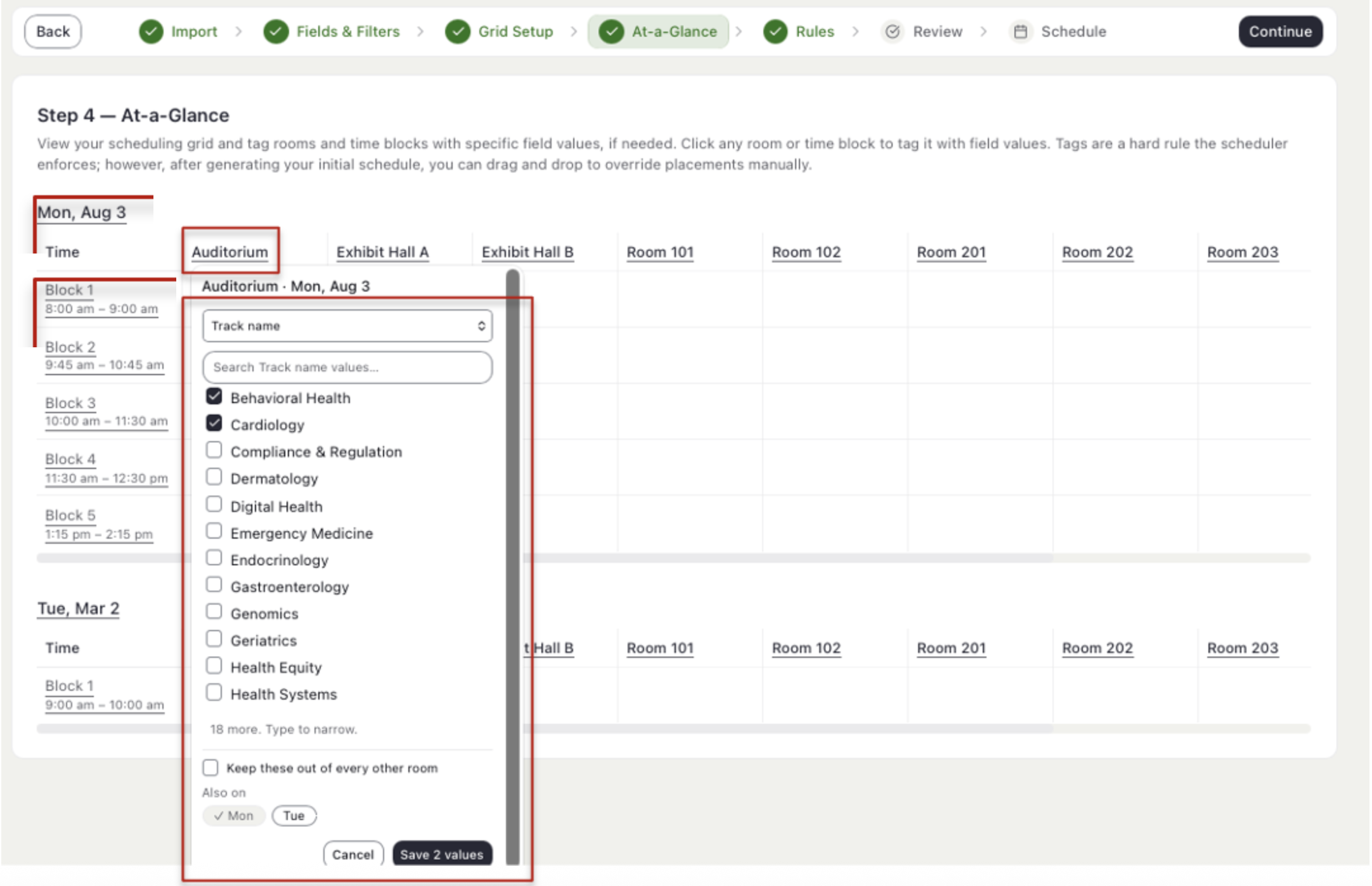
EXAMPLE
Auditorium holds all keynotes and general sessions, and no other room should. Select Auditorium, choose Session type, check Keynote and General Session, check Keep these out of every other room, and select Save.
Tag a Whole Day: The tag applies to every room and time block that day.
Last modified Oct 21, 2026
Was this article helpful?
That’s Great!
Thank you for your feedback
Sorry! We couldn't be helpful
Thank you for your feedback
Feedback sent
We appreciate your effort and will try to fix the article