After you send an email campaign in the Communications module, you can see exactly how it performed. From one campaign, you will see how many recipients received your message, how many opened it, how many clicked a link, and which addresses ran into a delivery problem. This article walks you through where to find that information and what each number means.
NOTE
Analytics are available for campaigns you have already sent. Drafts and scheduled campaigns don’t have analytics yet, so the View Details option appears only once a campaign has been sent.
How to view your campaign results
Your sent campaigns live on the Communications home page. To open the results for one of them:
- Find the campaign you want to review in the campaign list.
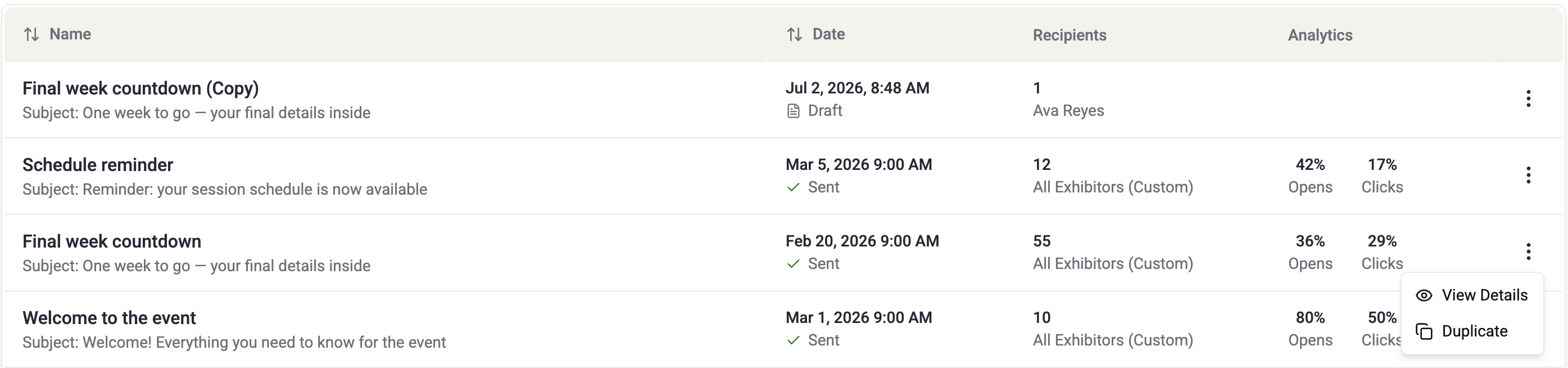
- Select the actions menu (the three-dot ⋮ icon) at the end of that campaign’s row.
- Choose View Details.
The Campaign Analytics page opens, showing the campaign name, the date it was sent, and a full breakdown of its performance.
A quick read from the home page
You don’t have to open a campaign to get a sense of how it did. On the campaign home page, the Analytics column gives you an at-a-glance summary for every sent campaign:
- Opens — the percentage of recipients who opened the email.
- Clicks — the percentage of recipients who clicked a link in the email.
If a campaign was sent very recently, these figures may show a dash (—) until the first engagement data arrives. For the complete picture, open the campaign with View Details.
The Campaign Analytics page
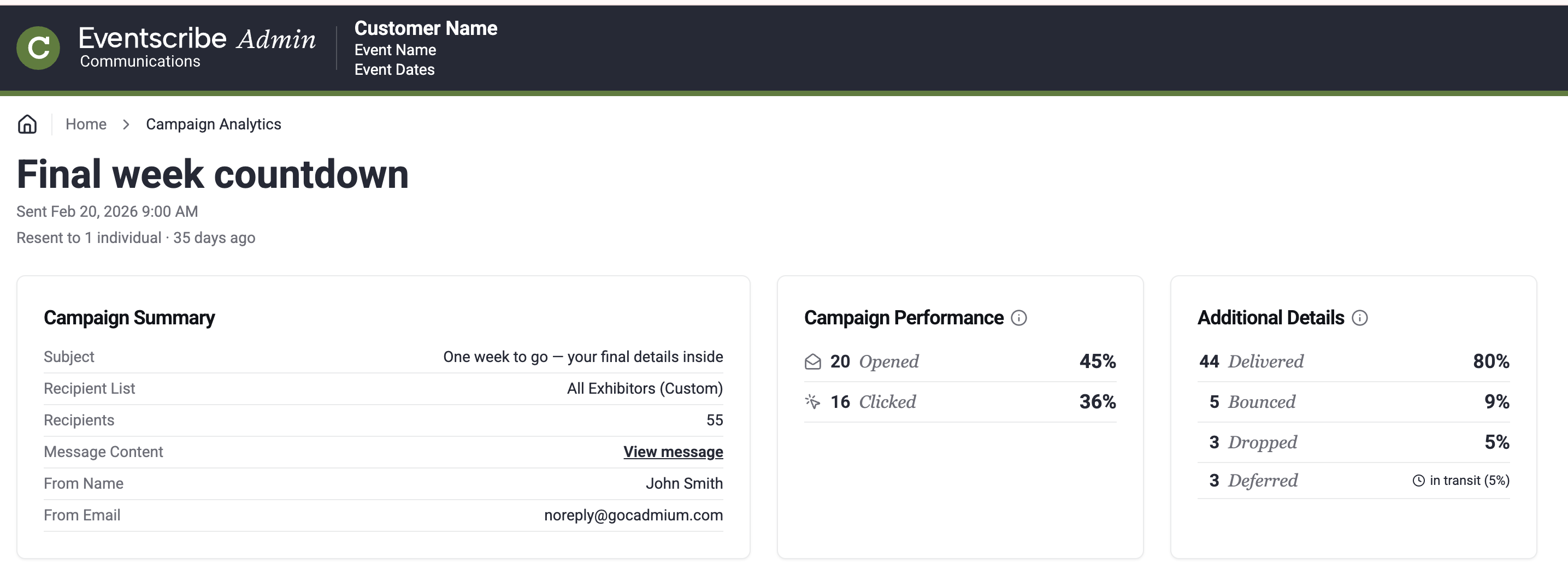
The top of the Campaign Analytics page is organized into three cards.
Campaign Summary
A recap of what you sent. This card lists the Subject, the Recipient List (marked (Custom) if you added or removed recipients), the total number of Recipients, and the From Name and From Email the campaign used. Select View message to preview the exact content that was sent.
Campaign Performance
How recipients engaged with your email. This card shows Opened and Clicked, each with a count and a percentage of the total recipients.
Additional Details
What happened during delivery. This card shows Delivered, Bounced, Dropped, and Deferred, each with a count and a percentage. Every status appears even when its count is zero, so the set of numbers stays consistent from one campaign to the next.
Here is what each metric means:
| Metric | What it means |
|---|---|
| Engagement | |
| Opened | The recipient opened the email and its images loaded. |
| Clicked | The recipient clicked one or more links in the email. |
| Delivery | |
| Delivered | The receiving mail server accepted the email and delivered it successfully. |
| Bounced | The receiving server permanently rejected the email, often because the address is invalid. |
| Dropped | We did not send the email because the address is on a suppression list, such as a past unsubscribe. |
| Deferred | The receiving server temporarily rejected the email, and we will keep retrying delivery. |
Reviewing individual recipients
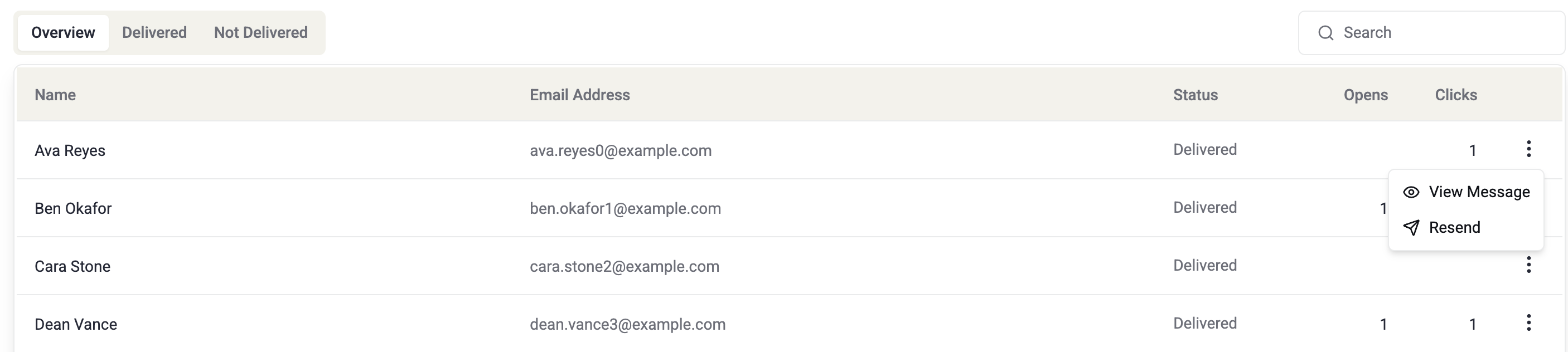
Below the summary cards, a table lists your recipients one by one so you can see how each person’s email fared. Each row shows the recipient’s Name, Email Address, delivery Status, and the number of Opens and Clicks that recipient recorded. Open and click counts appear only once an email has been delivered.
Use the tabs above the table to filter the list:
- Overview — the full recipient list.
- Delivered — recipients who received the email.
- Not Delivered — recipients whose email bounced, was dropped, or ran into another delivery problem.
To find one person, type a name or email address into the Search box. To read the exact email a recipient received, select the actions menu (the three-dot ⋮ icon) at the end of their row and choose View Message. Longer lists are split across pages, with paging controls at the bottom of the table.
When your analytics update
Analytics aren’t final the moment a campaign is sent. Delivery outcomes settle as receiving mail servers respond, and engagement numbers grow as recipients open your email and click its links over the following minutes, hours, and days.
NOTE
The Campaign Analytics page shows the data available when you open it. To see the latest opens, clicks, and delivery results, refresh or reopen the page.
For more on building and sending campaigns, read the Communications Module — Overview article.
Was this article helpful?
That’s Great!
Thank you for your feedback
Sorry! We couldn't be helpful
Thank you for your feedback
Feedback sent
We appreciate your effort and will try to fix the article