For events using Expo Harvester for exhibitor management in combination with Lead Capture, the event organizer can include the booth's unique link to log in to Lead Capture Exhibitor Portal in emails sent by the Expo Harvester Communications module.
Creating a Custom Booth Hotkey
Follow the steps below to insert a merge tag for the booth's unique link to log in to Lead Capture Exhibitor Portal. In the Communications Toolkit, this is referred to as the {{ExhibitorLoginURL}}.
- Navigate to the Communications module in Expo Harvester.
- Select Create New Email (Fig. 1).
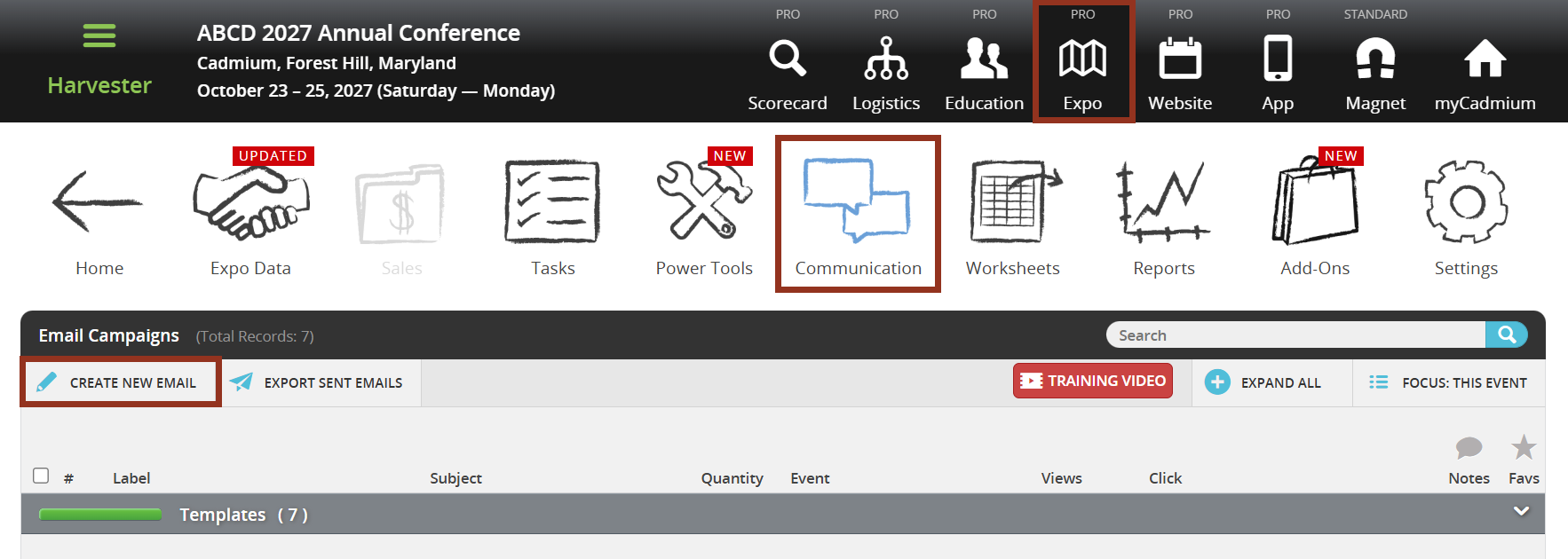
Fig. 1 - Expo Harvester Communications 'Create New Email Button.
- Once you get to the Edit Content step, select the Custom Booth Hotkeys button (Fig. 2).
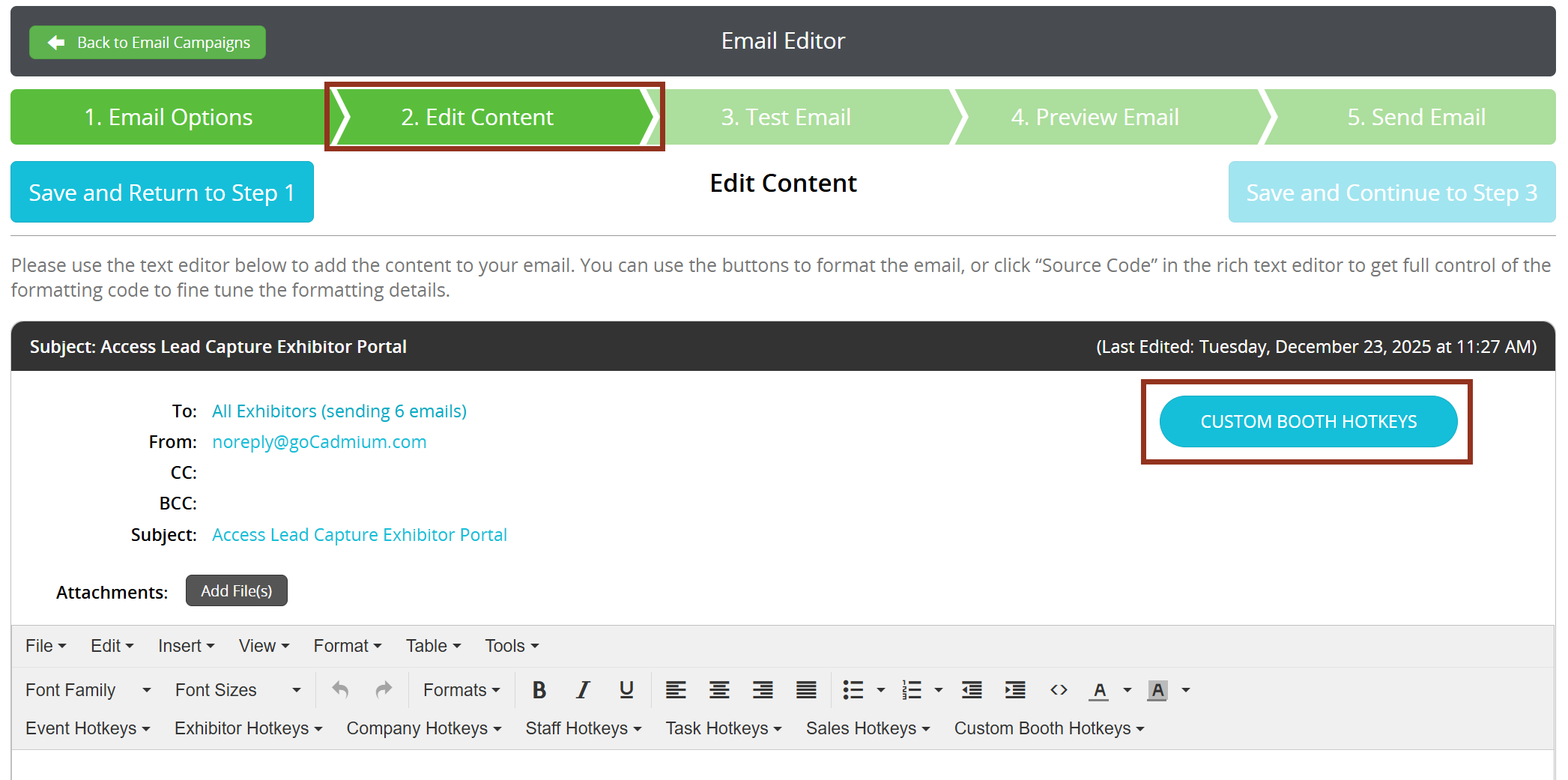
Fig. 2 - Edit Content Tab 'Custom Booth Hotkeys' Button.
- Select the New Custom Hotkey button.
- In the 'Add Hotkey' pop-up copy the following into the Name field: Lead Capture Login URL.
- Copy the following into the text editor: Booth @@@@BOOTHNUMBER@@@@: @@@@LC_LOGIN_URL@@@@ (Fig. 3).
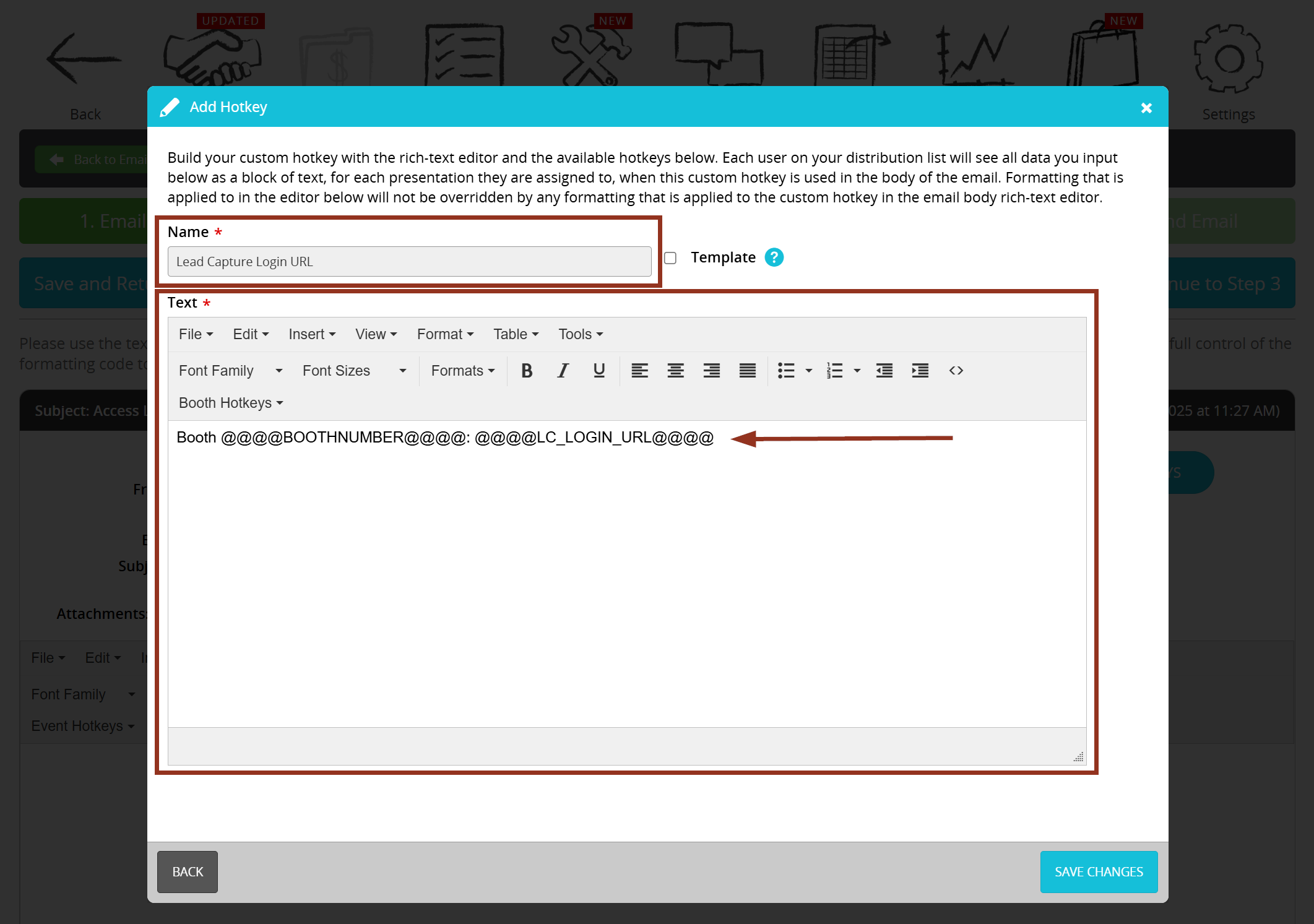
Fig. 3 - Add Hotkey Pop-up.
- To ensure correct formatting when the exhibitor has more than one booth, highlight the entire line and select Format >>> Formats >>> Blocks >>> Paragraph.
- Select the Save Changes button (Fig. 4).
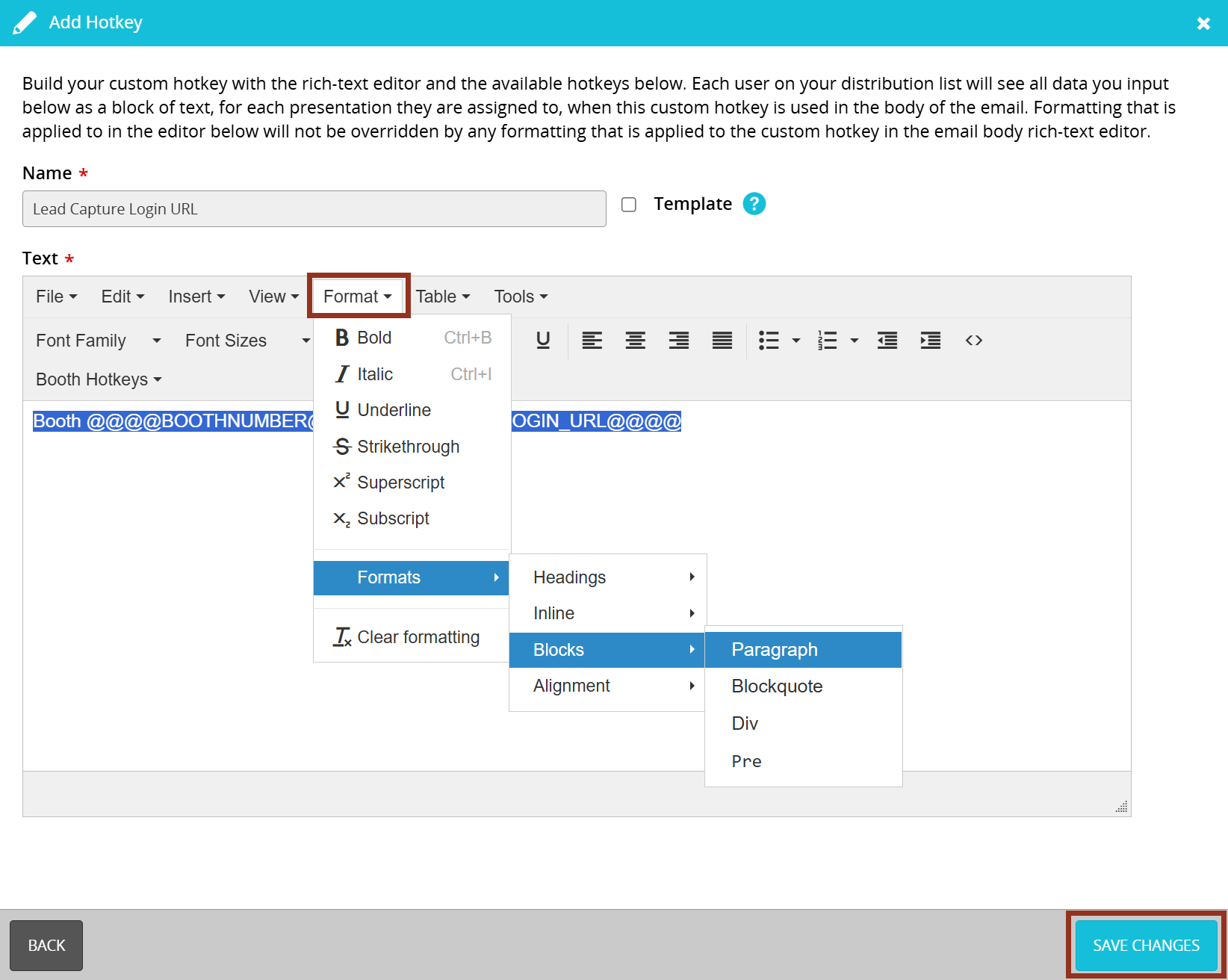
Fig. 4 - Add Hotkey Pop-up Format Options.
- Your hotkey can now be selected from the Custom Booth Hotkeys dropdown in the text editor on the Edit Content step (Fig. 5).
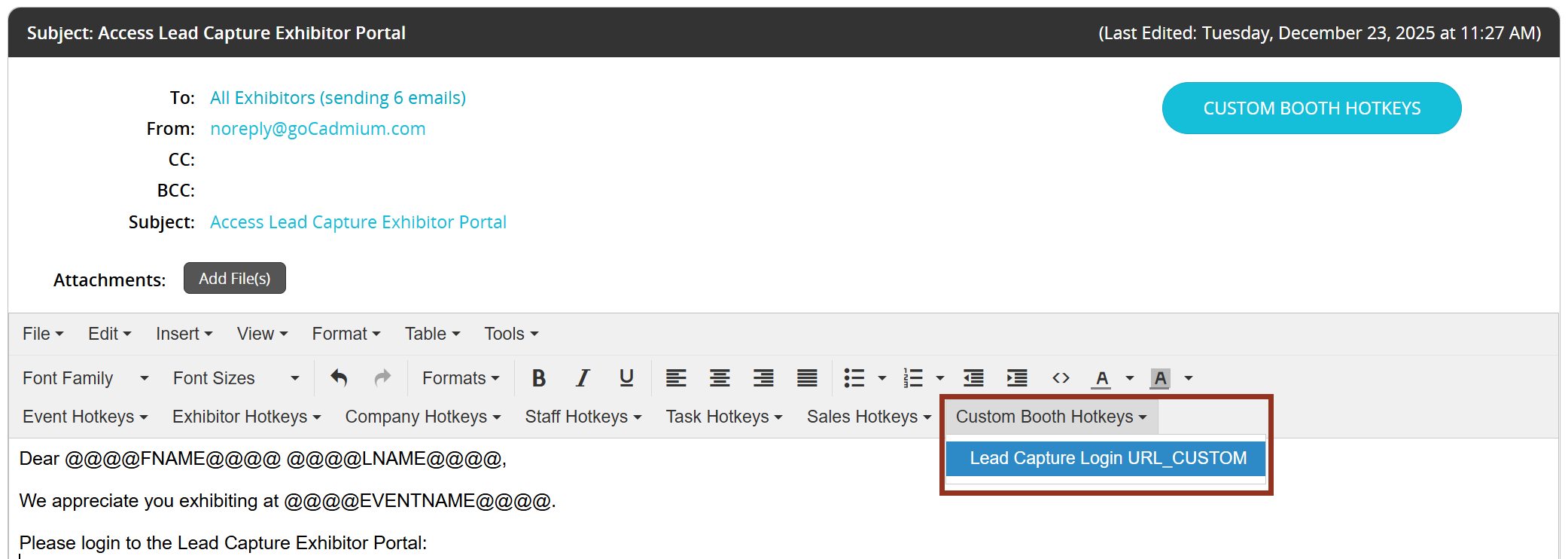
Fig. 5 - Custom Booth Hotkeys Button.
Testing the Email
Always send a test email to verify formatting and functionality. Be sure to send a test email for a booth where your email address is listed as the booth admin contact so you can validate the full login flow. Additionally, send a test for an exhibitor with multiple booths to confirm the login URLs display correctly in that scenario. If you need assistance, contact your project manager (Fig. 6).
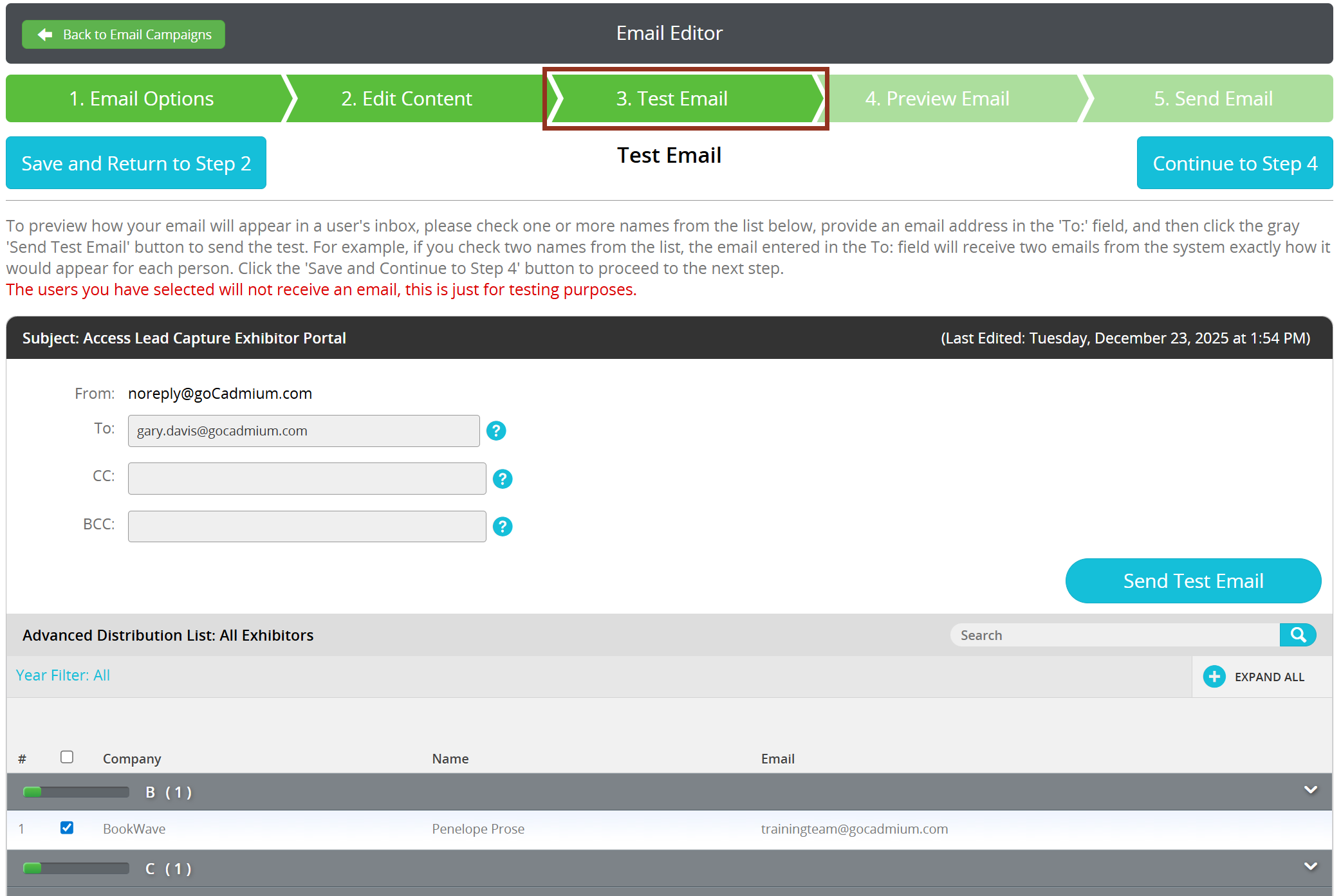
Fig. 6 - Test Email Tab.
IMPORTANT NOTE
Only the email address associated with the booth admin in Expo Harvester has permission to log in to the Lead Capture Exhibitor Portal. For more information about the login process, refer to this article.
Was this article helpful?
That’s Great!
Thank you for your feedback
Sorry! We couldn't be helpful
Thank you for your feedback
Feedback sent
We appreciate your effort and will try to fix the article