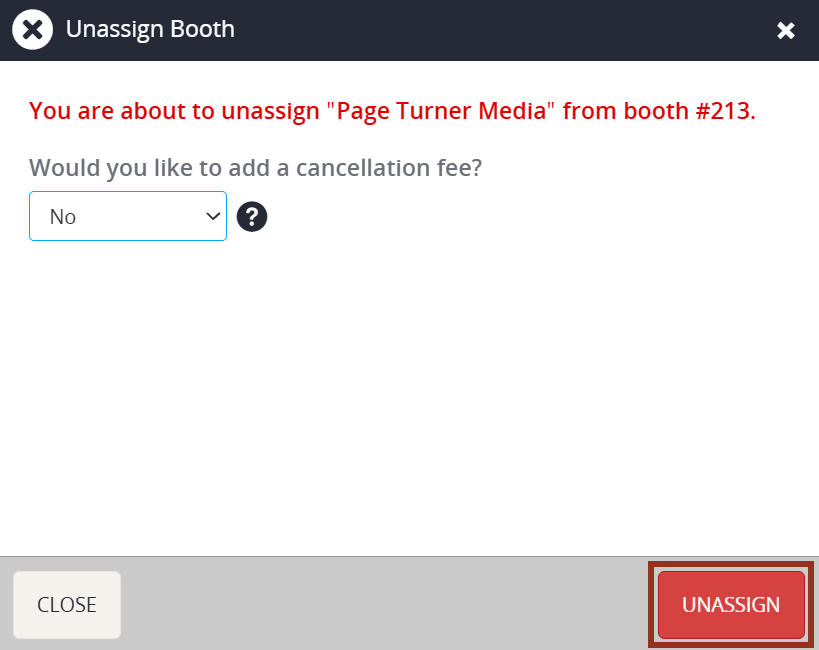
A pop-up will appear warning you that you are about to unassign the exhibitor from the booth. Select the red Unassign button to confirm the action.
To cancel a company, you'll first need to unassign any booths, sponsor levels, or sponsor items, then remove any pending charges.
To Unassign Booths
Launch the Expo Harvester module for your event. In the Main Navigation, hover over the Expo Data icon then select Booths from the dropdown (Fig. 1).
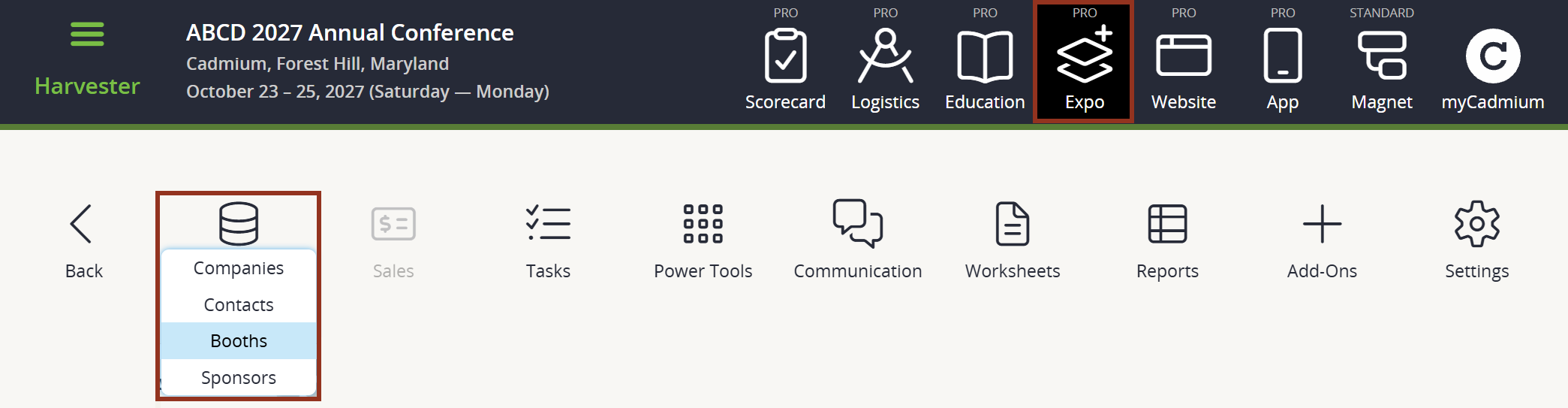
Fig. 1 - Expo Harvester's Expo Data Icon.
Click on the exhibitor you need to cancel, and then select the red Unassign button (Fig. 2).
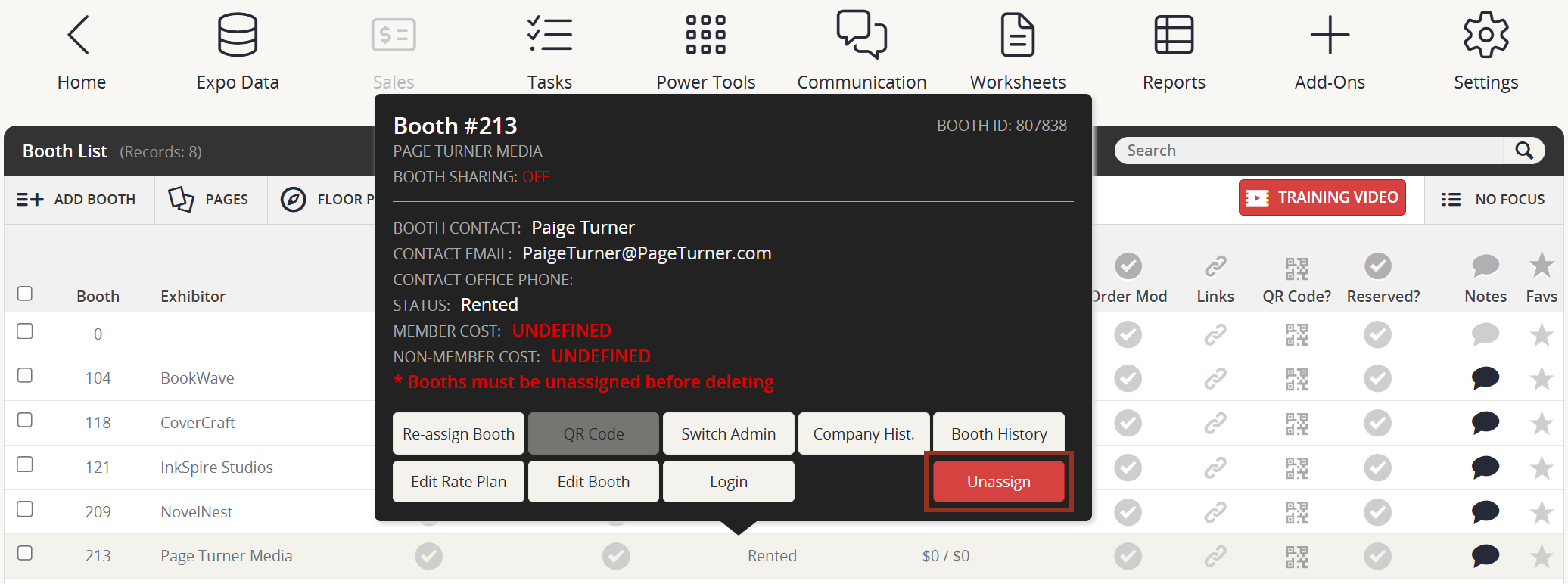
Fig. 2 - Exhibitor Row Pop-up Unassign Button.
To Remove Sponsor Levels
In the Main Navigation, hover over the Expo Data icon then select Companies. Click the row for the company and select Sponsor Level in the popup (Fig. 4).
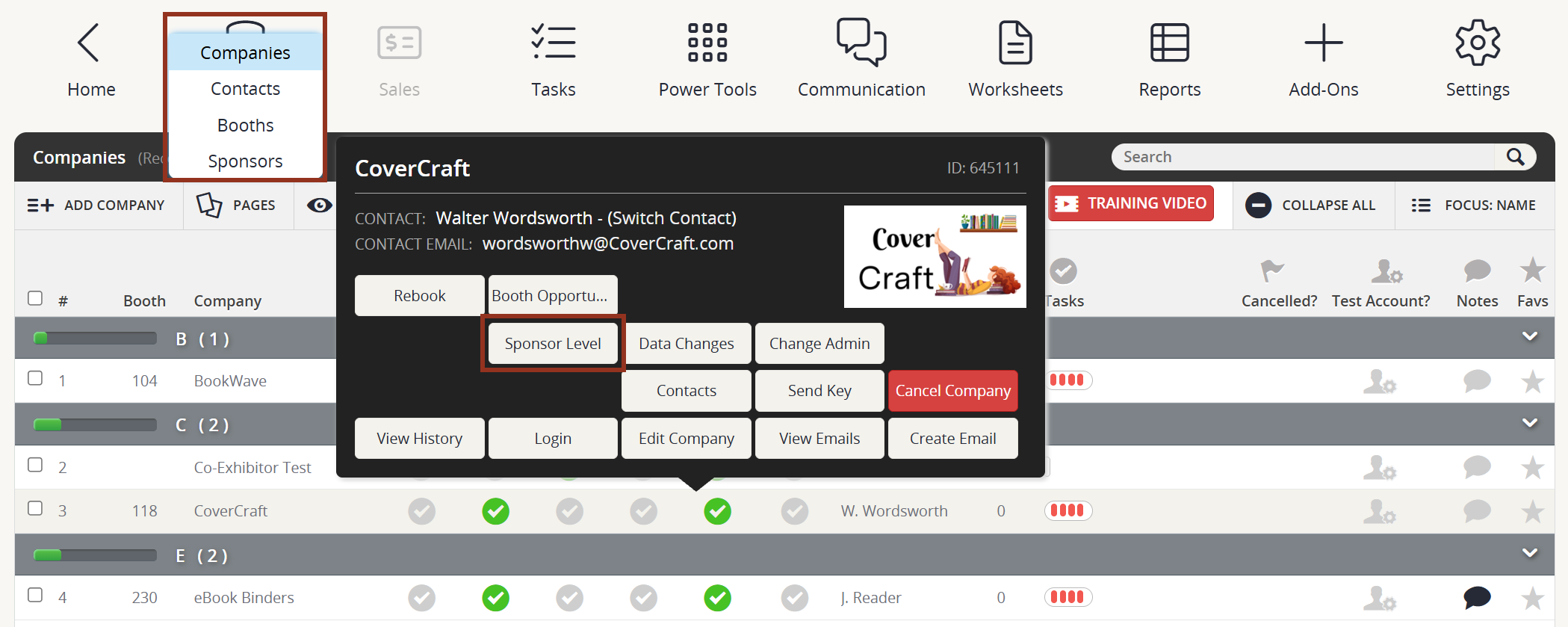
Fig. 4 - Companies Page Row Pop-up Sponsor Level Button.
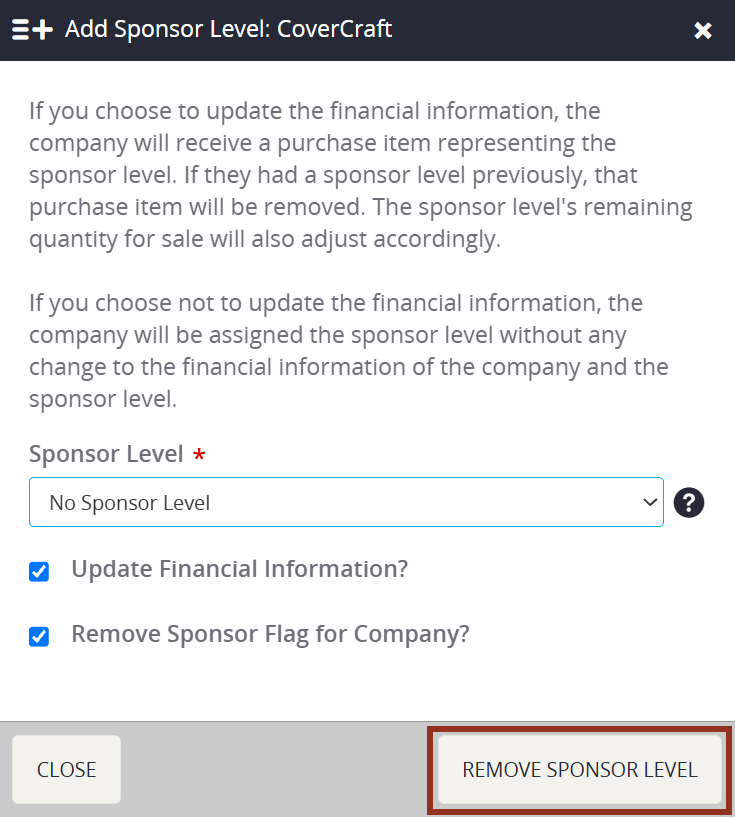
Switch the drop-down menu to No Sponsor Level. Keep the checkboxes selected and add a cancellation fee if needed. Select Remove Sponsor Level.
To Remove Sponsor Items
In the Main Navigation, hover over the Expo Data then select Companies (Fig. 6).
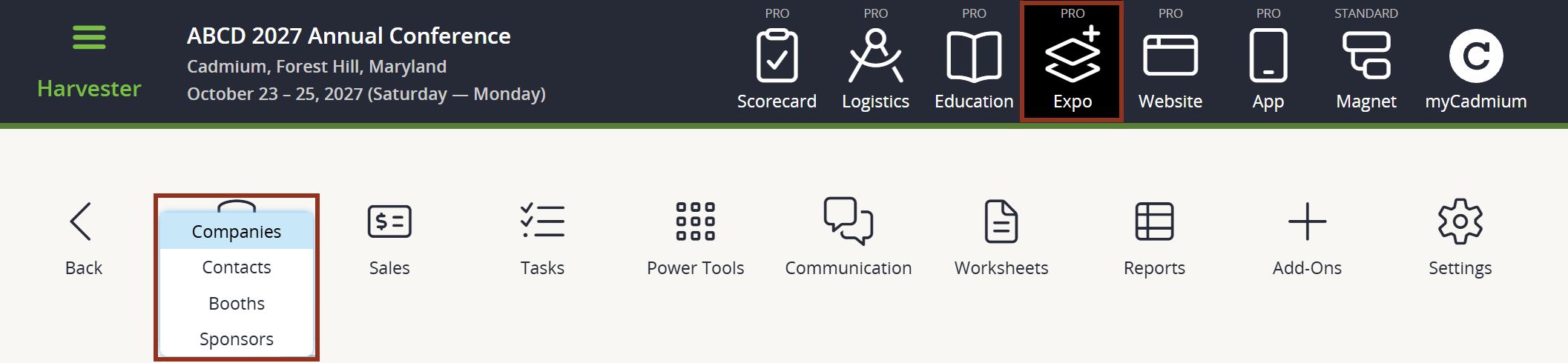
Fig. 6 - Expo Harvester's Expo Data Icon.
Click the row for the company and select Sponsor Items in the popup. Click Add/Remove Item or Remove Items (depending on how many items they have) (Fig. 7).
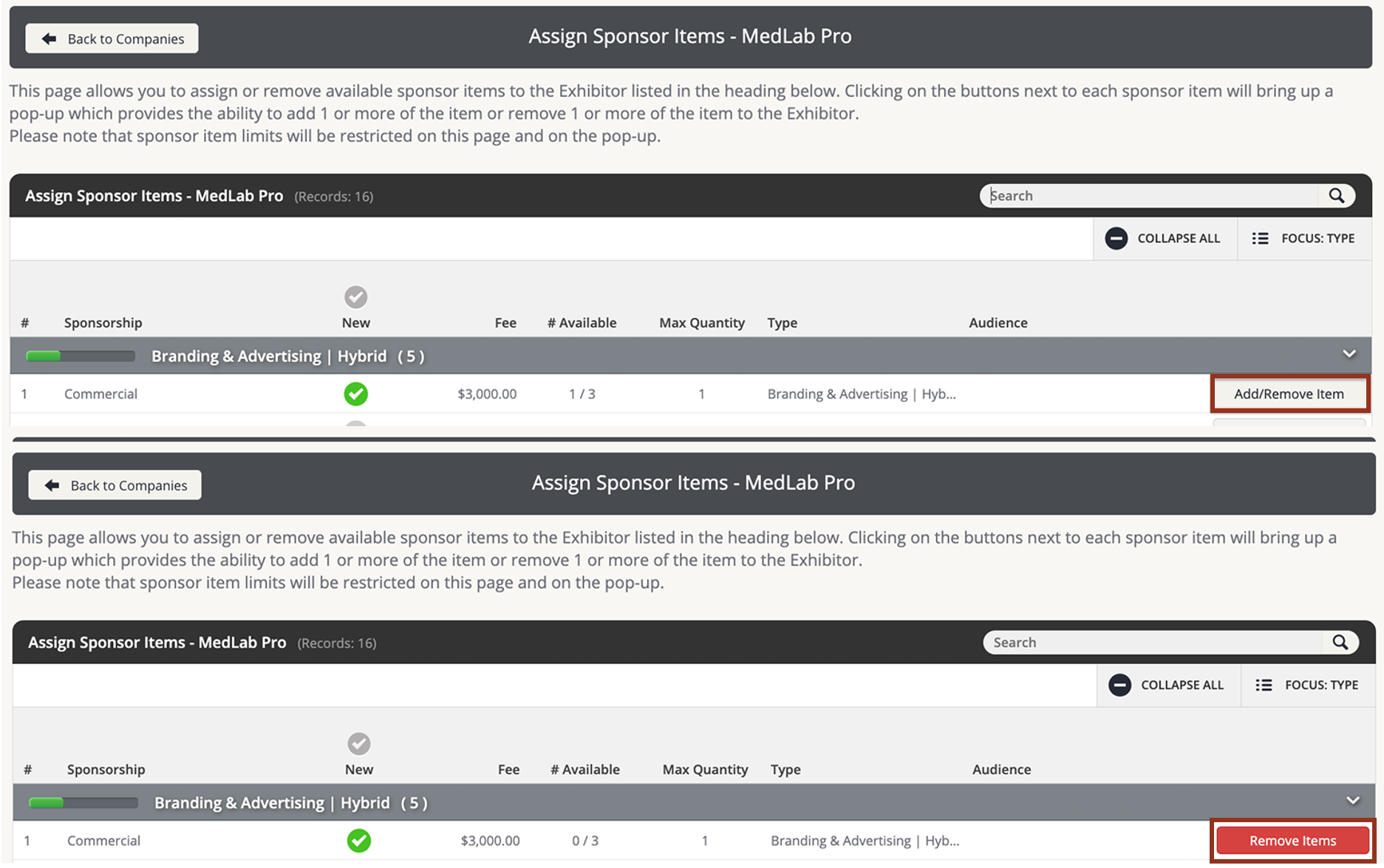
Fig. 7 - Sponsor Items Pop-up.
To Remove Pending Payments
From the Companies page, click the row for the company and select Transactions in the popup. Click the row for any pending payments and select Delete in the popup (Fig. 8).
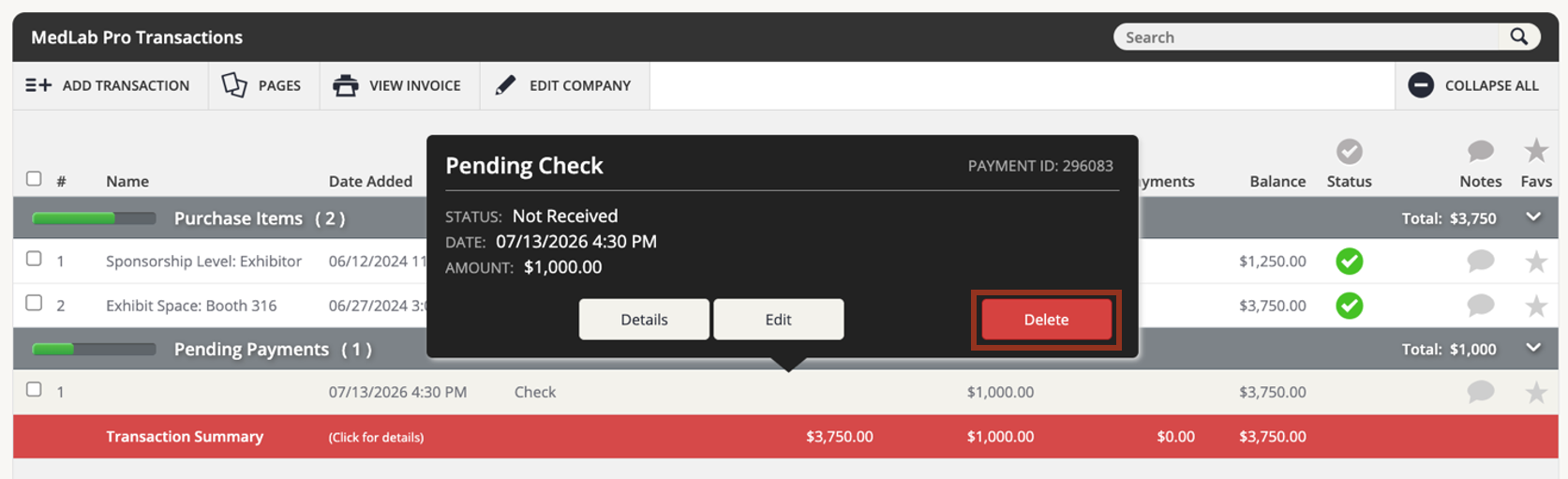
Fig. 8 - Transaction Row Pop-up Delete Button.
To Cancel/Delete an Exhibitor
Once all booths, sponsor levels, sponsor items, and pending payments have been cleared, you can cancel and/or delete the company. From the Companies page, click the row for the company, and then select the red Cancel Company button in the pop-up (Fig. 9). Another pop-up will appear and ask if you are sure you want to cancel the company. Select the red CONFIRM button.
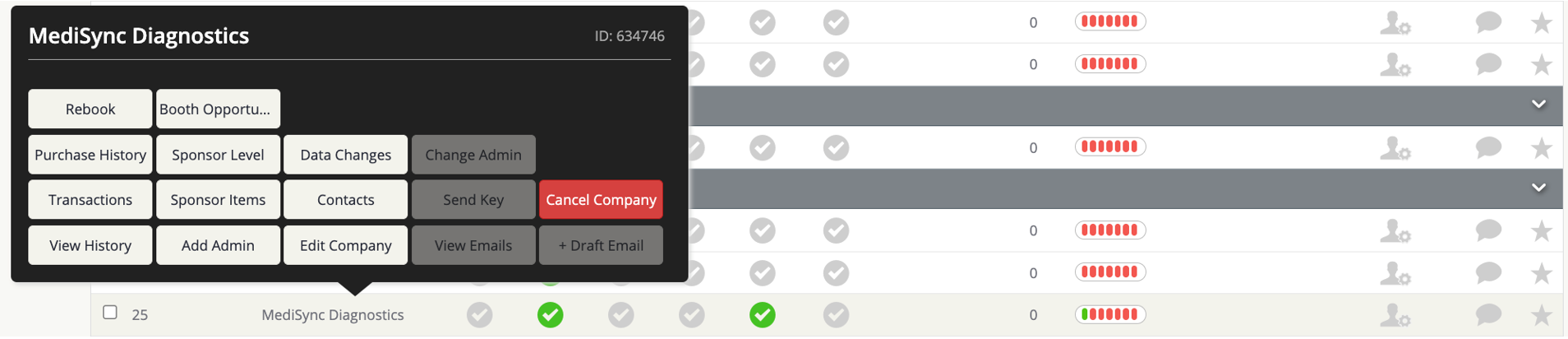
Fig. 9 - Cancel Company Button.
Once the company is canceled, you will have the option to delete them. Click the row for the company again and select Delete in the popup. When prompted to confirm your choice, select the red DELETE button (Fig. 10).
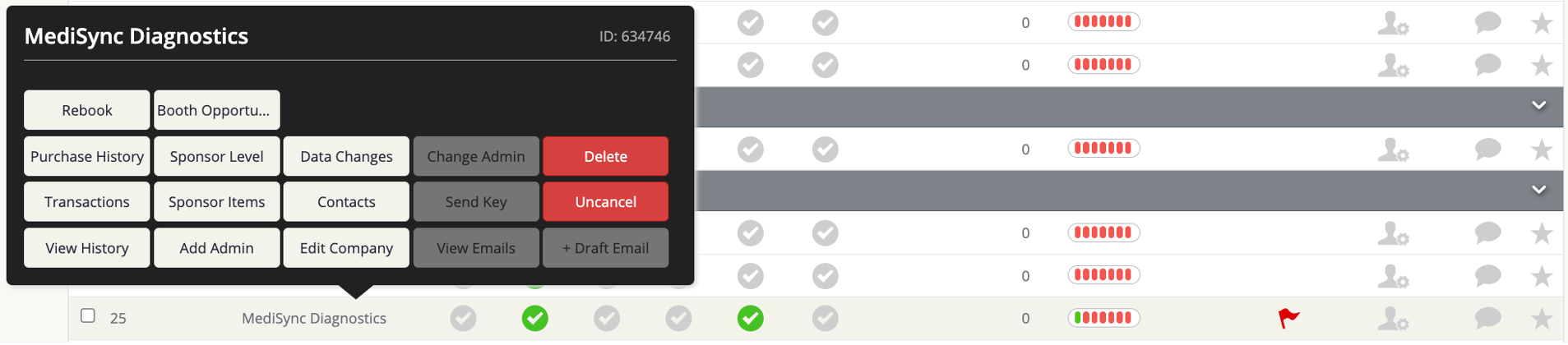
Fig. 10 - Company Row Popup Delete Button.
Or, if you need to re-activate the company, you can select Uncancel.
Last modified Jul 22, 2026
Was this article helpful?
That’s Great!
Thank you for your feedback
Sorry! We couldn't be helpful
Thank you for your feedback
Feedback sent
We appreciate your effort and will try to fix the article