Now you can upload your map file. In this step, you’ll need to designate either a PNG or a PDF file type.
The Map tool in the Eventscribe Mobile App module allows you to upload venue maps and floor plans so attendees can access them directly in the app. Maps can be uploaded as PNG or PDF files. Once added, you can reorder maps, edit their labels, and replace map images as needed.
Adding a Map
Follow these steps to upload and configure a map in the Mobile App module.
Navigating to the Map Upload Area
Select the Content icon in the Eventscribe dashboard. Then select the Maps tile (Fig. 1).
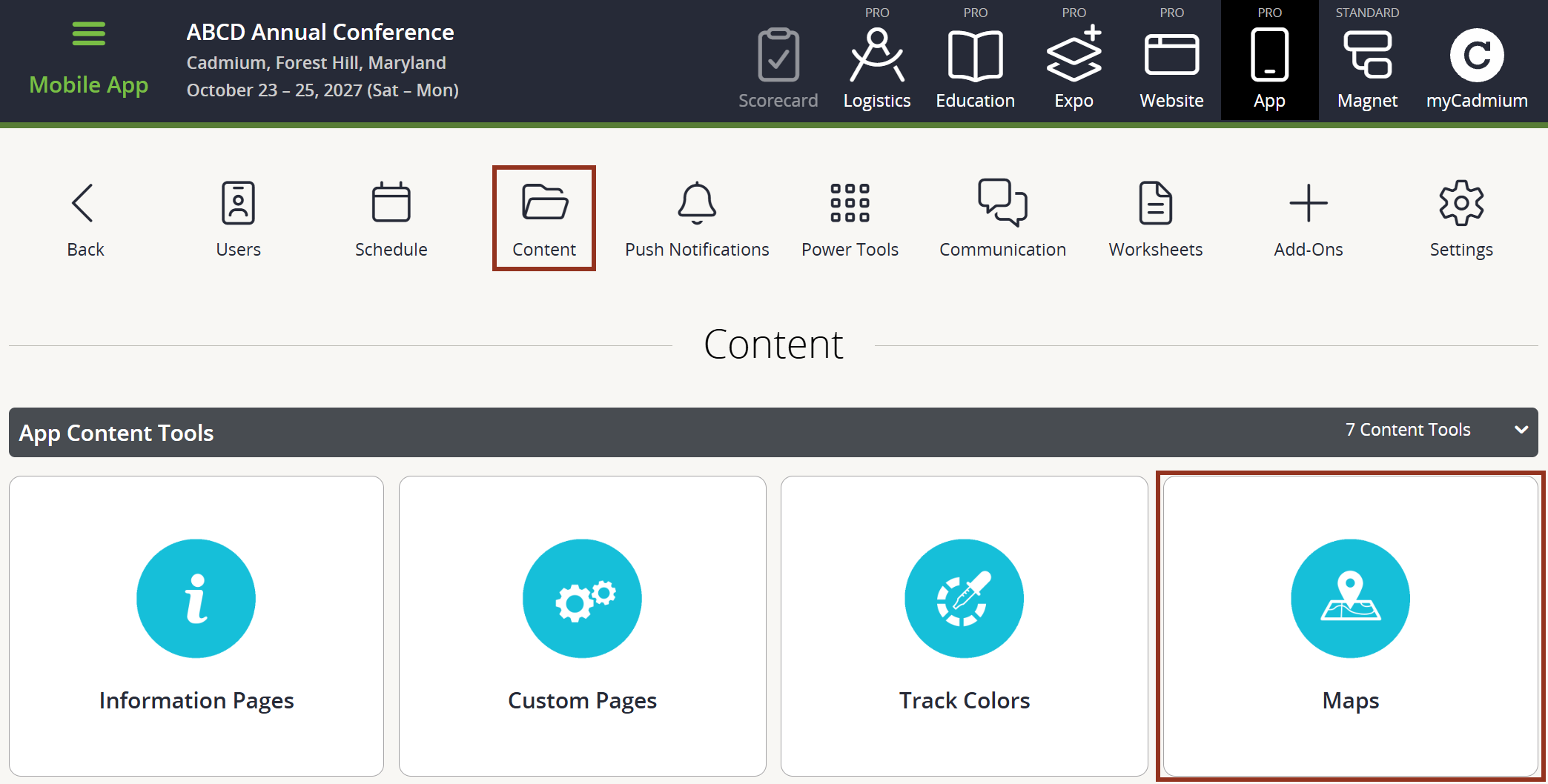
Fig. 1 - Content Page Maps Tile.
Adding a New Map
Once the page opens, select the +Add Map button in the top left of the page (Fig. 2).
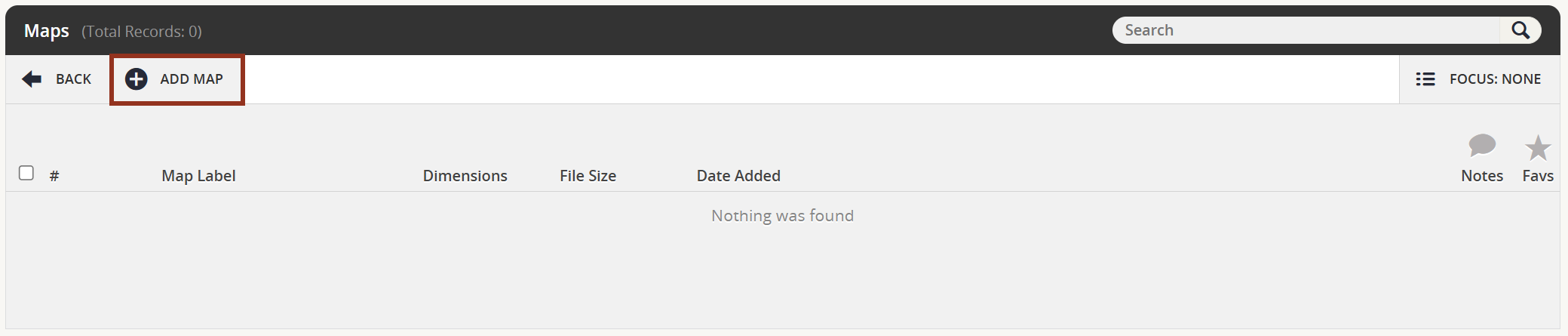
Fig. 2 - Add Map Button.
Selecting the File Type
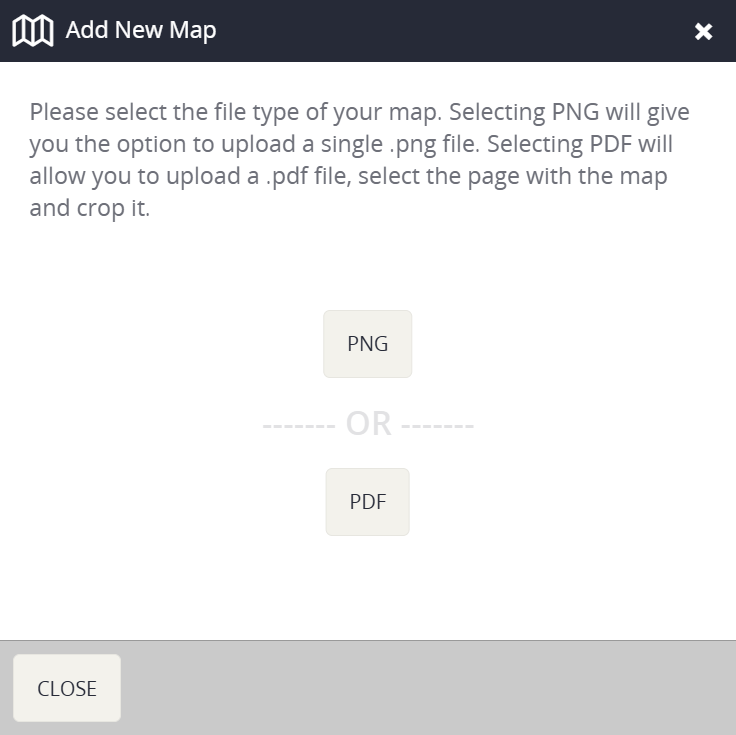
- Uploading a PNG File
Before you proceed, be sure to label your map (Ballroom, Exhibit Hall, etc.). To upload a map, you have two options: (1) Drag and drop the map file into the Map Image drop zone, or (2) select the Map Image Drop Zone to browse your files. The map you select must be a PNG file and conform to the following specs: Minimum height/width – 1000px; Maximum height/width – 2500px.
PNG Flattening Options
When uploading a PNG file as a map, you will be asked if you want to upload the file as a Standard Image, or if you want to "flatten the image." Maps are shown on a dark background in the app.
Standard Image
- Use when your image has no transparency, or has a transparent background with white text.
- This ensures white text remains visible against the dark app background.
Flatten the Image
- Use when your PNG has a transparent background with dark text.
- This adds a white background to the image so the dark text is visible in the app.
- Uploading a PDF File
Enter the Map Label for the map and select which page in the PDF has your map on it. To upload a map, you have two options: (1) Drag and drop the map file into the Map Image drop zone, or (2) select the Map Image Drop Zone to browse your files.
The selected PDF page will appear in the Map Cropper. Drag the blue rectangle corners to select the portion of the page you want to use as your map image. After selecting SAVE MAP, the map will be added to your app.
View Training Video: How to Upload Maps to the Mobile App
Managing Existing Maps
Follow these steps to reorder maps, update labels, or replace map images.
Navigating to the Map Page
Select the Content icon in the Eventscribe dashboard. Then select the Maps tile.
Reorder Maps
To change the order of your maps, select and hold the drag handle on the left side of a map row to move it to a new position. When you release the drag handle a green confirmation banner will appear (Fig. 4).
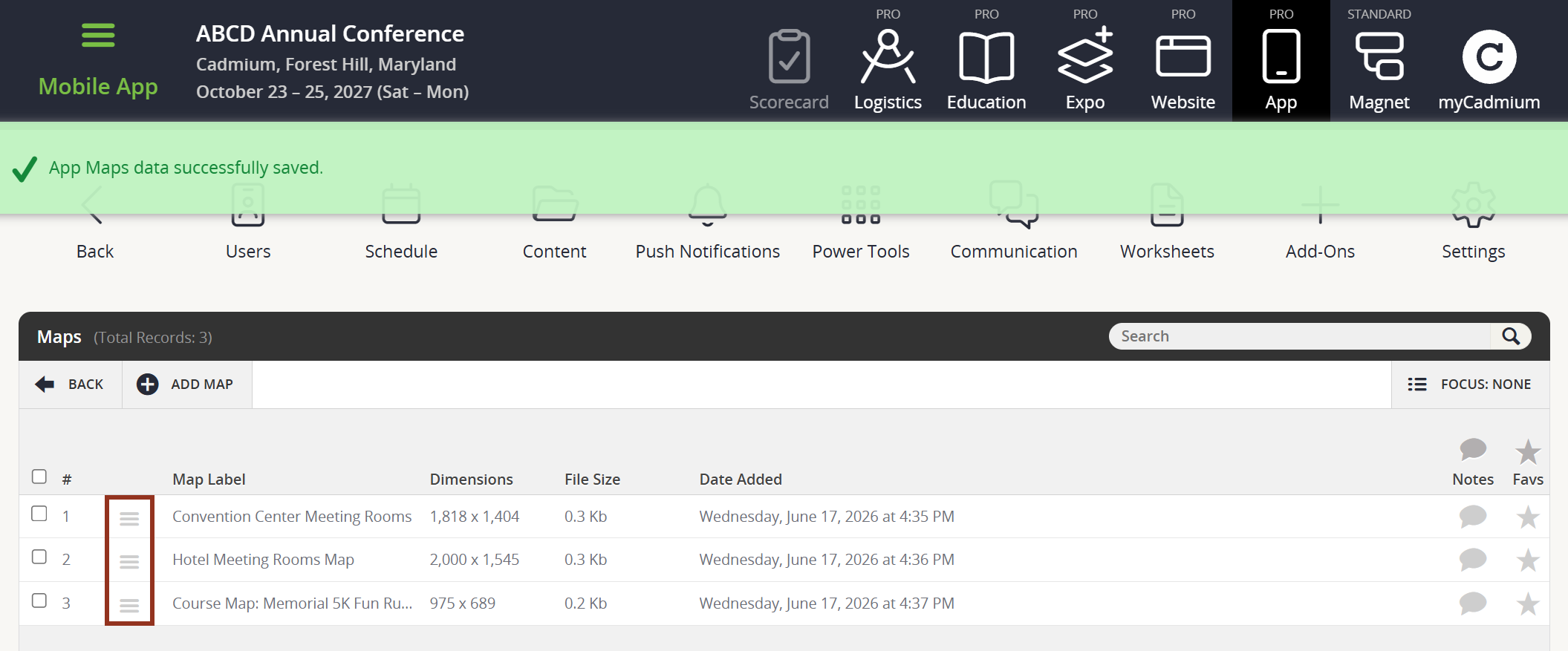
Fig. 4 - Maps Page Drag Handles and Confirmation Banner.
Edit a Map Label
Select the map row to open the details popup, then select the Edit button to update the map label (Fig. 5).
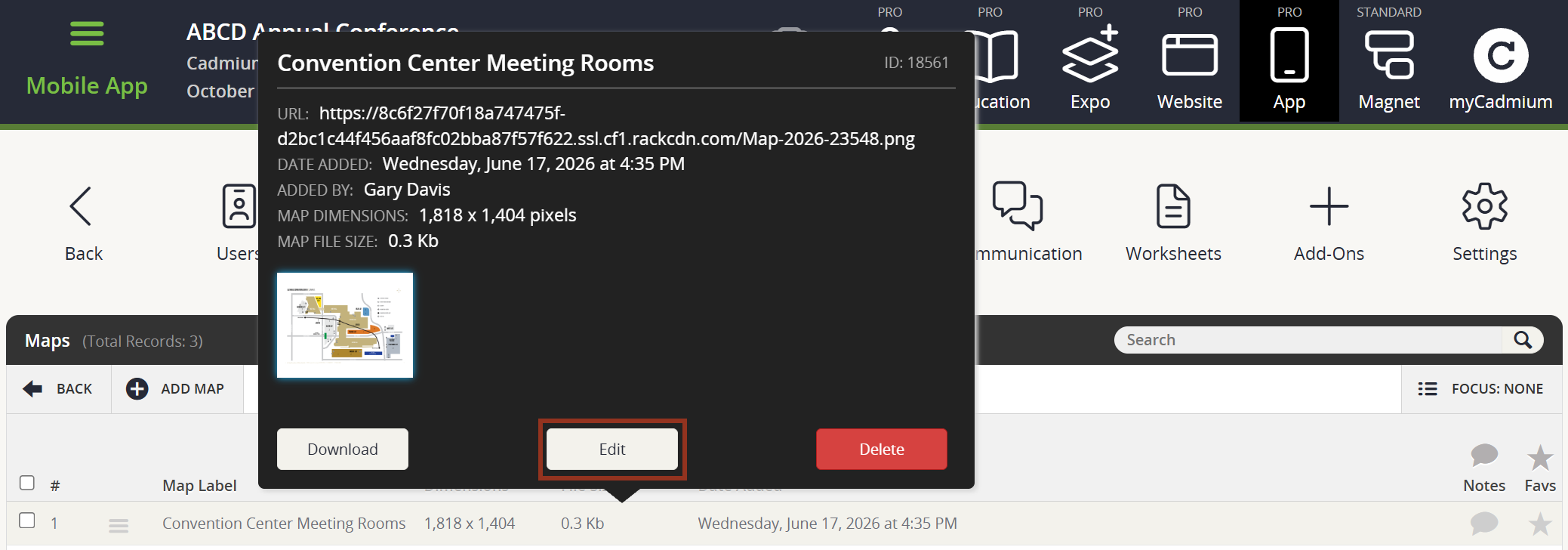
Fig. 5 - Map Row Details Popup Edit Button.
Replace a Map Image
To replace a PNG map image, open the map's detail popup and select the red REMOVE button. Select Remove when prompted (Fig. 6). The file slot will clear and you can upload a new PNG. To replace a PDF map, you must remove the entire map listing and add a new map.
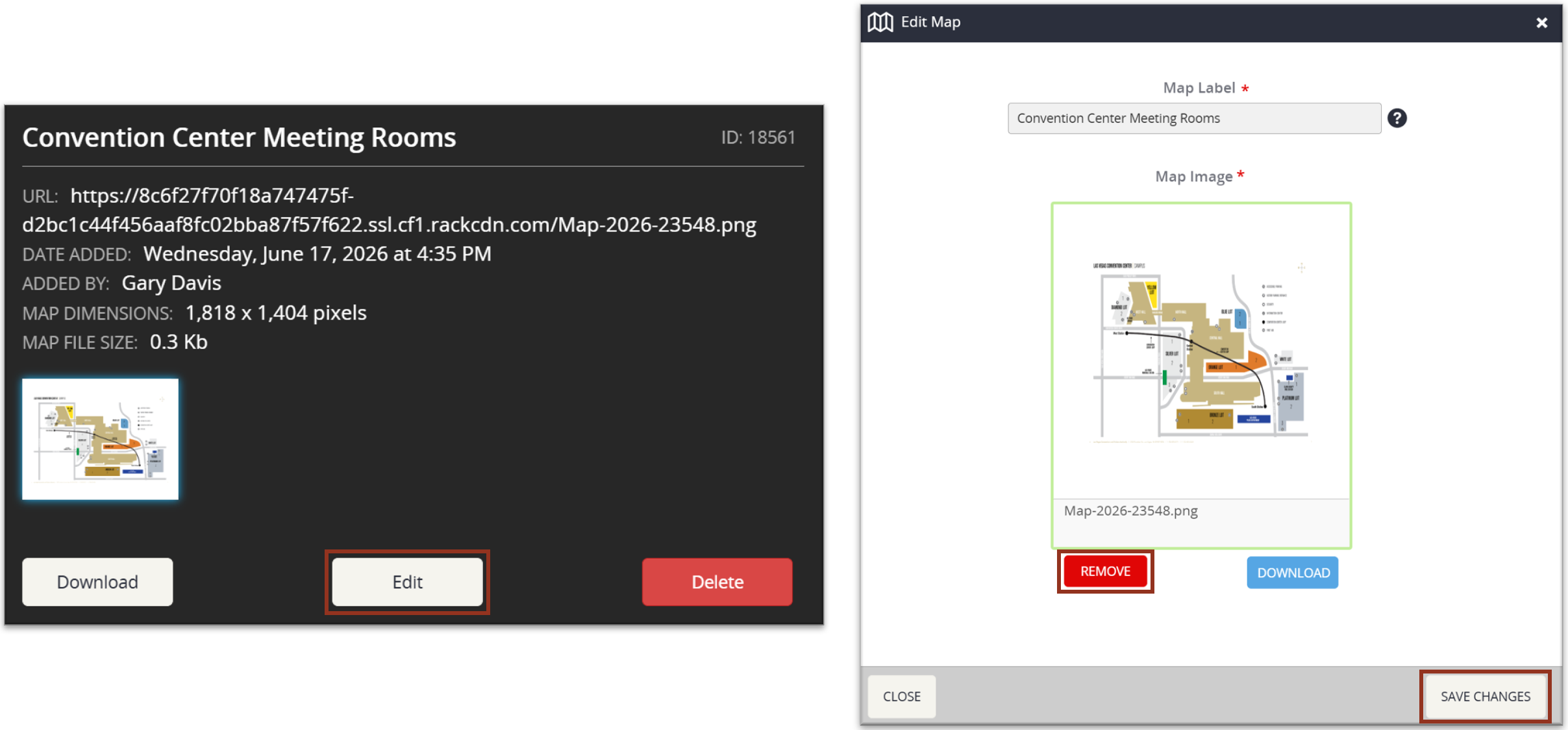
Fig. 6 - Map Row Details Popup and Edit Map Popup.
Save Changes
Once you have made your changes, select the SAVE CHANGES button on the right side of the popup.
Where Maps Display in the App
Once your maps are uploaded, there are three ways to make them accessible to attendees in the app.
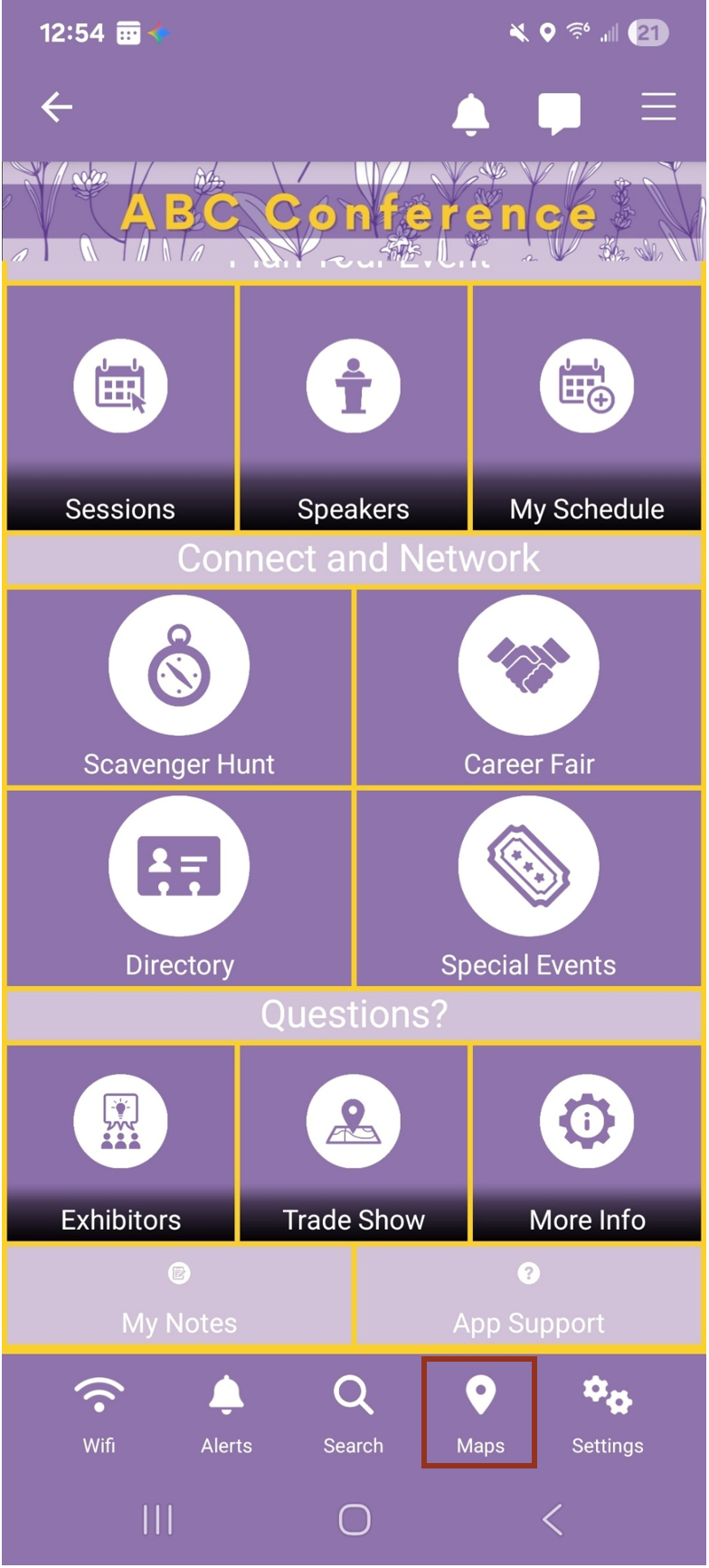
Main Screen Menu Button
A dedicated menu button on the app's main screen gives attendees quick, one-tap access to the maps screen. Your Project Manager can configure this button as part of your app setup. If you need it added after setup, you can request it through Boomerang.
Main Screen Tile (Action 7 – Go to Maps Screen)
You can link any tile on the main screen directly to the maps screen. In the Main Screen Editor, select the gear icon on the tile you want to update, select the Action tab, then choose Action 7 – Go to Maps Screen. For more information on editing tiles, see the following support articles:
- Navigating to the Main Screen Editor
- Basic Controls of the Main Screen Editor
- Editing a Tile
- Overview of Tile Types
Information Page Action Element (Action 7 – Go to Maps Screen)
You can also link to the maps screen from within an Information Page using an Action element. When creating or editing an Action element, select Action 7 – Go to Maps Screen. This is useful for embedding map access alongside other event details on a general information page. For more on Information Pages, see the Information Pages support article.
Last modified Jun 17, 2026
Was this article helpful?
That’s Great!
Thank you for your feedback
Sorry! We couldn't be helpful
Thank you for your feedback
Feedback sent
We appreciate your effort and will try to fix the article