Information Pages are a flexible tool that lets you share content with attendees that doesn't automatically come over from Eventscribe's Speaker Management or Exhibitor Management products, such as onsite WiFi information, event policies, FAQs, hotel information, or venue floor plans. They're most commonly used for Event Info, General Info, or Digital Grab Bag tiles on the main screen of your app.
This article explains how to create an Information Page in Eventscribe, add content to it, and link it to a tile on your app’s main screen.
Creating an Information Page
Follow these steps to create a new page and make it available to attendees.
Open the Information Pages Content Tool.
Select the Content icon in the Eventscribe dashboard. Then select the Information Pages tile (Fig. 1).
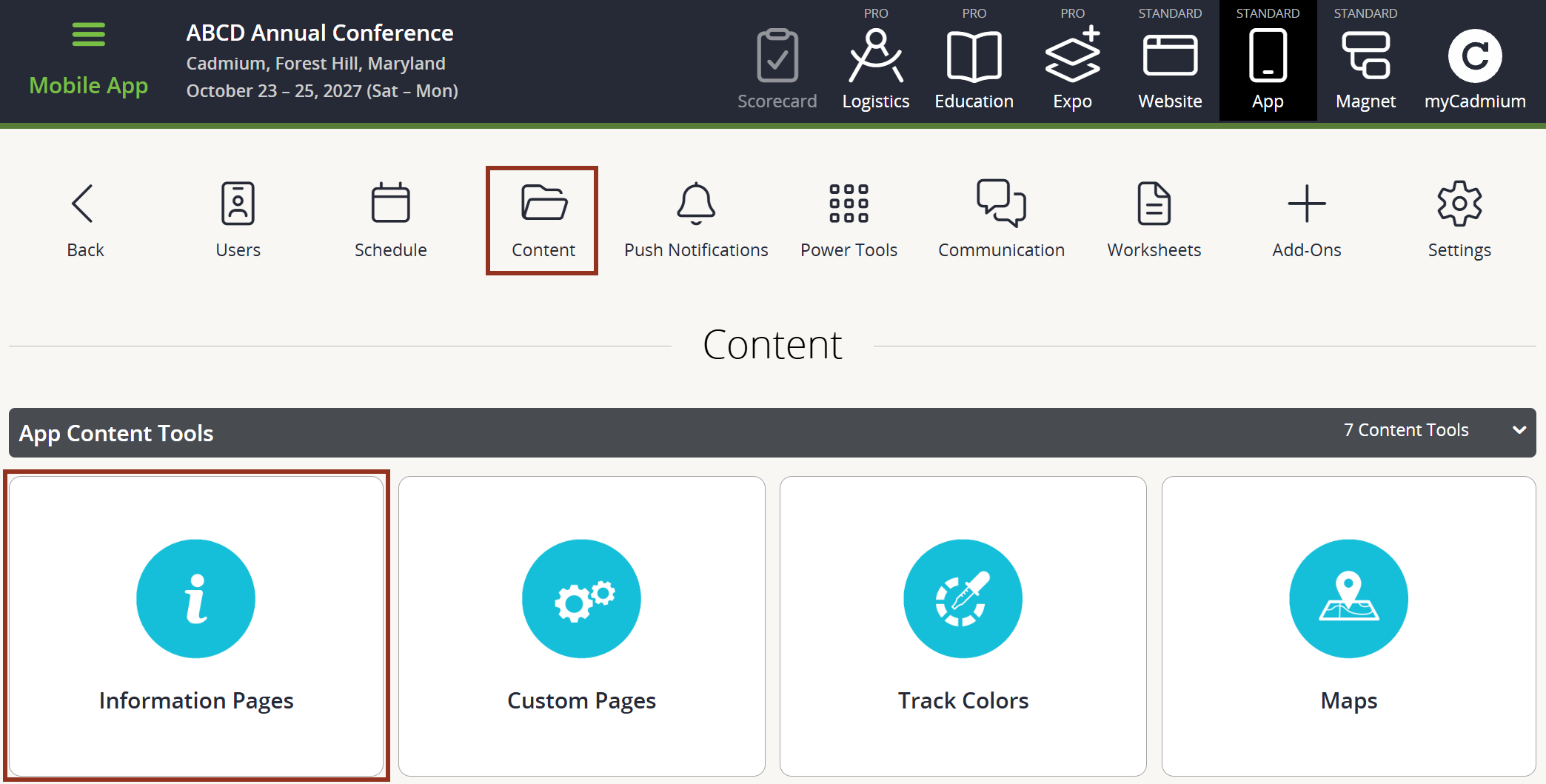
Fig. 1 - Content Page Information Pages Tile.
Add a New Page
Select the Add button. In the Add Information Page popup enter a title then select the Add Page button (Fig. 2).
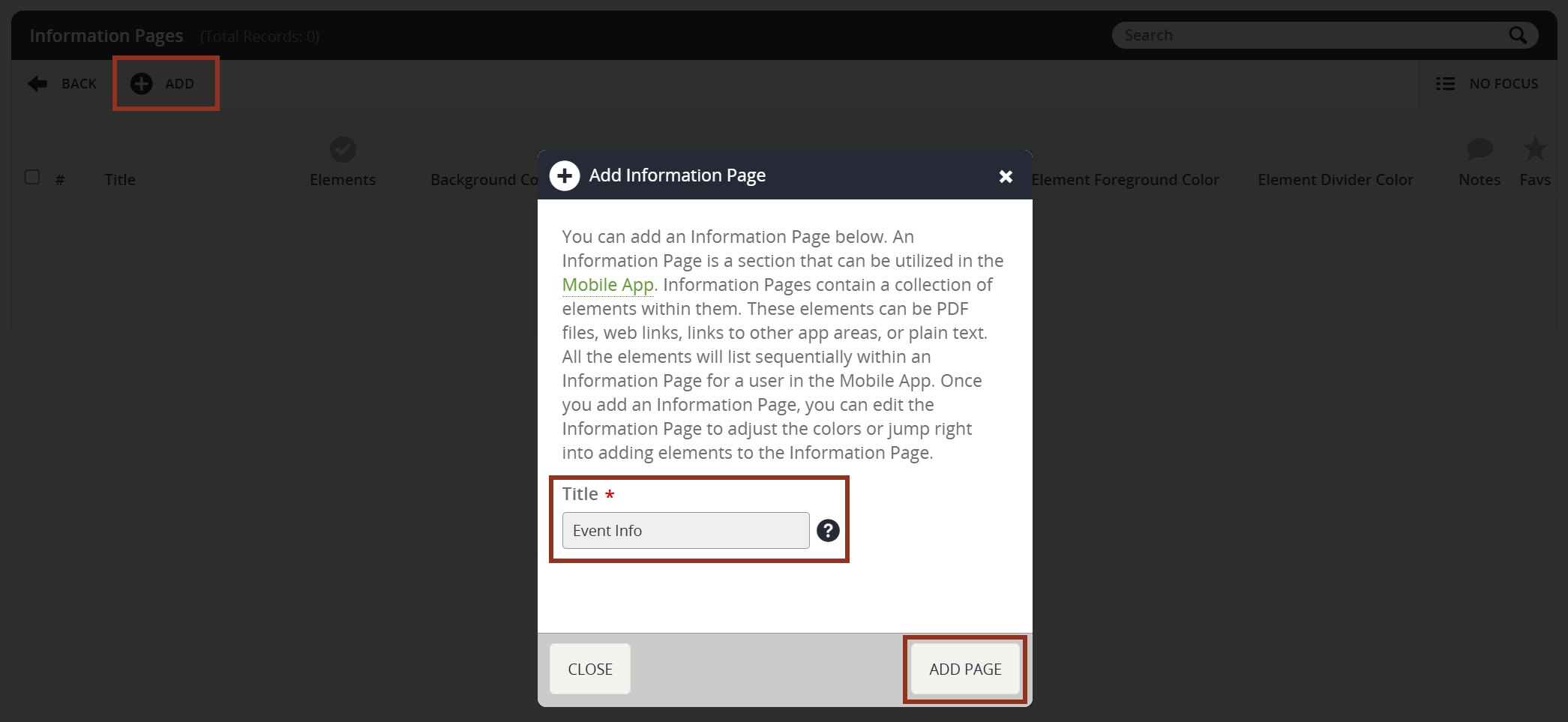
Fig. 2 - Add Information Page Popup.
Open the Page's Elements
Select the row of the information page you just created, then select the Elements button from the row popup (Fig. 3).
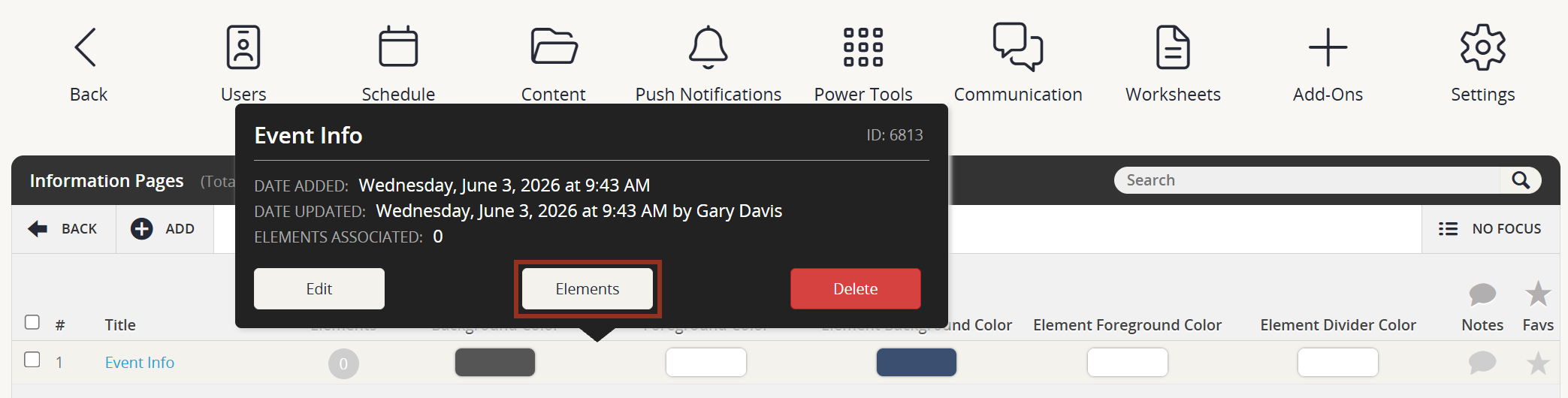
Fig. 3 - Information Page Popup Elements Button.
Add Elements to the Page
Select the Add Element button in the buttons bar. Then select the Type of element (Action, PDF, or Text), fill out the required fields in the pop-up, and select the Add Element button to save (Fig 4).
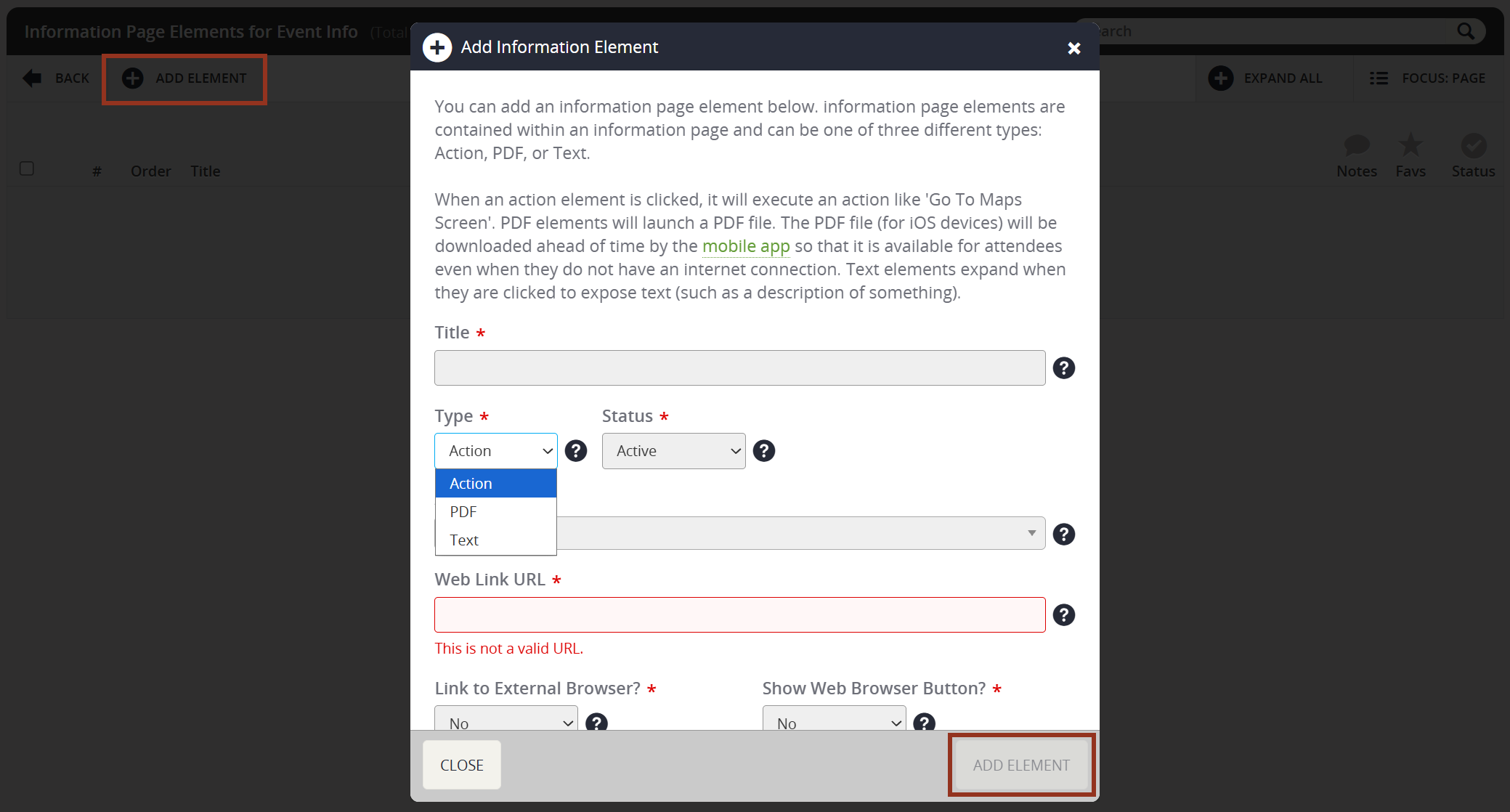
Fig. 4 - Add Information Element Popup.
Element Types
Each Information Page is made up of one or more elements. You can choose from three element types and you can mix and match them on a single page
Text Elements
Text elements display blocks of formatted text within the Information Page. Use the built-in rich text editor in the pop-up to apply formatting such as bold, italics, and bullet points.
Best for:
- Welcome messages or event overviews
- Contact details or venue information
- Event policies, FAQs, or codes of conduct
- Registration Desk details
- Onsite WiFi information
Action Elements
Action elements trigger built-in app functions when tapped by an attendee. Use them to direct users to specific areas of the app or external destinations.
Common actions include:
- Opening a web link
- Jumping to another section of the app
PDF Elements
PDF elements link attendees directly to an uploaded PDF file. When tapped, the app downloads the file to the user's device before displaying it.
Best for:
- Handouts not managed in Speaker Management or Exhibitor Management
- Maps, additional floor plans, or resource guides
IMPORTANT NOTE
Please optimize your PDF for a small file size before uploading. Large files can cause slow load times or download failures on mobile devices.
Linking a Tile to an Information Page
Once your Information Page is ready, you'll need to connect it to a tile on your app's main screen so attendees can find it.
- Open the main screen editor. On the Mobile App dashboard, select "Main Screen."
- Select the tile to edit. Select the gear icon in the top-right corner of the tile you want to link.
- Set the tile action. Select the "Action" tab, then choose "81 – Go to information pages section." Select the specific Information Page you want the tile to display, then click "Update Preview."
- Publish your changes. Select "Save and Publish" to push the updates live to your app.
For more information on working with the Main Screen Editor, see the following support articles:
- Navigating to the Main Screen Editor
- Basic Controls of the Main Screen Editor
- Editing a Tile
- Overview of Tile Types
Need Help Getting Started?
Not sure which element types to use or how to structure your Information Pages for your event? Your Cadmium Project Manager can help you think through the best approach for your specific setup and content needs.
If you're past the implementation phase and have questions while working independently, you can submit a Boomerang and our support team will follow up with guidance.
Was this article helpful?
That’s Great!
Thank you for your feedback
Sorry! We couldn't be helpful
Thank you for your feedback
Feedback sent
We appreciate your effort and will try to fix the article