There are several ways to share onsite WiFi information with your attendees through the Eventscribe mobile app. The configuration for each option is outlined below.
Technical Support Tile
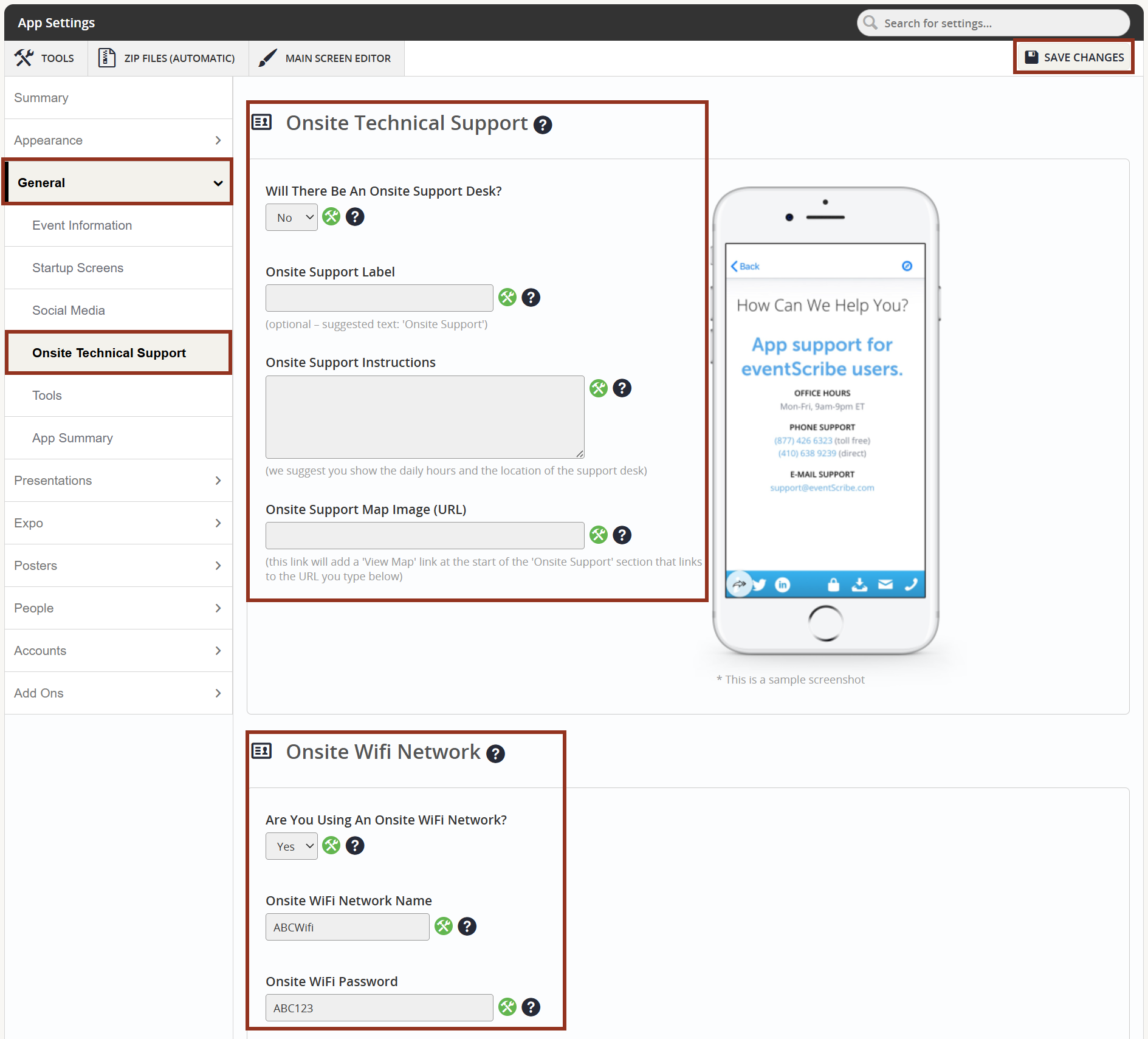
To display Technical Support and Wi-Fi information on a dedicated page, ensure the following App settings are completed:
Settings → General → Onsite Technical Support → Onsite Wi-Fi Network Settings (Fig 1)
The Technical Support page displays in the app through a tile on the home screen. Your Project Manager will work with you to add the necessary tile during your setup process. If you need the tile added after setup, you can request it through Boomerang.
Fig. 1 - Settings Page Onsite Technical Support Subtab.
Information Page
You can create a dedicated Information page in the app to display your WiFi credentials alongside other need-to-know event details. To add your WiFi information, you'll need to either create a new Information Page or add a Text element to an existing one.
For step-by-step instructions on creating pages and adding elements, visit our Information Pages support article.
Main Screen Menu Button
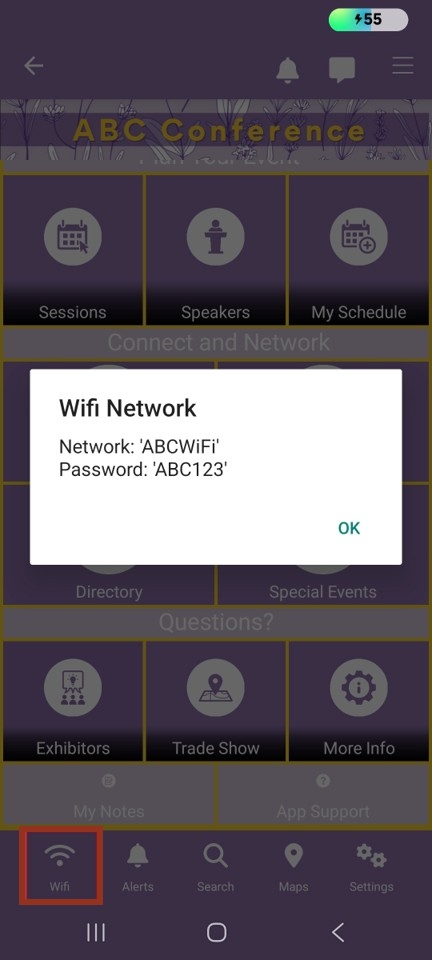
A dedicated menu button on the app's main screen gives attendees quick, one-tap access to your WiFi credentials. This is a great option if easy discoverability is a priority.
Your Project Manager can configure this button as part of your app setup. If you need it added after setup, you can request it through Boomerang.
Push Notifications
Push notifications let you broadcast WiFi information directly to attendees' devices. This is useful for sharing credentials at the start of the event or when network details change.
To send a push notification with WiFi information:
- Log in to your Eventscribe backend.
- Navigate to Push Notifications and select Create New Notification.
- Write your message, including the network name and password.
- Choose your target audience and schedule or send the notification.
For more information on how push notifications work, visit our Push Notifications support articles.
Keep in mind that push notifications are a one-time delivery method. For ongoing reference, we recommend pairing this option with one of the in-app display methods above.
CADMIUM TIP
You can use more than one method. For example, you might send a push notification at event kickoff and keep the details available on an Information page throughout the conference. If you're unsure which option is the best fit for your event, your Project Manager can help you decide.