The Mobile App Dashboard features a section labeled Missions.
To initiate your app project, you must complete the first mission, Get Started, which can be completed in less than 15 minutes.
This guide will assist you throughout your entire Mobile App project, from conception to completion while staying focused and maintaining momentum to deliver a high-quality mobile app to attendees.
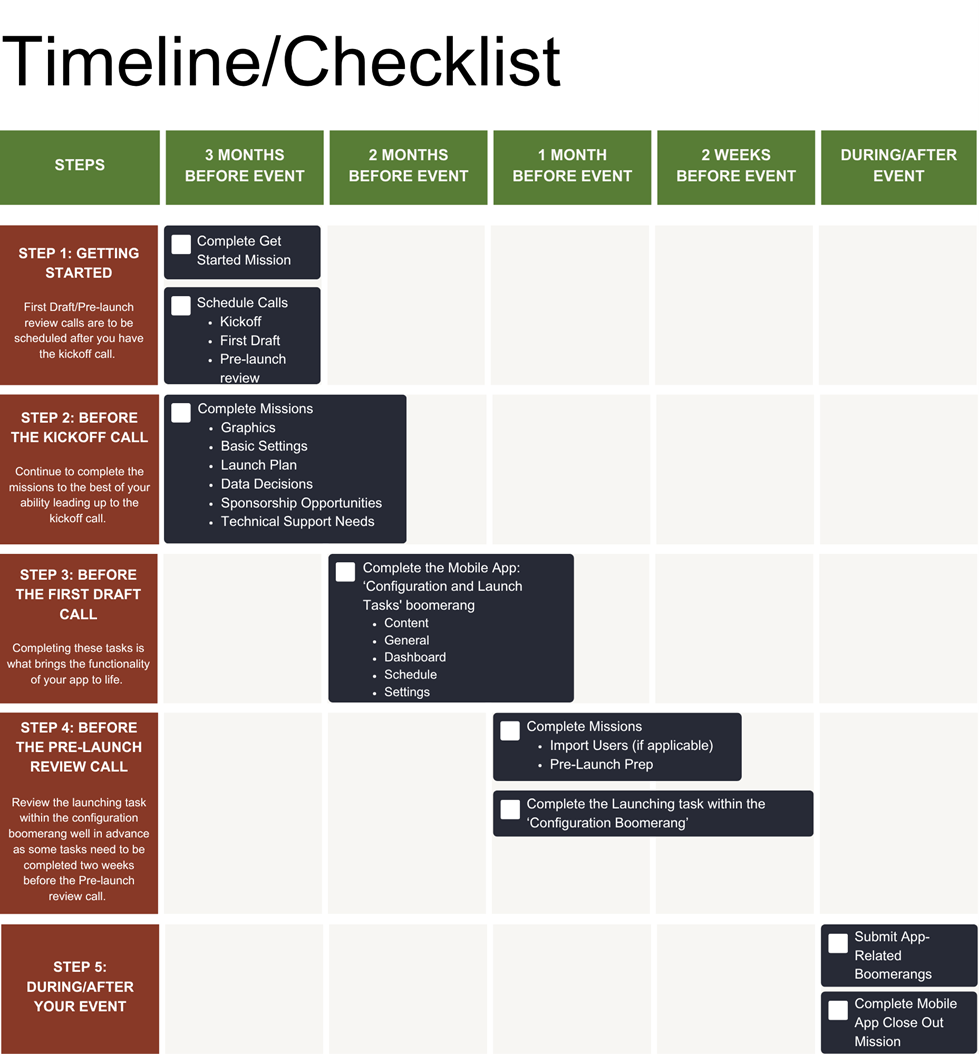
Fig. 1 - Timeline and Checklist.
The Mobile App Dashboard features a section labeled Missions.
To initiate your app project, you must complete the first mission, Get Started, which can be completed in less than 15 minutes.
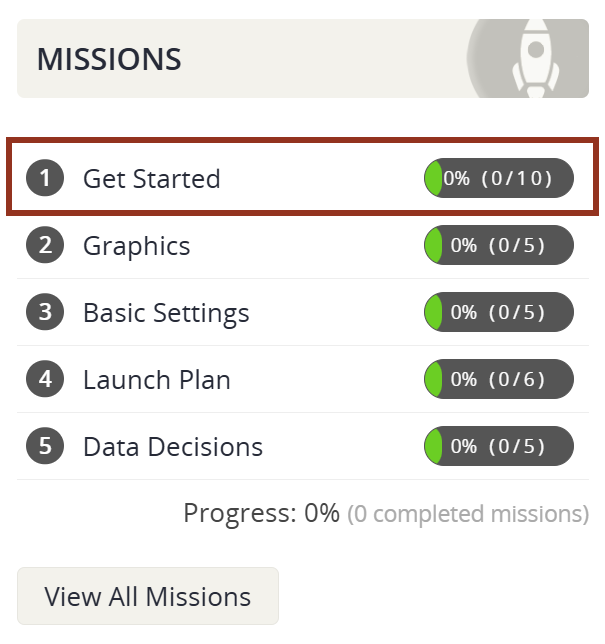
After completing the Get Started Mission, a Boomerang will notify your Project Manager (PM) to schedule a Kickoff Call with you.
* If you have scheduled a kickoff call, please wait until after the call to schedule the first draft and pre-launch review call.
Please continue to complete the following Missions. If you come across a checkpoint in a Mission that you are unsure of how to answer or unable to complete at the moment, such as confirming Wi-Fi information, please do one of the following:
Graphics: Download the specs guide and provide it to your graphic designer. The graphics should be branded with the event's theme. The graphics do not need to be uploaded before the kickoff call.
Basic Settings: Define the core settings to make your app function.
Launch Plan: Testing of your app cannot begin until this mission is completed and the graphics have been uploaded.
Data Decisions: Decide which data you would like to share in the app.
Sponsorship Opportunities: Download the guide to learn about available sponsorship opportunities based on your app level.
Onsite Wifi: Input onsite WIFI information to be shared with attendees.
You may encounter additional missions if you are contracted for add-ons such as the Scavenger Hunt.
On the Mobile App Dashboard, navigate to the Settings page to copy settings from a previous app project. Select the Tools icon on the page header and select Copy Settings from the dropdown menu (Fig. 3).
In the resulting popup, select the event from which you'd like to copy settings. Leave the following settings set to Yes.
Entry login instructions, main screen navigation icons, speakers' roles to omit, etc. are among the settings copied over.
Clients will still need to create custom pages, information pages, etc. as those do not copy over from year to year.
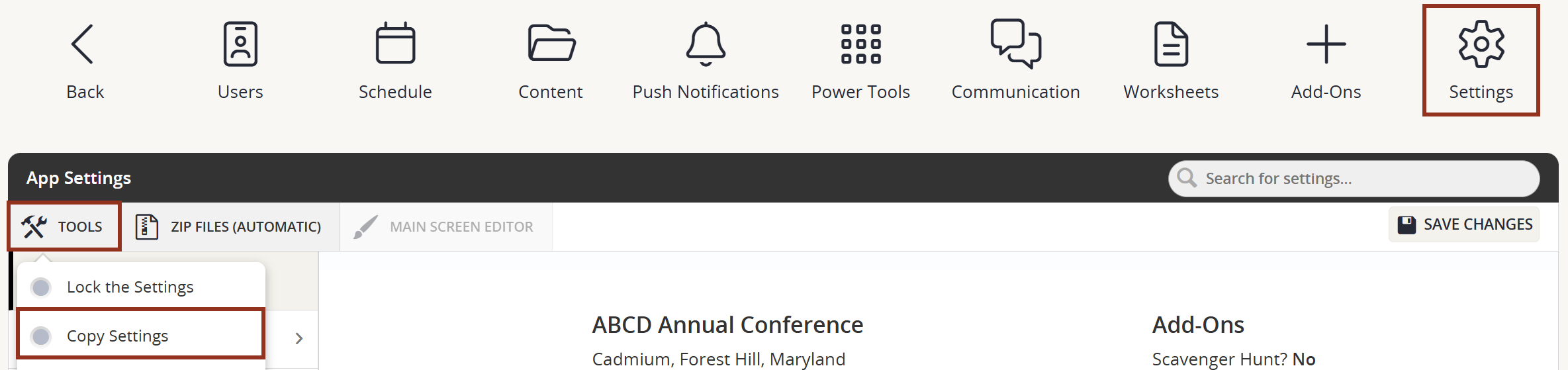
Fig. 3 - Settings Page Tools Button.
After the kickoff call, your PM will send a Boomerang titled "Mobile App: Configuration and Launch Tasks."
Please read the Request section then select the TASK LIST button. This Task List will offer additional guidance to help bring your app's functionality to life.
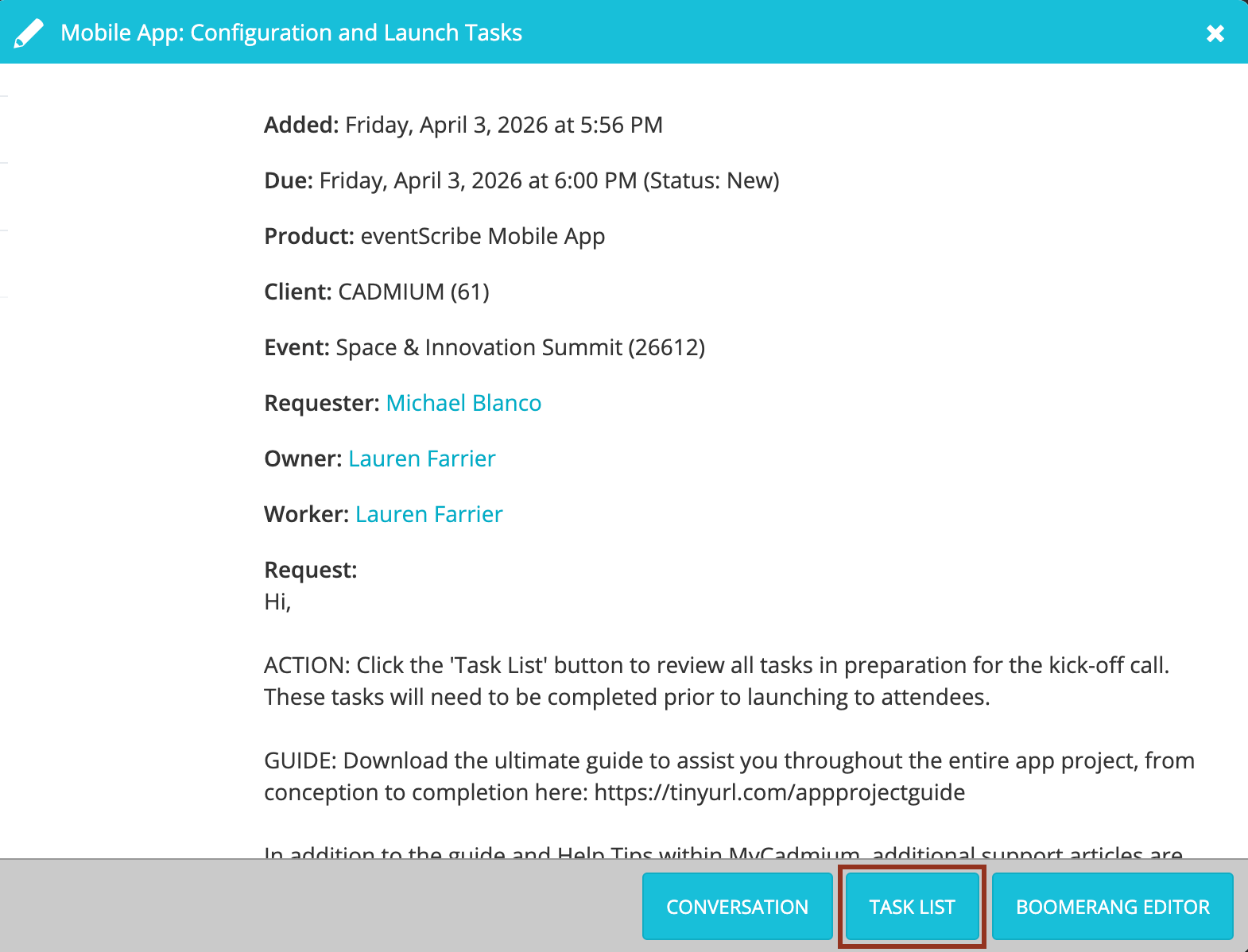
Please review and complete all non-launch-related tasks before the first draft call (Fig. 5). If any tasks remain incomplete, provide an update on their status in the Comments section.
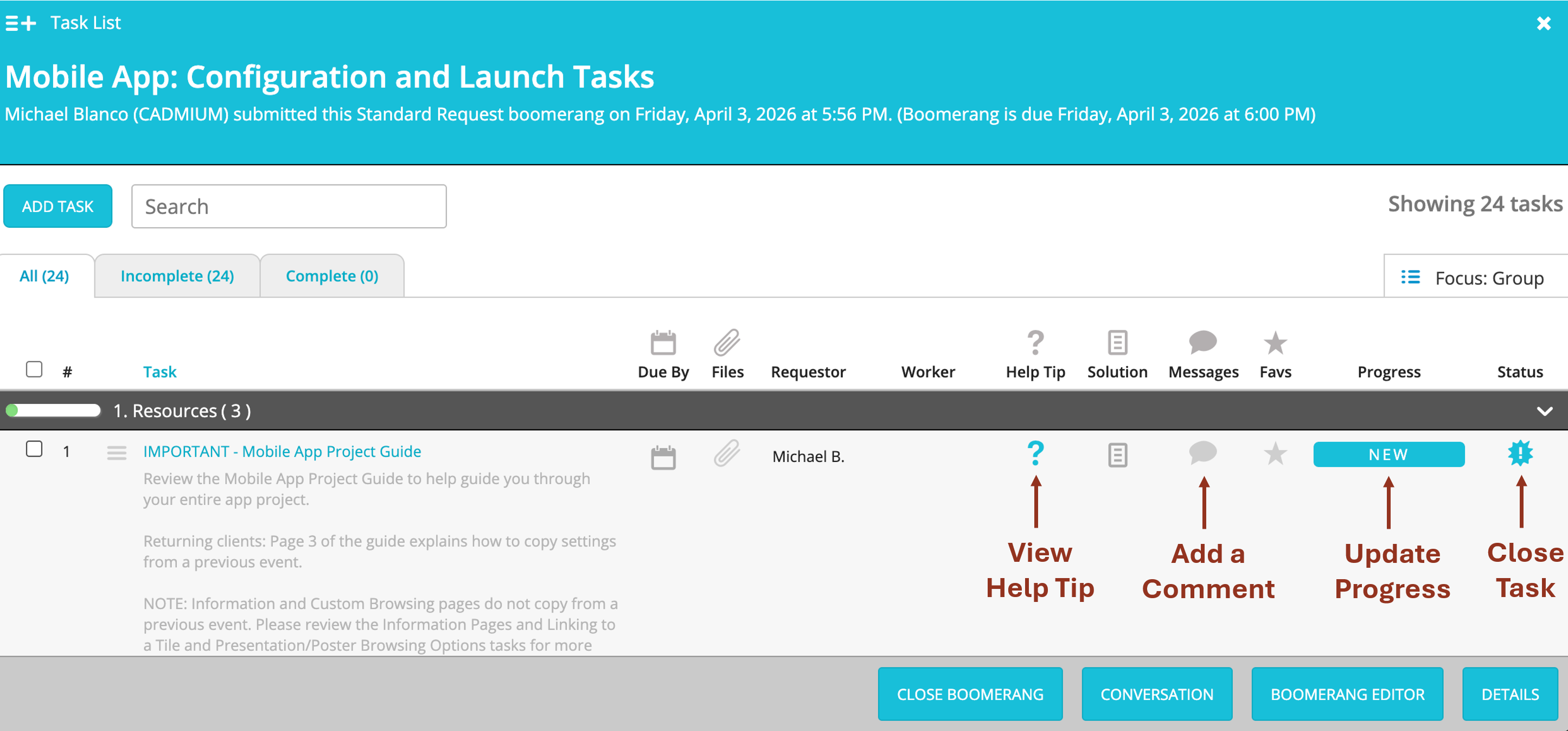
Fig. 5 - Mobile App: Configuration and Launch Tasks Boomerang Task List.
NOTE
Unfinished tasks, missing Harvester data, or outdated main screen design will result in rescheduling of the first draft call.
The task list contains tasks commonly used by Cadmium's app customers. Additional configurations may be necessary depending on app setup and complexity.
We request you submit any further items that require assistance in a separate Boomerang.
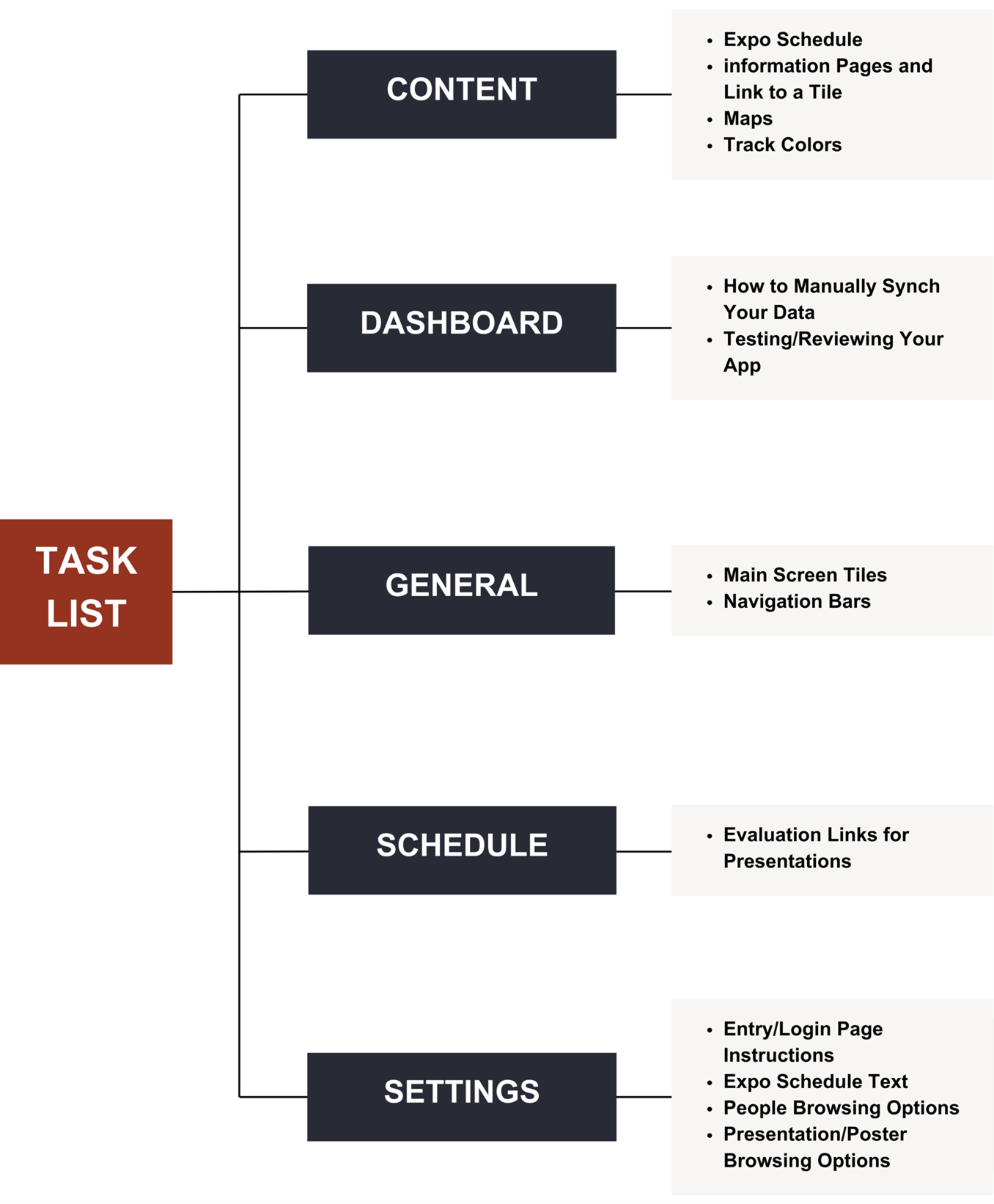
Please continue to complete the following self-guided missions.
Import Users (if applicable): If you utilize Registration or have an integration, please refrain from completing this mission. Should you encounter any integration log-in issues or have an inquiry, contact the Integrations Team at integrationservices@gocadmium.com.
Pre-Launch Prep: As you near the launch of your app, this is one of the most critical missions to complete.
Leading up to the call, carefully review the assigned launch-related tasks, as some of these may require completion two weeks in advance of the call.
This will enable us to ensure that all objectives are met and that the launching of the app proceeds efficiently.
The task list contains tasks you need to complete before releasing the app to attendees. Additional configurations may be necessary depending on app setup and complexity.
We request you submit any further items that require assistance in a separate Boomerang.
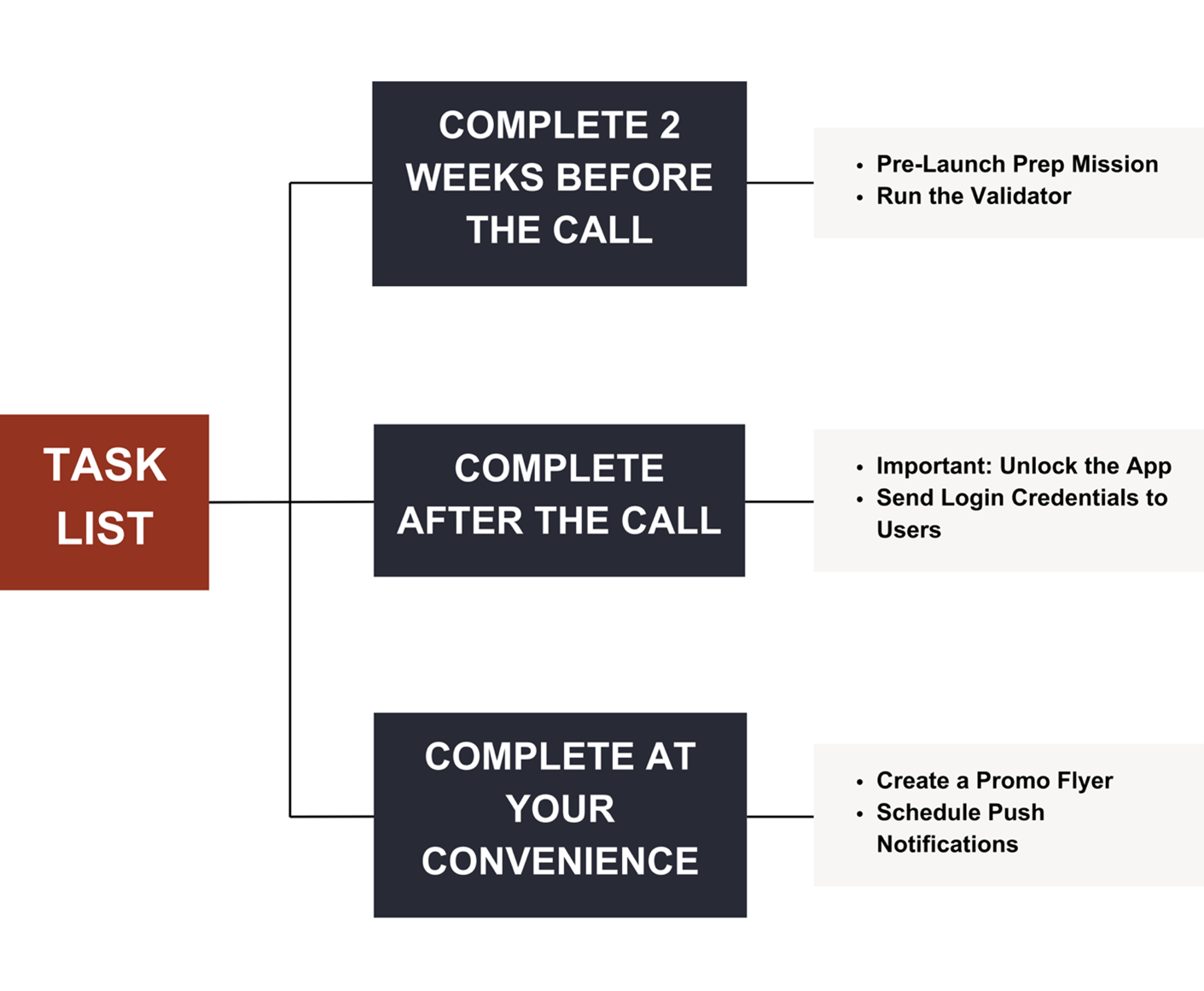
Our ability to assist you will be enhanced if you provide us with more information and details upfront.
Should you encounter any integration log-in issues or have an inquiry, contact the Integrations Team at integrationservices@gocadmium.com.
Please complete the following self-guided mission.
Mobile App Close Out: Submit feedback and a testimonial.
That’s Great!
Thank you for your feedback
Sorry! We couldn't be helpful
Thank you for your feedback
Feedback sent
We appreciate your effort and will try to fix the article