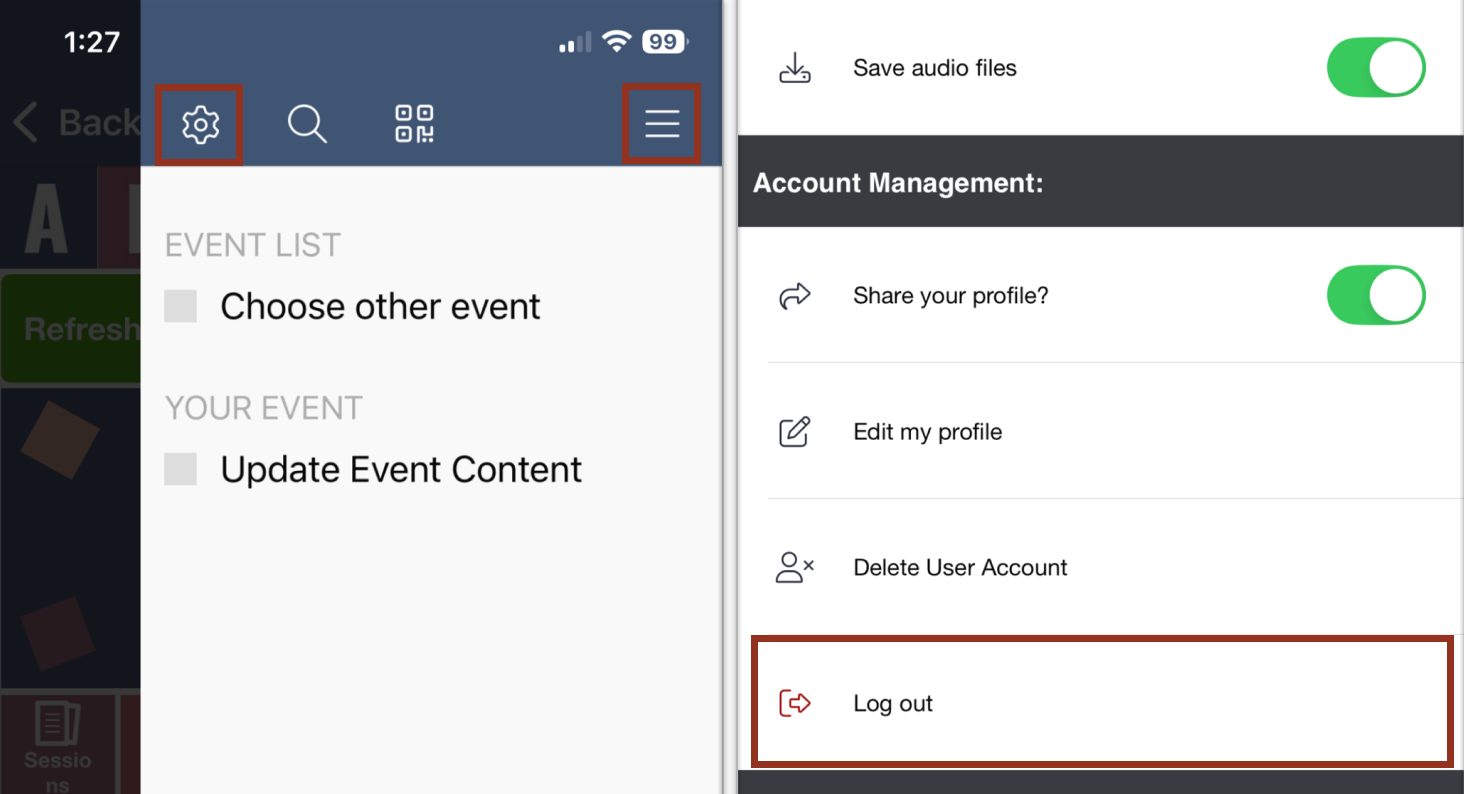
- From the main screen of the mobile app open the hamburger menu.
- Select the Gear icon.
- Select the Log out option.
An attendee’s mobile app automatically retrieves updated content at varying intervals.
IMPORTANT NOTE
Schedule content is automatically updated within an event window of an event which extends from 3 days prior to an event through 3 days following an event. Outside of the event timeframe, changed data is not automatically updated in the app unless a user refreshes the data.
If an attendee does not see the latest data changes, try the following steps:
Step 1: Refresh the App Data
- From the main screen of the mobile app:
- Open the hamburger menu (☰).
- Select Update Event Content.
- Allow the update to complete, then recheck the data (Fig. 1).
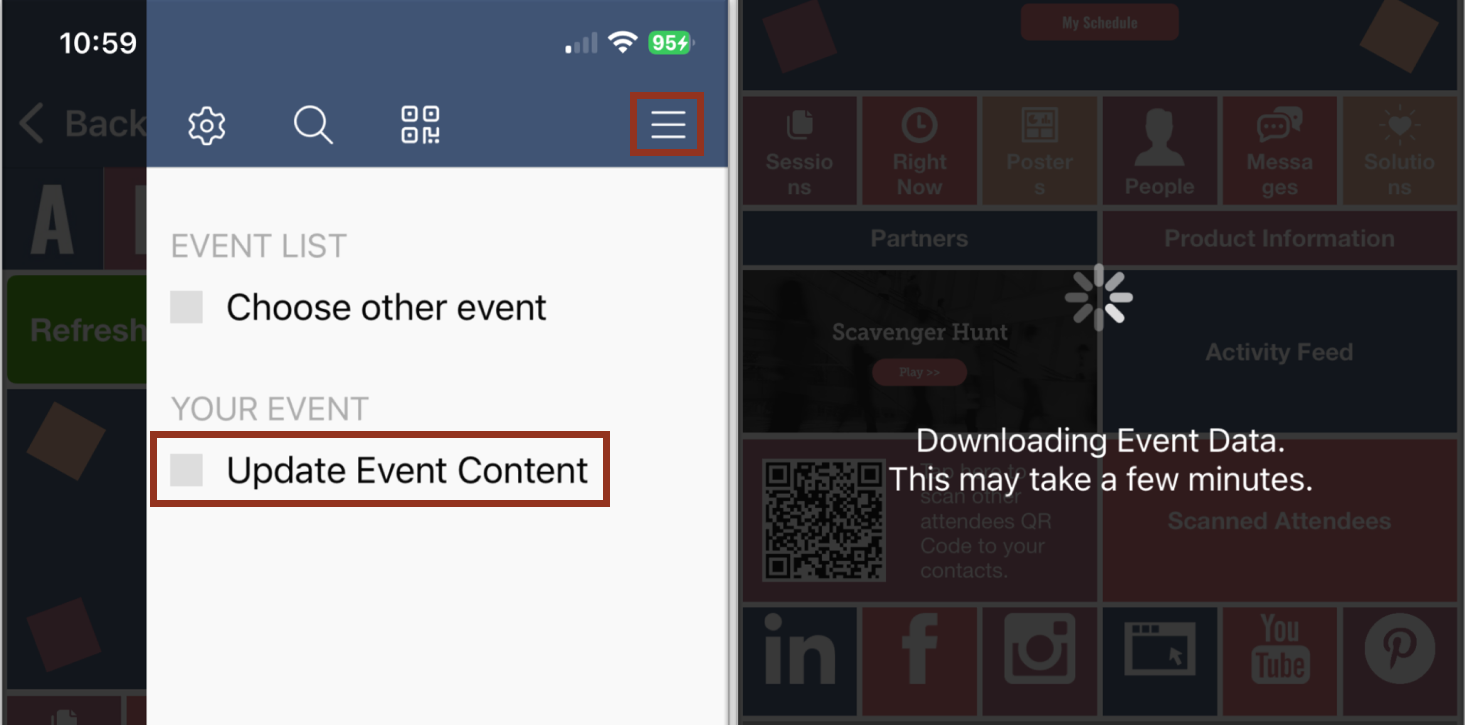
Fig. 1 - App Update Event Content Option.
Step 2: Force Quit the App
- Close out of the app and reopen it
Step 3: Log Out and Log Back In
Logging out and back in forces the app to request a fresh dataset.
Step 4: Confirm Network Connectivity
- Ensure the device is connected to a stable Wi-Fi network (Fig. 3).
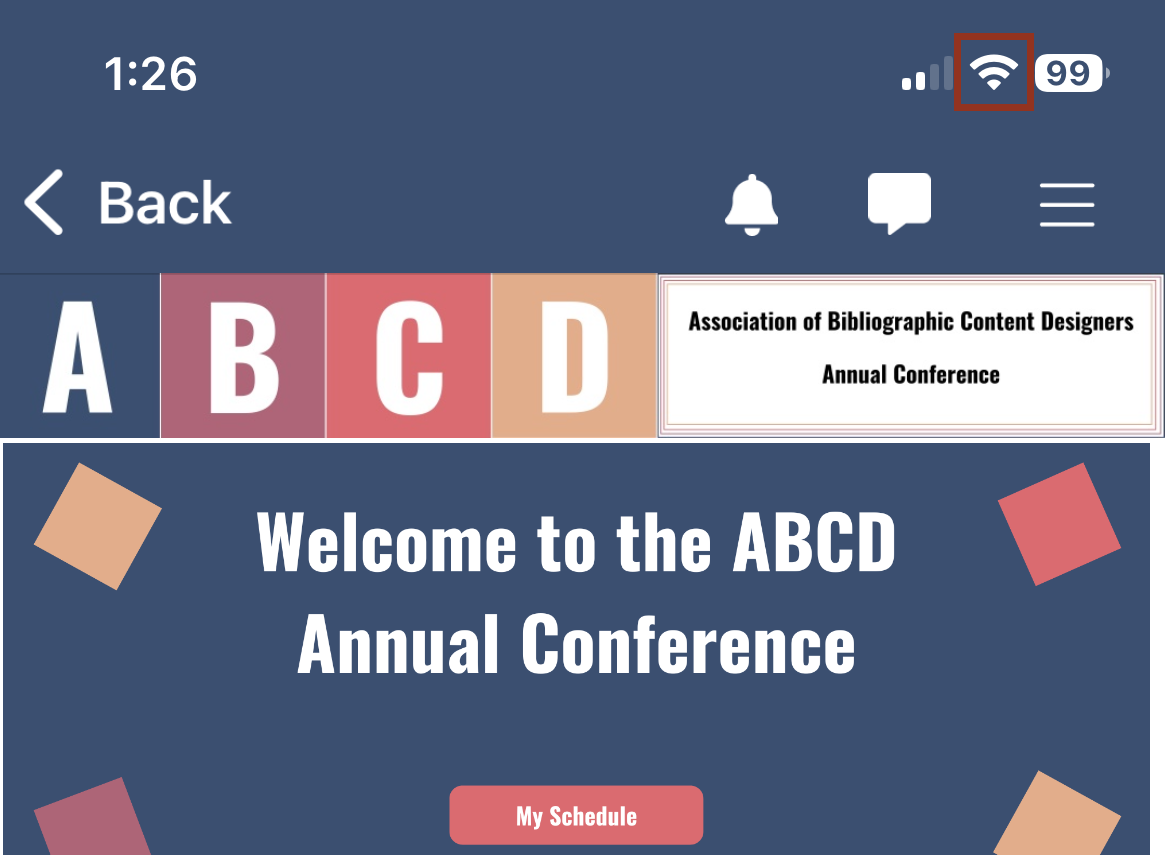
Fig. 3 - Device Wi-Fi Icon.
Step 5: Verify App Version
- Confirm the attendee is using the latest version of the mobile app.
Step 6: Verify Device Software
- Confirm the device is running the latest operating system version.
Step 7: Reinstall the App (Only if Necessary)
- If data still appears outdated, reinstalling the app can clear cached data that may be causing conflicts.
Last modified Sep 02, 2026
Was this article helpful?
That’s Great!
Thank you for your feedback
Sorry! We couldn't be helpful
Thank you for your feedback
Feedback sent
We appreciate your effort and will try to fix the article