- Templates let you save email content — subject line and body — for reuse across multiple campaigns. They're especially useful for recurring sends like registration confirmations, reminders, and post-event follow-ups.
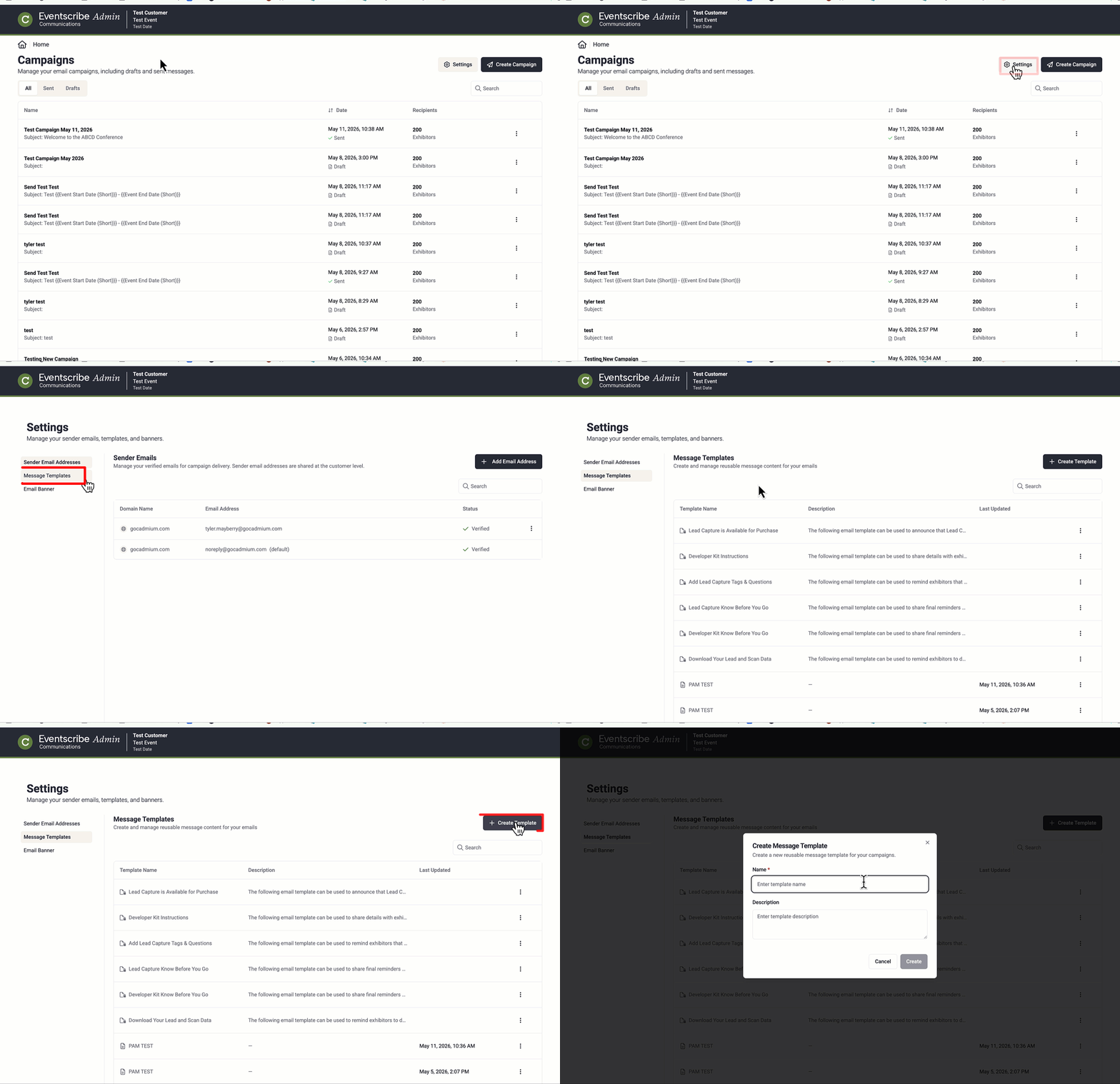
- To create a template, go to Settings > Templates and click Create Template. Enter a name and, optionally, a description.
- From the template list, each row has a three-dot action menu. For the templates you created, you can edit, duplicate, or delete. For system-managed templates (marked with a lock icon), duplication is the only available action.
- Templates are available across all of your events that are using Lead Capture.
Settings
The Settings page is accessible from the Home page by clicking the Settings button next to Create Campaign (Fig 1). It contains three sections, managed by a left-hand navigation panel.

Fig. 1 - The Settings Page
Message Templates
Sender Emails
- Sender emails are the verified "from" addresses your team can select when building a campaign (Fig 2). As an admin, you can add and remove these addresses.
- To add a sender email, go to Settings > Sender Emails and click ‘Add Email Address.’ Enter the email address you want to send from. Only previously submitted and verified email domains in Registration will be allowed.
- To remove a sender, click the delete icon next to any verified address. The default noreply@gocadmium.com address cannot be removed.
- Each email address has a verification status. A Verified status means the address is ready to be used in campaigns.
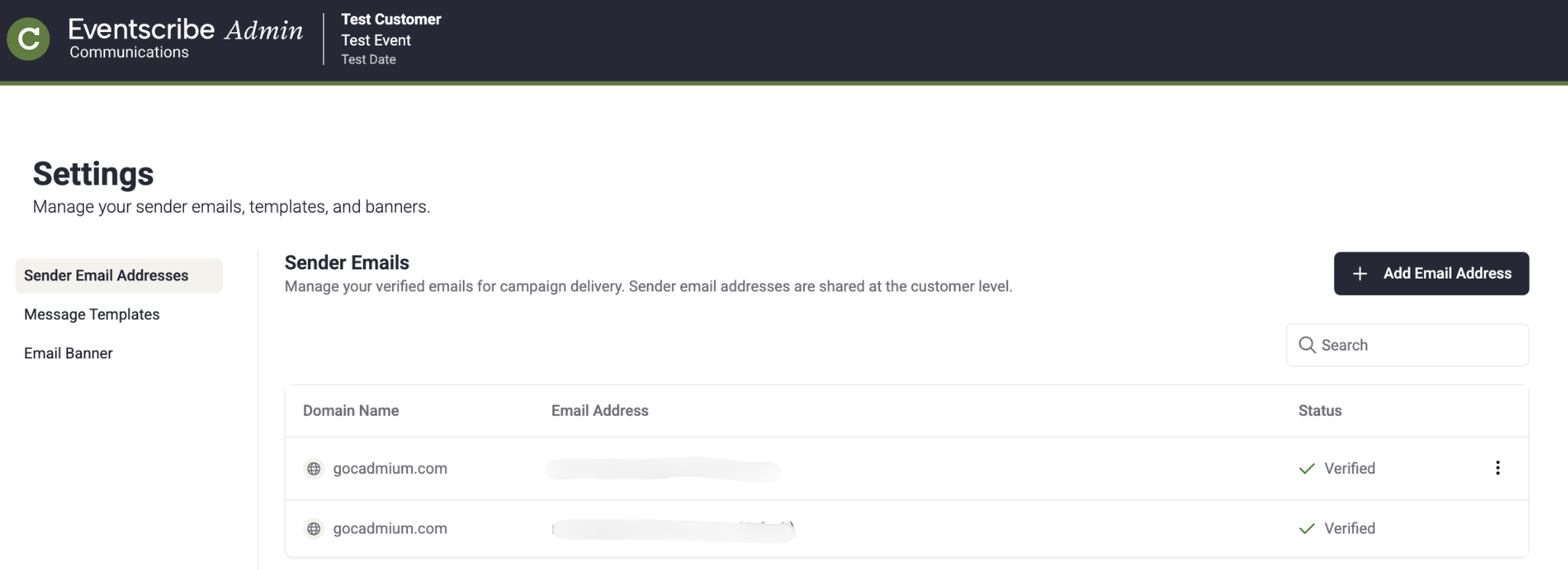
Fig. 2 - Sender Emails
m
Last modified Aug 17, 2026
Was this article helpful?
That’s Great!
Thank you for your feedback
Sorry! We couldn't be helpful
Thank you for your feedback
Feedback sent
We appreciate your effort and will try to fix the article