Eventscribe Release Notes
November 2026
PLEASE NOTE
This page will be updated throughout the month as new releases are deployed, so check back regularly for the latest updates and improvements.
This month's release may include product updates, new features, enhancements, essential bug fixes, and more.
New Feature
Lead Capture Mobile App 26.11.02 – Event Details Added to App Header
The app header showed only the screen title and user avatar. To check which event, booth, and company they were capturing leads for, users had to open License Details from the More screen. The header now shows the event name on the first line and the booth number and company on the second, on every main screen and sub-screen. When a name is too long to fit, swipe the header to see the full text. It returns to its starting position after 3 seconds. Page titles are also updated: the Leads screen shows your lead count next to the title, and detail screens such as Lead Details and Leads by Day include a back arrow. (November 3, 2026)
Education Harvester – Blank Credentials When Speakers Select 'Not Applicable'
Speakers without credentials no longer show "n/a" after their names on the event website and mobile app. Your speaker listings now look cleaner and more professional.
Education Harvester now recognizes entries like n/a, NA, and Not Applicable, and it leaves credentials blank. This works on both the Profile and Presenters tasks. When speakers return to the Profile task, the Not applicable box stays checked if credentials are required. Real credentials, like "MA, NA", stay exactly as entered. (November 5, 2026)
Expo Harvester – Filter Exhibitor Tasks by Booth Size
You can now assign tasks to exhibitors based on booth size. Previously, tasks couldn't tell an outdoor 10x10 booth apart from a regular 10x10 booth.
The task editor has a new Booth Size filter, just below Booth Opportunity. Pick one or more sizes, and choose a booth type to target outdoor booths alone. Each option shows how many booths it covers. The filter works alongside your other task filters and appears in the View Tasks Filter column. (November 5, 2026)
Education Harvester – Drag-and-Drop Task Reordering
Customers asked for a faster way to reorder tasks while setting up their events. Arranging tasks took significant setup time.
The admin task lists for Speaker, Poster, and Expo management now show a drag handle in the default "Focus: Task Status" view (Fig. 1). Dropping a task saves the new order right away. Dragging is not saved while search or the Hide and Status filters are hiding rows. (November 6, 2026)
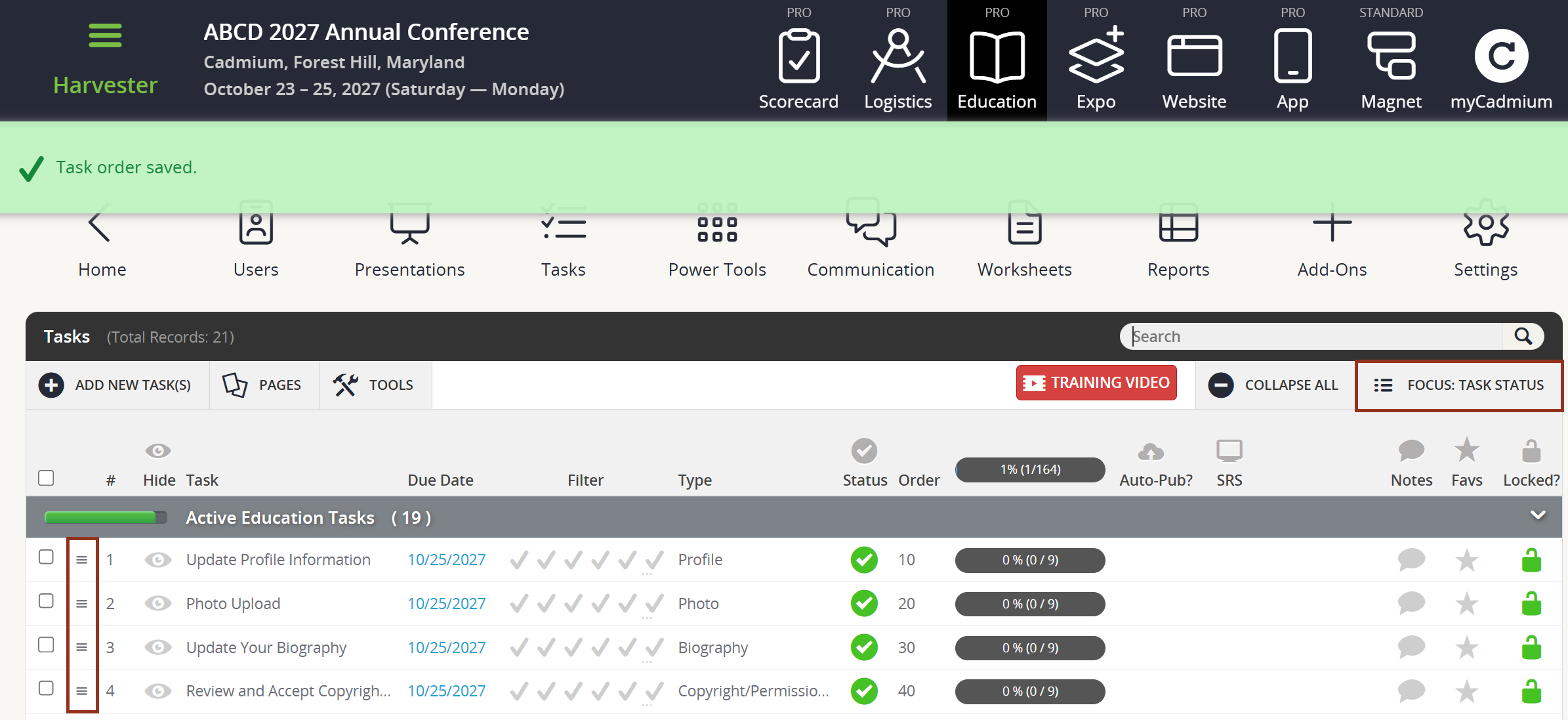
Fig. 1 - Harvester Task Page.
Expo Harvester – British Pound (GBP) Added as an Event Currency
Expo Harvester now supports British pounds (GBP) as an event currency, alongside US dollars, Canadian dollars, and euros. When an event is set to GBP, booth pricing, rate plans, discounts, sponsor items, and payment screens display the £ symbol, and card payments are sent to the payment processor in GBP. The event currency is set by Cadmium, and the event's merchant account must support GBP, so contact your Cadmium representative to enable it. (November 16, 2026)
Education Harvester – Hide Presentations for Omitted Speaker Roles on Task List Page
Previously, speakers saw every presentation they were attached to on their Task List page, even if an admin had used the Roles To Omit setting.
A new setting, Hide Presentations Where Speaker's Role Is Omitted?, lets admins hide those presentations from the speaker's Task List. You'll find it under Settings in the speaker panel's Presentation Visibility section. When it's on, a presentation is hidden only if every role the speaker holds on it is listed in Roles To Omit. The setting is off by default, so existing events won't change until you turn it on. (November 18, 2026)
Education Harvester – Radio Button Answer Type for Survey Tasks
Survey task questions could only present a fixed list of answers as a dropdown or as multiple choice. Clients wanted a radio button option so speakers could see every answer at a glance.
Radio Buttons is now an answer type in the Survey task editor. Speakers see each possible answer as a radio button, and their saved answer stays selected when they return to the task. The editor also checks that list-based questions have answers, and that Multiple Choice questions have the right number, before you save. (November 18, 2026)
Education Harvester Schedule Builder – Tag Individual Cells in Schedule Builder
You can now tag a single cell to accept only certain field values. Before, you could only tag entire rooms or time blocks. Generate respects these cell-level tags when it builds your schedule.
In At-a-Glance, a tagged cell shows its own tag and any room and block tags that still apply. On the Schedule, tagged cells show their tag in a thin grey strip. When you drag a session card, the cells that will accept it are outlined and the rest are dimmed. (November 18, 2026)
Education Harvester Schedule Builder – Share a Read-Only Schedule Link
A new Share button next to History turns on a link to a read-only version of your most recently saved schedule. Anyone with the link can view it. They don’t need a login.
Visitors can filter the schedule, apply colors, and open session details. They can’t make changes. (November 18, 2026)
Lead Capture Communications – Add Clickable Anchor Text to URL Merge Tags
You can now give URL merge tags that are URLs, like the Exhibitor Login URL, friendly anchor text in the Communications module. Recipients see clear, clickable text such as "Exhibitor Portal Login" instead of a long raw URL.
When you select a URL merge tag from the Merge Tags menu, an Anchor Text window opens so you can enter the link text before it's inserted. URL merge tags show a link icon, and you can click an inserted tag anytime to edit its anchor text. If you skip this step, a default label is used, so recipients never see the raw URL. (November 18, 2026)
Expo Harvester - Copy GL Codes From Another Event
Admins can now bring GL codes forward from another event instead of re-entering them each year. It works much like copying sponsor levels and sponsor items between events.
On the GL Codes page, choose Add from Other Event, pick one of your events, and select the codes you'd like to copy. Copied codes keep their type, text, and status, and a new Date Added filter view groups codes by the day they were added so they're easy to find. (November 20, 2026)
Improvement
Education Harvester – Filters Added to Permissions Task Report
The Permissions Task Report could only be downloaded in bulk, as one PDF with every signed agreement for the event. Finding a single agreement meant digging through the whole file.
You can now filter the Permissions Task Report by individual user, role, or build code. Pull one speaker's signed agreement in seconds, even for large events. (November 2, 2026)
Education Harvester – New Communications Module Hotkey - Incomplete Tasks with Due Date
Administrators could list a speaker's incomplete tasks in emails, but the list showed no due dates. There was also no way to list only the tasks a speaker was late on.
We added a new hotkeys to the Communication module's email editor that lists incomplete tasks with due dates next to the task. Due dates follow each speaker's own date, course-specific dates, or the overall task due date, matching what speakers see on their homepage. (November 2, 2026)
Education Harvester – Past Due Task List Hotkey
Administrators could list a speaker's incomplete tasks in emails, but they could not only highlight past due tasks.
We added a new hotkey to the Communication module's email editor that lists incomplete past-due tasks only (@@@@PASTDUETASKLIST@@@@). The hotkey will list the incomplete task and the due date. (November 2, 2026)
Education Harvester – Reviewer Recusals Shown and Emailed to Admins
Administrators could not tell at a glance whether a reviewer's reviews were incomplete or recused. They also had no timely way to learn about a recusal and reassign the review.
The Reviewer list now includes a Recusals column with a filter and a warning icon showing each reviewer's recused review count. The Reviewer - Uploads task also has a new Recusal Notification Email(s) field. When a reviewer recuses, those addresses receive an email naming the reviewer, presentation, and task. (November 2, 2026)
Lead Capture Mobile App 26.11.02 – Minimum Device Requirements Updated
Devices running an operating system below the published minimum could still install the app and activate a license, but the intended app functionality was not fully supported. Lead Capture now requires Android 13 or later, or iOS 15.0 or later, and devices running an earlier operating system can’t install version 26.11.02 or later. For steps to check a device’s operating system version, see Lead Capture Mobile App Device Requirements. (November 3, 2026)
Eventscribe Live App – Retired (iOS & Android)
The Eventscribe Live app for iOS has been retired and removed from the App Store. Livestreams and on-demand video continue to play on the Eventscribe Website and in the Eventscribe App. Scavenger Hunt in the Eventscribe App is not affected. (November 4, 2026)
Cadmium Identity – Email Confirmation When Your Password Changes
When a password is changed, Cadmium Identity now sends a confirmation email to the account's email address. If the user didn't make the change, the email directs them to reset their password and contact support. (November 4, 2026)
Eventscribe – Admin Updates: Clients Can Now Manage the Session Profile Settings in the Mobile App Module
The Session Profile tab in the Mobile App module (App Settings > Presentations) is now available to all client admins. Admins can now choose whether the session profile page shows the session location, type, and track, and whether it lists M build code presentations. They can also place the list of people above or below the session abstract and set the background and text colors of the session type bar. Existing settings are unchanged, and no app update is required.. (November 13, 2026)
Education Harvester – Custom Worksheet Prefixes Cleared When Saving a Profile
When a worksheet had a prefix that wasn't in the standard Prefix drop-down saving that speaker's profile wiped the prefix from the worksheet. This affected any event that uses prefixes outside the standard list.
Custom prefixes now stay in place when you save a speaker's profile. If a speaker already has a prefix outside the standard list, it shows as the selected option in the Prefix drop-down, so it's kept on save. This applies to the admin speaker profile pop-up, the speaker Profile task, and the presenter edit page. (November 18, 2026)
Education Harvester Schedule Builder – Custom Field Labels Carry Over on Import
Imported custom fields now show the labels you set up, instead of generic names like "Custom pres field 2." That makes fields easier to recognize at a glance across Schedule Builder.
To see the new labels, re-import your data. Fields imported before this release keep their generic names until you re-import. (November 18, 2026)
Eventscribe Products – Report Sharing Has Changed to Better Protect Your Data
What changed
As of November 17, 2026, we've made two changes to how reports are shared in the Eventscribe products:
- We removed the Share button. It no longer appears when you view a report.
- Report links now require a login. Links you shared before this change still work, but anyone who opens one has to sign in first. Only people with access to your event’s reports can see the data.
Why we made this change
Your reports hold some of your most sensitive information: names, email addresses, and contact details for speakers, exhibitors, and attendees. Before this change, anyone with a shared report link could open it, even if it had been forwarded or posted somewhere you didn’t intend.
Requiring a login keeps that data in the right hands.
How to share reports now
- Give colleagues their own access. Add them as users on your event so they can sign in and view reports directly.
- Export when you need to send data outside the system. Download the report as Excel or CSV, then share the file through your organization’s approved channels.
If someone can't open a report link
They'll be asked to sign in. If they don’t have a login, add them as a user on your event, or export the report and send them the file. November 19, 2026)
Fix
Education Harvester – Air Travel Task Admin Emails Now Send
When an email was entered in the Auto-Email Administrator(s) setting on the Air Travel Flights task, no confirmation email arrived. Other task types worked, so the only workaround was turning on emails for every completed task.
We corrected the Air Travel Flights, Air Travel, and Photo tasks so they now send the administrator email when a speaker completes the task. Administrators can again be notified only for the tasks they choose. (November 2, 2026)
Education Harvester – Message to Reviewers Box Now Opens on Every Presentation
Speakers with more than one presentation to upload for review could only add a message on the first one. On any additional presentation, the "Send a Message to the Reviewers" box wouldn't open.
The message box now opens for every presentation a speaker uploads for review. Speakers can send a note to reviewers on each one, not just the first. (Nov. 3, 2026)
Lead Capture Mobile App 26.11.02 – App No Longer Stuck Syncing When Switching Licenses
If a user selected a license whose booth had been unassigned or deleted and then selected a different, valid license, leads scanned afterward failed to sync. The app then stuck on the "Syncing your data to the cloud" screen, and the user couldn't log out or switch licenses. We corrected how the Select License screen saves the selected license, so leads now sync to the correct event. When the event, company, or booth tied to a license has changed, the screen shows a "License No Longer Valid" message with the license ID, which you can copy and share with support. (November 3, 2026)
Cadmium Identity – Account Now Locks After Six Incorrect Password Attempts
Cadmium Identity allowed seven incorrect password attempts before locking an account, one more than the intended limit of six. The account now locks on the sixth incorrect password attempt instead of the seventh. The lockout itself works the same as before. (November 4, 2026)
Education Harvester – 16:9 PowerPoints No Longer Rejected on Upload
Speakers uploading a correctly sized 16:9 PowerPoint to a task requiring that aspect ratio saw an error. The message said the presentation didn't meet the required ratio, even though it did. Uploads now go through when the aspect ratio can't be read from a file, and the upload history notes that it couldn't be checked. Files that are clearly the wrong ratio, like 4:3 decks on a 16:9 task, are still rejected. (November 10, 2026)
Was this article helpful?
That’s Great!
Thank you for your feedback
Sorry! We couldn't be helpful
Thank you for your feedback
Feedback sent
We appreciate your effort and will try to fix the article