- Launch the Expo Harvester module. Hover over Expo Data and select Sponsors from the dropdown menu.
This article outlines how to add new sponsor items, and how to add sponsor items from a previous event to your current event.

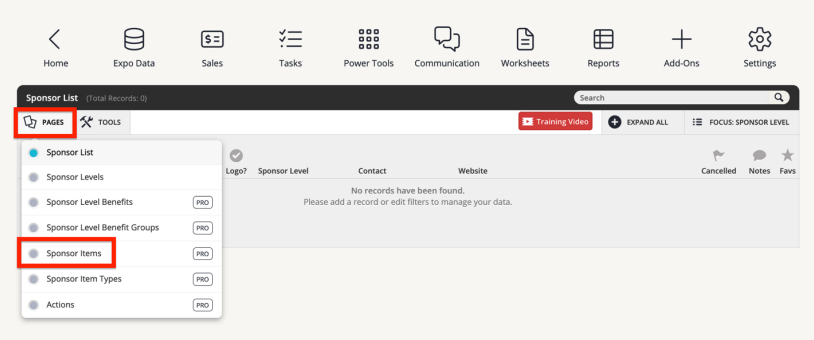
- On the Sponsors page, click PAGES in the upper left and then select Sponsor Items.
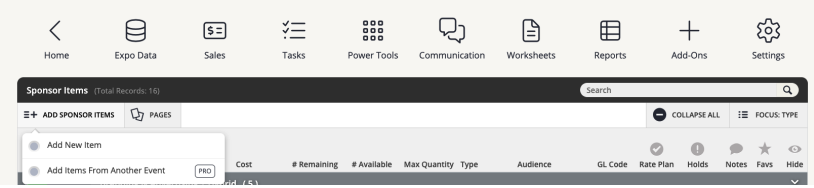
- Click the ADD SPONSOR ITEMS option in the upper left corner, and then click ‘Add New Item’. Or, to copy sponsor items from a previous event, click ‘Add Items From Another Event’ and follow the subsequent prompts.
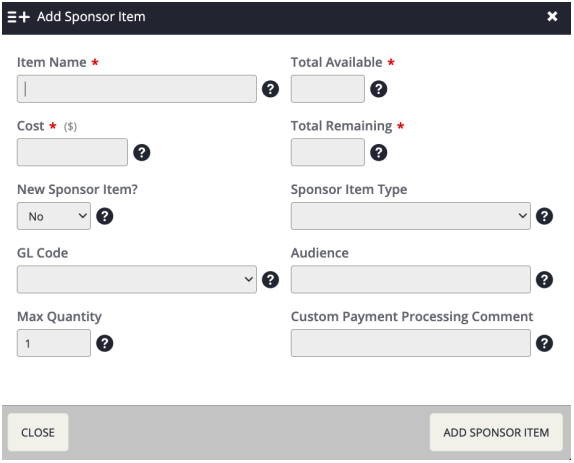
- If you selected ‘Add New Item’, fill out the required fields and click Add Sponsor Item.
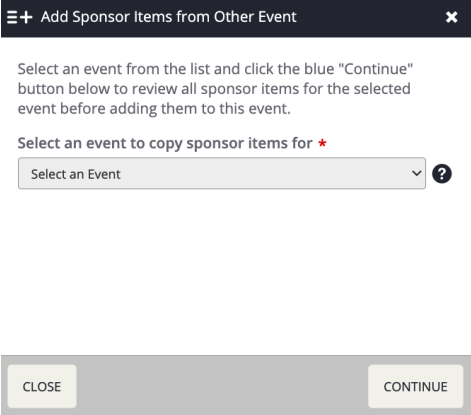
- If you selected ‘Add Items From Another Event’, select the event and click Continue.
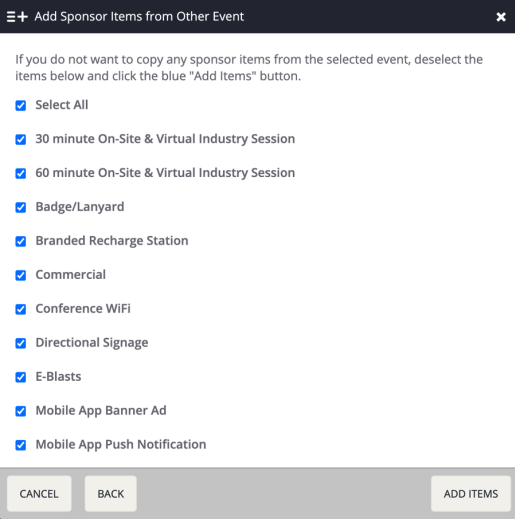
- A list of sponsor items from the selected event will appear, and all items will be checked by default. Uncheck any sponsor items you do not need to copy over, then click the Add Items button. You’ll be able to edit them in the list of Sponsor Items later.
Last modified Jul 16, 2026
Was this article helpful?
That’s Great!
Thank you for your feedback
Sorry! We couldn't be helpful
Thank you for your feedback
Feedback sent
We appreciate your effort and will try to fix the article