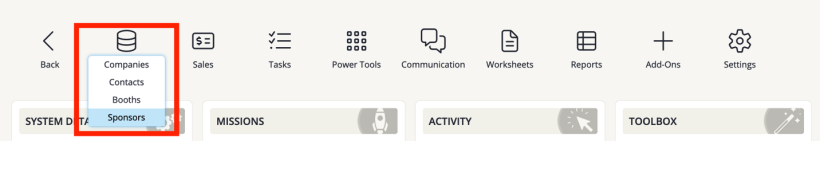
- In the main navigation, hover over Expo Data then click Sponsors from the dropdown.
This article outlines how to add sponsor levels or copy sponsor levels over from a previous event in the Expo Harvester.
1. Launch the Expo Harvester module for your event.
2. Navigate to Sponsor Levels
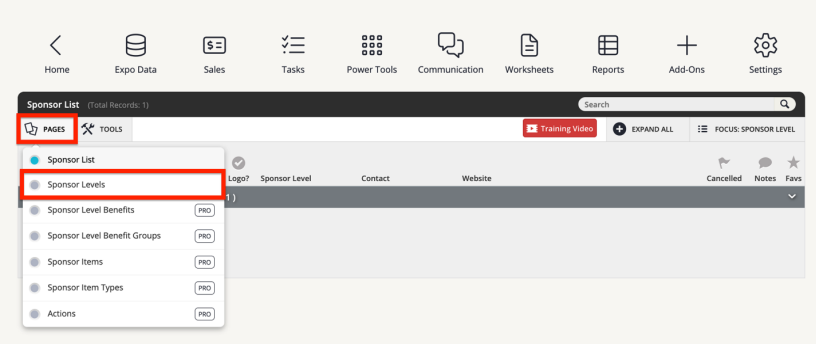
- Click on the PAGES tab option in the upper left corner of the Sponsors page, then click on Sponsor Levels.
3. Add New Sponsorship
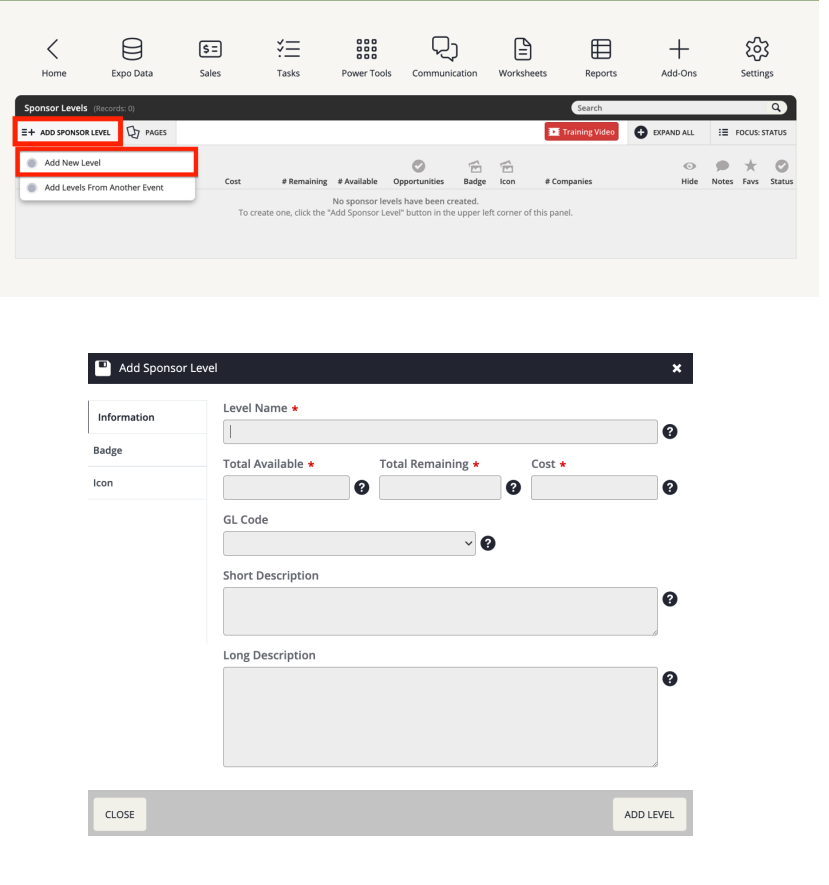
- To add a new sponsorship level, click the ADD SPONSOR LEVEL button, then select "Add New Level" from the drop-down menu. A popup will appear. Fill out the required fields, which are denoted with a red asterisk (Level Name, Total Available, Total Remaining and Cost). You can also add any corresponding badges or icons by clicking on the tabs on the left. When you’re done, click the ADD LEVEL button.
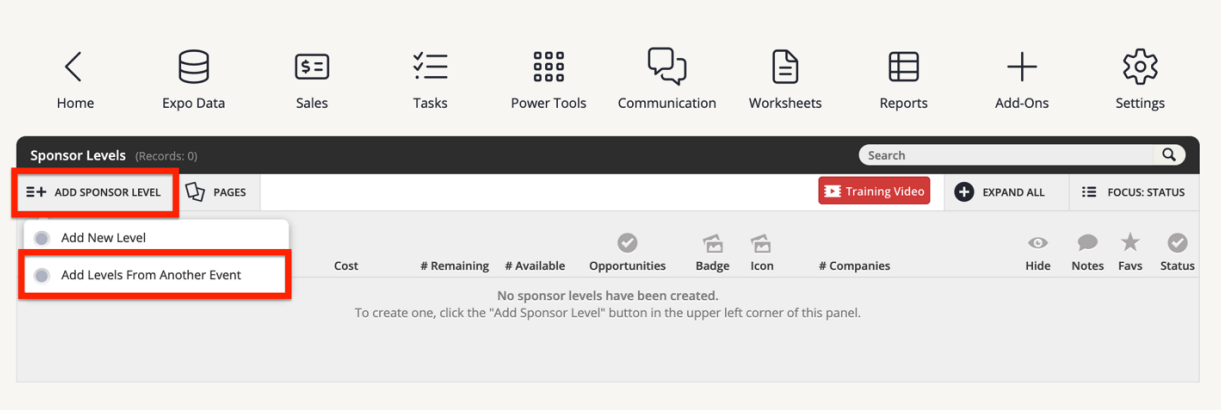
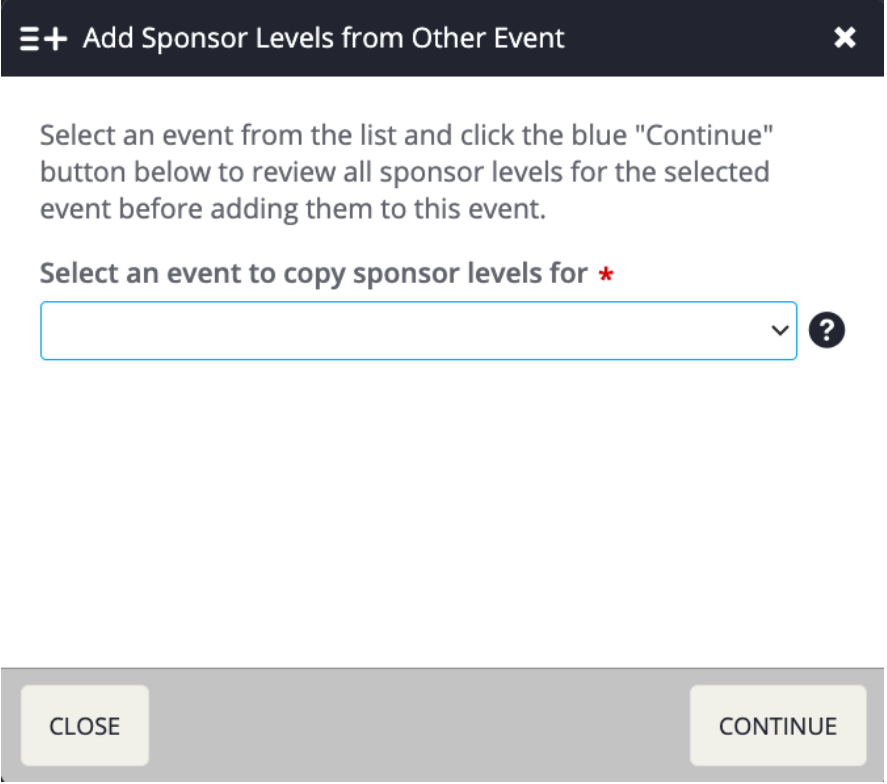
- To add a sponsorship level from a previous event, click the ADD SPONSOR LEVEL button then select "Add Levels from Another Event" from the drop-down menu.
- A popup will appear. Select the event you want to copy the levels from and click Continue.
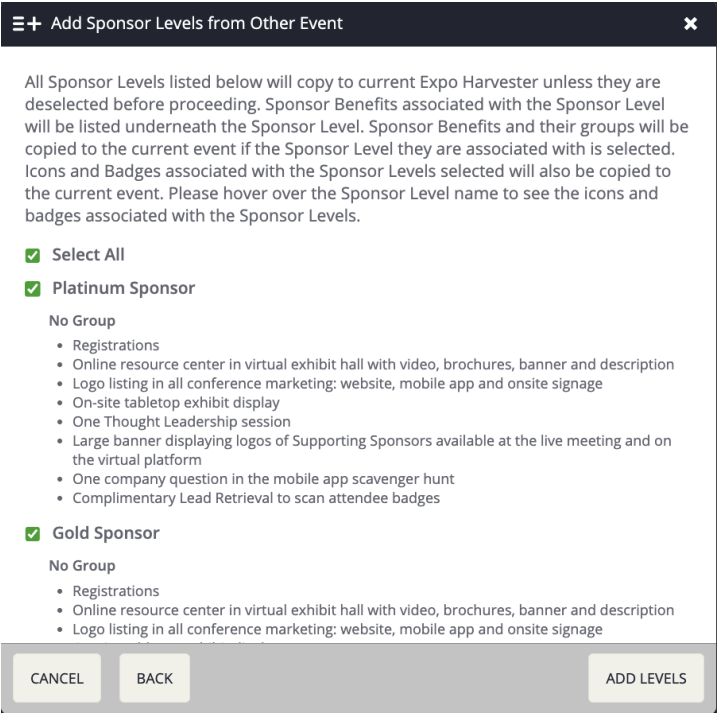
- Checkbox select the levels you want to copy over, or leave all checked to copy all. Click the ADD LEVELS button.
Last modified Jun 12, 2026
Was this article helpful?
That’s Great!
Thank you for your feedback
Sorry! We couldn't be helpful
Thank you for your feedback
Feedback sent
We appreciate your effort and will try to fix the article