You can save a campaign at any point without sending it. Drafts let you pause your work and return to it later.
How to save a draft
- Click the 'Save and Exit’ button in the top-right corner of the campaign editor at any time (Fig 1).
- You do not need to complete all 4 steps before saving.
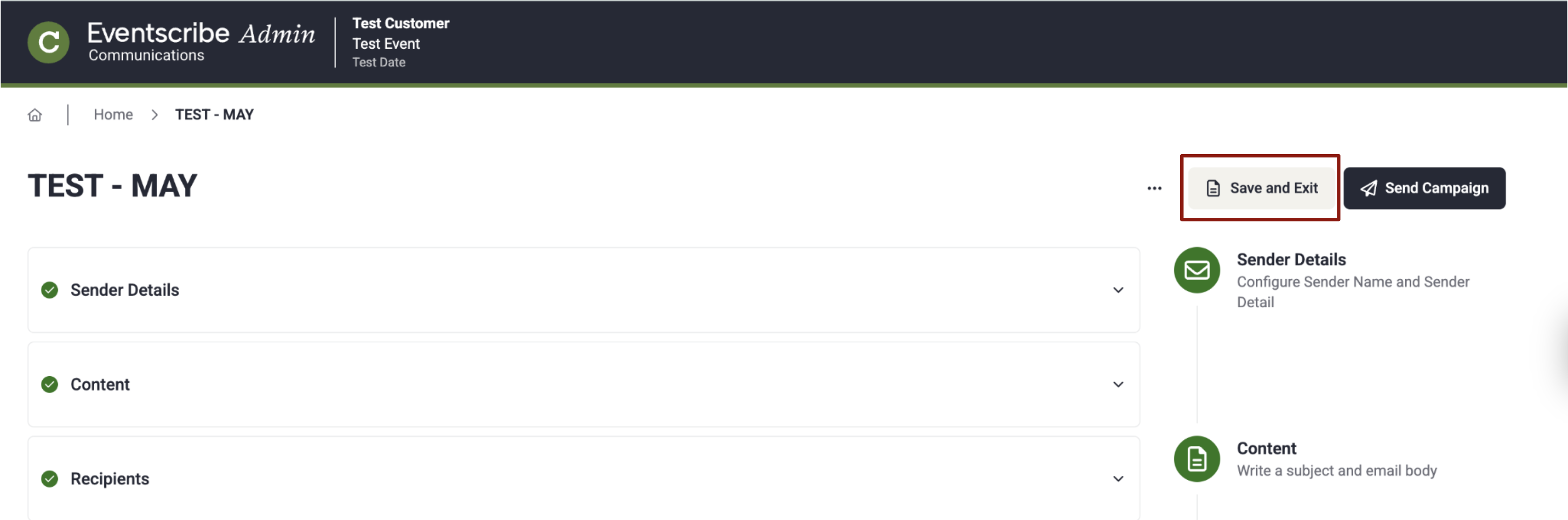
Fig. 1 - Save and Exit Campaign
Accessing your drafts
Saved drafts are stored and can be found in the campaign list on the Home page.
- Click the Draft tab above the campaign list to filter drafts only.
- Open a draft to continue editing from where you left off by selecting ‘edit’ in the action menu.
Drafts remain editable until you send them. You can return to any step of the campaign editor to make changes, then either send the campaign or save it as a draft again.
IMPORTANT NOTE
While editing your campaign, auto-save is happening at all times in the background. You'll see a small green checkbox next to the campaign title to indicare auto-save success.
Last modified Aug 17, 2026
Was this article helpful?
That’s Great!
Thank you for your feedback
Sorry! We couldn't be helpful
Thank you for your feedback
Feedback sent
We appreciate your effort and will try to fix the article